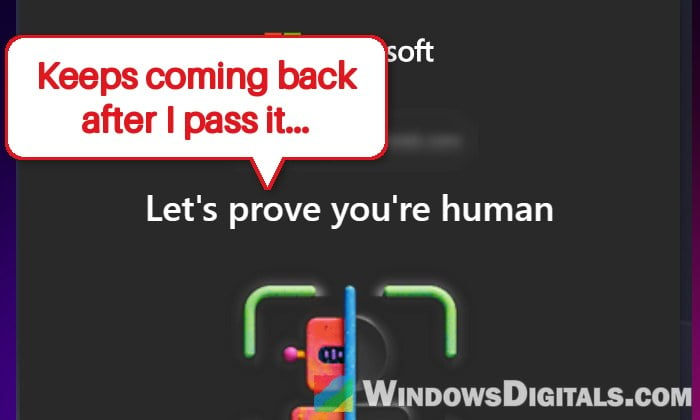
If you’re setting up a new PC or reinstalling Windows 11 and the Microsoft account step keeps showing the “Let’s prove you’re human” check, where you press and hold the button, see a tick, and then get “Please try again” or the same check all over again, it’s a pretty common problem on places like Reddit and Microsoft’s forums right now. This guide will explain why the check keeps looping and how to get past it so setup can finish.
Also see: “Password Sign-In Isn’t Available. Try Another Method” on Microsoft Account
Page Contents
Why does the “prove you’re human” check keep coming back?
The press-and-hold check isn’t really part of Windows. It comes from Microsoft’s account service, which uses it to stop bots from creating or signing in to accounts. Windows setup just shows that same web page during the Microsoft account step, which is why you’d never see it if you were setting up a local account.
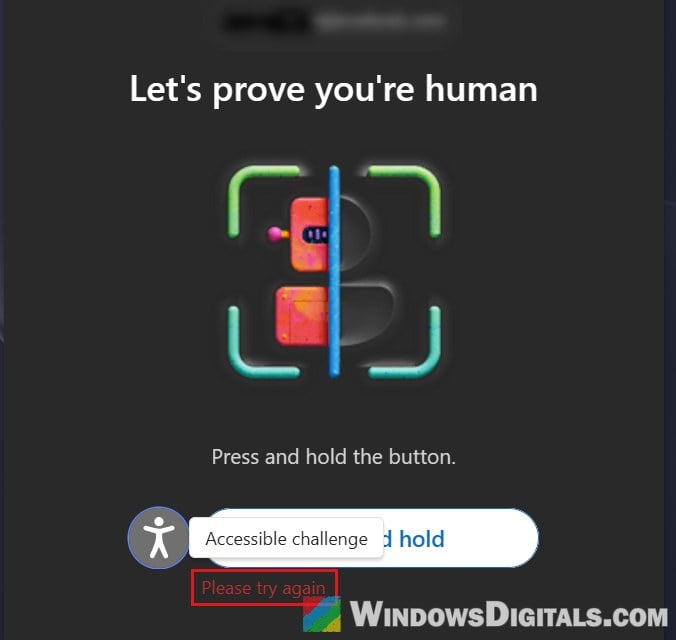
When the service doesn’t like something about the attempt, the check fails or simply starts over. Some common reasons are:
- Your connection looks unusual to Microsoft, for example a VPN or proxy, or an internet address shared by many people.
- Too many attempts in a row. Pressing the button again and again can keep the check going instead of letting it through.
- The account itself is blocked for unusual activity, so the check keeps showing until the block is lifted.
The good news is that you don’t have to win against the puzzle on the new PC. The way through is often to get the account sorted out somewhere else first.
Create or sign in to your Microsoft account on another device first
The fix that got people past this in setup is to stop fighting the check there. Instead, create the account (or sign in to it) on your phone or another computer, and then simply sign in with that existing account on the new PC.
Here’s what you should do:
- On your phone or another computer, open a browser and go to
https://account.microsoft.com. Make sure you type this exact address, as a similar-looking one won’t take you to the right page.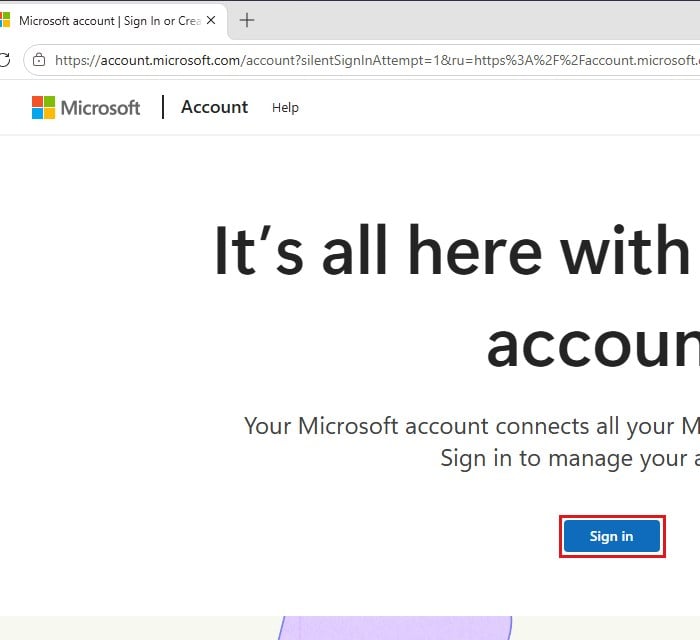
- If you don’t have an account yet, create one there. If you already have one, sign in to it to make sure it works normally.
- If the same press-and-hold check fails in the browser too, turn off any ad blocker or privacy extension for that page, or try a private window or another browser, then try again.
- Go back to the new PC and, at the Microsoft account step in setup, sign in with that account instead of creating a new one.
If the check still loops when you sign in with an existing account, try the next fixes below.
Linked issue: “We Couldn’t Find an Account With That Username” but Email Is Already in Use
Switch to your phone’s hotspot or another network
Since the check also looks at where the attempt comes from, changing the network can be enough. Microsoft suggests trying a mobile hotspot instead of your home Wi-Fi when the check keeps failing, and for several people, switching from Wi-Fi to mobile data is exactly what made it go through.
Here’s what you can try:
- Turn on the hotspot on your phone, then connect the new PC to it on setup’s network screen (or unplug the network cable and pick the hotspot’s Wi-Fi). Another Windows PC on a different connection can share a hotspot too.
- If you use a VPN or proxy on your router or on the device you’re creating the account on, turn it off for now. You can turn it back on after setup is done.
- If you’re creating the account on your phone, try it on mobile data with Wi-Fi turned off.
Then retry the sign-in in setup and see if the check lets you through this time.
Pro tip: How to Create Hotspot in Windows 11
Stop retrying, restart the PC and try again later
It’s tempting to keep pressing the button, but rapid retries can actually make things worse. Each failed attempt can keep the check looping, and if the account gets flagged, the block can last longer.
Here’s what you should do:
- Stop pressing the button. If you try again later, hold it a bit longer than usual and wait a moment after the tick shows up instead of clicking anything else.
- Turn the PC off completely, wait about 30 seconds, and turn it back on. Then go through setup again up to the Microsoft account step.
- If the check still loops, leave it for a few hours, or even until the next day. Sometimes the block clears by itself within 24 hours, and it has also simply started working again after a couple of days.
Check whether your Microsoft account is blocked
If the check loops everywhere, on the new PC and in every browser on every device, the problem may be the account rather than the PC. Microsoft can temporarily block an account for unusual activity, and while it’s blocked, the press-and-hold check just keeps coming back.
To find out what’s going on, use another device:
- Go to
https://aka.ms/sign-in-helper. It opens Microsoft’s contact page; scroll down to Microsoft Account Sign-in Helper, choose how you normally sign in (With an email address or the mobile number option), and enter it. The sign-in helper checks the account and tells you what’s blocking the sign-in and what to do next.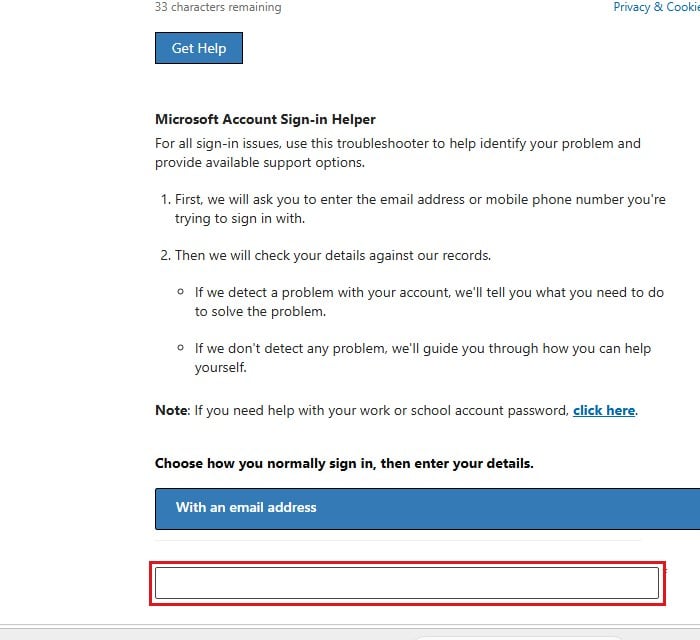
- If the sign-in page shows a lock or an aka.ms link, the account is blocked. Follow that link to send the reinstatement form, and a Microsoft agent will reply by email. Send it only once.
- If you can’t get into the account at all, use the account recovery form at
https://account.live.com/acsr. Microsoft usually replies within 24 hours, and you can send it up to twice a day.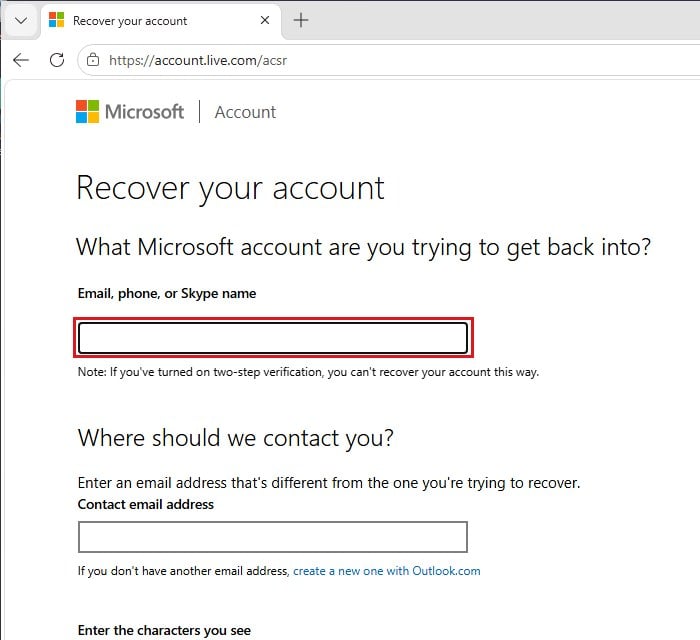
Please note that Microsoft support can’t lift the block by hand on a personal account, so the form (or waiting) is really the only way through in this case. Once the account works again, go back to setup and sign in.
Can you just skip the Microsoft account instead?
On current Windows 11 versions, not easily. Microsoft has closed the tricks that used to let you create a local account during setup, including the “Learn more” link and the oobe\bypassnro command, so getting your Microsoft account past the check is usually the quickest way through.
The main route still left is to make the Windows 11 install USB with Rufus, which can set up a local account for you, and then reinstall from it. That means starting the installation over, so it’s only worth it if you really don’t want to sign in with a Microsoft account at all.
Related guide: How to Burn Windows 11 ISO to USB