If you’ve just started Phantom Blade Zero on PC and the game closes right after the logo with no error message, or it crashes or freezes the whole PC mid-game or during a cutscene, you’re far from the only one. This guide will show you the fixes that have helped players so far, starting with the studio’s own driver advice.
Also see: nvlddmkm Event ID 153 After NVIDIA Driver 621.01, What to do?
Page Contents
Why does Phantom Blade Zero keep crashing?
Phantom Blade Zero came out on October 29, 2026, and its PC version has been crashing for a lot of people since day one. S-GAME has said it’s actively looking into the crash issues, but until a patch fixes them, the crashes seem to come down to one of these:
- NVIDIA’s 621.01 driver: the studio itself found that this driver is unstable with the game in certain situations, even though NVIDIA released it as the Game Ready driver for it.
- Virtualization-based security (VBS) in Windows: when the game closes right after the logo, players on Steam suspect a clash between its anti-tamper protection and the hypervisor Windows runs for VBS and Memory integrity.
- Ray tracing, path tracing and frame generation: players tie many of the mid-game freezes and crashes to these, especially on AMD cards like the RX 9070 XT.
- An unstable Intel 13th or 14th Gen CPU: shader compilation loads the processor heavily, which can restart the whole PC.
Let Steam finish the day-one update first
Before anything else, check the game’s day-one update. The update (about 5 GB) improves ray tracing and path tracing performance and fixes a number of bugs, so make sure Steam has finished downloading it, then restart Steam and try again. If the download was interrupted, also run Steam’s “Verify integrity of game files” from the game’s “Properties“, so Steam replaces anything that’s missing or damaged.
NVIDIA users: go back to driver 617.42
If you have an NVIDIA graphics card, this is the first thing to do. Shortly before launch, the game’s director said the studio found that driver 621.01 behaves unstably in certain situations, and that driver 617.42 gives the best compatibility with Phantom Blade Zero right now. NVIDIA’s 621.12 hotfix doesn’t change that: it fixes a different problem (video freezes and black screens on some RTX 50 cards), and the studio repeated its advice after the hotfix came out.
Here’s how to get back to 617.42:
- Open NVIDIA’s driver page at
https://www.nvidia.com/en-us/drivers/and use the manual driver search to find 617.42 for your graphics card.
- Download and run the installer.
- Choose “Custom (Advanced)“.
- Tick “Perform a clean installation” and continue. This wipes your current driver and its settings before installing the older one.
- Restart your PC when the installation finishes.
The first launch after this takes longer, since the game compiles its shaders again. Stay on 617.42 until NVIDIA releases its next driver.
Related problem: LiveKernelEvent 141 or VIDEO_TDR_FAILURE Crashes on NVIDIA GPU
Crashes right after the logo? Turn off virtualization-based security
If the game closes as soon as the logo or splash screen appears, with no error at all, it may be a clash between the game’s anti-tamper protection and virtualization-based security (VBS). VBS uses the Windows hypervisor to run some security features, such as “Memory integrity“, in an isolated part of memory. Several players on Steam got the game to launch by turning VBS off. It doesn’t work for everyone, though, so if the game still crashes, turn these settings back on (see below).
Please be warned that Memory integrity helps stop malicious drivers from taking over your PC. Microsoft itself says turning it off can help games, but recommends turning it back on when you’re done. While the hypervisor is off, apps that need virtualization, like WSL or Hyper-V virtual machines, won’t run either.
First, turn off Memory integrity:
- Open the Start menu, search for “Windows Security” and open it.
- Go to “Device security” and click “Core isolation details“.
- Switch “Memory integrity” to “Off“, and click “Yes” if Windows asks for permission.
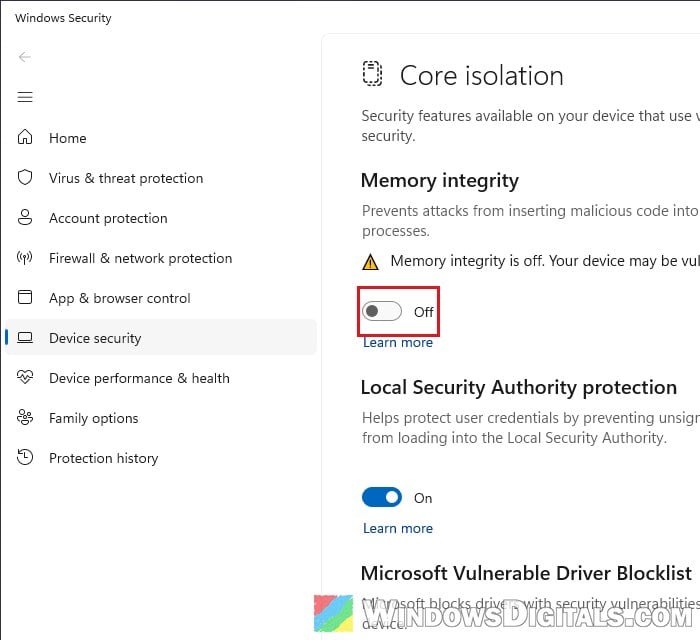
- Restart your PC and try the game.
If it still crashes after the logo, switch the hypervisor off too:
- Search for “cmd” in the Start menu, right-click “Command Prompt” and select “Run as administrator“.
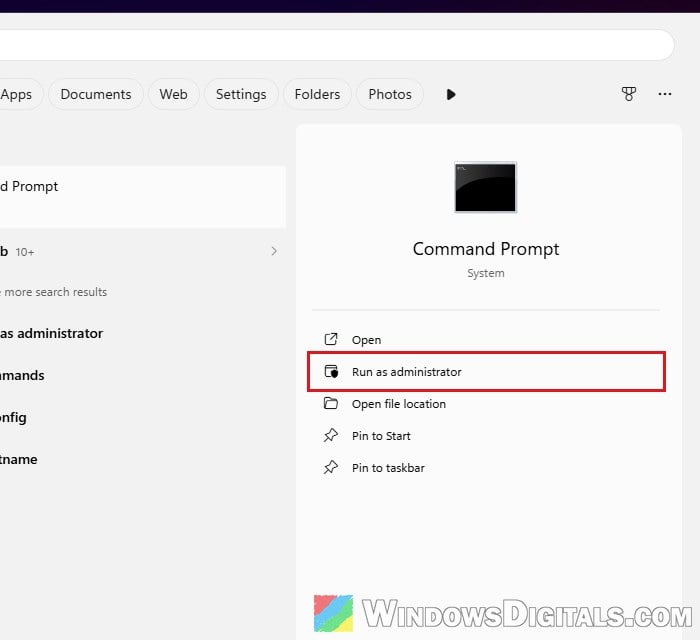
- Type the following commands one by one, and press Enter after each:
bcdedit /set hypervisorlaunchtype off
bcdedit /set vsmlaunchtype off
Each one should reply with “The operation completed successfully.”
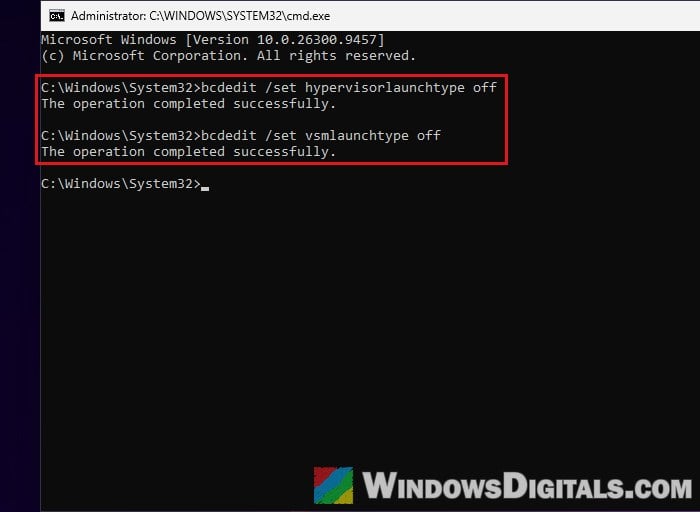
- Restart your PC.
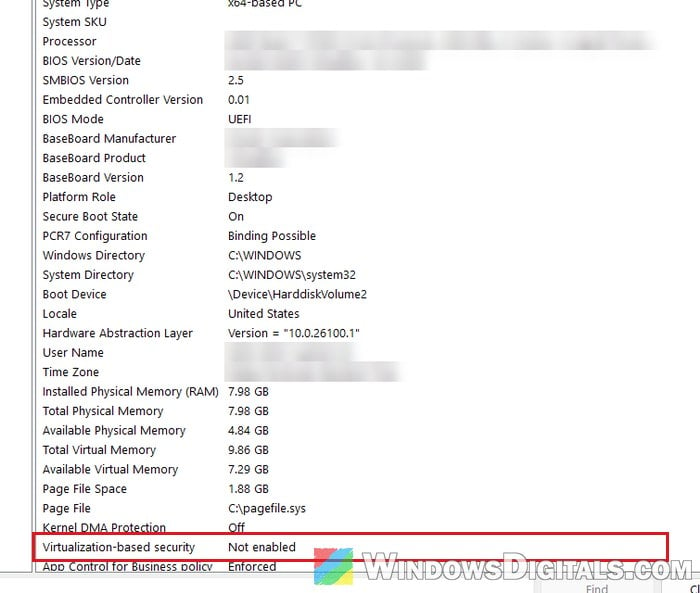
To make sure VBS is really off, press Win + R, type msinfo32 and press Enter. In “System Summary“, the “Virtualization-based security” line should say “Not enabled“. If it doesn’t, your PC may keep VBS on through a firmware lock, and these commands alone won’t turn it off. If it does, launch the game again.
How to turn it back on
Once a game patch fixes the crash, or if this didn’t help, undo the change. Run Command Prompt as administrator again and enter these two commands, one at a time:
bcdedit /set hypervisorlaunchtype auto
bcdedit /set vsmlaunchtype auto
Then switch “Memory integrity” back on in Windows Security and restart your PC.
Related concern: Memory Integrity Can’t Be Turned On (Windows 11)
Freezes or crashes mid-game: turn off ray tracing and frame generation
If the game starts fine but freezes mid-game or during cutscenes, ray tracing and the other heavy graphics features are the first thing to turn off. Turning off ray tracing (and path tracing, if it’s on) has stopped the crashes for several AMD owners. Ray tracing also causes heavy stutter on some AMD cards.
Open the game’s graphics settings and turn off ray tracing, path tracing and frame generation, then play for a while to see if it holds up. You can turn these back on one at a time after the next patch.
On AMD cards, a clean reinstall of the graphics driver is also worth trying if the crashes continue, so that nothing from the old driver or its settings is left behind.
Whole PC restarts during shader compilation (Intel 13th or 14th Gen)
If your PC reboots by itself while the game is compiling shaders, it’s less likely to be the game. Shader compilation puts a heavy load on the CPU, and that’s when the instability problem in Intel’s 13th and 14th Gen processors tends to show. Look for WHEA-Logger hardware errors (Event ID 1) in Event Viewer around the time of the restart.
Intel’s fix for this is its 0x12B microcode or later (such as 0x12F), which comes with a BIOS update for your motherboard. Go to your motherboard’s support page, find a BIOS version that mentions one of these microcodes, and install it as your motherboard maker describes.
Be warned: A BIOS update can brick your motherboard if it’s interrupted, for example by a power cut. If you’re not sure what you’re doing, it’s better to get someone who knows to help you.
Also note that the update stops the damage from getting worse, but it won’t repair a processor that has already degraded. If the crashes continue on the new BIOS and the CPU is still under warranty, contact Intel or the seller about a replacement.
Linked issue: Apps and Games Keep Crashing (0xc0000005) on Intel 13th or 14th Gen CPU
Wait for the next patch
If nothing above helps, a game update or a newer NVIDIA or AMD driver may fix it. Keep the game and Steam up to date, and once NVIDIA’s next driver is out, you can move off 617.42 again.