If you’ve just bought a new IPS monitor or gaming laptop and noticed light patches in the corners or along the edges when the screen is dark (a loading screen, a dark game scene, a movie with black bars), you’re probably wondering if it’s normal or a defect you should return. This guide will explain the difference between IPS glow and backlight bleed, how to quickly tell which one you have, and what you can do about each.
Also see: AH-IPS vs IPS: Their Differences and Which is Better
Page Contents
What is IPS glow?
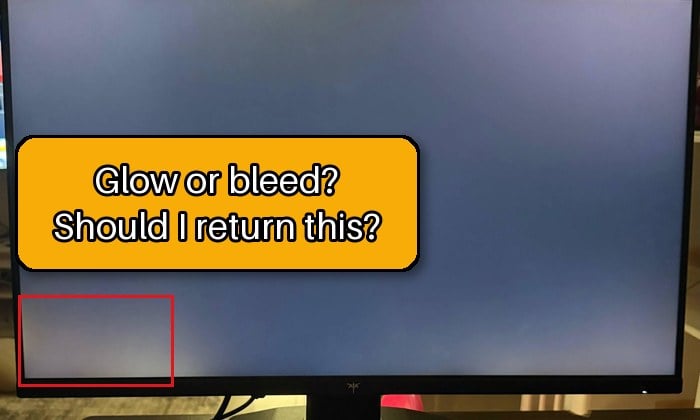
IPS glow is a soft, hazy glow in the corners of an IPS screen that you mostly notice on black or very dark content. It happens because some of the backlight’s light reflects off the panel’s internal layers and toward your eyes, so how bright it looks depends on the angle you’re looking from.
Dell, LG and BenQ all describe it the same way: it’s a normal trait of IPS panels and not a defect. Every IPS panel has it to some degree, and it can’t be completely removed. The good news is that, according to LG, it also doesn’t get worse over time.
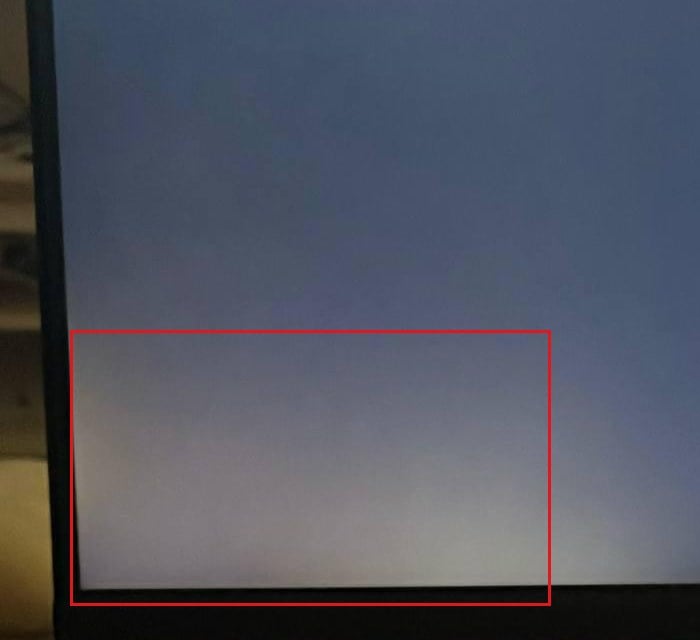
The key thing about IPS glow is that it changes when you move. Lean to the side, stand up or step back, and the glow shifts, shrinks or fades.
Might be useful: How to tell if it’s your Monitor or GPU that is dying?
What is backlight bleed?
Backlight bleed (also called light leakage) is light escaping around the edges of the panel because the backlight isn’t spread evenly, often a manufacturing flaw. It usually shows up as brighter patches or streaks along an edge or in a corner, and it can happen on any LCD screen, not just IPS (VA and TN monitors and laptop screens get it too).
Unlike IPS glow, backlight bleed stays in the same spot no matter where you look from. It doesn’t move or fade when you change your angle or distance, and a bad case can still be visible in a normally lit room.
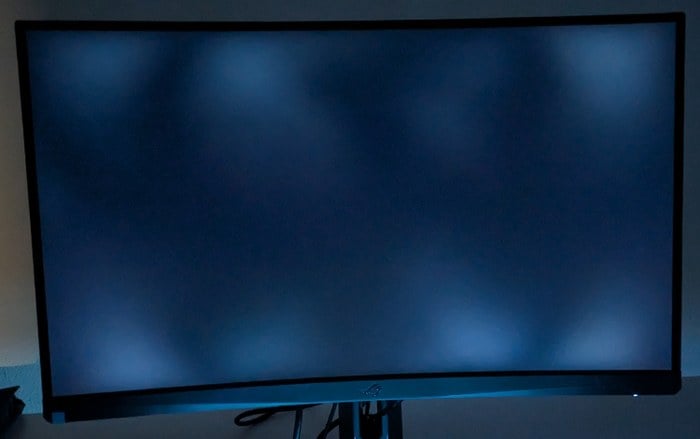
How to tell IPS glow and backlight bleed apart
How you test matters: at full brightness in a pitch-black room, both look far worse than they do in normal use. Dell’s own guide suggests letting the monitor warm up for about 30 minutes, sitting about an arm’s length away with the screen at eye level, setting the brightness to around 30% to 50%, and keeping the room slightly lit rather than completely dark.
Then, show a full black screen. A free and easy way to do this is the EIZO Monitor Test, an online test made by the monitor maker EIZO. Here’s how to use it:
- Open your browser and go to
https://www.eizo.be/monitor-test/. - Click “Select none“, then tick only “Defective Pixels“, which includes a full black test screen.
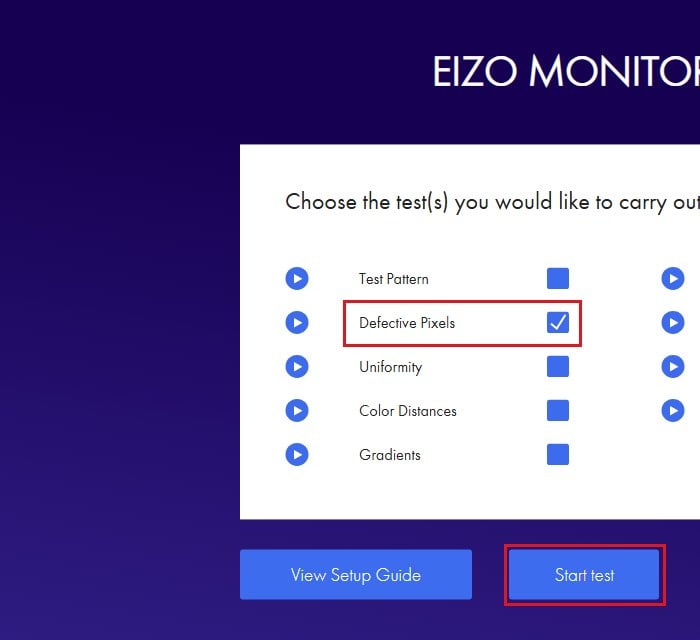
- Click “Start test“. The test opens in full screen, starting on a black screen called “Defective pixels on black“.
- Press the Space key to hide the test’s controls and info box, so the whole screen is black.
- Look at the corners and edges from your normal seat, then move your head left and right, stand up, and step back a few feet.
- Press Esc when you’re done.
If the light patches shift, shrink or fade as you move, it’s IPS glow. If a patch stays put whatever you do, it’s backlight bleed. Many screens have a bit of both.
Don’t judge it from a phone photo
Phone cameras make both glow and bleed look much brighter than they really are, especially in night mode or with a long exposure. That’s why so many “is this normal?” photos on Reddit look terrible while the owner says it’s barely visible in person. What matters is how it looks to you in normal use, not in a photo.
Suggested read: Weird Static White Square Artifacts on PC Screen?
Is IPS glow or backlight bleed a defect?
IPS glow is not a defect, and a replacement monitor with the same type of panel will have it too. Backlight bleed is where the monitor makers don’t quite agree:
- LG calls backlight bleed a defect, and says light that stays the same from every angle, or shows in a well-lit room, is bleed rather than glow.
- Dell says light leakage can be a defect, but that some of it on dark images in a dark room is expected on monitors from any maker. A screen is worth reporting when it’s clearly worse than another one of the same model.
- Acer says some backlight bleeding on dark screens in a dark room isn’t unique to Acer and doesn’t mean the display is faulty, as long as you don’t notice it in normal use.
So Dell and Acer both treat a little bleed on a black screen in a dark room as normal. Bleed that’s obvious in normal use is the kind worth reporting.
How to make IPS glow less noticeable
Since IPS glow can’t be removed, the goal is to make it less visible. These are the tips BenQ, LG and Acer give, and they also help with mild backlight bleed:
- Lower the monitor’s brightness in its on-screen menu (the buttons on the monitor). Glow and bleed are much stronger at high brightness. On a laptop, you can do it from Windows instead: How to Turn Brightness Up or Down on Windows 11/10.
- Add some light to the room, for example a lamp or an LED strip behind the monitor (bias lighting). Glow is most visible in a completely dark room.
- Sit a little farther back and adjust the height and tilt of the screen so you look at it straight on. Since glow depends on the angle, this makes it less visible.
- Use lighter backgrounds and app themes if the glow bothers you during work, since it mostly shows on dark content.
To switch Windows 11 from dark mode to light mode, follow the steps below:
- Open Settings > Personalization > Colors.
- Next to “Choose your mode“, select “Light“.
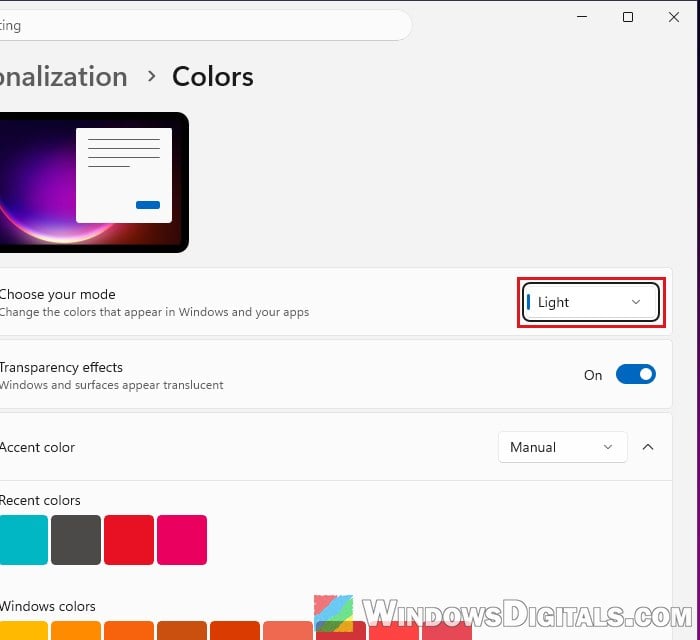
Windows and the apps that follow its theme switch to light backgrounds right away.
When should you return or exchange the monitor?
If the test shows a fixed bright patch that you can easily see in normal use, or the screen looks clearly worse than another unit of the same model, it’s fair to call it a defect. Here’s what you can do:
- Still within the return window? Use the monitor normally for a few days first. If the bleed keeps catching your eye, exchange or return it with the seller while you still can.
- Past the return window? Contact the manufacturer’s support and send them photos of the problem. Dell and Acer both ask you to contact their support if you think the backlight is faulty. This is the route to take while your laptop or monitor is still under warranty.
Please note that a replacement isn’t guaranteed to be better. Glow and bleed vary from unit to unit, so the new one may have the same amount (or more). If you want a screen with no glow and no bleed at all, look at OLED monitors and laptops instead, since their pixels make their own light and there’s no backlight to leak.