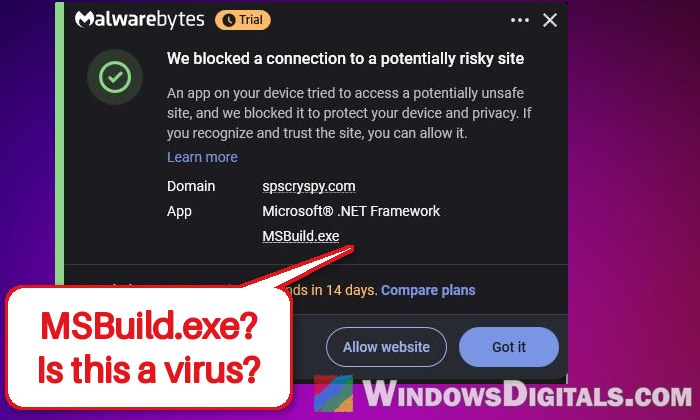
If Malwarebytes, Kaspersky or your firewall keeps blocking MSBuild.exe from connecting to a strange website every 5 or 10 minutes, and you don’t build software on your PC, it’s almost certainly malware using Microsoft’s own build tool to hide. This guide will explain what’s going on and show you how to find what keeps starting it and get rid of it on Windows 11 or 10.
Also see: Nslookup.exe keeps popping up, uses high CPU, is it virus?
Page Contents
Is MSBuild.exe a virus?
Not by itself. MSBuild (Microsoft Build Engine) is the tool Visual Studio uses to build apps from project files like .csproj. It comes with Visual Studio and its Build Tools, and the .NET Framework has its own copy in C:\Windows\Microsoft.NET\Framework64\v4.0.30319.
The trouble is that malware loves it. It hands MSBuild a booby-trapped project file that loads the malicious code straight into memory. The program doing the work is a real Microsoft file, so other antivirus apps often come back clean while Malwarebytes keeps blocking the connections.
The infection usually comes from:
- A cracked game, repack or “free” game download, often a
Setup.exefrom a game portal or file sharing site. - A fake mod or software installer shared the same way.
What it does next varies: Malwarebytes traced one campaign to a password stealer that takes browser passwords, crypto wallets and messaging app data. Others have been reported as coin miners. The website it keeps calling is its control server.
Before you start, don’t click “Allow” on the blocked website, and don’t delete the MSBuild.exe in the Microsoft.NET folder. That one belongs to Windows, and the malware only borrows it.
Linked issue: Trojan:PowerShell/Boxter Keeps Coming Back in Windows Security
Check which MSBuild.exe is running and what it’s building
First, find out what MSBuild is actually being told to run. A real build points to a development project folder. The malware’s points to a project file hidden in your AppData folder, usually under Microsoft\Windows\INetCache, WebCache or Caches. Some versions even run their own copy of MSBuild.exe from there.
Here’s how to check:
- Press Ctrl + Shift + Esc to open Task Manager.
- Go to the Details tab and find MSBuild.exe. There may be two of them.
- Right-click any column header and select Select columns.
- Check Command line and click OK.
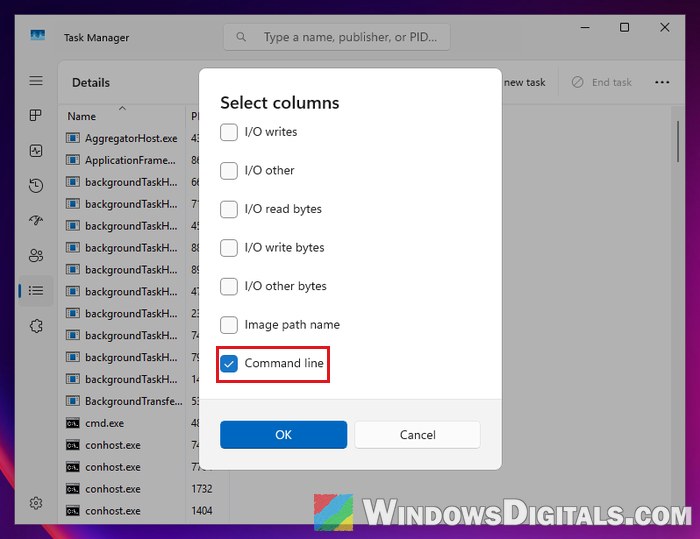
- Look at the new Command line column for MSBuild.exe, and write down the folder it points to: where MSBuild.exe itself runs from, or where the
.csprojproject file it’s running sits.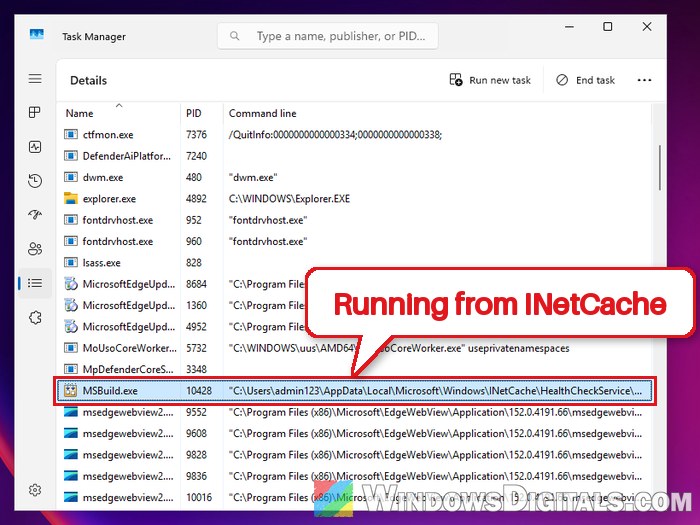
- Right-click MSBuild.exe and select Open file location to see where the program itself sits.
- Right-click it again and select End task (and the same for the second one, if there are two) to cut the connection for now.
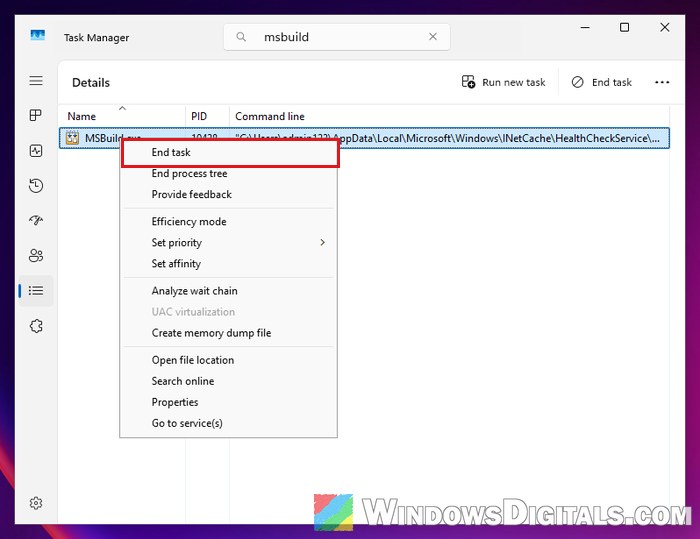
If you’re not a developer, any MSBuild.exe running a project from AppData, or sitting in an INetCache folder itself, is the malware. Ending the task only stops it until whatever launches it runs again, which is the next thing to deal with.
Delete the task that starts it
What brings it back every few minutes is often a scheduled task, though some versions use a startup entry instead or leave nothing obvious. The task usually has a harmless-sounding name and runs MSBuild.exe, a .bat file, Command Prompt or PowerShell from your AppData or Temp folder on a timer.
Here’s how to find it:
- Press Win + R, type
taskschd.mscand press Enter to open Task Scheduler. - Click Task Scheduler Library in the left pane.
- Click each task you don’t recognize, then the Actions tab at the bottom to see what it runs.
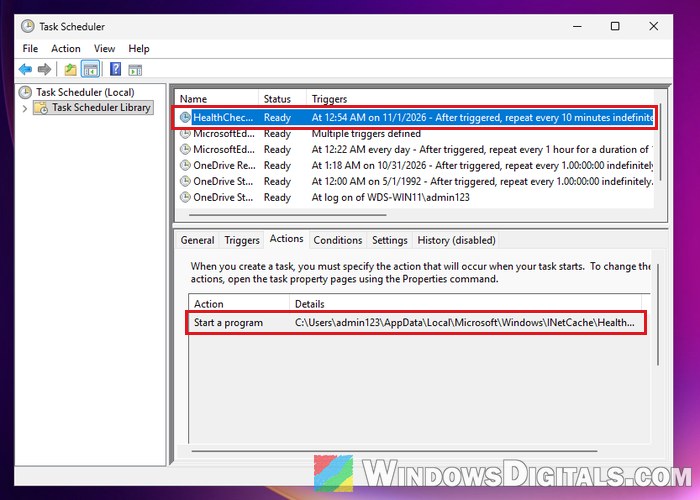
- If a task runs MSBuild.exe, or anything in the folder you wrote down earlier, right-click it and select Delete.
It’s also worth opening the Startup apps page in Task Manager and disabling anything you don’t recognize. If you can’t find any odd task, use Autoruns as shown in the Boxter guide linked above. Then wait 10 minutes or so and see if your security app still blocks MSBuild.exe.
Pro tip: How to Disable Startup Programs in Windows 11
Delete the malware’s folders
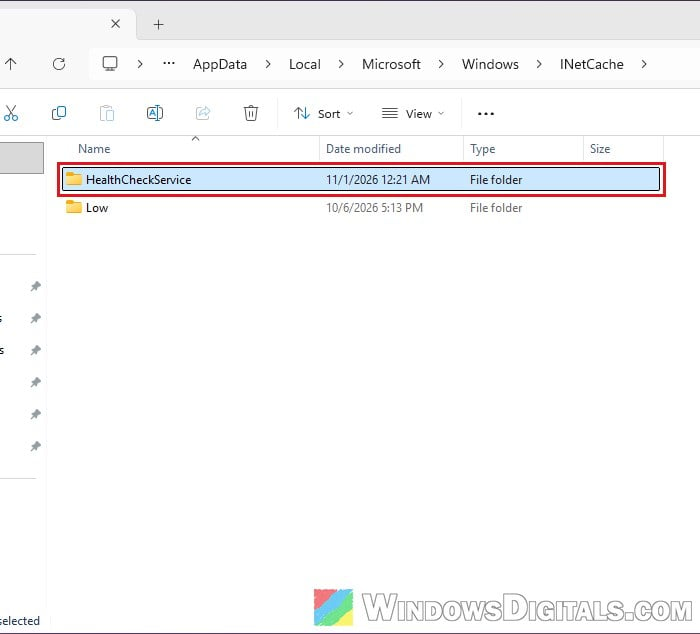
With the task gone, delete the folders that hold the malware’s files. They’re made to look like normal Windows or app folders, with names like HealthCheckService or CatalogPublisher, and contain a copy of MSBuild.exe or project files ending in .csproj, .props or .targets.
Here’s what to do:
- Press Win + R, copy and paste the following path, and press Enter:
%localappdata%\Microsoft\Windows\INetCache
- Find the folder from the command line you wrote down (or any folder with MSBuild.exe or .csproj files inside) and delete it.
- Check
%localappdata%\Microsoft\Windows\Cachesand%localappdata%\Microsoft\Windows\WebCachethe same way.
Only delete the folders that hold the malware’s files, not the whole INetCache folder. In at least one case the folder came back a few days later under another name, so don’t stop here even if the alerts go quiet.
Scan with Malwarebytes and Microsoft Defender Offline
Next, catch whatever’s left with a Malwarebytes scan. Let it quarantine everything it finds, and delete the quarantined items once you’re done.
Then run a Microsoft Defender Offline scan. It starts from outside Windows, so malware has a harder time hiding from it. Save your work first, since the PC restarts:
- Open Windows Security and go to Virus & threat protection.
- Click Scan options.
- Select “Microsoft Defender Antivirus (offline scan)” and click Scan now.
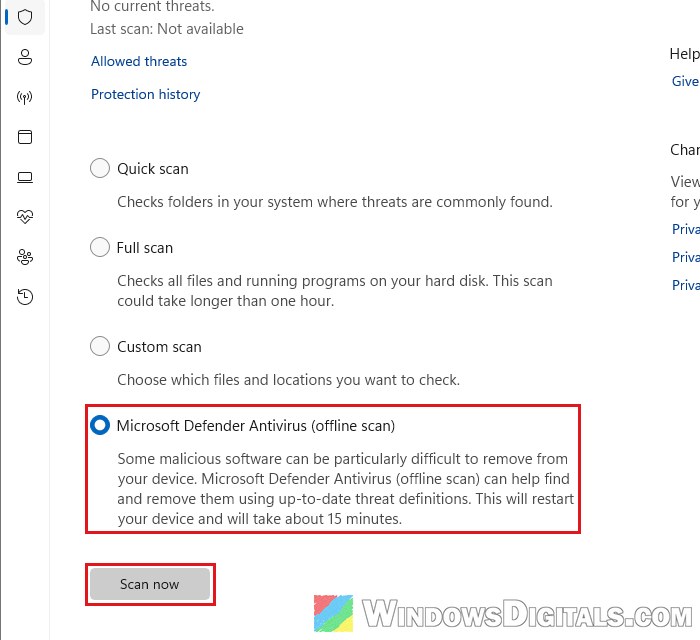
The PC restarts, scans for about 15 minutes and restarts again on its own. Afterward, check Protection history in Windows Security to see what it found.
Remove Windows Security exclusions you didn’t add
Some malware adds itself to Windows Security’s exclusions so Defender skips it. Check them now:
- In Windows Security, go to Virus & threat protection.
- Under Virus & threat protection settings, click Manage settings.
- Scroll down to Exclusions and click Add or remove exclusions.
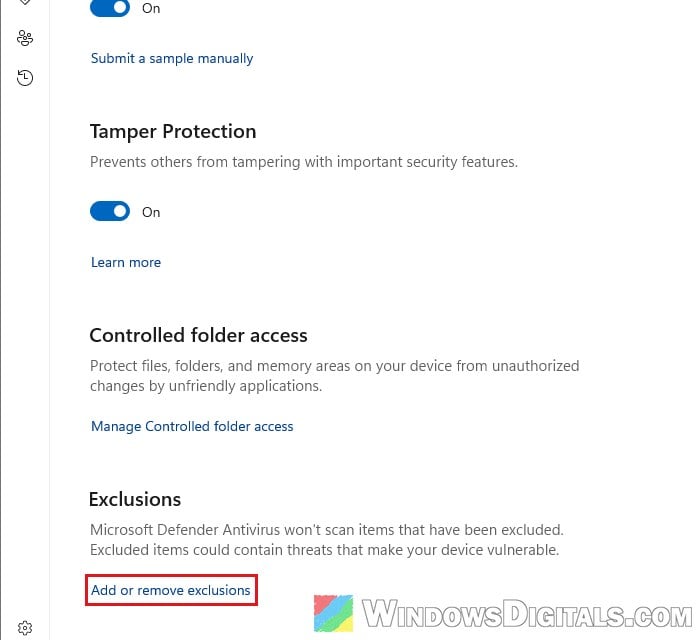
- Select any exclusion you didn’t add yourself and click Remove.
Related concern: How to Scan an .exe File for Viruses to Check If It’s Safe
Change your passwords from another device
Since this kind of malware is often a password stealer, assume what was saved in your browsers is gone. From your phone or another PC, change your important passwords, turn on two-factor authentication, and use “sign out of all sessions” wherever the site offers it. Stolen session cookies can get around two-factor authentication, so signing out everywhere matters as much as the new password.
If you keep a crypto wallet on that PC, move what’s in it to a new wallet from a clean device. And watch your Discord, Messenger and other social media accounts for scam messages you didn’t send, which is a common sign the stealer already took them.
If it keeps coming back
This malware is stubborn, and it’s a pretty common issue on Microsoft’s forums and Reddit’s malware help communities. What usually clears it for good is a log from Farbar Recovery Scan Tool (FRST), read by someone experienced who writes a fix script for your PC. If you want to keep your setup, post your FRST logs on Microsoft Q&A or a malware removal forum and follow their steps. Never run a fix script made for someone else’s PC, since each one is written for that PC only.
The surest way out is to back up only your personal files (documents, photos, videos, not programs or installers) and reinstall Windows from a USB drive made on a clean PC. A System Restore point won’t reliably remove it.