If you’re using classic Outlook and some of your folders have stopped updating, so emails you can see on the web are missing from them on your PC, or the sync starts and then fails a second later, the problem is usually Outlook’s own copy of your mailbox and not the mailbox itself. This guide will explain why classic Outlook stops syncing some folders and how to get them back in sync.
Also see: Outlook Email Shows Up in Search but Not in the Inbox, Why?
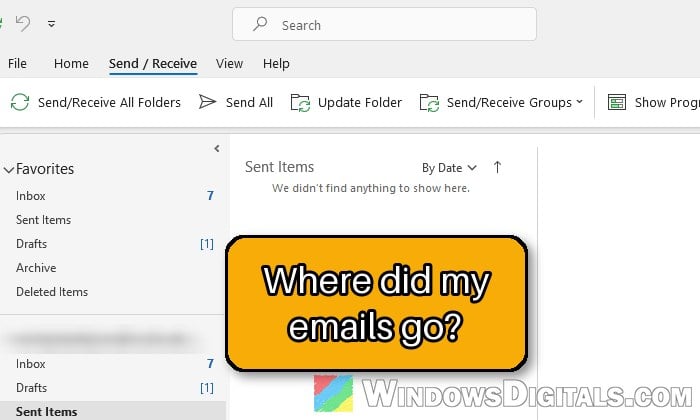
Why do some folders stop syncing in classic Outlook?
With an Outlook.com, Hotmail, Microsoft 365 or work account, classic Outlook keeps a copy of your mailbox on the PC in an offline data file (.ost), and your folders show that copy. The usual reasons some folders stop updating are:
- The local copy of a folder gets out of sync with the server, and Outlook can’t repair it by itself.
- The offline data file has a problem, so one folder or many keep failing.
- With Gmail or Yahoo, Outlook needs you to sign in again but doesn’t ask.
- The missing emails are older than what Outlook keeps offline (12 months by default).
First, sign in to your mailbox on the web (outlook.live.com for Outlook.com and Hotmail, or your work’s or provider’s webmail) and open the same folder. If the emails are there, they’re safe, and the fixes below are for Outlook on your PC. If they’re missing on the web too, your email provider or IT department needs to look into it. If only older emails are missing, see the guide below.
Related problem: Outlook Not Showing Older Emails on a New Computer, Why?
Update the folder by hand first
You can make Outlook update just that folder right away, and if something’s wrong, it’ll usually show you an error. Here’s how:
- In classic Outlook, select the folder that isn’t updating.
- Go to the Send/Receive tab and click Update Folder.
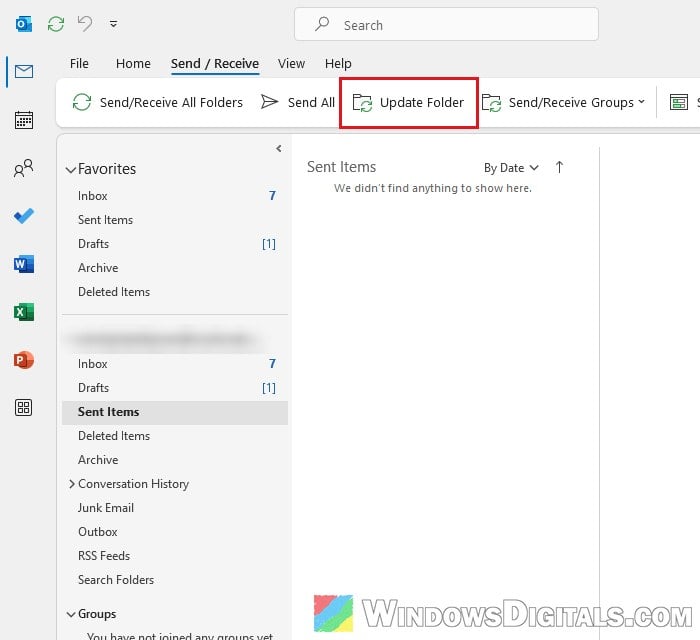
Shift + F9 does the same. Also make sure Work Offline on that tab isn’t on, and that the status bar doesn’t say Working Offline or Disconnected, which means Outlook isn’t reaching the server.
If the missing emails show up, you’re done. If it fails again, note the error code and try the fixes below.
Gmail or Yahoo account? Make Outlook sign in again
Skip this one if your account isn’t Gmail or Yahoo. With those, folders can stop syncing with errors like 0x800CCC0E (“Synchronizing subscribed folders”) when Outlook needs you to sign in again, for example after a password change, but doesn’t ask. Microsoft’s fix is to remove Outlook’s saved sign-in so it asks again. It doesn’t remove the account. Here’s how:
- Close Outlook.
- Open the Start menu, search for “Credential Manager” and open it.
- Select Windows Credentials.
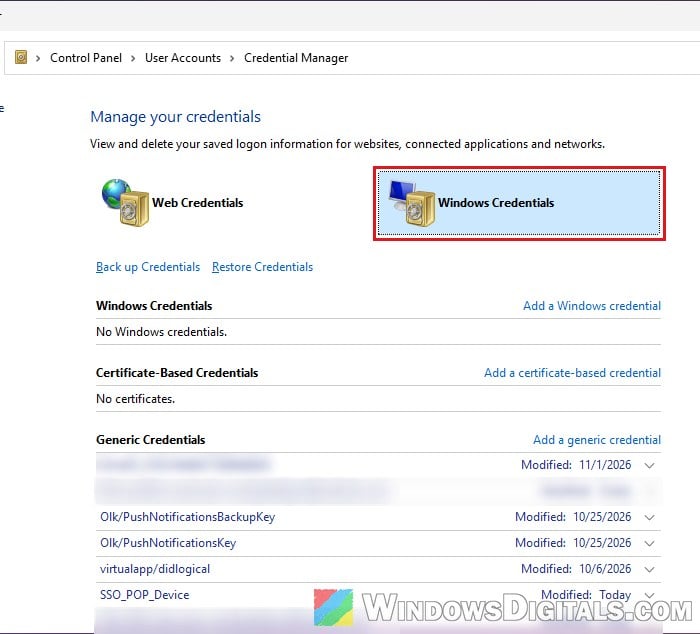
- Under Generic Credentials, find the entries starting with
MicrosoftOffice16_Data:OAUTH2, expand each one and hover over it to see its full name:tp_google_imap_Oauth2is Gmail,tp_yahoo_imap_Oauth2is Yahoo. - Click Remove in each matching entry (usually two or four per account).
- Open Outlook and sign in when it asks. If the folders don’t start syncing, restart Outlook once more.
Clear the folder’s offline items so it downloads again
When one folder is stuck, throw away Outlook’s local copy of it and let it download again. Microsoft lists this as the last step of Outlook’s own repair for out-of-sync folders. It only removes the copy on your PC, not the emails on the server.
- Right-click the folder that isn’t syncing and select Properties.
- On the General tab, click Clear Offline Items.
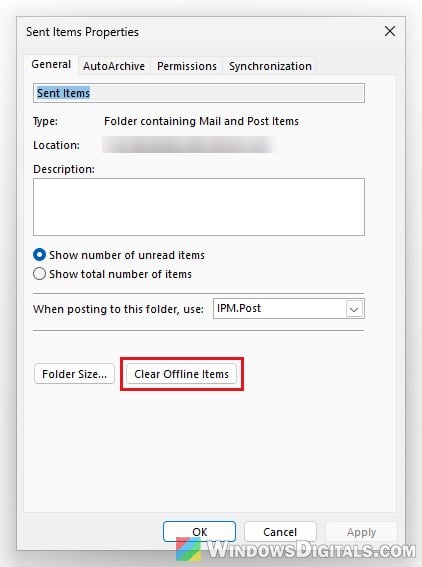
- Click OK when Outlook says your data was removed from your Outlook data file (.ost).
- Click OK to close the folder’s properties.
- With the folder selected, press Shift + F9 to download it again.
The folder may look empty until Outlook downloads it again (a big folder takes a while). Then check for the missing emails. This only works for accounts that use an offline data file (.ost), not POP accounts or folders in a .pst file.
If it’s new mail in the Inbox that won’t show up, close Outlook, press Win + R, type outlook.exe /cleanips and press Enter. Microsoft says this clears messages stuck in Outlook’s incoming mail processing.
Might be useful: Classic Outlook Keeps Switching Back to the New Outlook, What to do?
Look in the Sync Issues folders
Classic Outlook logs what it fails to sync in hidden folders called Sync Issues, which can tell you which folder or item keeps failing. Here’s how to see them:
- In classic Outlook with the app bar on the far left, click More Apps there and select Folders.
- Expand Sync Issues under your account.
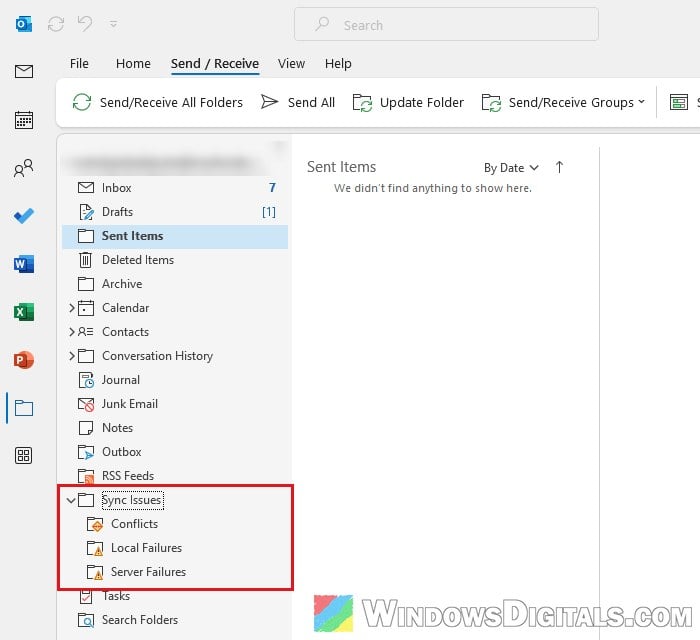
- Look at the newest entries in Sync Issues and its subfolders, Conflicts, Local Failures and Server Failures.
Server Failures holds what Outlook couldn’t download, and Local Failures what it couldn’t send up, which may only exist on your PC. If the same folder keeps showing up there, clear its offline items (above) or rebuild the data file (below).
Turn off Cached Exchange Mode to test (work or school accounts)
Cached Exchange Mode is what keeps the local copy. With a Microsoft 365 work or school account, you can turn it off as a test so Outlook shows your folders straight from the server. If they look right then, the local copy is the problem. Please note that Outlook.com and Hotmail accounts always use it, and POP and IMAP accounts don’t have it.
- Go to File > Account Settings > Account Settings.
- Select your Exchange or Microsoft 365 account and click Change.
- Under Offline Settings, uncheck “Use Cached Exchange Mode” (it may say “Use Cached Exchange Mode to download email to an Outlook data file“).
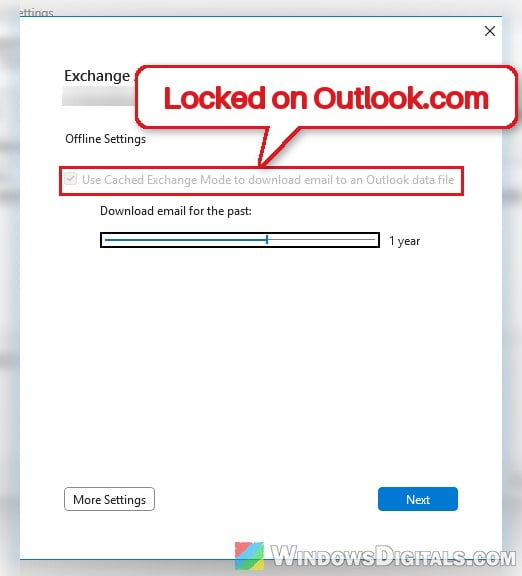
- Click Next, then Done, and restart Outlook.
If your folders are fine now, rebuild the data file (next section), then turn Cached Exchange Mode back on, as Microsoft recommends. With shared mailboxes, also try unchecking “Download shared folders” under More Settings > Advanced.
Rebuild Outlook’s offline data file (.ost)
If several folders keep failing, or clearing one didn’t help, the data file itself may be the problem. For Outlook.com, Microsoft 365 and Exchange accounts, Outlook makes a new one when it next opens and downloads your mail again. It’s also one of the fixes suggested most often on Reddit for folders that won’t sync.
Be warned: Anything only in the old file, like items in Local Failures, won’t be in the new one. Check your mail on the web first, and never delete a .pst file, which can hold mail that isn’t on any server. Renaming it instead of deleting it lets you go back.
- Go to File > Account Settings > Account Settings and open the Data Files tab.
- Select your account’s
.ostfile and click Open File Location.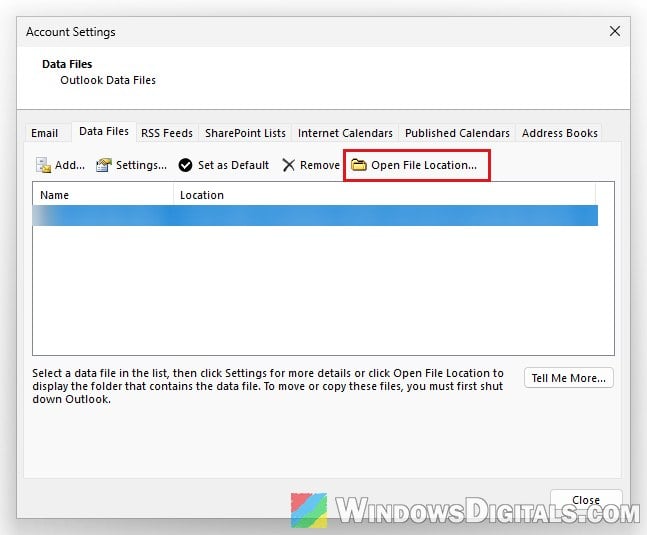
- Close Outlook completely.
- In the File Explorer window that opened, rename the
.ostfile, for example by adding.oldto the end of its name. - Open Outlook again and leave it open while it downloads your mailbox.
Once it finishes, check the folders that were missing emails.
Create a new Outlook profile as a last resort
If nothing above helps, the profile itself may be damaged. A new one sets up your account from scratch. Keep the old one until your mail shows up in the new one. The steps are in the last section of Outlook Email Shows Up in Search but Not in the Inbox, Why?. With many accounts, add them one at a time and let each finish syncing.