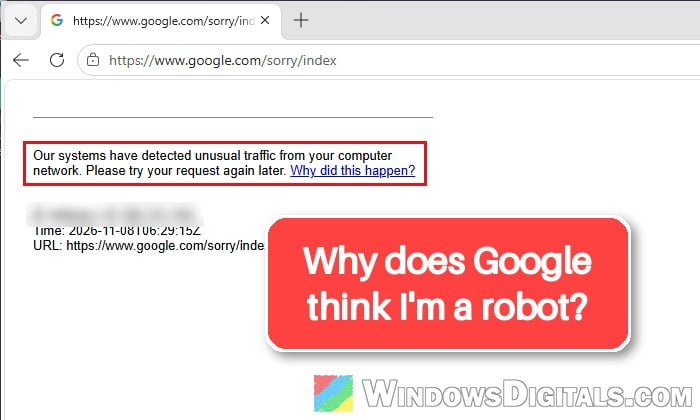
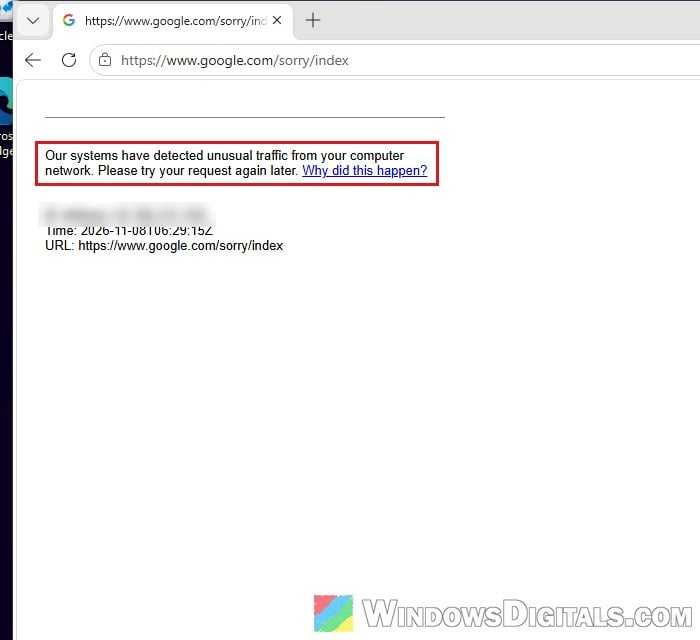
If you keep getting a Google page that says “Our systems have detected unusual traffic from your computer network” and asks you to tick “I’m not a robot“, sometimes on every search or in the middle of scrolling through results, it doesn’t necessarily mean your PC is infected. This guide will talk about why Google shows this page, how to tell it apart from a fake one, and what you can do to make it stop.
Also see: “Anonymous Proxy detected, click here” on Android, iPhone or PC
First, make sure it’s Google’s real page
Fake “verify you’re human” pages are a common trick right now, so check this before you click anything. Google’s real page is on an address that starts with google.com/sorry/, and all it asks you to do is tick the box and, sometimes, pick out pictures. It can also show no checkbox at all and only say to try your request again later.
If a page asks you to press Win + R, paste something with Ctrl + V and press Enter, or download a “verification” file, it’s a scam. Don’t do it. Close the tab and run a virus scan (see the scan section below).
Clicking the box downloaded an “f.txt” file?
Lately, and especially since early November 2026, a lot of people who tick the box get a small file called f.txt downloaded instead, and the page doesn’t go away. It looks scary, but the file only has a few brackets of text in it. It seems to be Google’s own search data that the page hands over as a download by mistake. A .txt file can’t run by itself, so you can simply delete it.
Why does Google think you’re a robot?
Google shows this page when the searches coming from your network look like they’re sent by a program instead of a person. According to Google, that can be malware, other people on the same network, a VPN or an internet provider whose other users send automated searches. It doesn’t have to be anything you did. The usual reasons are:
- A VPN or proxy: you share its IP address with many other people, and some of them may be running bots. Some VPNs get all their traffic blocked.
- A shared IP address from your internet provider: many providers put lots of homes behind one public IP address (called CGNAT). Mobile data and public Wi-Fi work the same way.
- Incognito or InPrivate windows, or blocked cookies: Google can’t recognize you from earlier visits, so it asks more often. Many people only get the page in a private window.
- Extensions and strict privacy settings: ad blockers and privacy extensions can make every visit look new, and some block the captcha itself.
- Something else on your network: malware on your PC, or another device on your Wi-Fi that’s sending automated traffic.
It has also been happening a lot more often, even on PCs with no VPN and no malware, which suggests Google has become stricter about it.
Solve the captcha, then search signed in to Google
If it only happens once in a while, tick “I’m not a robot” and finish the picture test. According to Google, the message goes away after you solve it. If the checkbox or the picture test never loads, make sure JavaScript is turned on in your browser. If the page has no checkbox at all and only says to try again later, go on to the fixes below.
If it keeps coming back, try searching in a normal window while signed in to your Google account, instead of an Incognito or InPrivate window. Several people who got the page on every private search found it stopped once they were signed in.
Turn off your VPN or proxy
A VPN is the most common reason for this page, and Google’s own advice is to turn it off or contact your VPN provider. Turn off the VPN app you use (or a VPN built into your browser), then search again. If the page is gone, the VPN’s IP address was the problem, so keep it off while you use Google, or ask your VPN provider about it.
To check for a VPN or proxy set up in Windows itself:
- Open “Settings” with Win + I.
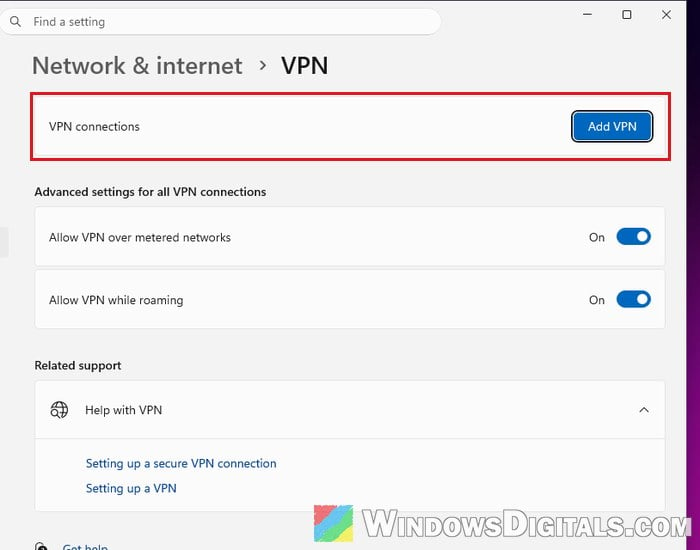
- Go to “Network & internet” > “VPN” and disconnect any VPN connection listed there.
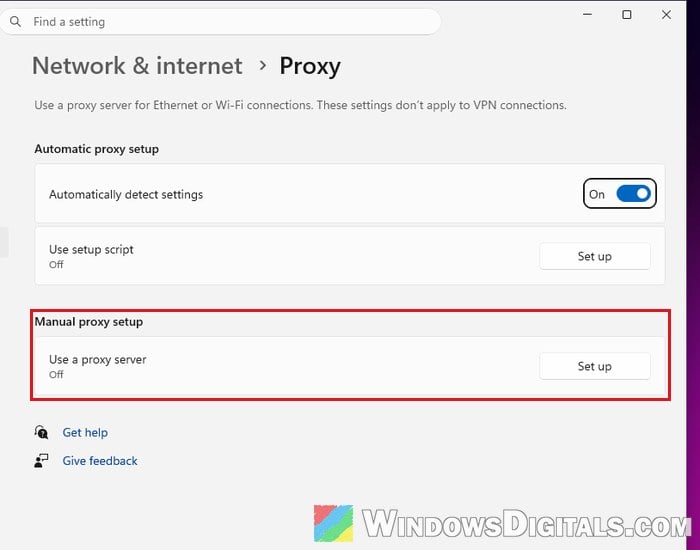
- Go back to “Network & internet” and open “Proxy“. Unless your work or school needs one, make sure “Use a proxy server” under “Manual proxy setup” is “Off“.
Then open Google and run a few searches to see if the page still shows up.
Pro tip: How to Disable Proxy Settings in Windows 11/10 Permanently
Turn off extensions and strict tracking prevention
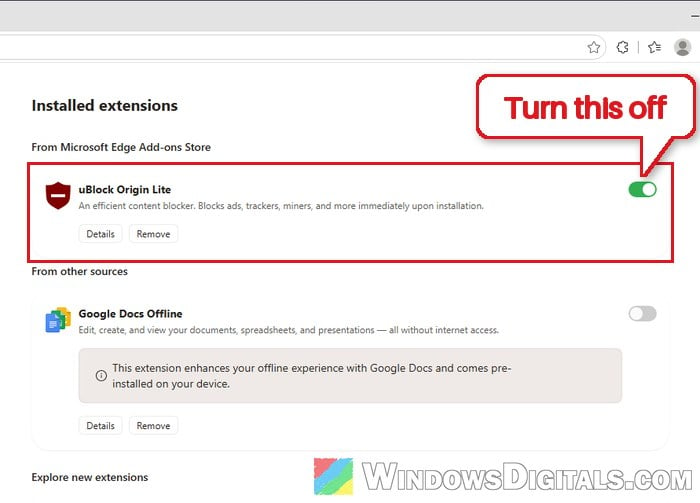
Ad blockers and privacy extensions can make Google treat each search as a new visitor. They can also block the captcha’s own script, which is one reason the box downloads f.txt and the page never clears. A quick test is to search in another browser, or with your extensions turned off.
In Microsoft Edge, here’s how to do it:
- Type
edge://extensionsin the address bar and press Enter. - Turn off every extension with its switch, especially ad blockers and privacy tools.
- Go to
edge://settings/privacyand click “Tracking prevention“. If it’s set to “Strict“, choose “Balanced (Recommended)“.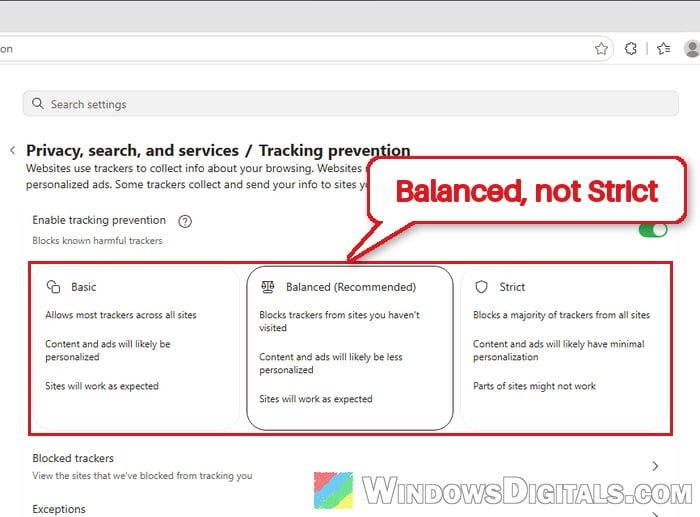
In Chrome, the extensions page is chrome://extensions. If Google stops asking, turn the extensions back on one by one to find the one causing it.
Related concern: Is “AdBlock Next” Popup and Extension Safe or a Virus?
Restart your router to get a new IP address
Since Google judges your IP address, a new one can make the page go away for a while. Turn off your router (and modem, if it’s a separate box), wait about a minute, and turn it back on. Your provider may give you a new address when it reconnects.
It doesn’t always work, especially behind a shared address. To check whether it’s your network at all, connect the PC to your phone’s hotspot and search there. If Google is fine on the hotspot, the problem is your home connection, not your PC.
Might be useful: How to Check IP Address in Windows 11
Scan for malware on your PC and other devices
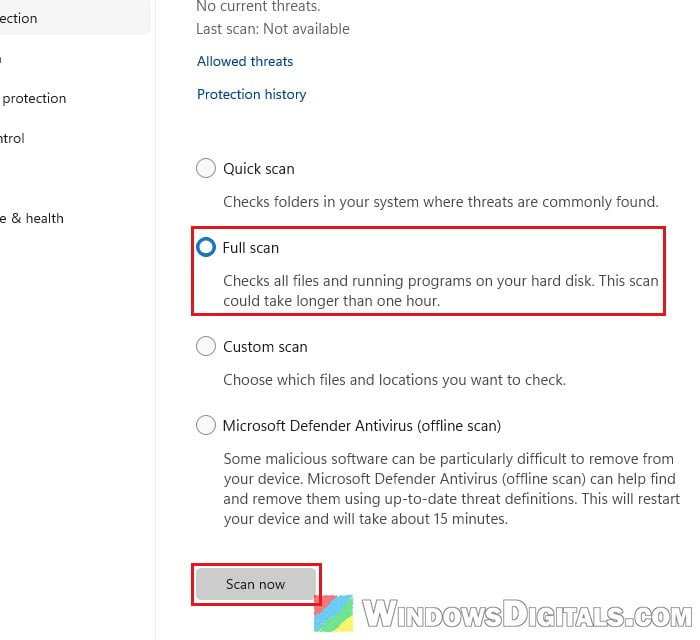
Google lists malware as one of the causes, so if the page keeps coming back, run a full scan:
- Open “Windows Security” from the Start menu and select “Virus & threat protection“.
- Click “Scan options“, choose “Full scan“, then click “Scan now“.
If every device on your Wi-Fi gets the page, the traffic may come from another device on the network. Scan the other computers in your home, and look at the list of connected devices in your router’s settings for anything you don’t recognize. Cheap smart gadgets and even some phone apps can send traffic like this in the background.
Ask your internet provider, or use another search engine for now
If none of this helps, contact your internet provider, as Google itself suggests. Ask whether your connection shares a public IP address with other customers (CGNAT), and whether they can give you a new or a dedicated one.
Until it’s sorted out, another search engine like Bing or DuckDuckGo works as usual, since this block only applies to Google. For some people it keeps coming back for days or weeks.