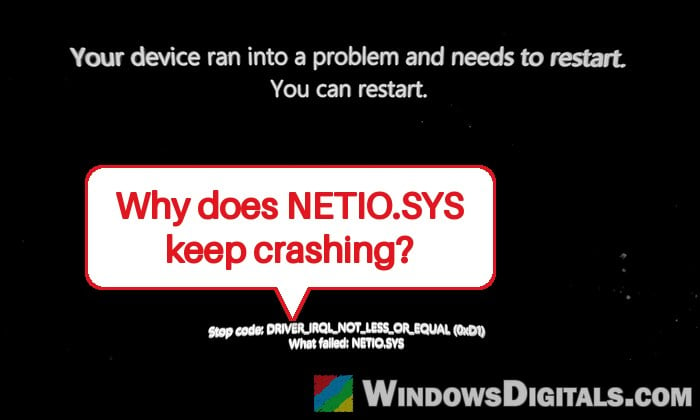
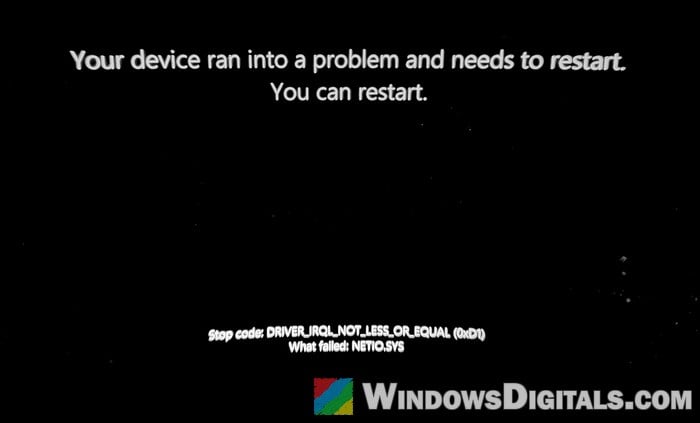
If your Windows 11 PC keeps crashing with a blue (or black) screen that says “DRIVER_IRQL_NOT_LESS_OR_EQUAL” and “What failed: NETIO.SYS“, and you have AdGuard for Windows installed, the crash most likely comes from AdGuard’s network filter driver and not from Windows itself. This guide will show you how to confirm it and how to stop the crashes, with or without giving up AdGuard.
Also see: Driver_IRQL_NOT_LESS_OR_EQUAL on Windows 11/10
Why does AdGuard cause a NETIO.SYS blue screen?
NETIO.SYS is Windows’ own network driver, but it’s rarely the real culprit. The stop code means a driver tried to use a memory address it shouldn’t have, and with NETIO.SYS that’s usually a third-party network filter driver handing it bad data. Windows then names NETIO.SYS because that’s where the crash happened.
AdGuard for Windows blocks ads in every app, not just the browser, so it filters your traffic through a driver of its own inside Windows’ networking. By default that’s the WFP driver (adgnetworkwfpdrv.sys, AdGuard’s driver for Microsoft’s Windows Filtering Platform), and AdGuard’s own documentation admits it may cause occasional system crashes for some users. The crashes came back for a number of people after AdGuard 8.0 (August 2026), and AdGuard has said it’s aware of the problem and working on a fix.
What it usually looks like:
- The PC crashes at random, often after many hours of being on, and sometimes only every few weeks.
- For some, it hits in the middle of a game, or seems to happen more often while a VPN is connected.
- Other stop codes with NETIO.SYS, such as KMODE_EXCEPTION_NOT_HANDLED or SYSTEM_SERVICE_EXCEPTION, can come from the same cause.
On Windows 11 24H2 and later, the crash screen is black instead of blue, but it shows the same stop code and “What failed” line.
Pro tip: How to Fix Blue Screen With Sad Face on Windows 10/11
Check if AdGuard is really the cause
It’s worth making sure AdGuard is behind it before you change anything. Each crash saves a small dump file that names the drivers involved, as long as Windows is set to write one. Here’s how to check that setting:
- Press Win + R, type
sysdm.cpland press Enter. - Go to the Advanced tab and click Settings under Startup and Recovery.
- Under Write debugging information, choose Small memory dump (256 KB) and make sure the folder is
%SystemRoot%\Minidump.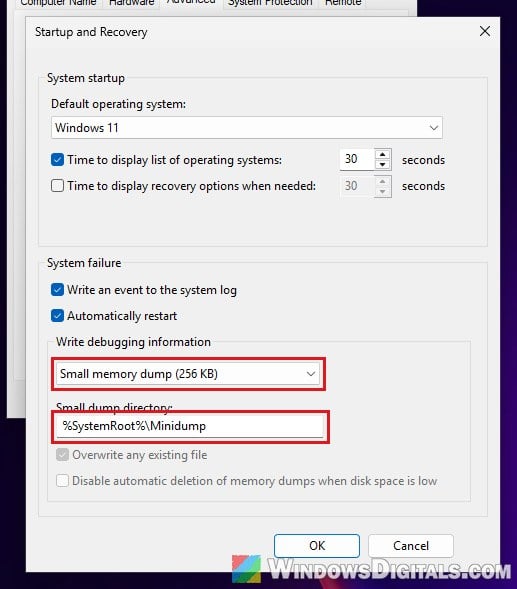
- Click OK.
After the next crash, the dump is in C:\Windows\Minidump (see Windows 11 dump file location). To read it:
- Install WinDbg from the Microsoft Store.
- Open the newest file in
C:\Windows\Minidumpwith it. - Run the following command:
!analyze -v
If adgnetworkwfpdrv shows up in the stack or the module lines, AdGuard is what’s crashing your PC. If another VPN, firewall or network tool’s driver shows up instead, look at that program.
Might be useful: Dump file creation failed due to error in Windows 11
Switch AdGuard to the SockFilter driver
This is the fix AdGuard itself recommends, and it lets you keep using AdGuard. SockFilter is a newer driver that works at the connection (socket) level instead of inside Windows’ network stack. For most people who’ve switched, the crashes have stopped so far, even where they’d been coming every couple of hours after the 8.0 update. Here’s how to do it:
- Open AdGuard, go to Settings and select App settings.
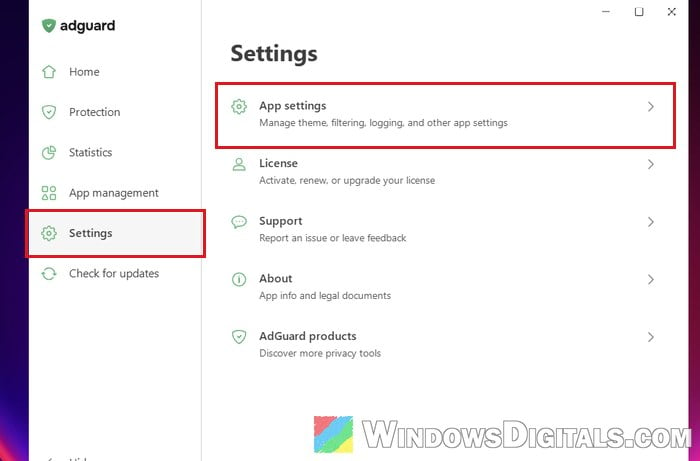
- Scroll down and select Network, then Network driver.
- You’ll see WFP selected. Select SockFilter (Experimental) instead.
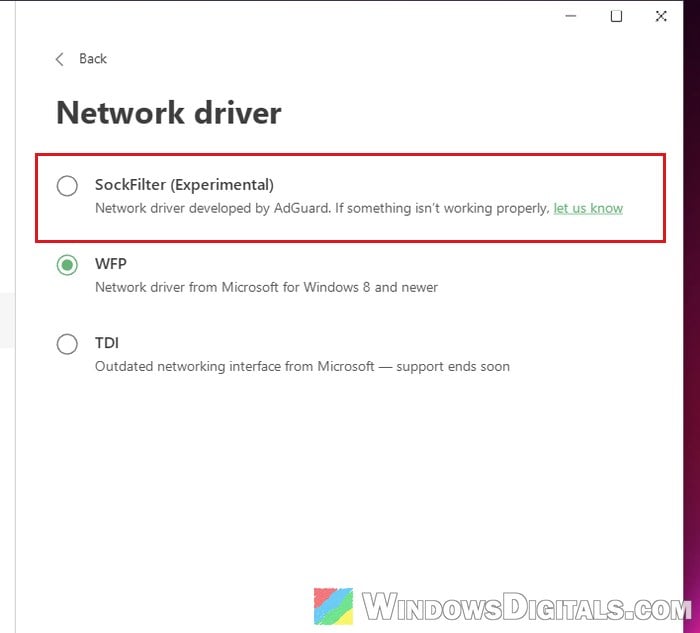
- Click Switch when AdGuard asks you to confirm.
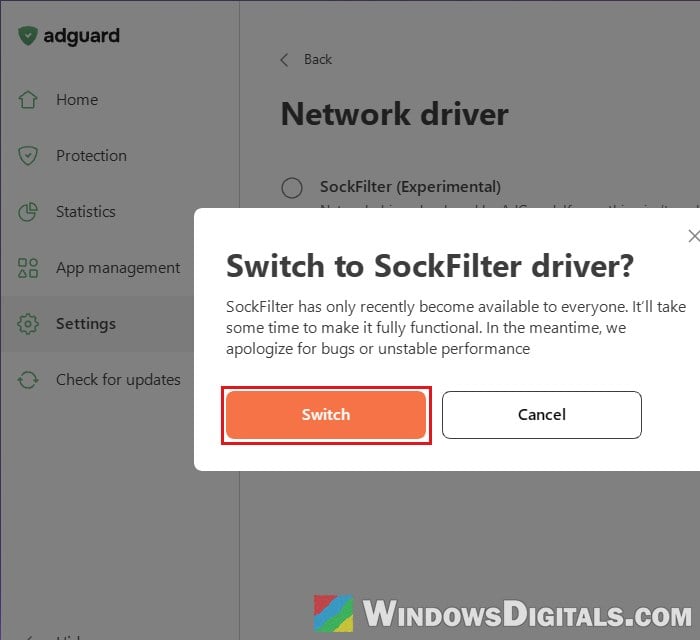
- Restart your PC.
Then use your PC as usual. Since the crash can take hours or even weeks to show up, give it at least a few weeks before deciding it’s fixed.
Please note that SockFilter is still marked as experimental, and AdGuard warns about that when you switch. AdGuard lists a known issue with Discord voice and video calls, and it may get in the way of apps that sign in online, such as SignalRGB. If that happens to you, you can go back to WFP at any time on the same page.
Update AdGuard to the latest version
AdGuard has fixed crashes in its WFP driver more than once in the past, and they tend to come and go between versions. So, make sure you’re on the latest release (version 8.0.4 as of November 2026). In AdGuard, select Check for updates in the left pane, then click the Check for updates button.
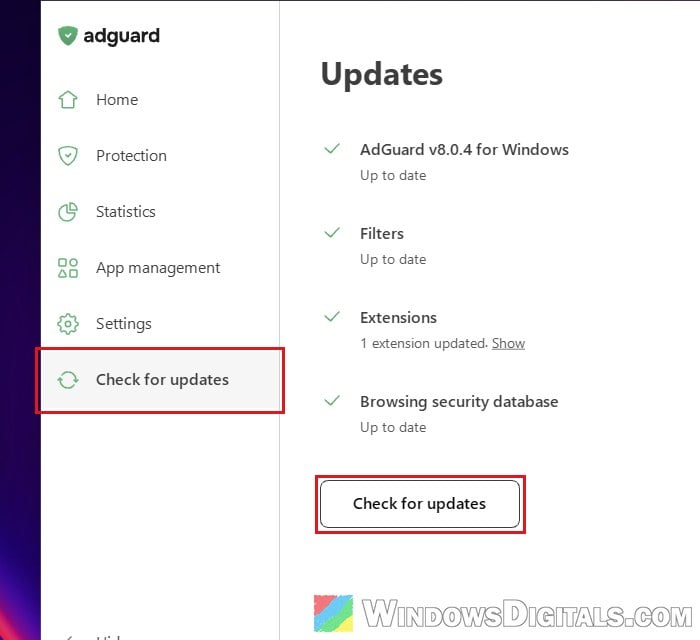
Updating alone doesn’t always stop the crashes, so if you’re still on WFP afterwards, use the SockFilter fix above as well.
Exclude the game that crashes from filtering
If the blue screen only happens in one game or app, you can tell AdGuard to leave that program alone. This worked for a couple of players whose PC crashed in Call of Duty: Modern Warfare 4. Here’s what you can do:
- In AdGuard, open App management and type the game’s name in the Search box.
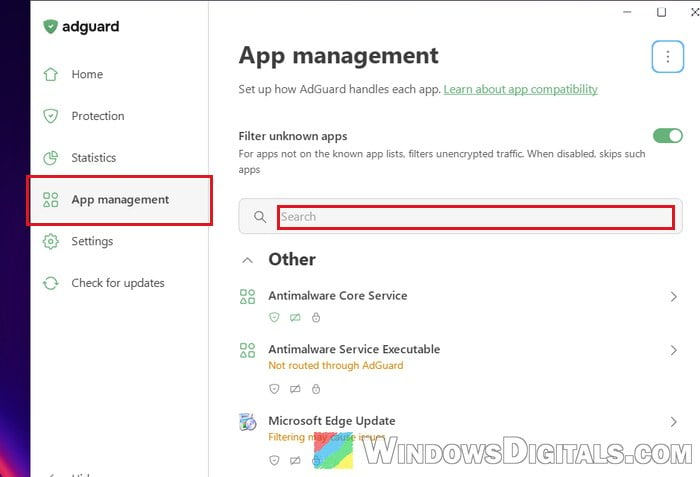
- Click the game or app to open its page.
- Turn off “Route traffic through AdGuard” and “Filter traffic“.
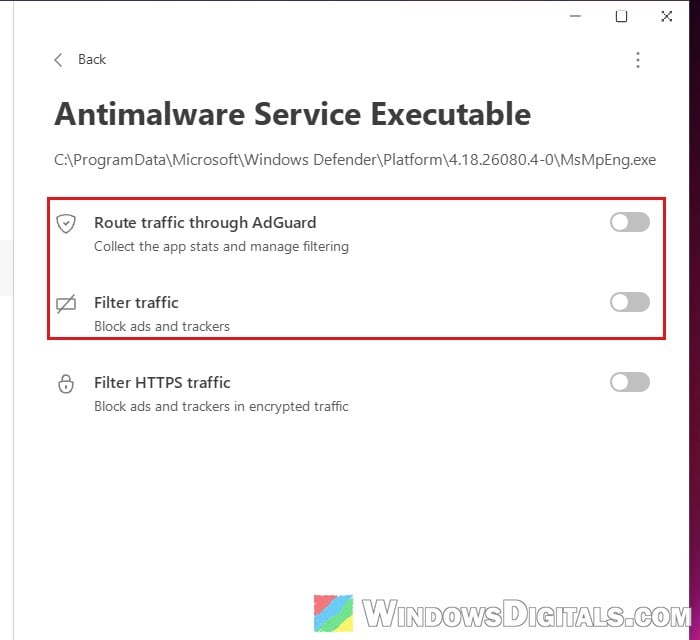
If the game isn’t in the list, go to Settings > App settings > Advanced and open “Exclude apps from filtering by their full path“. Paste the full path of the game’s .exe file there, and separate several paths with a semicolon.
After that, play the game the way you usually do and see whether the blue screen still shows up.
If you also have another antivirus, AdGuard suggests excluding each one from the other: your antivirus’s process in that same box, and AdGuardSvc.exe and Adguard.exe (in C:\Program Files\AdGuard) in your antivirus’s exceptions.
Remove other network filters and update network drivers
Two network filters working on the same traffic can trigger this crash. If you also run a VPN, a third-party firewall, or a motherboard’s network tool (like ASUS GameFirst in Armoury Crate), try turning it off or removing it for a while. It’s also worth updating your Wi-Fi and LAN drivers from your PC or motherboard maker’s support page, since the crash can come from how AdGuard’s driver and your network driver work together.
Related guide: How to Uninstall Drivers in Windows 11
Uninstall AdGuard completely
If nothing above helps, or you just want the crashes gone for good, remove AdGuard. Disabling it may not be enough, since its filter driver can stay loaded. Follow the steps below:
- Go to Settings > Apps > Installed apps.
- Find AdGuard, click the three dots next to it, and select Uninstall.
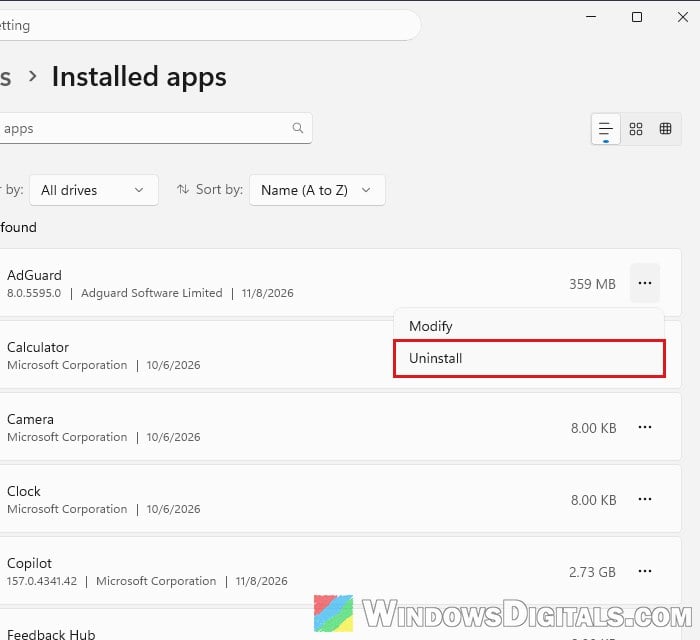
- Restart your PC.
AdGuard keeps a backup of your settings in C:\ProgramData\Adguard\Backups, so you can restore them if you reinstall later.
Sometimes the uninstaller leaves AdGuard’s driver behind (its service and .sys file stay on the PC). In that case, use AdGuard’s own uninstaller tool, linked from its guide at https://adguard.com/kb/adguard-for-windows/installation/:
- Download
uninstall_utility.zipand extract it to any folder. - Run
Adguard.UninstallUtility.exeand allow it to make changes. - Select AdGuard Ad Blocker and Standard, then click Uninstall.
- Restart your PC.
Use Extended only if Standard didn’t remove it, and AdGuard suggests contacting its support before you do. It also asks you not to use other uninstallers, as they can cause problems when you install AdGuard again.
Linked issue: Can’t Completely Uninstall a Driver in Windows 11 (Fix)
If you only need ads blocked in your browser, the AdGuard browser extension is a good stopgap. It doesn’t install a network driver, so it can’t cause this blue screen.