If your PC shows a blue screen with the stop code CRITICAL_SERVICE_FAILED (0x5A) while it’s starting up, then restarts into “Preparing Automatic Repair” and ends up on the same blue screen again, it means something Windows needs in order to start, often a driver, failed to load. This guide will show you what can cause it and how to get your Windows 11 or 10 PC to boot again.
Also see: Preparing Automatic Repair Windows 10/11 Black Screen Loop
What does CRITICAL_SERVICE_FAILED mean?
As the name suggests, something Windows treats as critical for starting up failed to start, so Windows stops instead of carrying on. According to Microsoft, the most common causes are a problem with a driver and corrupted system files or memory. In Microsoft’s own example, the culprit was a driver whose digital signature Windows couldn’t verify, so it refused to load it.
On recent Windows 11 versions, the screen is actually dark rather than blue. It says “Your device ran into a problem and needs to restart. We’ll restart for you.” with the stop code at the bottom, but it’s the same error.
People on Reddit and Microsoft’s forums have run into it:
- right after a Windows update installs, sometimes one that was put off for a while
- right after turning on Intel virtualization (VT-x / VMX) in the BIOS (if that’s you, jump to “Did you just turn on virtualization in the BIOS?” below)
- on a PC with a failing drive
- with no obvious change at all, for example after a game failed to open and the PC was restarted
Since Windows won’t load, most of the fixes below start from the recovery screen (WinRE).
Get to the recovery screen first
Windows opens the recovery screen by itself after failing to start a few times. If it doesn’t, you can force it:
- Turn on the PC and wait for the Windows logo to appear.
- Press and hold the power button until the PC shuts down.
- Repeat this once more.
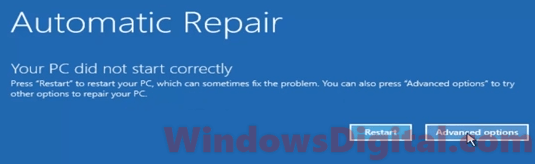
- On the third start, wait for the Automatic Repair screen, then select Advanced options.
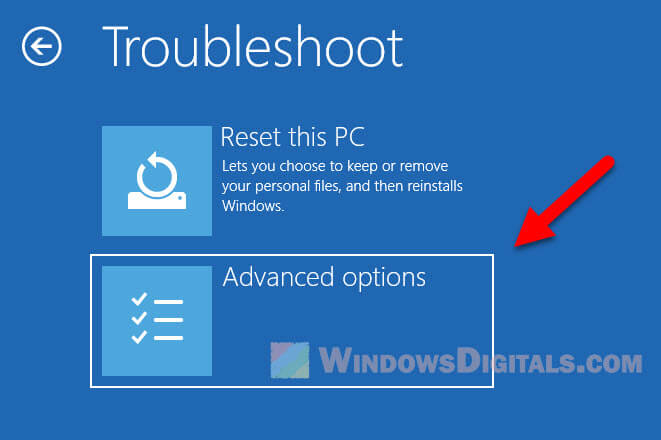
- Select Troubleshoot > Advanced options.
If you can’t get there at all, make a Windows installation USB on another PC, boot from it, and choose Repair my PC on the setup screen.
Run Startup Repair
Startup Repair looks for common problems that stop Windows from starting and fixes what it can. It didn’t help everyone who tried it, but it’s the easiest thing to try first.
- In Advanced options, select Startup Repair.
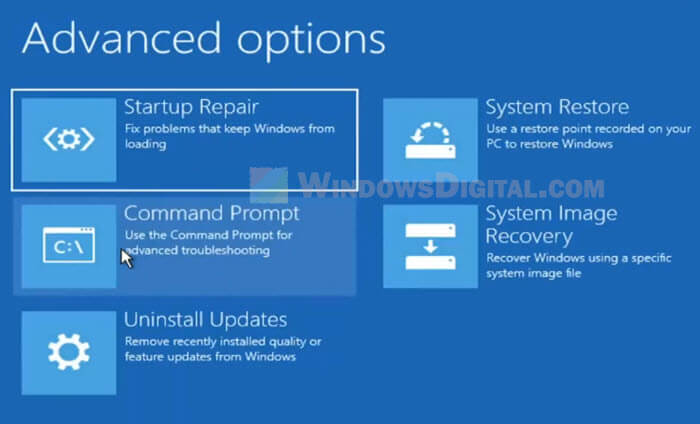
- Wait for it to finish, then let the PC restart.
Uninstall the latest update
If the crashes started right after an update, removing that update from the recovery screen can undo whatever it broke. You can only remove the most recent one this way.
- In Advanced options, select Uninstall Updates.
- Choose “Uninstall latest quality update” for the regular monthly update, or “Uninstall latest feature update” if Windows just moved to a new version.
- Follow the prompts, then restart.
Sometimes the update won’t uninstall at all. If so, move on.
Linked issue: CRITICAL_PROCESS_DIED BSOD on Windows 11/10
Start once with “Disable driver signature enforcement”
64-bit Windows only loads a driver at startup if it’s properly signed. If one of the drivers it needs has a missing or broken signature, Windows blocks it, and depending on which driver it is, you get a blue screen like this one. Turning signature checks off for one start tells you if that’s the problem, and if it is, it gets you back to the desktop.
- In Advanced options, select Startup Settings, then click Restart.
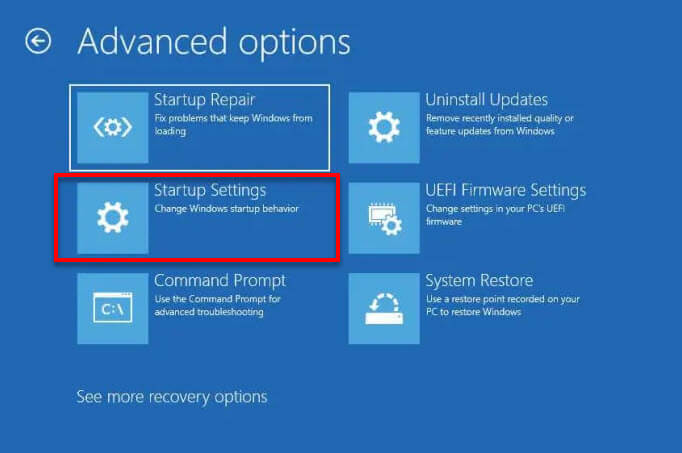
- When the list appears, press 7 or F7 to choose “Disable driver signature enforcement“.
This only lasts for that one start. It’s a test, not a fix: drivers Windows can’t verify can be harmful, so don’t keep starting Windows this way. If Windows loads this way, a driver that Windows can’t verify is almost certainly the cause.
Find which driver is being blocked
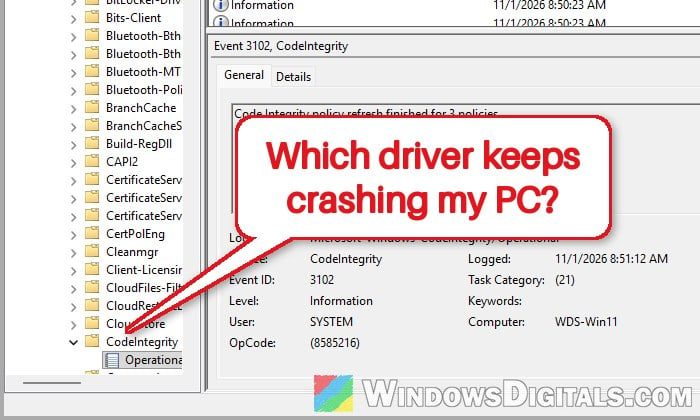
Windows keeps a log of the drivers it blocks because of their signature, in Event Viewer. Once you’re on the desktop, here’s how to check it:
- Press Win + R, type
eventvwr.mscand press Enter. - In the left pane, go to Applications and Services Logs > Microsoft > Windows > CodeIntegrity > Operational.
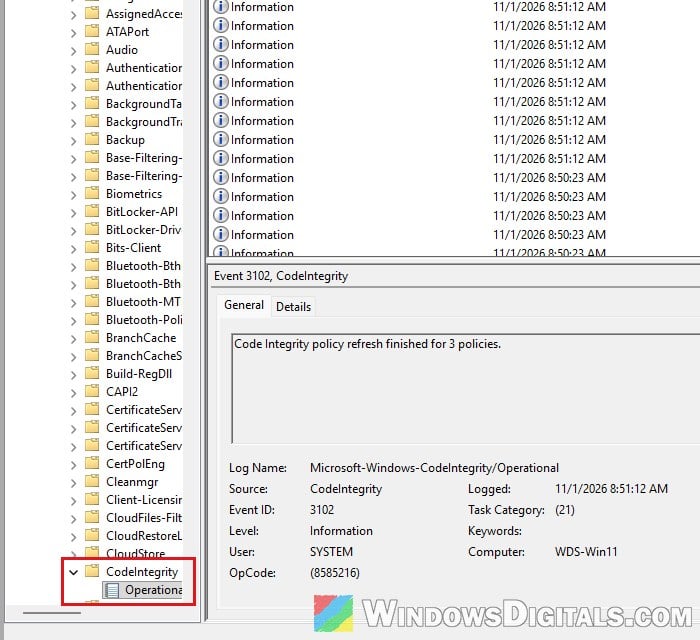
- Look through the newest events for the name of a driver file (it ends with
.sys).
Then update or reinstall that driver from your PC or device maker’s website, or uninstall the app it came with. In most cases, updating the driver alone is enough. If nothing shows up in the log, move on to Safe Mode below.
Undo recent driver changes in Safe Mode
If Windows doesn’t load even with signature checks off, or the log shows nothing useful, try Safe Mode, which starts Windows with only the basic drivers. From there you can remove whatever you changed just before the crashes started.
- Go to Advanced options > Startup Settings > Restart again, and press 4 for Safe Mode (or 5 for Safe Mode with Networking).

- Right-click the Start button and select Device Manager.
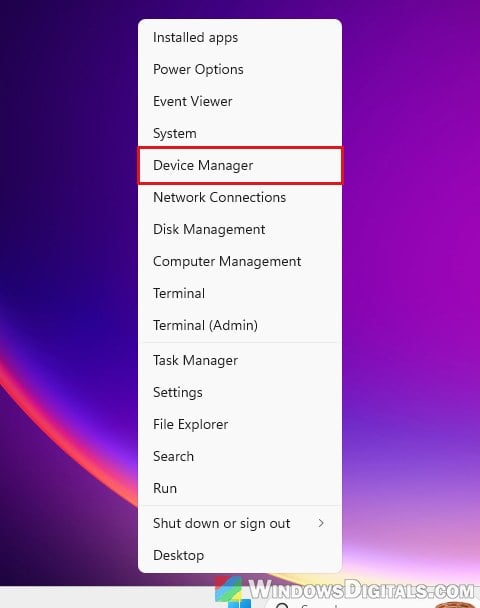
- Look for any device with a yellow exclamation mark, right-click it and select Properties.
- Go to the Driver tab and click Roll Back Driver if the problem started after a driver update, or Update Driver otherwise.
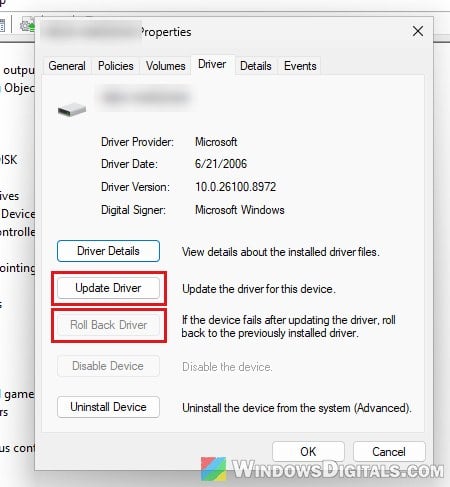
If you added new hardware right before the error, shut down and remove it too. Then restart normally and see if the blue screen is gone.
Related concern: Windows 11 Keeps Booting in Safe Mode (Fix)
Did you just turn on virtualization in the BIOS?
If the blue screen appeared right after enabling “Intel (VMX) Virtualization Technology” (VT-x) in the BIOS, turn that setting back off first. Windows should start normally again once it’s disabled.
Turning off Hyper-V, Windows Sandbox or Memory Integrity doesn’t seem to stop this crash. Before turning virtualization on again, it’s worth checking whether your motherboard maker has a newer BIOS and chipset driver, though there’s no guarantee it helps.
Be warned: A failed BIOS update can brick your motherboard. Only use the file from your PC or motherboard maker’s support page for your exact model, and if you’re not sure what you’re doing, it’s better to get someone to help you instead.
Check the drive and system files
Corrupted system files are on Microsoft’s list of causes, so it’s worth running SFC from the recovery screen’s Command Prompt. For the exact command when Windows won’t boot, see: How to Run SFC Scannow Command At Boot in Windows 10/11.
Also keep in mind that the drive itself can be the problem. If repair commands crash with a different blue screen, the drive may be failing. If you have a spare drive with Windows on it, swapping it in can tell you whether the old drive is the problem.
Restore your PC to an earlier point
If you have a restore point from before the problem started, System Restore in Advanced options can roll back system files and settings to that point without touching your personal files. Pick one dated before the first blue screen.
Might be useful: How to System Restore Windows 11/10 to a Previous Date
Reset Windows as a last resort
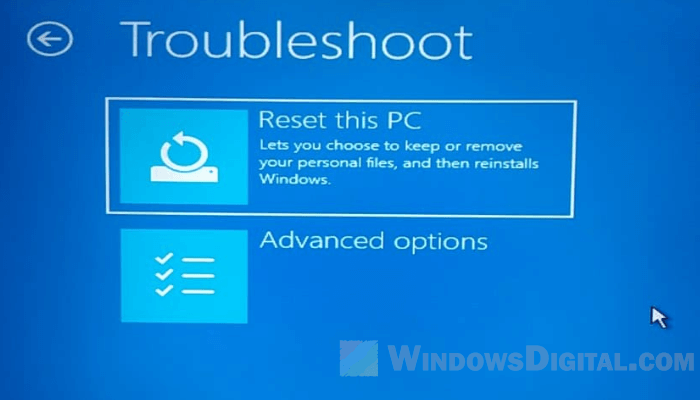
If nothing above works and the drive doesn’t seem to be the problem, copy anything important off the drive first if you can. Then go to Troubleshoot > Reset this PC and choose Keep my files. This puts Windows back to a fresh state but keeps your personal files, though you’ll need to reinstall your apps afterward.