If you have a TV connected to your PC as a second screen and notice that the whole PC freezes for a split second every 5 to 10 seconds while the TV is turned off or sitting on standby, even on the desktop with nothing running, the TV being plugged in is most likely what’s causing it. The stutter usually stops the moment you turn the TV on or pull out its cable. This guide will show you why it happens and what you can do to stop it.
Also see: Game Stuttering and Lag on Dual Monitor (Fix)
Why does the PC stutter when the TV is off?
A TV on standby isn’t really off. It stays connected over HDMI and keeps checking the input for a signal. While Windows still treats the TV as a connected display, what most likely happens is that the graphics driver keeps checking it again and again, and each check makes the whole system hitch for a moment. That’s why the stutter comes at a steady interval, and why the mouse pointer, videos and games all freeze at the same time.
The problem has been around for years on and off, but it came back for some AMD Radeon users after the Adrenalin 26.7.1 driver from July 2026, and it’s still there in 26.10.1. One setup where it shows up is a Samsung TV on HDMI next to a monitor on DisplayPort, with Windows set to show the picture on the monitor only. It’s not limited to TVs either, since a second monitor that’s switched off can cause the same thing.
Linked issue: Mouse Lag on 4k Monitor or TV Screen (Fix)
Switch Windows to “Extend” instead of “PC screen only”
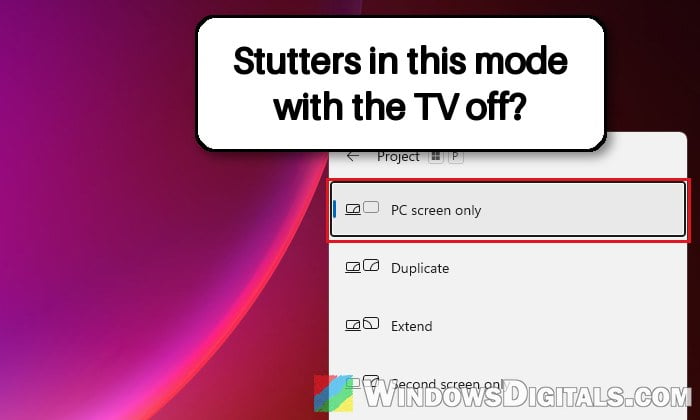
The stutter mostly shows up when Windows is set to “PC screen only“, where the TV is still plugged in but not part of the desktop. When the desktop is extended to the TV instead, the stutter doesn’t happen, even with the TV off, so it’s the easiest thing to try first.
- Press Win + P to open the display options.
- Select “Extend“.
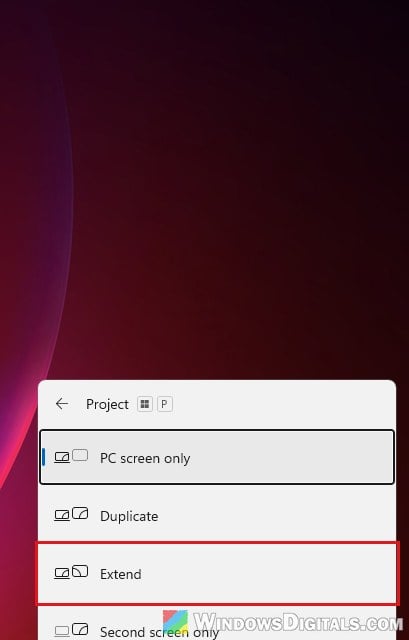
- Turn off the TV the way you usually do and move the mouse around for a minute or so to see if the stutter is gone.
The downside is that windows and apps can still end up on the TV’s part of the desktop while it’s off, so you might have to drag a window back now and then. If it bothers you, you can also just leave the TV on while you use the PC, which stops the stutter too, but that’s hardly practical.
Related guide: How to Display Different Things on Two Monitors Windows 11
Unplug the TV’s HDMI cable when you’re not using it
It sounds a bit silly, but unplugging the TV is the fix that’s worked most reliably so far. Pulling the HDMI cable out of the graphics card stops the stutter right away. Unplugging the TV from the wall socket does the same, most likely because the TV then stops checking for a signal.
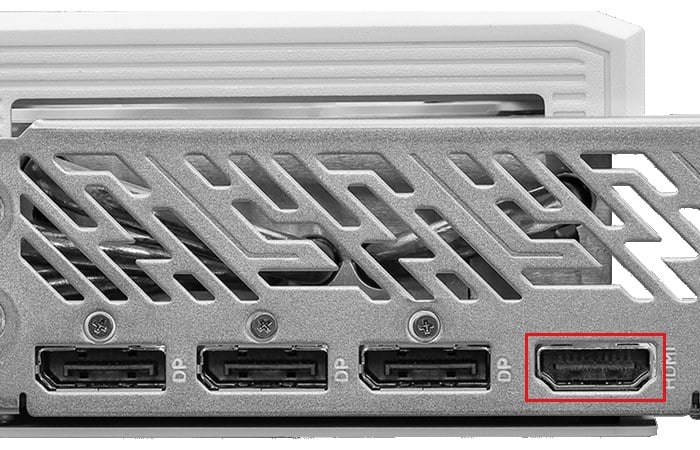
Since doing that every day gets old fast, there are a couple of ways to make it easier, although they haven’t really been tested for this problem:
- A power strip with an on/off switch for the TV, so you can cut its power completely when you’re done with it.
- An HDMI switch between the PC and the TV, set to another input when you’re not using the TV.
Roll back the AMD driver to 26.6.1
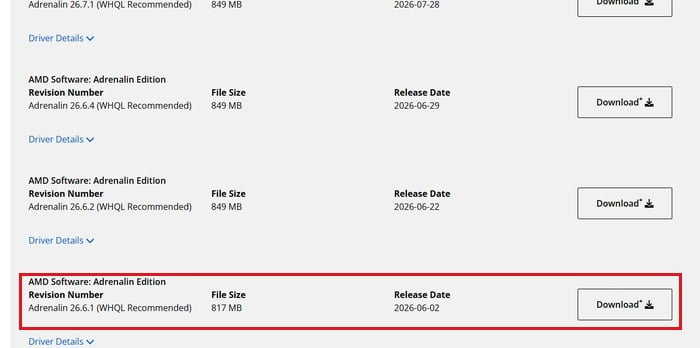
If you have an AMD Radeon card and the stutter only started after you updated to driver 26.7.1 or newer, going back to an older version such as 26.6.1 fixed the problem completely for at least one user. It’s also the only fix that lets you keep using “PC screen only” with the TV plugged in. Reinstalling the same newer driver, even after a clean uninstall, didn’t help, so it has to be the older version.
- Download AMD’s official AMD Cleanup Utility from its support page at
https://www.amd.com/en/resources/support-articles/faqs/GPU-601.html. - Go to AMD’s drivers and support page for your graphics card and click “Previous Versions“.
- Expand “Windows 11 – 64-Bit Edition“.
- Download “Adrenalin 26.6.1“.
- Run
amdcleanuputility.exeto remove the current AMD driver and software, then let the PC restart. - Install the 26.6.1 driver you downloaded and restart again.
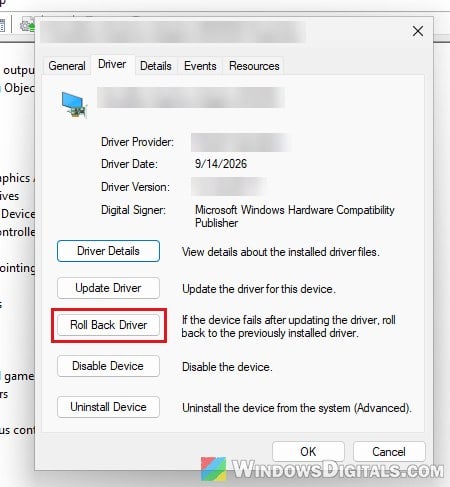
If Windows still has the old driver package, you can also try Device Manager > Display adapters > your card > Properties > Driver > Roll Back Driver. The button is greyed out when there’s no previous driver to go back to. It only goes back one version, so it helps only if the driver before your current one was older than 26.7.1.
Please note that some new games want the newest driver, so staying on an older one isn’t always ideal. Keep an eye on new AMD driver releases and check whether the stutter is fixed in them. You can also report the bug to AMD through the bug report tool in AMD Software.
Related concern: AMD Software Warning: Graphics Driver Replaced?
Turn off “HDCP Support” for the TV in AMD Software
HDCP is the copy protection a graphics card and a display use for protected video. On older AMD drivers, turning it off for the display that’s powered off was reported to stop the same kind of stutter. It didn’t help with the newer 26.7.1 problem when it was tried, but it’s quick to try and easy to undo.
- Open AMD Software: Adrenalin Edition.
- Click “Gaming” at the top, then select the “Display” tab, and choose the TV if you have more than one display.
- Expand “Overrides” and turn off “HDCP Support“.
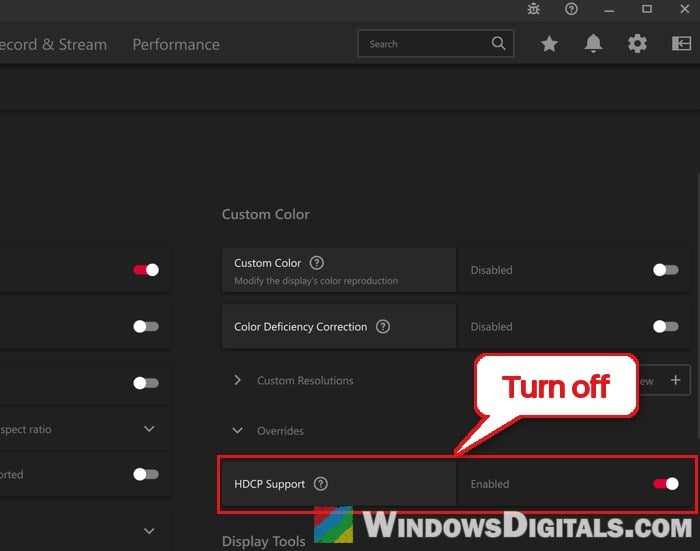
- Do the same for your other displays if the stutter is still there, then restart the PC.
In older versions of AMD Software, the Display tab is under the Settings (gear) icon at the top right instead. If you can’t find it, type “Overrides” in the search box at the top of the window.
Note: With HDCP turned off, protected video from streaming services might not play on that display. If it doesn’t help, turn it back on.
Disable the TV in Device Manager
One last thing worth a quick test is to disable the TV as a monitor in Device Manager. It stopped the stutter for one person but not for another, so don’t be surprised if it doesn’t change anything. Simply disconnecting the TV in Settings > System > Display may not be enough on its own.
- Right-click the Start button and select “Device Manager“.
- Expand “Monitors“.
- Right-click the TV and select “Disable device“.
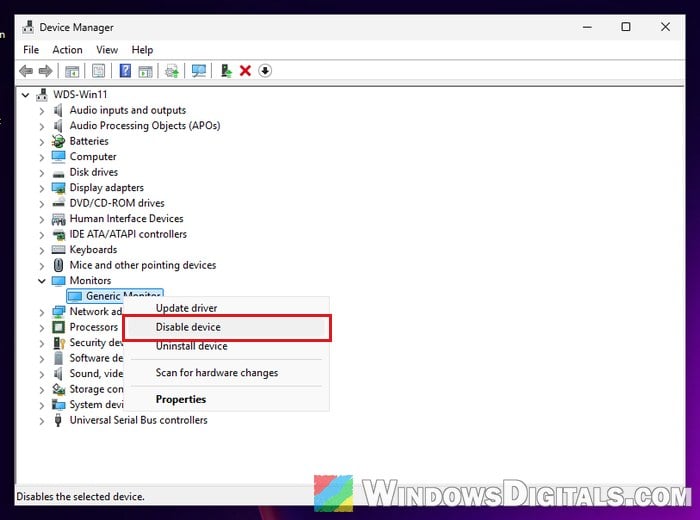
To bring the TV back later, right-click it again and select “Enable device“. If you can’t roll back the driver and neither HDCP nor Device Manager helps, stick with Extend mode or unplug the TV when you’re not using it.