When you check for updates on Windows 11 or 10, you might see “Update for Microsoft Defender for Endpoint – KB5005292” fail with “Install error – 0x800700aa“, and clicking Retry gets you the same error every time. It isn’t your regular antivirus update, and the failure is most likely not caused by anything on your PC. This guide will explain what this update actually is and what you can do when it won’t install.
Also see: Windows 11 “Updates failed” with a “Retry” button
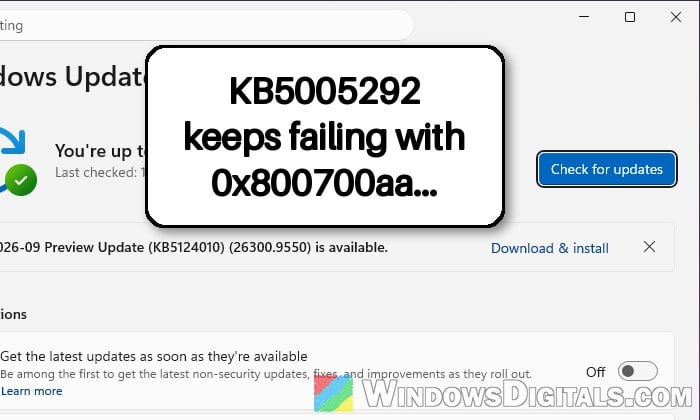
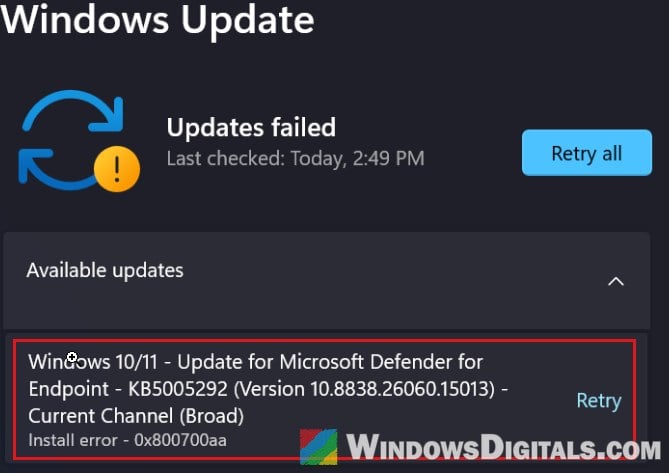
What is KB5005292 and why does it fail?
KB5005292 updates the sensor of Microsoft Defender for Endpoint (a file called MsSense.exe). Defender for Endpoint is Microsoft’s security service for businesses and schools, which their IT teams set up on the PCs they manage. It’s not the Microsoft Defender Antivirus update that keeps your virus definitions current.
Microsoft reuses the same KB number every time a new version of the sensor comes out, which is why you might remember seeing KB5005292 before. Since 2026, Microsoft sends these sensor updates to Windows 10 and 11 through Windows Update on their own, instead of inside the monthly Windows updates. According to Microsoft, the update only applies to PCs that are onboarded to Defender for Endpoint, and only when the installed sensor is older than the one in the update.
As for the error, 0x800700aa means “The requested resource is in use“. Something the update needs was busy when it tried to install. Microsoft hasn’t said what that is.
The same failure hit the previous version of this update in September 2026 (10.8838.26060.15013), and quite a lot of people ran into it. Within about four days, users on Reddit and Microsoft’s forums said the update had started installing normally again without them changing anything. That points to a problem on Microsoft’s side, not your PC.
Linked issue: Your Virus and threat protection is managed by your organization
Wait a few days and check for updates again
Since the last wave of this error went away by itself, the simplest thing you can do is give it a few days. Your other updates can still install while this one fails.
When you’re ready to try again, follow the steps below:
- Press Win + I to open Settings.
- Go to Windows Update and click Check for updates.
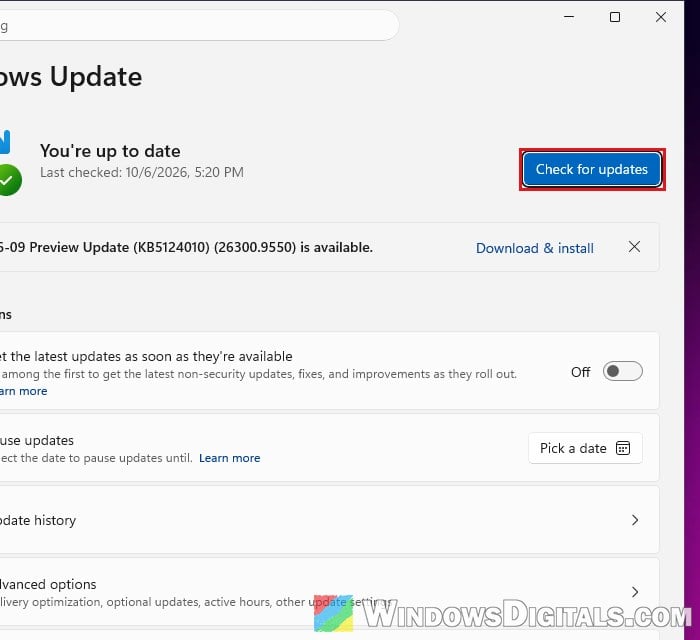
- If KB5005292 is listed again, let it download and install.
If it installs this time, the update disappears from the list and shows up as installed in your update history.
Restart your PC and try again
Because the error says a resource is in use, a plain restart is worth a try. It closes whatever was holding on to the files or services the update needs. Microsoft also says these sensor updates may need a restart in rare cases when something goes wrong.
Here’s how to do it:
- Click Start, then the Power button, and select Restart.
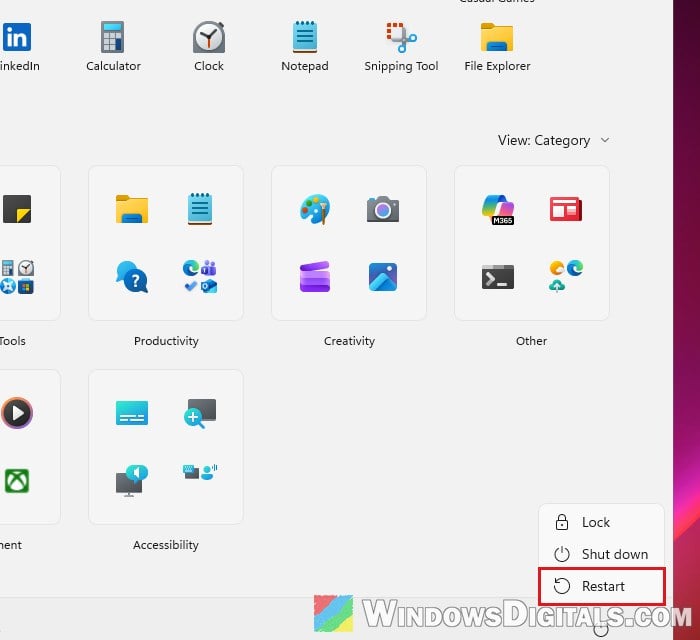
- Once you’re back on the desktop, open Settings > Windows Update and click Retry next to the update, or Check for updates.
Check if your PC is managed by work or school
Since this update is meant for PCs that a company or school protects with Defender for Endpoint, it helps to know whether that’s the case for yours. Here’s how to check:
- Open Settings and go to Accounts.
- Click Access work or school.
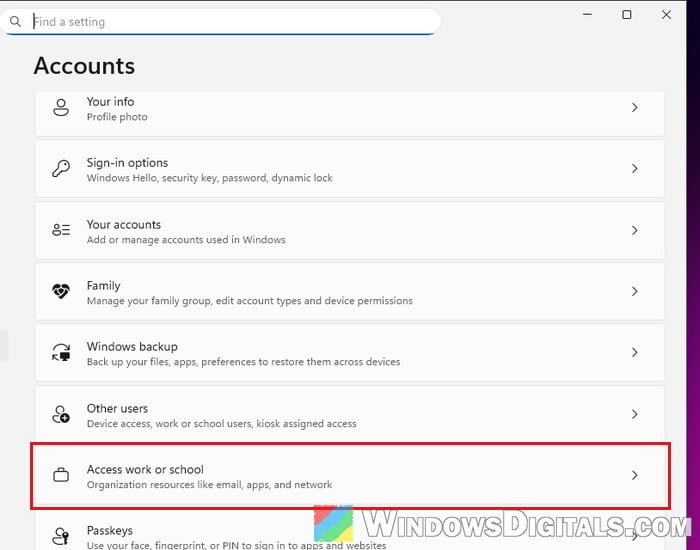
- See if a work or school account is listed there. If nothing is listed, move on to the next section.
If it’s a work or school PC, the update comes from your organization’s Defender setup. Don’t try to remove anything yourself. Let your IT team know the update fails with 0x800700aa, since they manage its updates.
If it’s your own PC and it used to belong to a company (a laptop you kept after leaving a job, or one bought second-hand from a business), it may still be set up for that company’s Defender, which could be why this update shows up on a personal PC. If you don’t know why Defender for Endpoint is on it, the company that set it up is the one to ask.
Related concern: Can’t Remove School or Work Email from Windows 11 or 10
Check which sensor version is installed
You can see which sensor version your PC has with one command:
- Click Start, type “cmd“, and select Run as administrator for Command Prompt.
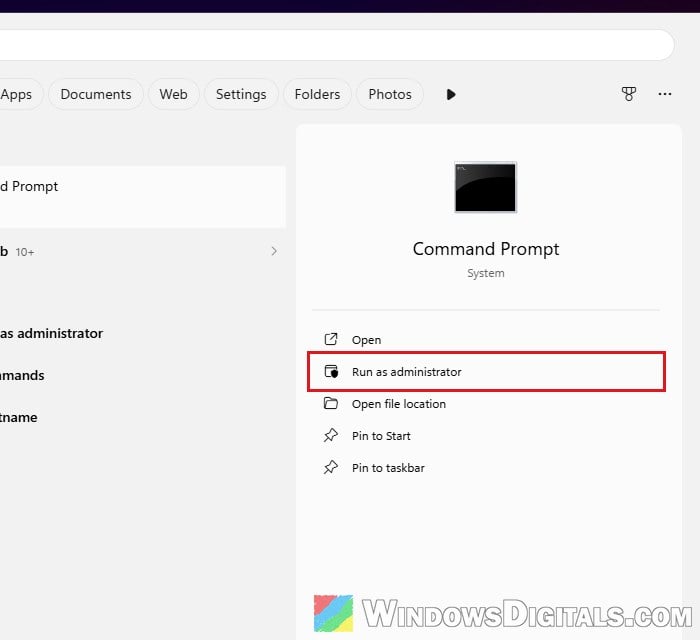
- Click Yes when Windows asks for permission.
- Type the following command and press Enter:
sc qc sense
- Look at the BINARY_PATH_NAME line. It shows where MsSense.exe is, and on an updated sensor, the version number is part of that folder path.
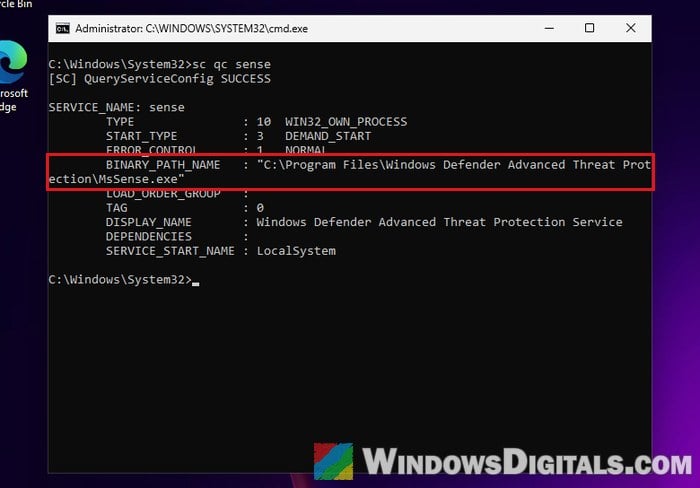
If the path has no version number in it, like on the PC in the picture (which was never set up for Defender for Endpoint), this check can’t tell you which version you have, so move on to the next section.
If it does, compare the version in the path with the one in the name of the update in Windows Update (for example, Version 10.8839.26080.2008). If the installed version is the same or newer, the update doesn’t apply to your PC. If it’s older and the update still fails, try the next steps or ask your IT team.
Repair system files with DISM and SFC
If the update still won’t install after a few days and a restart, it’s worth ruling out damaged system files. This is a general Windows Update repair rather than a known fix for this error. It’s safe to run, though it takes a while.
Follow the steps below:
- Open Command Prompt as administrator again, as in the previous section.
- Type the following command and press Enter:
DISM /Online /Cleanup-Image /RestoreHealth
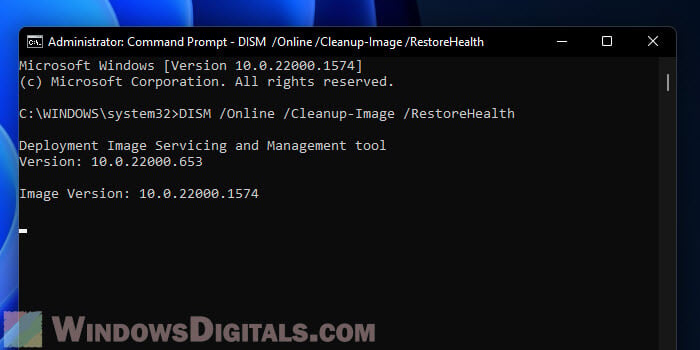
- When it finishes, run this command:
sfc /scannow
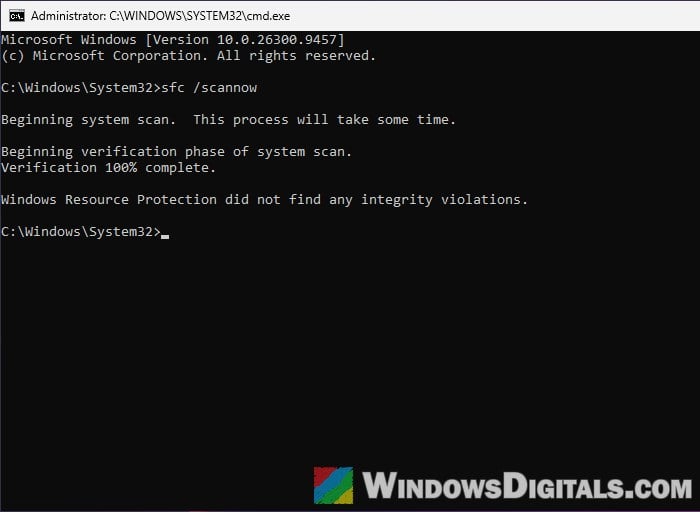
- Restart your PC and check for updates again.
Suggested read: How to Run SFC Scannow Command At Boot in Windows 10/11
What to tell your IT team
On a work or school PC, the IT team handles Defender for Endpoint, so when nothing above helps, it’s their call. They’ll want to know the update’s full name and version, when it started failing, and the error code. They can also check the CBS log (C:\Windows\Logs\CBS\CBS.log) and the Windows Update log on the PC to look into why it failed.