When you uninstall RAV Network Protection or RAV Endpoint Protection from your Windows 11 PC, you might find its icon back next to the Wi-Fi icon the next day, or even a few minutes later, as if you never removed it. Some people remove it again and again, while for others the uninstaller stops partway with an error. This guide will explain why it keeps coming back and how to get every part of it off your PC.
Also see: Wsc_proxy.exe (Avast Remediation): How to Uninstall it
Why does RAV keep coming back after you uninstall it?
RAV isn’t a virus, and it isn’t part of Windows, though it can show up in Windows Security. It’s a real antivirus made by ReasonLabs (Reason Cybersecurity Inc.), and it usually arrives as an optional offer bundled inside another program’s installer. It most often comes with uTorrent (and Opera GX), but Java and game installers have carried it too.
It then tends to come back for one of these reasons:
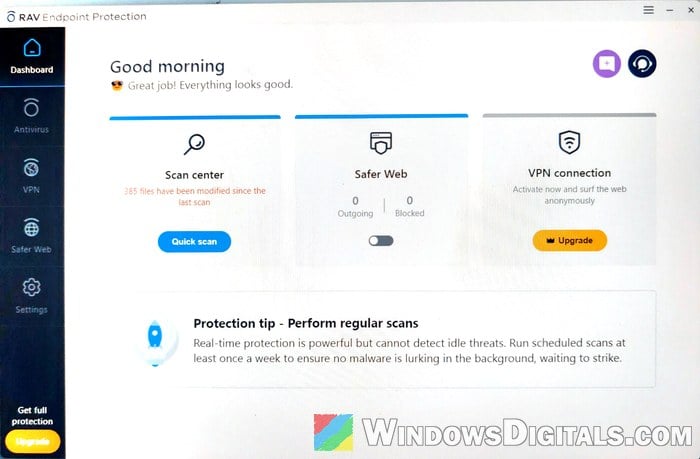
- RAV is several apps, not one. RAV Endpoint Protection, RAV Network Protection, RAV VPN, Safer Web and the Online Security browser extension can each be installed separately. Uninstall one and the others stay, so RAV can still be on your PC.
- The program it came with is still installed. The installer or updater of that program can offer and install RAV again.
- Its background services are still running. Even after an uninstall, RAV’s services in
C:\Program Files\ReasonLabscan keep running, and the folder can’t be deleted while they do.
Uninstall every RAV and ReasonLabs app
Go through the whole list, not just the one app you noticed:
- Press Win + I to open Settings, then go to Apps > Installed apps (on Windows 10, Apps > Apps & features).
- Type “RAV” in the Search apps box above the list.
- Click the three dots (…) next to the first RAV app and select Uninstall, then click Uninstall again to confirm.
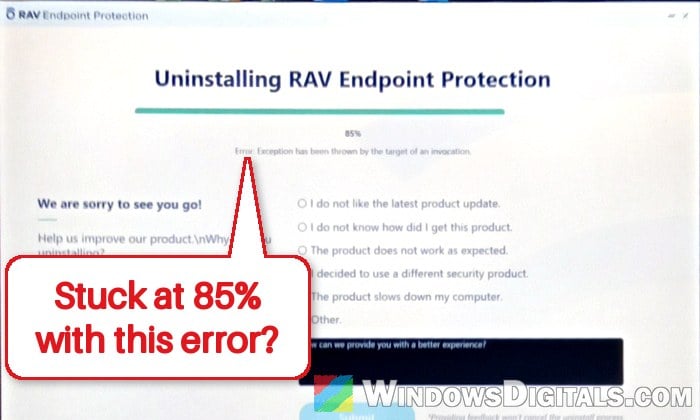
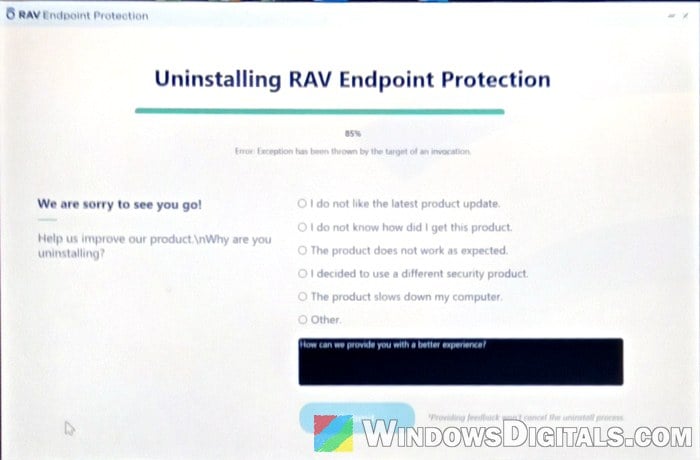
- RAV’s own uninstaller opens and may ask you to confirm once more. You can skip the short survey it shows. Let it finish without restarting or turning off your PC. If it stops partway with an error like the one below, see the Revo and Safe Mode sections further down.
- Repeat for every other RAV app in the list (RAV Network Protection, RAV VPN and so on).
- Search the list again for “Reason” and for “Safer Web“, and uninstall anything you find.
- Restart your PC.
After the restart, search Installed apps for “RAV” again to make sure nothing is left.
Remove the program that brought it in
If RAV is back after a clean uninstall, the program that came with it is a likely suspect. As long as that program (or its updater) is still on your PC, it can pull RAV back in, so uninstall it too.
- Go to Settings > Apps > Installed apps.
- Change Sort by to Date installed so the newest apps are on top.
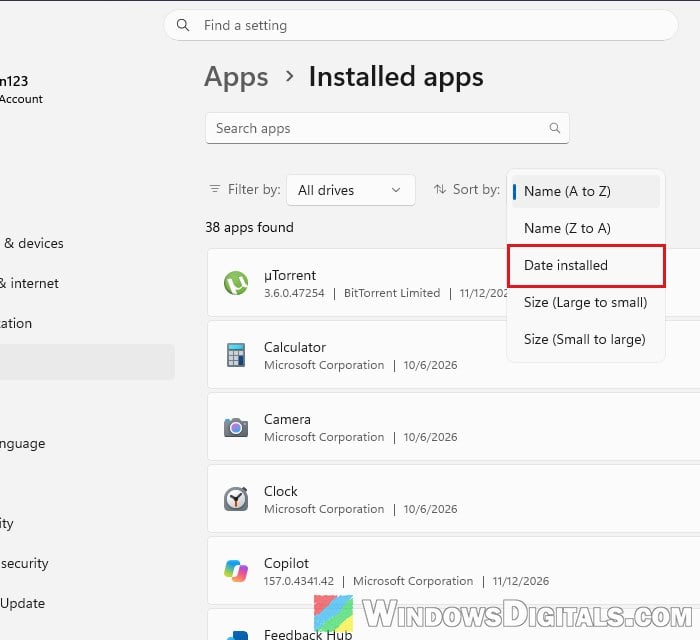
- Look for anything from around the same day as RAV that you didn’t mean to get, such as uTorrent or Opera GX, and uninstall it.
- Restart your PC.
If you want the program back, reinstall it from its official website and decline every extra offer.
Related guide: Where is uTorrent Actually Installed and Downloaded?
Look for RAV in Task Scheduler and startup apps
Some bundled programs add a scheduled task that runs their installer or updater again later, which can bring RAV back with it.
- Press Win + R, type “taskschd.msc” and press Enter.
- Click Task Scheduler Library on the left.
- Look through the list for tasks named after ReasonLabs, RAV, or the program it came with (for example uTorrent or Opera).
- Right-click any task that belongs to RAV or to a program you’ve already uninstalled, and select Delete.
Then go to Settings > Apps > Startup, and if anything from RAV or ReasonLabs is listed there, switch it off.
Pro tip: How to Disable Startup Programs in Windows 11
Use Revo or Geek Uninstaller for the leftovers
Revo Uninstaller and Geek Uninstaller run the program’s own uninstaller, then look for the files and registry entries it left behind so you can delete them. This has helped many people get rid of RAV, although it doesn’t work in every case.
- Download Revo Uninstaller from its official website,
https://www.revouninstaller.com/, and install it. - Open it, find the RAV app in its list of installed programs, and uninstall it from there.
- Let RAV’s uninstaller run, then let Revo scan for leftovers and delete the ones that belong to ReasonLabs or RAV.
- Do the same for every other RAV app, then restart your PC.
If Revo doesn’t get rid of it, try Geek Uninstaller (from its official website) the same way.
Stop its services and delete the folder in Safe Mode
If RAV’s processes keep restarting in Task Manager and the ReasonLabs folder can’t be deleted because it’s in use, its services are still running. Stop them from starting, then delete what’s left from Safe Mode, where Windows starts with only a basic set of drivers and services.
Only do this after the uninstall in the first section, since deleting an installed program’s folder can leave its services behind. If you’re not comfortable changing services, ask ReasonLabs instead (last section).
- Press Win + R, type “services.msc” and press Enter.
- Find the services whose names start with Reason (such as “Reason Security Engine Service“).
- Double-click each one, click Stop, set Startup type to Disabled, and click OK. If Stop is greyed out or gives an error, set it to Disabled anyway and carry on.
- Open Settings > System > Recovery, and click Restart now next to Advanced startup.
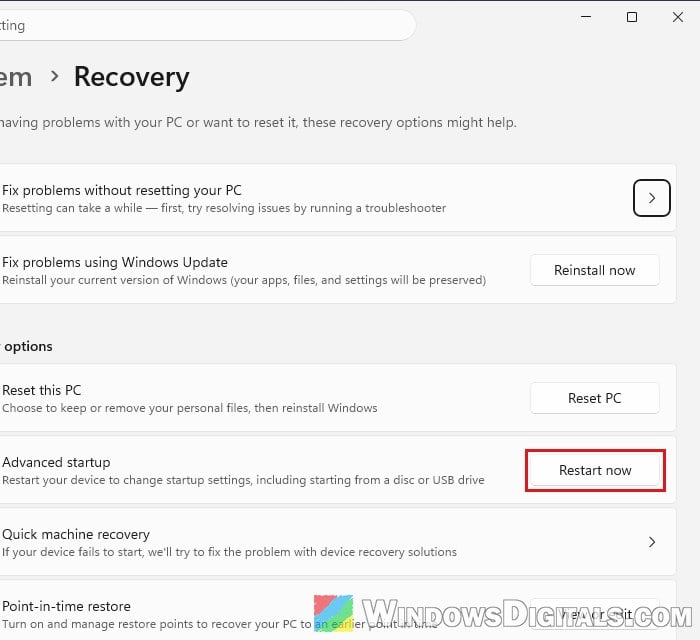
- Select Troubleshoot > Advanced options > Startup Settings > Restart, then press 4 or F4 to start in Safe Mode.
- Open File Explorer, go to
C:\Program Files, and delete the ReasonLabs folder. - Restart your PC normally to leave Safe Mode.
For more ways to get there, see how to enter Safe Mode in Windows 11.
Remove the Online Security extension from your browser
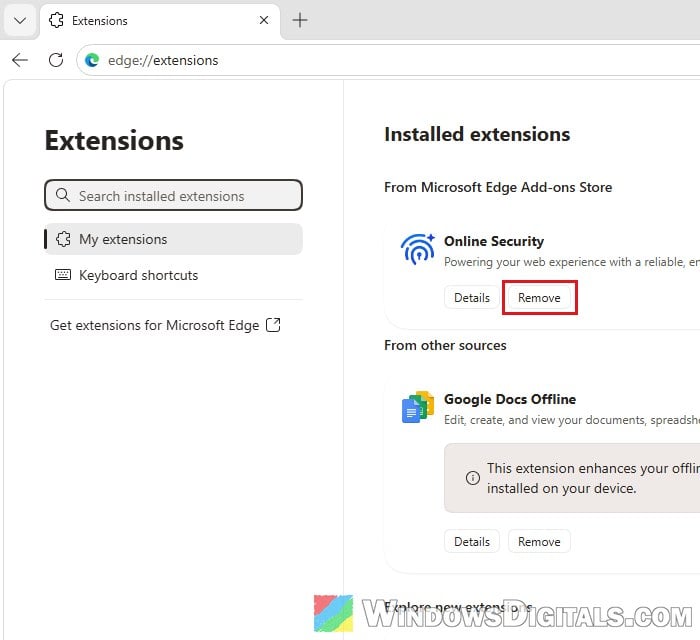
RAV’s browser extension, Online Security, can be installed on its own, so it may still be there after the RAV apps are gone. Check every browser you use.
- In Microsoft Edge, type
edge://extensionsin the address bar and press Enter. In Google Chrome, typechrome://extensions. - If Online Security is listed, click Remove under it and confirm.
Make sure Microsoft Defender is back on
Windows switches off Microsoft Defender Antivirus while RAV is your antivirus, and turns it back on once RAV is gone. Check that it did, and run a scan, since the installer that brought RAV in may have added other things too.
- Open Windows Security from the Start menu and go to Virus & threat protection.
- Under “Who’s protecting me?“, click Manage providers.
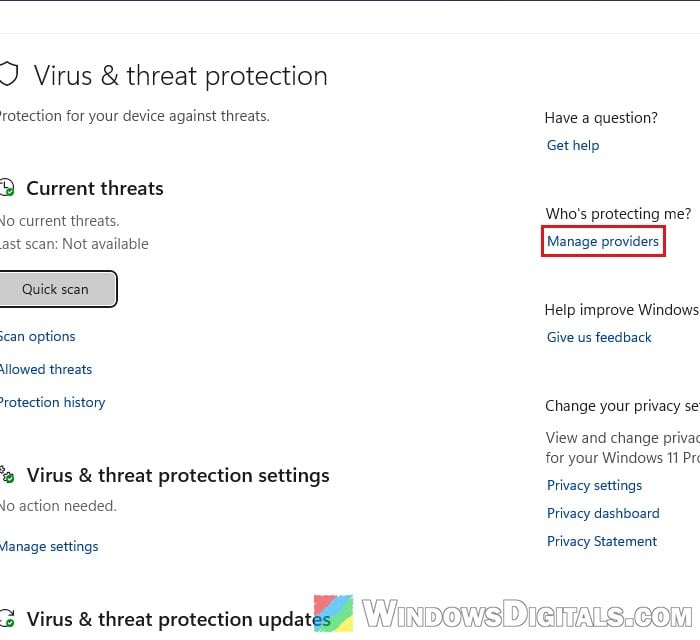
- Under Antivirus, you should see Microsoft Defender Antivirus turned on. If RAV is still listed, it isn’t fully removed yet.
- Go back to Virus & threat protection, click Scan options, select Full scan and click Scan now.
Still there? Ask ReasonLabs to remove it
If none of this works, ReasonLabs’ own support can walk you through removing its software, though a reply can take a few days. On its website, the company lists the email [email protected] and the text line +1 (989) 300-0998. Tell them what you’ve already tried.
Please note that uninstalling RAV doesn’t cancel a trial or a subscription you may have signed up for in it. If you entered card details, cancel it with ReasonLabs too, or you could be charged when the trial ends.