A program’s folder you delete should stay gone. If your CPU sits at 100% with the fans at full speed, the load drops the moment you open Task Manager, and an XMRig folder or file you deleted is back after a restart (sometimes as a new folder like “v2”), you most likely have a coin miner that’s set up to restart itself. A full Windows Security scan often finds nothing. This guide will show you why it keeps coming back and how to find and remove what restarts it.
Also see: MSBuild.exe Virus Keeps Connecting to Unknown Websites, What to do?
Why does XMRig keep coming back?
XMRig itself is a legitimate open-source program for mining the Monero cryptocurrency. The problem is that criminals install it on other people’s PCs without asking, so your CPU (and sometimes your graphics card) mines for them. It usually comes with cracked games, game cheats, fake mods, “free” apps that pay you to keep them running, or an infected USB drive.
Scammers on Steam’s discussion forums have also replied to players with a “fix”: a PowerShell command to run as administrator. The command poses as a PC optimization tool while it quietly installs XMRig.
These miners are hard to get rid of for three reasons:
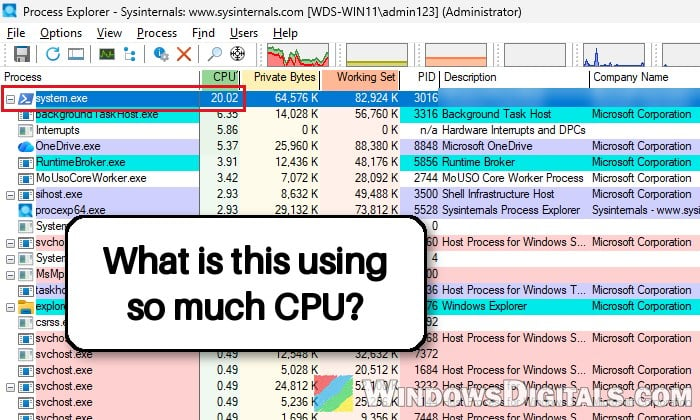
- They hide from Task Manager. The miner watches for Task Manager and pauses while it’s open, so you only see normal CPU use. Some also run under names like system.exe, cmd.exe or svchost.exe.
- Windows Security is told to skip them. The installer adds its own folder (or even all of
C:\Windows) to Microsoft Defender’s exclusions, which is why a full scan comes back clean. - Something else restarts them. A scheduled task, a service or a small watchdog program launches the miner again, or downloads it again, after every restart.
So you need to find the miner, remove the exclusion and delete what starts it before deleting its folder. Download the two free tools below (Process Explorer and Autoruns) first, then disconnect the PC from the internet while you clean, and don’t run any command a stranger posted for you.
Linked issue: Trojan:PowerShell/Boxter Keeps Coming Back in Windows Security
Find the miner with Process Explorer
Process Explorer is a free Microsoft Sysinternals tool that shows every running process and what started it. Most of these miners only look for Task Manager, so they keep running while Process Explorer is open.
Follow the steps below:
- Download Process Explorer from Microsoft at
https://learn.microsoft.com/en-us/sysinternals/downloads/process-explorerand extract the zip file. - Right-click procexp64.exe, select Run as administrator, click Yes, then click Agree on the license agreement.
- Click the CPU column header to sort by CPU usage (click it again if the busiest process isn’t at the top), and look for the one using a lot while you’re doing nothing.
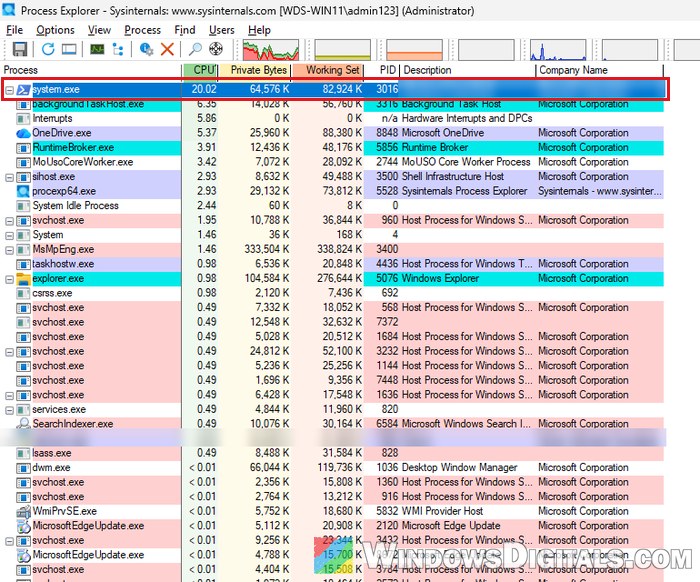
- Right-click it and select Properties.
- On the Image tab, write down the Path and the Command line. Also check Autostart Location, which may name the scheduled task or startup entry that starts it.
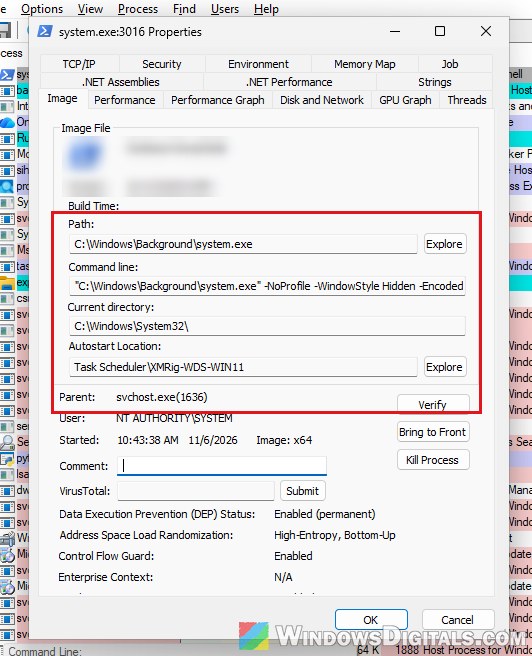
- Close the window, right-click the process again and select Kill Process to stop it for now.
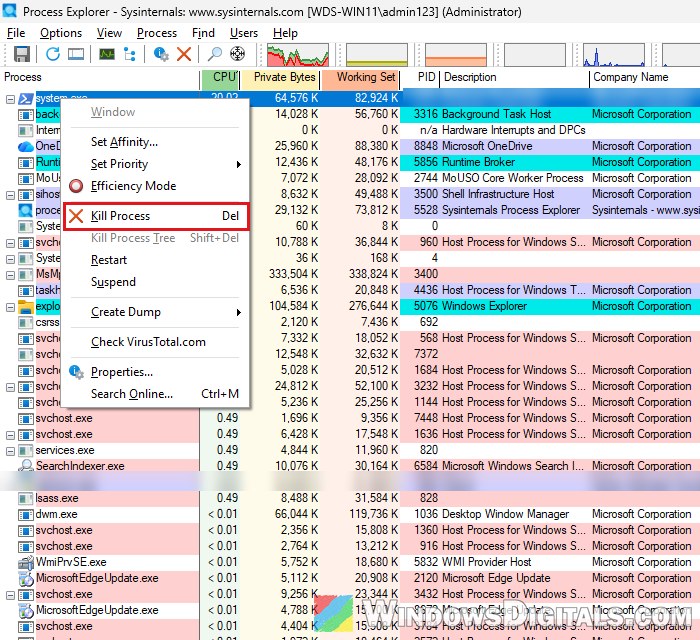
The folder in that path is the one you’ll delete later. The current Process Explorer needs Windows 11, so on Windows 10, or if the miner vanishes from Process Explorer too, open Resource Monitor instead (press Win + R, type resmon and press Enter) and check its CPU tab. You’ll still find the miner’s folder in the exclusions list and the task’s Actions tab below.
Remove the Windows Security exclusions you didn’t add
As long as the miner’s folder is excluded, Windows Security won’t scan it.
Here’s how to check:
- Open Windows Security and go to Virus & threat protection.
- Under Virus & threat protection settings, click Manage settings.
- Scroll down to Exclusions and click Add or remove exclusions, then click Yes on the prompt.
- Click any exclusion you didn’t add yourself, like the whole
C:\Windowsfolder, a folder such asC:\Windows\Background, or an xmrig.exe process, and click Remove.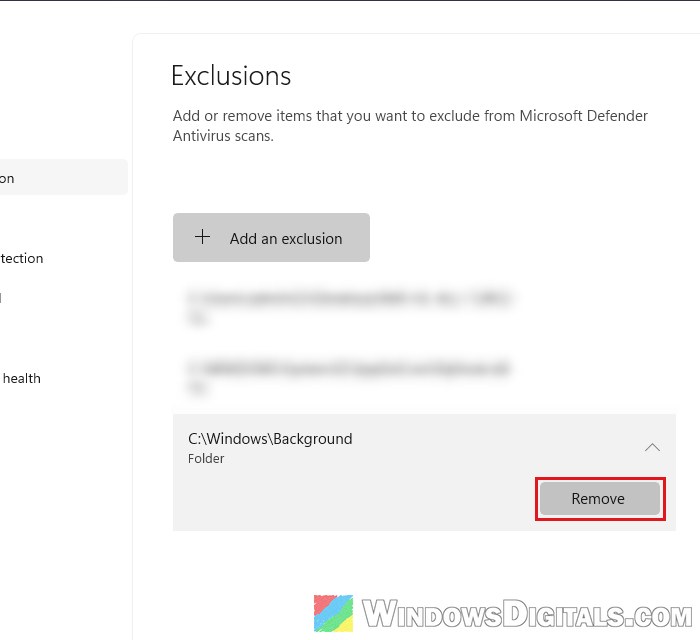
Check the exclusions with PowerShell
PowerShell lists the excluded folders and programs at once:
- Search for “PowerShell” in the Start menu, right-click it, select Run as administrator and click Yes.
- Run these two commands:
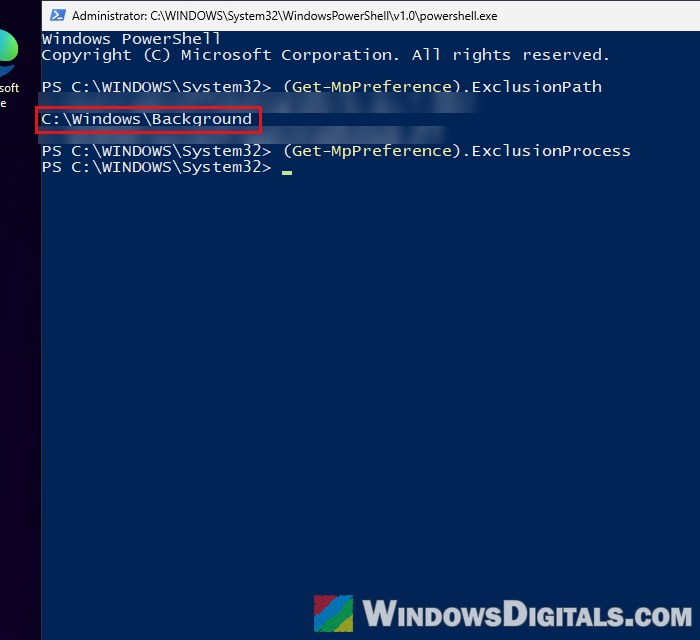
(Get-MpPreference).ExclusionPath
(Get-MpPreference).ExclusionProcess
- To remove one, run the following with the folder you found (or
-ExclusionProcesswith a program’s path):Remove-MpPreference -ExclusionPath "C:\Windows\Background"
Related concern: Nslookup.exe keeps popping up, uses high CPU, is it virus?
Delete the scheduled task or service that brings it back
This is the part that stops the miner from coming back. In the Steam scam above, it’s a task named XMRig- followed by the computer’s name, and another miner used one called SysCheckX, both running at every startup. Others use a service with a random name.
To find the task:
- Press Win + R, type
taskschd.mscand press Enter to open Task Scheduler. - Click Task Scheduler Library in the left pane.
- Click the task named in Autostart Location earlier, or any task you don’t recognize, then the Actions tab at the bottom.
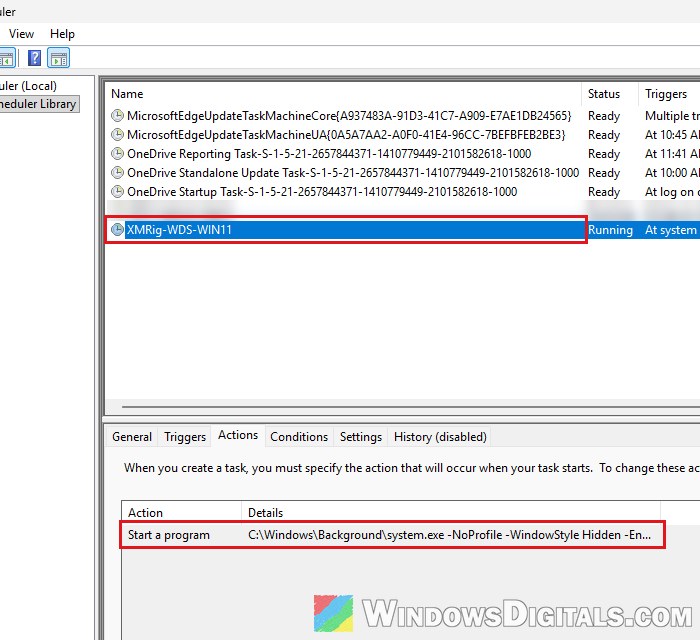
- If it runs a file from the path you wrote down, or anything from an odd folder, right-click the task and select Delete.
If there’s no such task, the miner may start from a service or a startup entry instead. Autoruns, another free Sysinternals tool (https://learn.microsoft.com/en-us/sysinternals/downloads/autoruns, get it before you go offline), lists all of them in one window: check its Scheduled Tasks, Services and Logon tabs. Our Trojan:PowerShell/Boxter guide shows how to use it.
Pro tip: Unknown Program in Task Manager Startup Tab Windows 11/10
Delete the miner’s folder
Now delete the folder. It may be hidden, so turn on hidden items first. Here’s how:
- Open File Explorer and click View > Show > Hidden items.
- Go to the folder from the Path you wrote down earlier, for example
C:\Windows\Backgroundor a folder in AppData.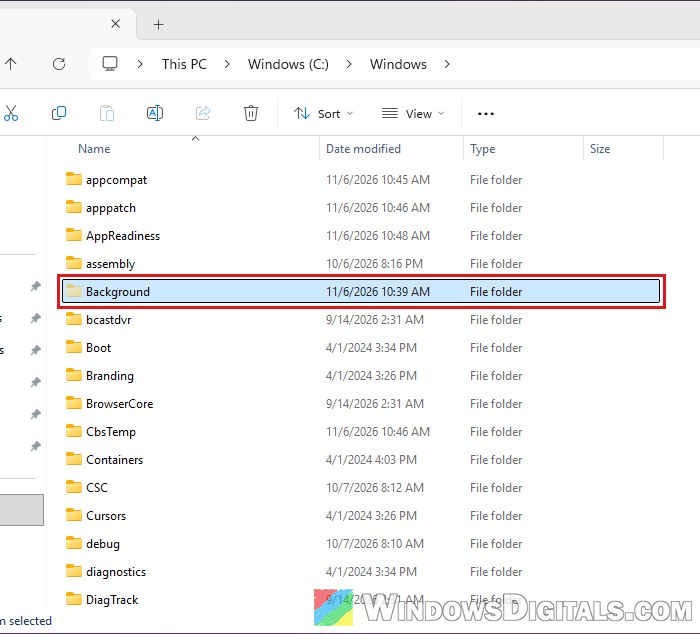
- Delete that folder, and confirm if Windows asks for administrator permission.
Only delete the folder the path, task or exclusion points to, never other files in C:\Windows or System32.
Restart your PC. If the fans stay quiet and the folder stays gone, it most likely worked, but run the scan below anyway.
Run a Microsoft Defender Offline scan
Now let Defender catch what’s left. The offline scan runs from outside Windows, where hiding is much harder. You can reconnect to the internet now.
The PC will restart, so save anything open. If BitLocker is on, suspend it first, or you may be asked for your recovery key. Here’s how to run it:
- Open Windows Security and go to Virus & threat protection.
- Click Scan options.
- Select “Microsoft Defender Antivirus (offline scan)” and click Scan now.
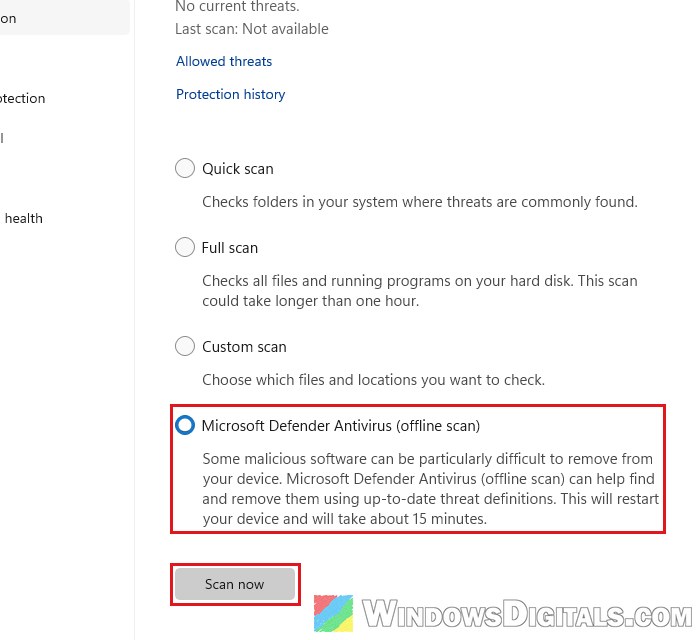
- Click Scan to confirm, then Yes on the prompt.
It takes about 15 minutes and restarts the PC by itself when it’s done. Afterward, check Protection history in Windows Security. A second scan with Malwarebytes is a good idea too, or with Microsoft’s Safety Scanner (https://learn.microsoft.com/en-us/defender-endpoint/safety-scanner-download) if the miner blocks Malwarebytes’ website.
Change your passwords and reinstall Windows if it returns
Whatever installed the miner might have brought a password stealer with it, so use your phone or another PC to change the passwords that matter most and turn on two-factor authentication.
If the miner still comes back, the surest fix, and the one most people on Reddit end up doing, is a clean reinstall. Back up only your personal files (documents, photos, videos, not programs or installers) and reinstall Windows from a USB drive made on another PC.