Say you downloaded a free game launcher or some other free app, and the next time you look at your Windows 11 PC, there’s an antivirus called 360 Total Security running that you never chose to install. You try to remove it, but the 360 Total Security uninstaller keeps asking if you’re sure, closes by itself, or the whole thing is back after a restart. This guide will walk you through the uninstall, what to do when it won’t go, and how to stop it from coming back.
Also see: Fake McAfee Virus Pop-Ups Keep Showing Up on Windows 11
Is 360 Total Security a virus?
No, not by itself. 360 Total Security is a real antivirus and PC cleaner made by the Chinese company Qihoo 360. The problem is how it usually gets onto PCs: it’s bundled with other installers, most often unofficial Minecraft launchers like TLauncher, free “app stores” and other free downloads, and sometimes it’s pushed through browser ads.
Once it’s in, it registers itself as your antivirus, which makes Windows switch off Microsoft Defender Antivirus automatically, and it protects its own files so that malware can’t remove it. That same self-protection is why deleting its folder doesn’t work.
That said, if it showed up together with other programs you don’t recognize, especially after running a fake installer or a program from an unofficial site, something else might have come along with it. The “Remove whatever brought it in” section below covers that.
Similar issue: McAfee Asks for a Password to Uninstall, Why?
Uninstall it from Settings and let the uninstaller finish
Two things trip people up: the Windows permission prompt, and 360’s own uninstaller, which tries hard to talk you out of it. On almost every screen, the big blue button keeps 360 installed. Here’s how to get through it:
- Press Win + I to open Settings, then go to Apps > Installed apps.
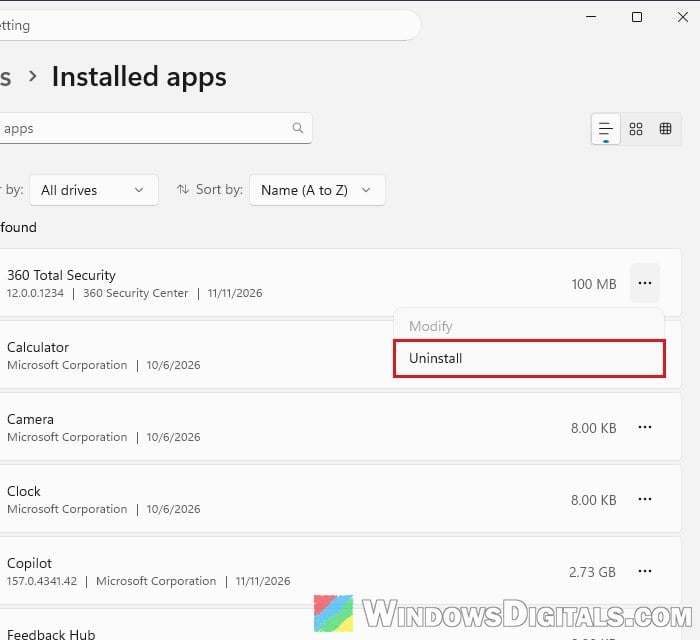
- Find 360 Total Security in the list, click the three dots (…) next to it and select Uninstall, then click Uninstall again to confirm.
- When Windows asks “Do you want to allow this app to make changes to your device?” for “Uninstall Module” by Beijing Qihu Technology Co., Ltd., click Yes. It’s the normal admin prompt an uninstaller like this needs.
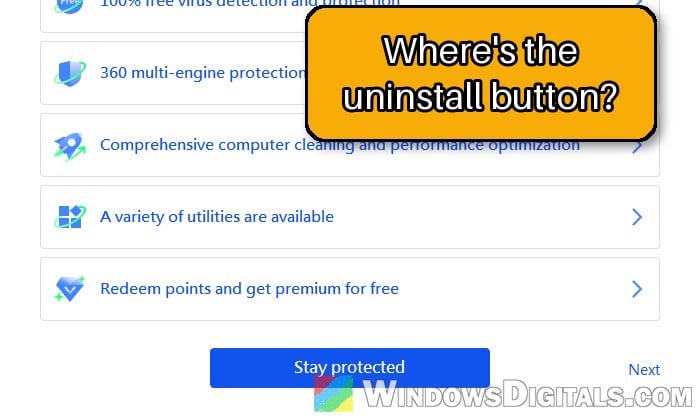
- On the “Before you go” screen, don’t click Stay protected. Click the small Next link at the bottom-right instead.
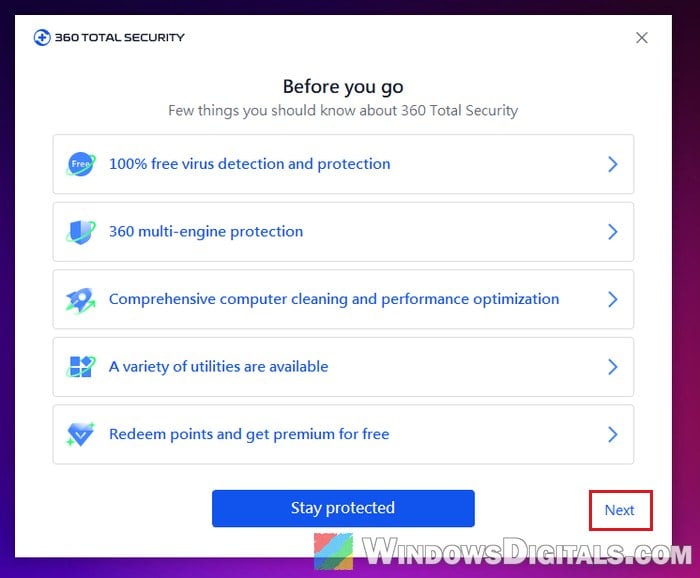
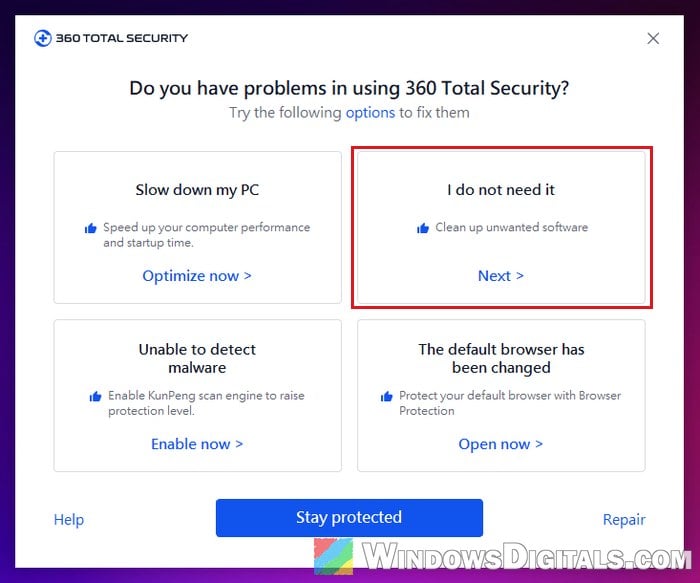
- On “Do you have problems in using 360 Total Security?“, click Next > under “I do not need it“. Skip the other offers, including Repair.
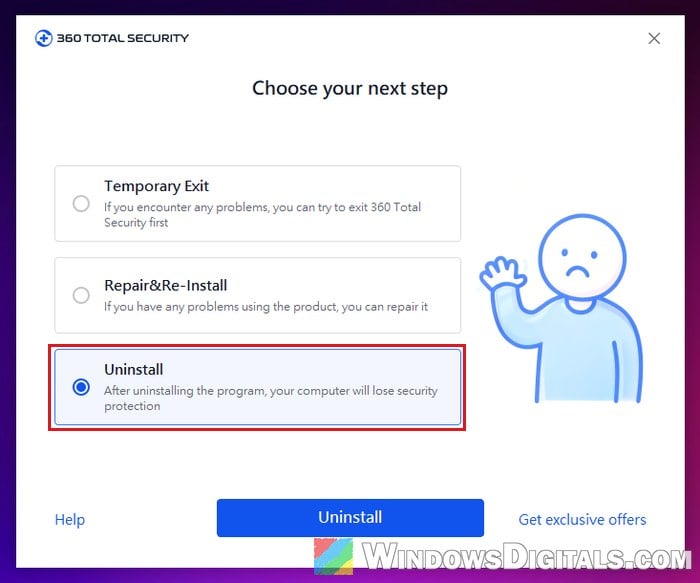
- On “Choose your next step“, Temporary Exit is selected by default, and its button only closes 360 for now. Select Uninstall instead, then click the Uninstall button.
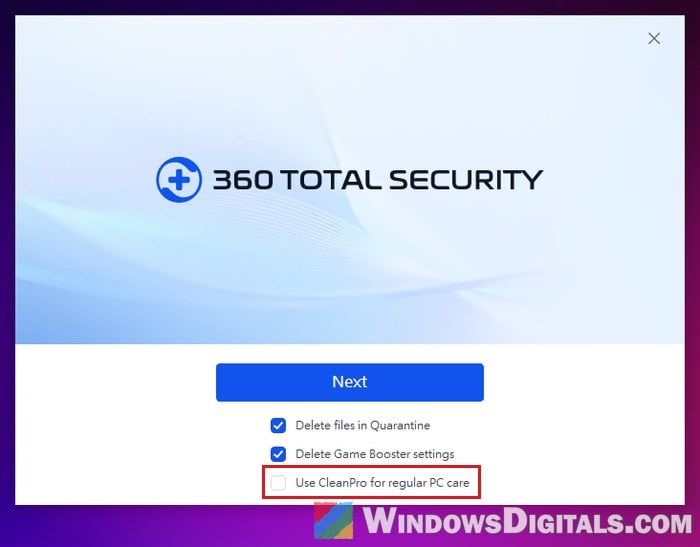
- On the next screen, untick “Use CleanPro for regular PC care” and leave the other two boxes ticked, then click Next.
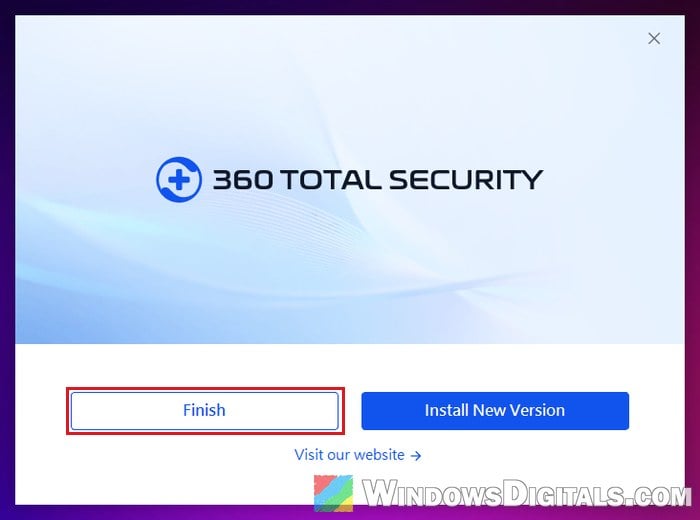
- When it’s done, click Finish, not Install New Version. You can close the feedback page that opens in your browser.
- Restart your PC, even if it doesn’t ask you to. Some of its files stay in its folder until Windows restarts.
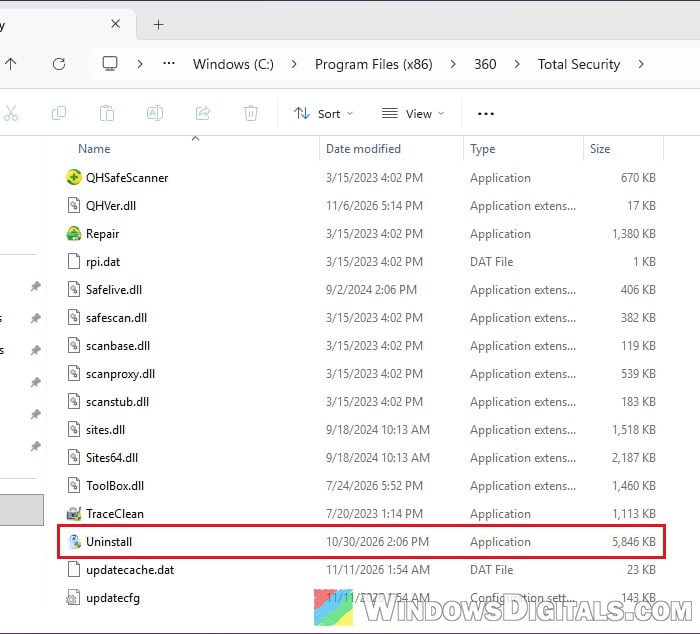
If 360 Total Security isn’t in Installed apps, open C:\Program Files (x86)\360\Total Security in File Explorer and double-click Uninstall (Uninstall.exe) near the bottom.
After the restart, the 360 icon should be gone. Delete any empty 360 folder left in C:\Program Files (x86).
Turn off 360’s self-protection, then uninstall again
If the uninstaller fails or can’t remove some of its files, 360’s self-protection is likely in the way. It stops other programs, and you, from changing or deleting its files, so switch it off before uninstalling.
- Open 360 Total Security from its desktop icon or its icon in the system tray.
- Click the menu icon (three lines) at the top-right corner and select Settings.
- It opens on General. Scroll all the way down to Self Protection and switch off “Enable 360 Self Protection“.
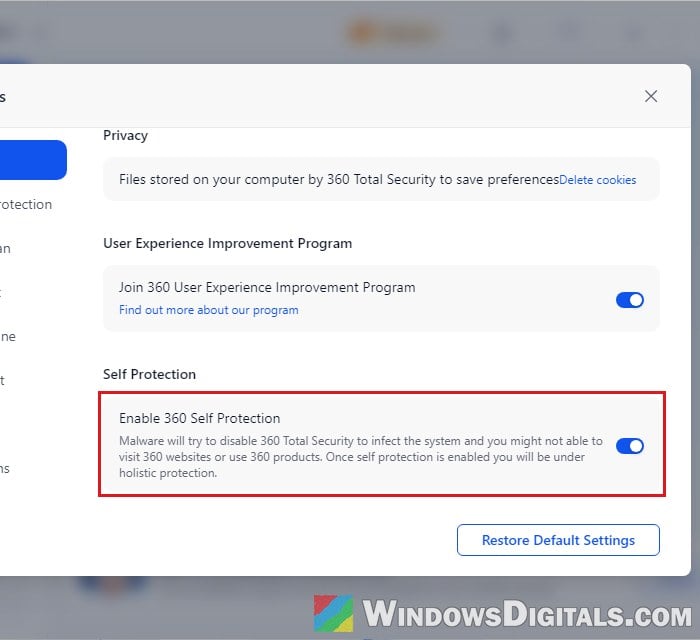
- When it asks if you want to switch it off temporarily, click Yes, then run the uninstall again right away.
This time the uninstaller should get through to Finish and leave only an empty folder after the restart.
Uninstall it in Safe Mode
When 360 keeps coming back after a restart, or the uninstaller closes by itself every time, do the uninstall in Safe Mode. Safe Mode starts Windows with only its own drivers and services, so 360’s protection doesn’t start and can’t block the uninstall. This is what finally worked for several people when the normal uninstall kept failing.
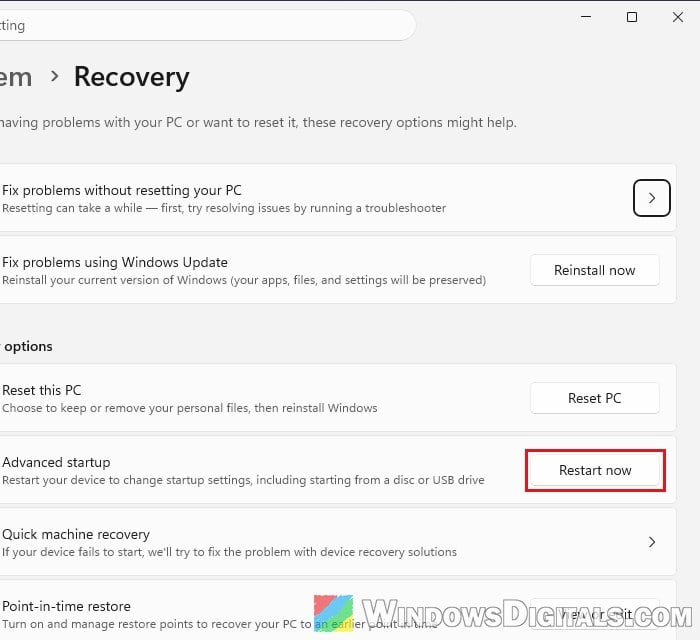
- Open Settings and go to System > Recovery.
- Next to Advanced startup, click Restart now, then confirm.
- On the blue screen, select Troubleshoot > Advanced options > Startup Settings, then click Restart.
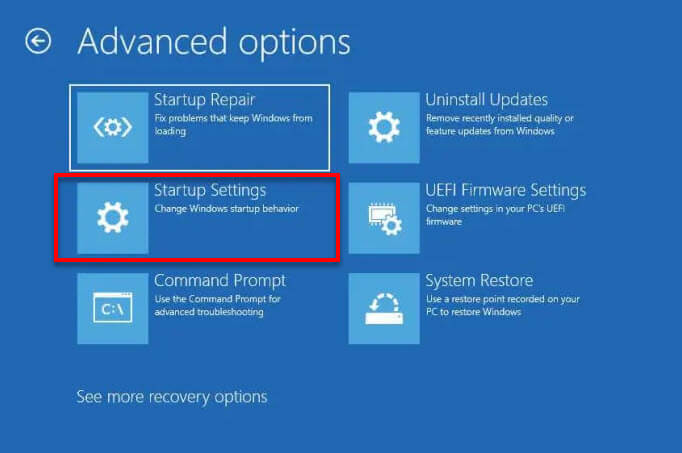
- When the list of options shows up, press 4 or F4 for Enable Safe Mode.
- Sign in, then uninstall 360 Total Security from Settings > Apps > Installed apps, or run its
Uninstall.exeas shown earlier. - If its folders are still there afterwards, delete
C:\Program Files (x86)\360and, if it exists,C:\ProgramData\360safe. TheProgramDatafolder is hidden, so paste the path into File Explorer’s address bar to open it. - Restart your PC normally to leave Safe Mode, and check that the 360 icon is gone.
Use this one-time route rather than the “Safe boot” option in msconfig, which keeps starting your PC in Safe Mode until you turn it off again.
Linked issue: Windows 11 Keeps Booting in Safe Mode (Fix)
Already deleted its files or used another uninstaller? Reinstall it first
This sounds backwards, but it works. If you deleted 360’s folder by hand or ran a third-party uninstaller like Revo, you can end up with a broken, half-removed install: parts of it still run and pop up, but it’s gone from Installed apps and there’s nothing left to remove it with.
Installing it again fixes that. The installer finds the files that are still there and repairs the install, after which the normal uninstall works.
- Download the installer only from 360’s own website,
https://www.360totalsecurity.com/, never from a download site. - Run it and let it finish.
- Uninstall it again from Settings > Apps > Installed apps, as in the first section, and restart.
After the restart, the 360 icon and its pop-ups should be gone, and its folder in C:\Program Files (x86) should be empty.
Remove whatever brought it in
Once 360 is gone, also deal with whatever brought it in, so it doesn’t end up on your PC again. Go through these:
- Uninstall the program it came with. Look through Installed apps for anything from around the same day that you didn’t mean to get, such as an unofficial game launcher or a free app store.
- Turn off browser notifications from sites you don’t know. Pop-ups in the corner of your screen that offer to install 360 Total Security can come from a website you once allowed to send notifications. Remove those sites from your browser’s notification settings.
- Run a full scan with Microsoft Defender (or Malwarebytes) once 360 is gone, to catch anything else the bundle installed.
Pro tip: Turn Off Google Chrome Notifications on Windows 11/10
Make sure Microsoft Defender is back on
Windows turns Microsoft Defender Antivirus back on by itself once another antivirus is gone, but it’s worth checking.
- Open Windows Security from the Start menu.
- Go to Virus & threat protection, and under “Who’s protecting me?” click Manage providers.
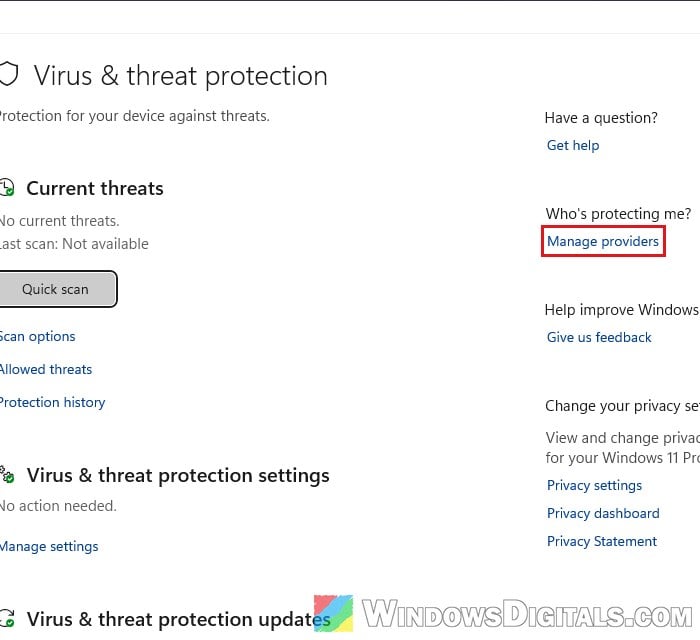
- Under Antivirus, you should see Microsoft Defender Antivirus turned on.
If 360 Total Security is still listed there as your antivirus, it hasn’t been fully removed. Go back to the Safe Mode section above and remove what’s left from there.