Word’s Transcribe feature lets you upload a recording and turn it into text right inside your document. Since around November 8, 2026, though, clicking “Upload audio” in the Transcribe pane of desktop Word for Microsoft 365 does nothing at all: no file picker opens and no error shows up, while recording with your microphone may still work. This guide will show you the quick workaround that gets the upload button working again, and what to do if it doesn’t.
Also see: How to Voice Type in Windows 11
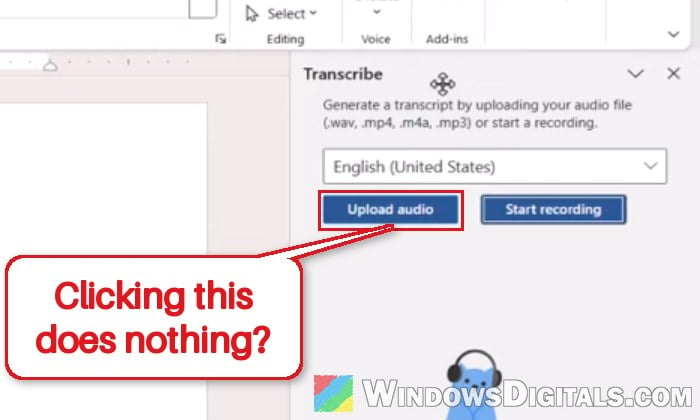
Why does “Upload audio” do nothing in Word?
This looks like a bug in the desktop version of Word rather than a problem with your audio file or your PC, since it showed up for many people at once with no change on their side. Reports started piling up on November 8 and 9, 2026, from home users and work accounts alike, and it hit people who had used the same button without trouble just a week earlier.
The users who posted their version were on Word Version 2610 (Build 20527.20150), the Current Channel update released on November 4, 2026. Whether this update is what broke it isn’t confirmed yet. The same “Upload audio” button still works in Word for the web with the same Microsoft account, though.
Microsoft hasn’t published a fix or an official notice for it at the time of writing. People have already tried updating Office, Quick Repair, Online Repair, starting Word in safe mode and signing out and back in, and none of these helped. So you can skip those and go straight to the workaround below.
Make the Transcribe pane wider, then click “Upload audio”
It sounds a little bit silly, but this is the fix that has worked for many people on Microsoft’s forums. When the Transcribe pane is widened before you click “Upload audio“, for many people the button starts responding again and the file picker opens. It’s not clear why the pane’s width matters, but it’s the quickest thing to try. Here’s what you should do:
- Open your document in Word, then go to “Home” > “Dictate” (the small arrow under it) > “Transcribe“.
- The Transcribe pane opens on the right side of the window. Move your mouse to the left edge of the pane and drag it to the left to make the pane wider. You may need to drag it until it almost touches the text of the document.
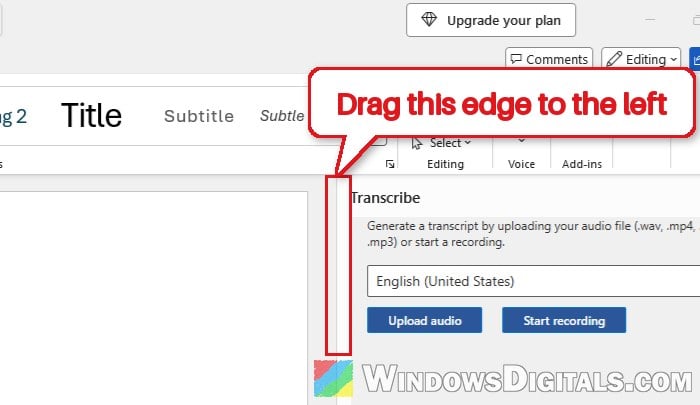
- Click “Upload audio” again.
- Pick your recording and click “Open“. Word supports .wav, .mp4, .m4a and .mp3 files.
If the file picker opens this time, keep the Transcribe pane open while Word processes the file. It can take about as long as the recording itself. Once it’s done, select “Add all to document” to put the whole transcript into your document, or add the sections one by one.
Related guide: How to Record Voice With Microphone on Windows 11/10
Upload the recording in Word for the web instead
If widening the pane doesn’t wake the button up, use Word for the web. The upload there isn’t affected by this bug, and you don’t need to install anything, since your Microsoft 365 subscription already covers it. Just note that Transcribe in Word for the web only works in Microsoft Edge and Google Chrome. Here’s how to do it:
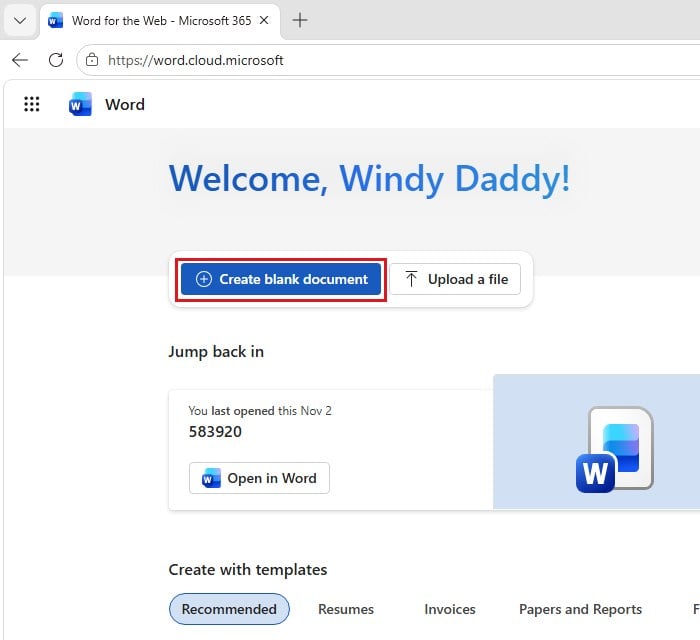
- Open Edge or Chrome and go to
https://word.cloud.microsoft/. - Sign in with the same Microsoft account that has your Microsoft 365 subscription.
- Click “Create blank document“, or open the document you want the transcript in.
- Go to “Home” > “Dictate” (the small arrow under it) > “Transcribe“.
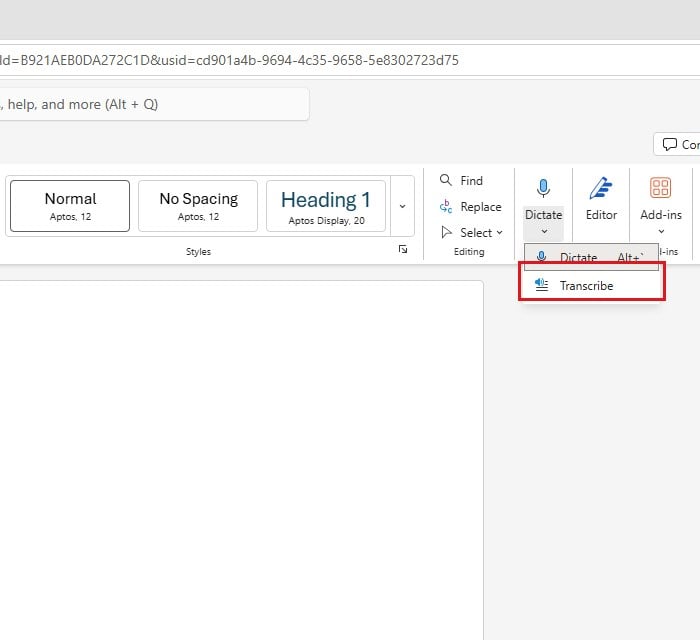
- In the Transcribe pane, click “Upload audio“, then choose your recording.
- Leave the pane open until the transcript is ready, then select “Add all to document“.
The recording and its transcript are saved in a folder called Transcribed Files in your OneDrive, so you can come back to them later. If you need the text in a document on your PC, copy it from Word for the web and paste it into desktop Word.
What if Word for the web doesn’t transcribe it either?
Then the bug above probably isn’t the only thing going on. Check these:
- The file type: only .wav, .mp4, .m4a and .mp3 recordings can be uploaded. Convert anything else to one of these first.
- Your monthly limit: a Microsoft 365 subscription gives you 300 minutes of uploaded audio per month, so uploads can stop working once you’ve used them up.
- The account: make sure you’re signed in with the account that actually has the Microsoft 365 subscription, not another personal or work account.
Might be useful: Microphone Not Working After Windows 11/10 Update
Report the problem to Microsoft from Word
Reporting it won’t fix it for you, but it helps Microsoft see how many people have this bug. You can send a report from inside desktop Word itself:
- In Word, go to the “Help” tab and click “Feedback“.
- In the “Feedback to Microsoft” pane, click “Report a problem“.
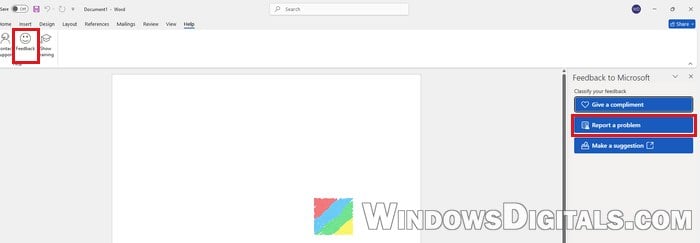
- Describe what happens: you go to “Home” > “Dictate” > “Transcribe“, click “Upload audio“, and no file picker or error shows up, while Word for the web works.
- Mention your Word version and build if you know them, then send it.
Once it’s sent, keep Word updated so you get the fix whenever Microsoft releases one.