When you turn on your PC after tuning your Radeon graphics card, you might find that your custom fan curve, undervolt and power limit in AMD Adrenalin are all back to default, often with a notice that says “Default performance tuning settings have been restored due to an unexpected system failure.” even though nothing crashed. This guide will explain why Adrenalin keeps throwing away your tuning and what you can do to make it stick.
Also see: AMD Software Warning: Graphics Driver Replaced?
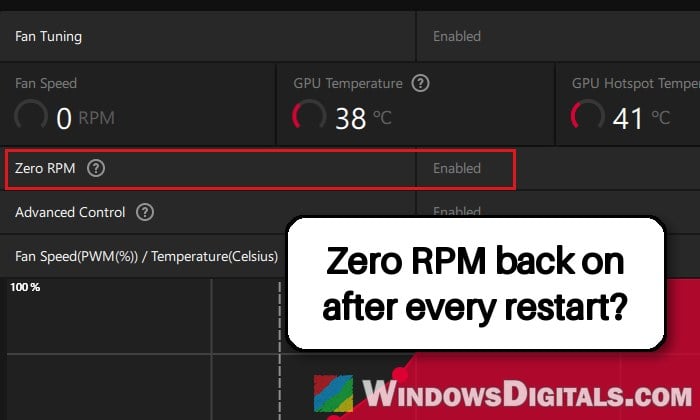
Why does Adrenalin reset your tuning?
AMD Software puts your tuning back to default as a safety step whenever it thinks the driver or the system crashed. The idea is that if your undervolt or overclock caused the crash, you shouldn’t boot straight back into it. That’s what the notice is telling you.
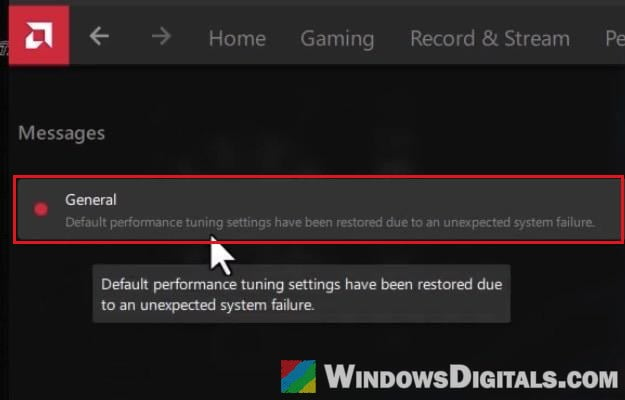
Adrenalin can reset your tuning for a few reasons, and not all of them are a real crash. Some common reasons for this issue are:
- Fast Startup in Windows, which doesn’t fully shut down the drivers, so the next start can look like a failure.
- An undervolt or overclock that isn’t fully stable, even if it seems fine in the games you play.
- Cutting the power instead of shutting down properly.
- Another tuning tool, like MSI Afterburner or FanControl, fighting with Adrenalin over the same settings.
- A driver reinstall or update, which also brings tuning back to default.
Some people lose only a fan curve or the Zero RPM setting, and some don’t even get the notice. It’s been reported on cards from the RX 6000 series to the RX 9070 XT, including on driver 26.10.1.
Turn off Fast Startup in Windows
When Fast Startup is on, shutting down your PC doesn’t fully close Windows. It saves the drivers and the core of the system to disk and loads them back the next time you turn it on, similar to hibernation. AMD’s driver doesn’t always like that, and Adrenalin may treat the next start as a failure and reset your tuning.
It’s the fix people on Reddit suggest most often, and it has solved the problem for some of them, though not for everyone. Here’s how:
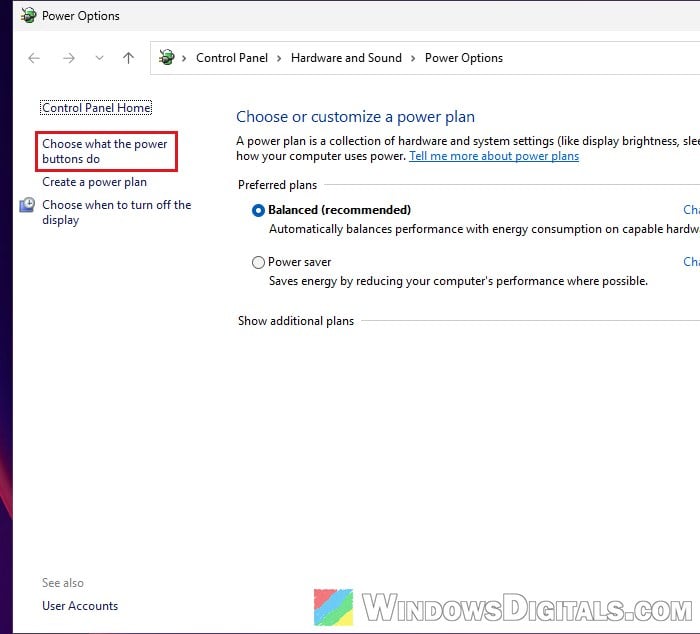
- Open the Control Panel and go to Hardware and Sound > Power Options.
- Click “Choose what the power buttons do” on the left.
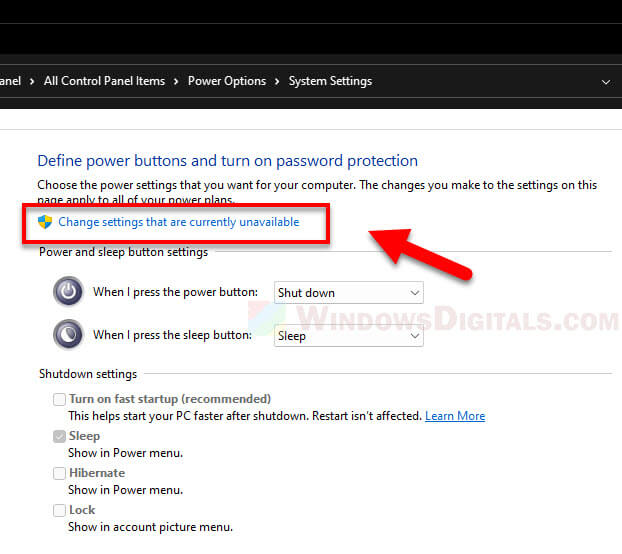
- Click “Change settings that are currently unavailable“.
- Uncheck “Turn on fast startup (recommended)” and click “Save changes“.
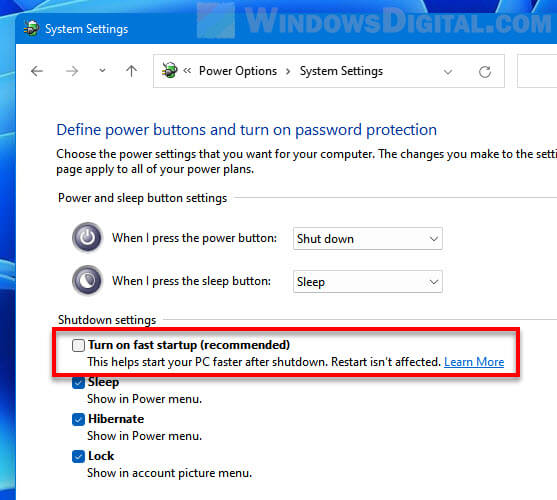
Note that Fast Startup is a Windows setting, not the “fast boot” option you might see in your BIOS. Set your tuning again in Adrenalin, shut down your PC, turn it back on and see if the settings are still there.
Might be useful: Sleep vs. Hibernate vs. Hybrid Sleep vs. Shutdown in Windows
Don’t cut the power to shut down
Holding down the power button, flipping the switch on the power supply or turning off the wall socket while Windows is still running can all count as an unexpected failure, and Adrenalin can then reset your tuning the next time you start. Always shut down from Start > Power > Shut down first, and only cut the power after the PC is fully off.
Make sure your undervolt or overclock is actually stable
If Fast Startup is already off, the next most likely reason is that your tuning isn’t as stable as it looks. An undervolt can pass a benchmark and still crash the driver in some games or while Windows shuts down. When that happens, Adrenalin resets everything, so the reset is often a symptom of the crash, not a bug of its own.
An offset like -60 to -80 mV isn’t as mild as it sounds, and plenty of cards can’t handle it. A VRAM overclock can also be the part that fails. Here’s what you should do:
- Open AMD Software and go to Performance > Tuning.
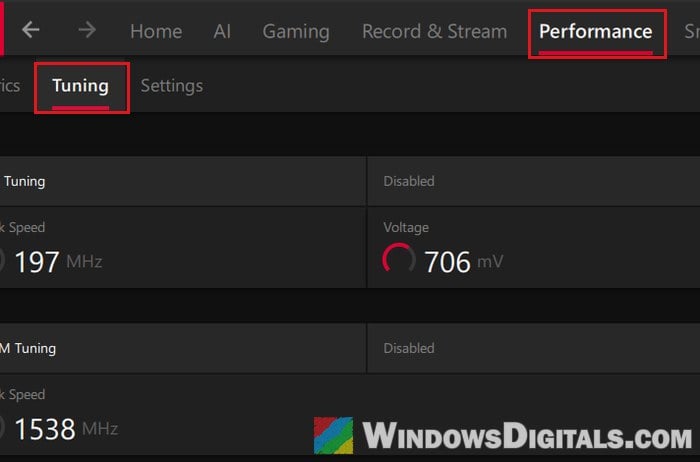
- Click the Reset (arrow) icon at the top right to put your tuning back to default, and use the card at stock for a while.
- If the resets stop, set your tuning again with a smaller offset (around -10 to -40 mV) and leave the VRAM at its default speed.
- Change one thing at a time, and test each change in your real games for a while. AMD Software also has its own Stress Test at the top right of the Tuning page.
Related problem: Radeon Stutters and Freezes with DX11 Games and Chrome
Use only one tuning tool
MSI Afterburner, FanControl and similar apps can control the same fan speeds that Adrenalin does (and in Afterburner’s case, the clocks and voltages too). When two of them try to apply their settings at startup, they can override each other, and Adrenalin can end up resetting its own tuning. It’s one of the most common causes of this problem.
Pick one tool for your fan curve and undervolt. If you want to keep using Adrenalin’s tuning, uninstall the others, or at least stop them from starting with Windows:
- Open Settings > Apps > Installed apps.
- Search for the app (for example, “FanControl” or “MSI Afterburner“).
- Click the three dots next to it and select Uninstall.
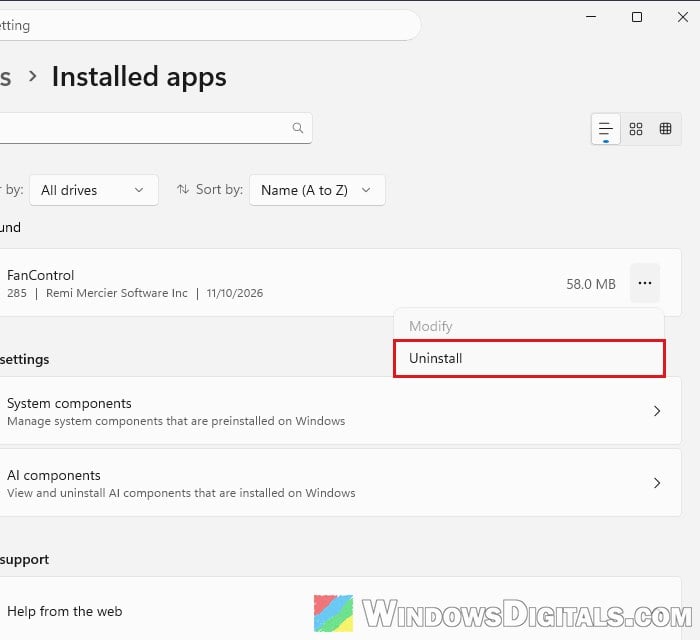
Restart your PC, set your tuning in Adrenalin again and see if it holds after the next shutdown.
Pro tip: How to Disable Startup Programs in Windows 11
Export your tuning profile so you can load it back quickly
While you’re working out the cause, save your tuning to a file. It won’t stop the reset, but you can load everything back in a few clicks instead of redoing every slider. Do it before every driver update too, since a new driver also resets tuning.
- Open AMD Software and go to Performance > Tuning with your tuning set up.
- Click the Export Profile icon at the top right, just left of the reset arrow.
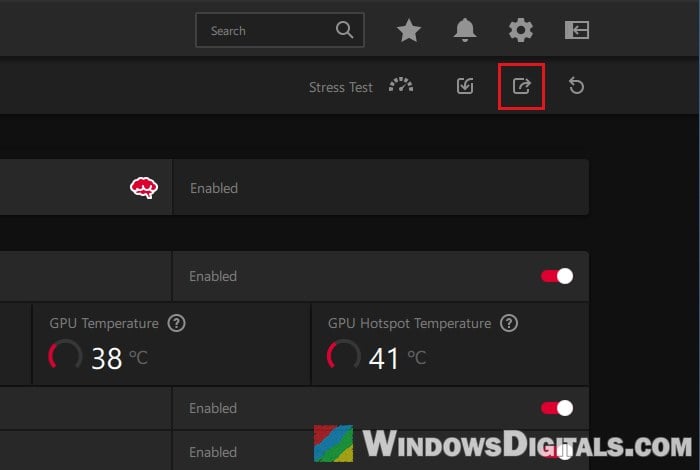
- Give the tuning profile a name and click Save.
- After a reset, go back to the same page, click Import Profile, pick your file and click Open.
Do a clean reinstall of the AMD driver
If none of the above helped, the driver install itself might be the problem. A clean reinstall clears out old settings that can get in the way. Export your tuning profile first, since this resets it as well.
- Download the latest AMD Software: Adrenalin Edition installer for your graphics card from AMD’s website, and AMD Cleanup Utility from AMD’s support page (
https://www.amd.com/en/resources/support-articles/faqs/GPU-601.html). - Disconnect your PC from the internet, so Windows Update can’t put its own AMD driver in while you’re between drivers.
- Run
amdcleanuputility.exe. When it offers to restart into Safe Mode, accept it, since AMD recommends it. - Click OK on the message saying it will remove AMD drivers and applications.
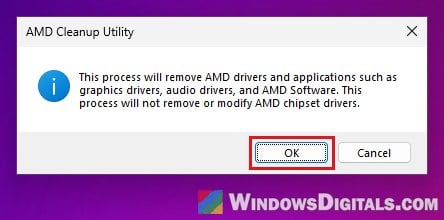
- When it’s done, click Finish and let it restart your PC.
- Run the Adrenalin installer and install it to its default location on the C: drive, then reconnect to the internet.
In at least one case, AMD Software installed on another drive was the cause, and reinstalling it on C: fixed it. After the reinstall, import your tuning profile and test it with a few restarts.
If nothing sticks, use another tool for the tune
For some people, Adrenalin’s tuning still resets after all of these, and AMD hasn’t confirmed a fix. A workaround some Radeon owners use is to leave Adrenalin’s tuning at default and set the fan curve and undervolt in MSI Afterburner instead, set to start with Windows. Just don’t set them in both apps at once. A newer driver also fixed it for at least one person, so try Adrenalin’s own tuning again after the next update.