A soundtrack you buy on Steam goes into your Steam Library just like a game, but the Library only lists games by default, and the music isn’t on your PC until you download the album. Once it is, most soundtracks are just plain MP3 files (sometimes with lossless FLAC copies) sitting in a folder you can open, copy to your phone or add to any music app. This guide will show you where Steam keeps soundtracks and how to get to the files.
Also see: Fix: “Failed to Add New Steam Library Folder”
Where are Steam soundtracks saved?
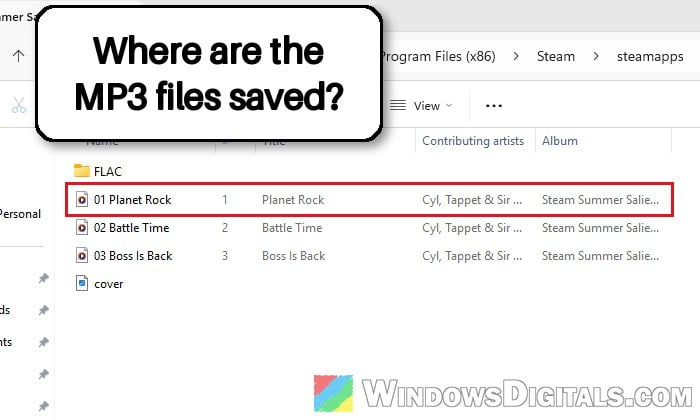
A soundtrack that has its own entry in your Library is saved in the music folder of your Steam library, not in the game’s folder. With Steam installed in its default location, that’s:
C:\Program Files (x86)\Steam\steamapps\music\
Each soundtrack gets its own folder in there, named after it. For example, the free Steam Summer Saliens Soundtrack ends up in C:\Program Files (x86)\Steam\steamapps\music\Steam Summer Saliens Soundtrack.
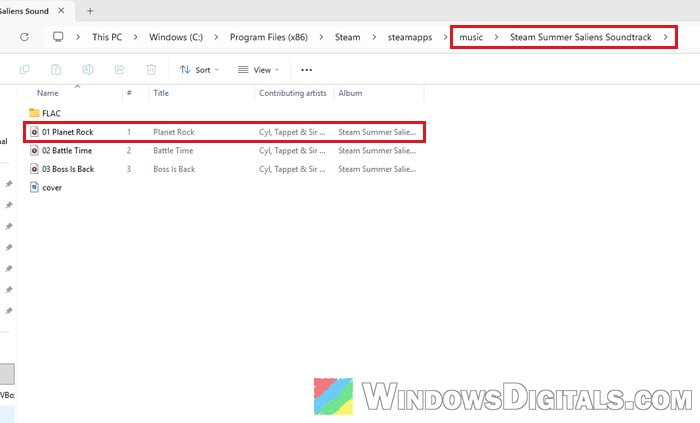
If you installed the soundtrack to another drive, look in the steamapps\music folder of the Steam library on that drive instead. And if the folder isn’t there at all, the album most likely hasn’t been downloaded yet (more on that below).
Inside, you’ll usually find:
- MP3 files named with the track number first (
01 Planet Rock.mp3,02 Battle Time.mp3…), so they sort in the right order. - cover.jpg, the album art.
- A FLAC (or similar) subfolder with high-quality copies, but only when the soundtrack comes with them. Steam requires MP3s in every soundtrack and lets developers add FLAC, WAV or AAC files on top.
What about a soundtrack that came with a game?
Some soundtracks are DLC that belongs to a game rather than a separate item in your Library. Those can put their music inside the game’s own install folder (under steamapps\common) instead of steamapps\music. In that case, use “Manage” > “Browse local files” on the game itself and look for a soundtrack or music folder there.
Pro tip: Convert FLAC, MP3, ALAC, etc. with foobar2000
Show soundtracks in your Steam Library
If you can’t find the soundtrack in your Library at all, it’s most likely just hidden by the Library’s filter. The left sidebar only shows Games by default, and soundtracks are a separate type you have to switch on. Here’s how:
- Open Steam and click “LIBRARY” at the top.
- Click the dropdown at the top of the left sidebar (it reads “Games“).
- Tick “Soundtracks“. You can untick “Games” if you want to see only your soundtracks.
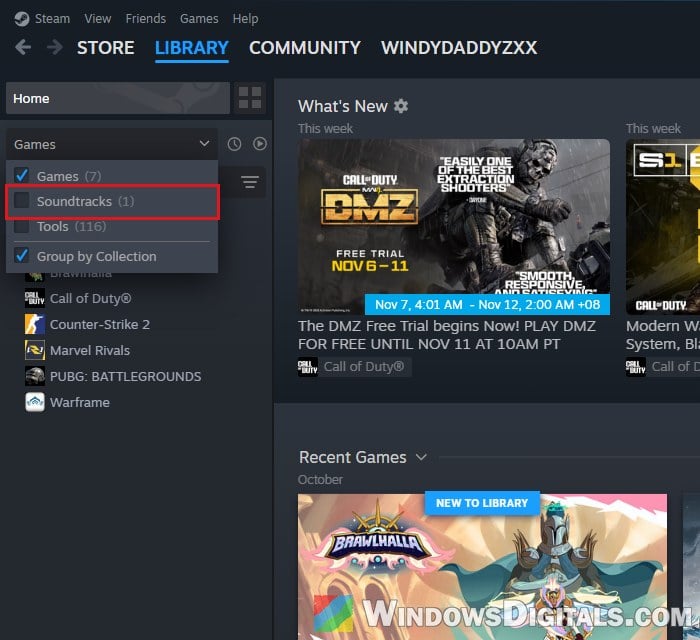
Your soundtracks now appear in the sidebar list. Clicking one opens its album page with the cover art and the track list.
Download the album first
Adding a soundtrack to your account (or buying it) doesn’t put any files on your PC. Like a game, it has to be downloaded before there are any MP3s to find. To do that:
- Select the soundtrack in your Library.
- Click “Download Album“.
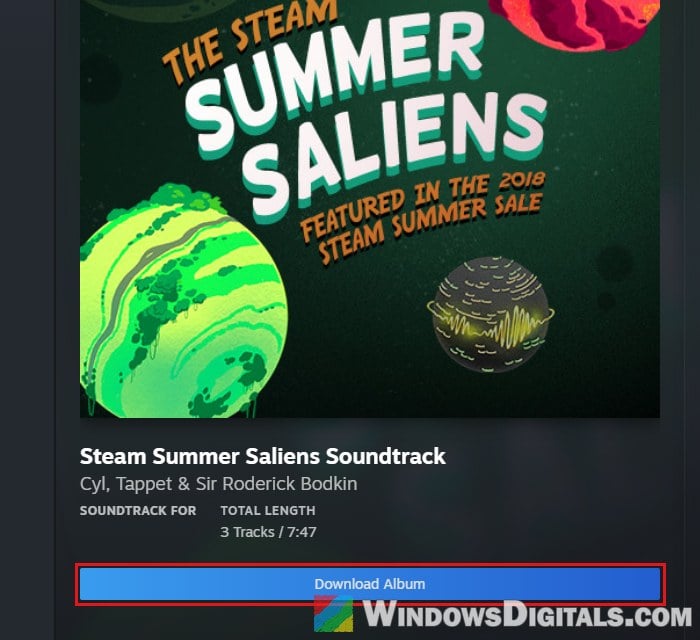
- In the “Install” window, check which drive is selected under “INSTALL TO“, untick the shortcut boxes if you don’t want them, and click “Install“.
You don’t need to install the game itself to download its soundtrack. Once the download is done, the “Download Album” button is gone and the album page shows a player instead.
Open the soundtrack’s folder from Steam
The quickest way to get to the files is to let Steam open the folder for you, so you don’t have to remember the path or which drive the soundtrack went to.
Use “Browse local files”
From your Library:
- Right-click the soundtrack.
- Go to “Manage” > “Browse local files“.
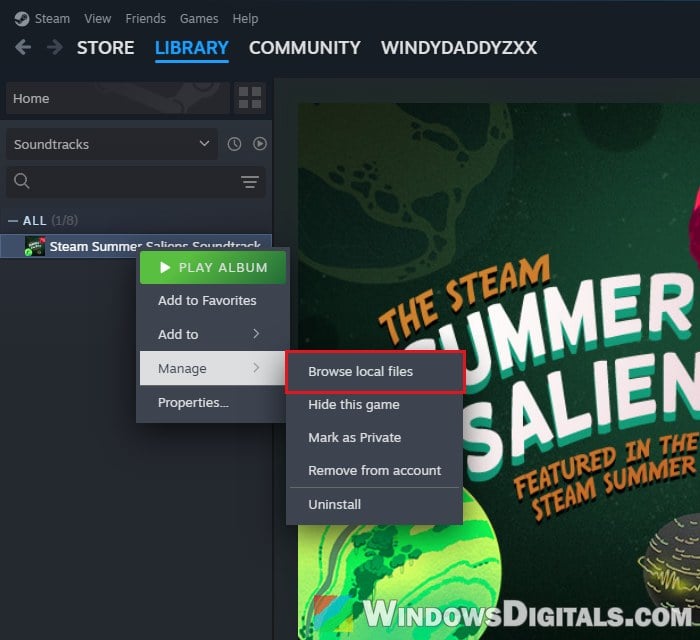
File Explorer opens right in the soundtrack’s folder.
Use “Properties” > “Installed Files”
You can also get there from the soundtrack’s Properties window:
- Right-click the soundtrack in your Library and select “Properties…“.
- Click “Installed Files” on the left.
- Click “Browse…“.
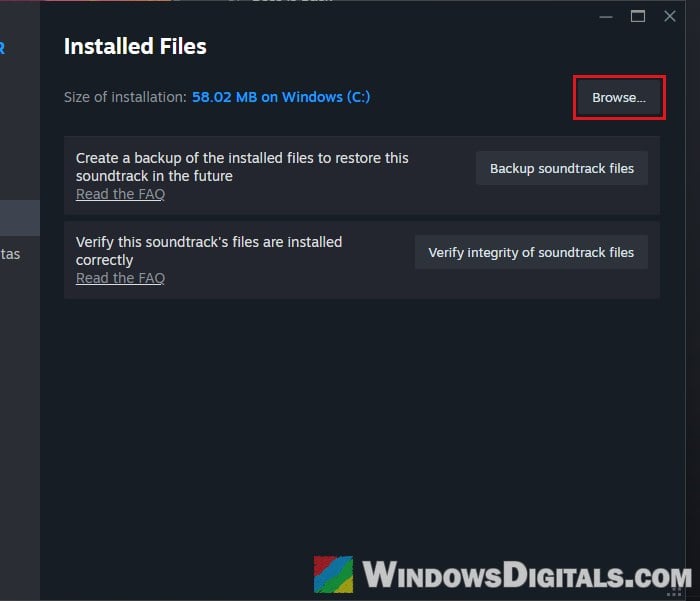
This tab also shows how much space the soundtrack takes, and has a “Verify integrity of soundtrack files” button if a track ever goes missing or won’t play.
Might be useful: “Synchronizing Steam Cloud” is Taking Forever
Are Steam soundtracks DRM-free?
For the most part, yes. A soundtrack that downloads as audio files gives you ordinary MP3 (and sometimes FLAC or WAV) files with no DRM on them. They play in any music app, and you can copy them to any of your devices. Users on Reddit say the same: their soundtracks came as normal music files with nothing tying them to Steam.
There are a few exceptions. Some soundtracks are sold as a separate app with their own built-in player instead of plain audio files, and those can’t be copied out as MP3s. If you want to check before buying, look the soundtrack up on SteamDB and see its file list: if it shows audio files, that’s what you’ll get.
Keep in mind that the files are for your own use. Copying them to your phone, a music app or a CD for yourself is fine, but don’t share or upload them.
Copy the files to your music app or phone
Since the files are regular MP3s, there’s nothing special to do. Open the soundtrack’s folder as shown above, select the tracks (and the cover.jpg if you want the album art), and copy them to your Music folder, a phone or any other place your music app reads from.
Copy them rather than moving them, so the soundtrack also stays installed in Steam and you can keep playing it there with “PLAY ALBUM” in its right-click menu.