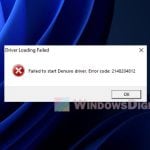
WoW: Forever should open from the Battle.net app’s Play button like any other World of Warcraft version. For some players, though, the button only shows “Launching” for a moment and then goes back to “Play” with nothing happening, while others see the game close straight away with “ERROR #134 (0x85100086) Fatal condition!“. This guide will help you find what’s blocking it and get Forever to start.
Also see: Fix Long Loading Screen in Games like WoW, Fortnite or PUBG
Both problems usually come down to the same few things: a Battle.net background process that’s still holding on to the game’s files, a security program blocking the game, or damaged game files. According to Blizzard, Error #134 shows up when the game is prevented from making changes to a game file, which can be caused by wrong permissions, a security program or an error in the file itself.
Fully close Battle.net and end what’s left in Task Manager
Closing the Battle.net window doesn’t always close everything. Its update agent keeps running in the background, and sometimes a WoW process from an earlier session is still there too. If one of these still has hold of the game’s files, Forever can’t start. Since launch, ending a stuck update agent has gotten Forever to open again, and in the beta, a leftover agent locking the game’s data was behind Error #134.
Here’s what you should do:
- Press Ctrl + Shift + Esc to open Task Manager.
- On the Processes tab, type “battle” in the search box at the top and look for Battle.net (32 bit) and Battle.net Update Agent (32 bit).
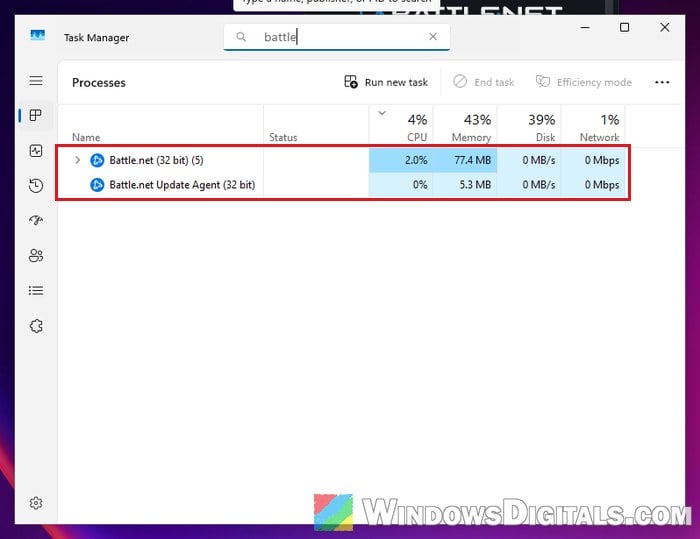
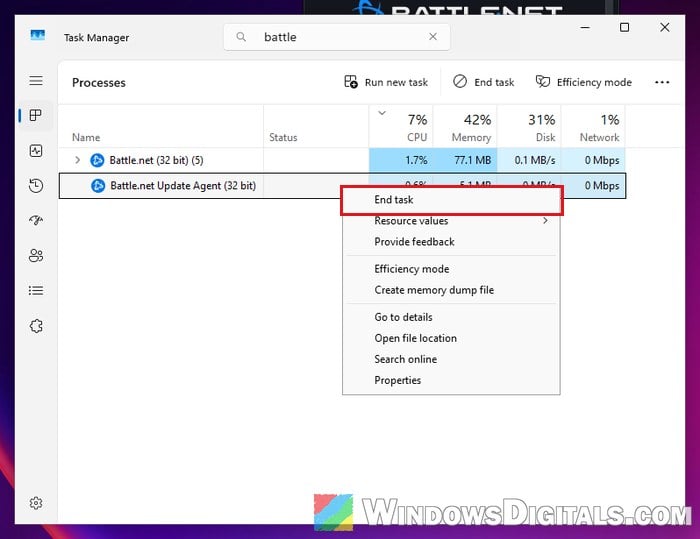
- Right-click each one and select End task.
- Clear the search box and end anything left from World of Warcraft (it may show as World of Warcraft or Wow) the same way.
- Open the Battle.net app again, select World of Warcraft, make sure Forever is the version picked above the Play button, and click Play.
If Battle.net starts downloading a Forever update first, let it finish before you click Play. Sometimes the game only opens once that update has come through.
Or simply restart your PC
A full restart does the same job more thoroughly, since every leftover process is gone after it. A restart can also make a pending Forever update show up in Battle.net. Restart your PC, open Battle.net, let any update install, and then click Play.
Let WoW: Forever through your antivirus and firewall
Blizzard lists security software as one of the causes of Error #134, and it’s behind a lot of the “Launching” reports too. Several Trend Micro users only got Forever to start after adding it as an exception, and others fixed it by allowing the game’s .exe through the firewall.
Forever’s game file is Wow.exe, inside the _forever_ folder of your World of Warcraft install, for example:
C:\Program Files (x86)\World of Warcraft\_forever_
If you use a third-party antivirus such as Trend Micro, add that folder (or Wow.exe and Battle.net) to its exceptions or allowed list (it’s usually under Exceptions or Exclusions in its settings).
For Windows Defender Firewall, follow the steps below:
- Open Windows Security and select Firewall & network protection.
- Click Allow an app through firewall.
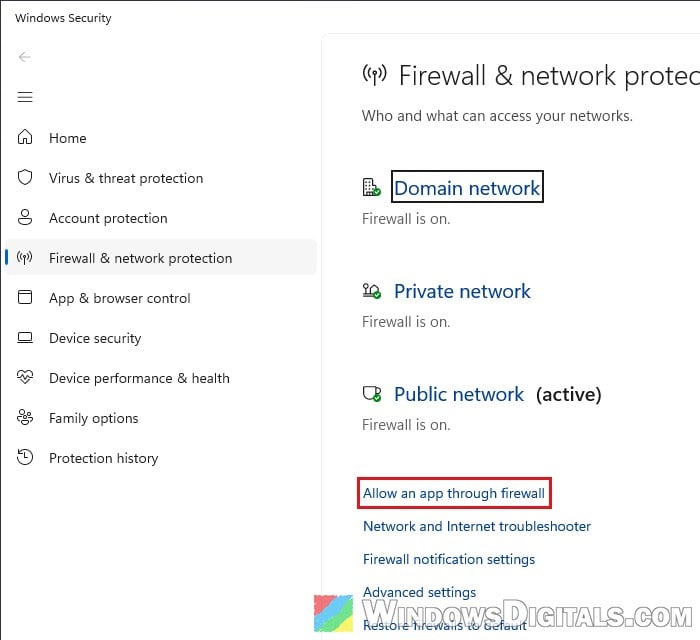
- Click Change settings (click Yes if Windows asks), then click Allow another app… below the list.
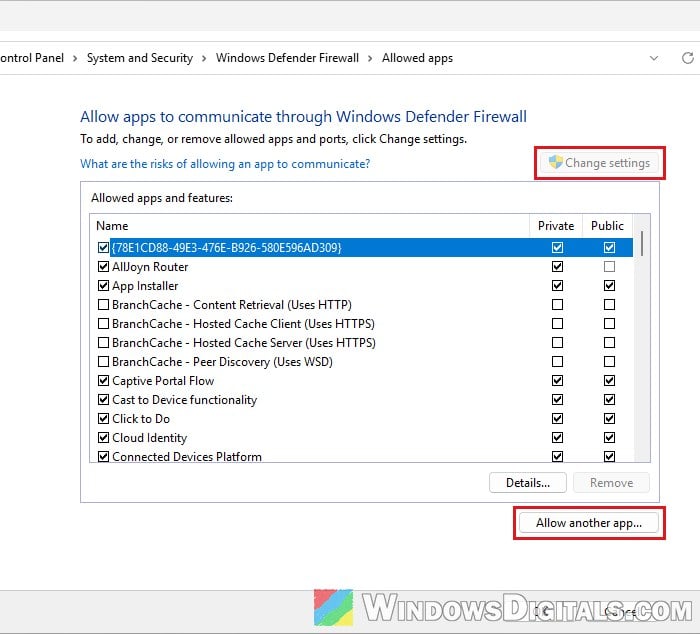
- Click Browse…, go to the
_forever_folder, selectWow.exeand click Open.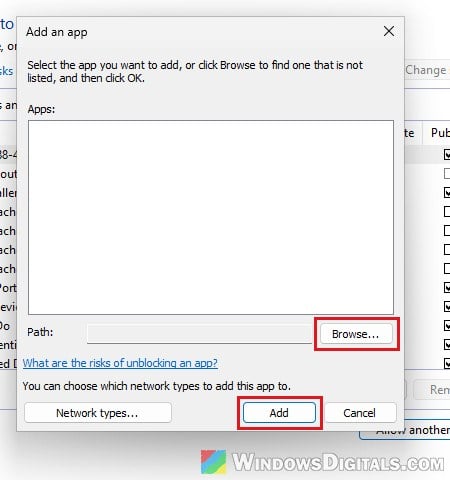
- Click Add.
- Make sure Private and Public are both ticked for Wow.exe in the list, then click OK.
Related guide: How to Allow an App Through Firewall in Windows 11
If you only use Microsoft Defender, you can also exclude the game’s folder from scanning. Go to Windows Security > Virus & threat protection > Manage settings > Add or remove exclusions (click Yes if Windows asks), click Add an exclusion, choose Folder and pick the _forever_ folder.
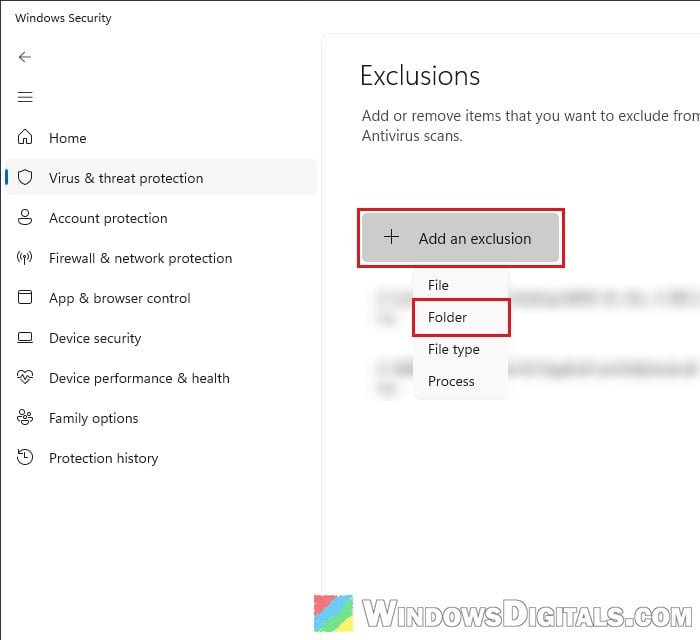
An exclusion means Defender won’t scan that folder anymore, so only add the game’s folder, never a whole drive. Then go back to Battle.net and click Play again.
Run “Scan and Repair” in Battle.net
If a game file is damaged or didn’t download properly, Forever can fail to start or stop with Error #134. Battle.net’s repair tool checks the game’s files and replaces the broken ones. It didn’t fix the “Launching” problem for everyone, but it’s worth running before the bigger fixes below.
Here’s how to do it:
- Open Battle.net and select World of Warcraft, with Forever as the chosen version.
- Click the cogwheel next to the Play button and select Scan and Repair.
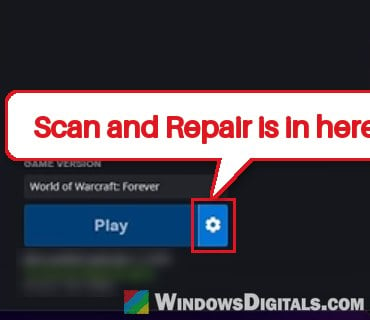
- Click Begin Scan and wait for it to finish.
Once it’s done, click Play and see if Forever opens this time.
Might be useful: “DirectX 12 Support Not Detected” Starting a Game
Rename the Cache, Interface and WTF folders
These three folders hold the game’s cached data, your addons and your local settings. Resetting them rules out a broken cached file, addon or setting. Blizzard’s own way of resetting them is to rename them, so the game builds fresh ones and you still keep the old ones as a backup. Your characters aren’t stored in these folders, so you won’t lose them.
To do that, follow the steps below:
- Close Battle.net and the game fully, as in the first fix.
- Open File Explorer and go to the
_forever_folder. - Rename Cache to CacheOld, Interface to InterfaceOld, and WTF to WTFOld.
- Open Battle.net and launch Forever again.
If the game opens now, your old addons and settings are still in the renamed folders.
Uninstall and reinstall WoW: Forever
When nothing else works, a clean reinstall has cleared Error #134 for several players, and it can sort out a stubborn “Launching” problem too. Blizzard lists it as the last step as well.
In Battle.net, select World of Warcraft with Forever chosen, click the cogwheel next to Play, and select Uninstall. Once it’s removed, install Forever again from the same page. If you want to keep your interface settings and addon options, copy the WTF folder somewhere safe before uninstalling and put it back afterwards.
What if it opens, just very slowly?
Since around November 8, many players have found that Forever (and other WoW versions) take anywhere from 30 seconds to several minutes to open after clicking Play. If that’s what you’re seeing, give it a couple of minutes and don’t keep clicking Play, or you might end up with two or three game windows at once. A fresh restart makes the next launch quick again for some, but there’s no real fix for this one yet.