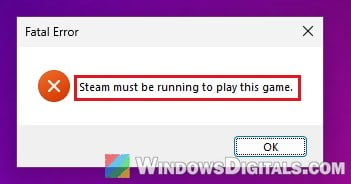
Modern Warfare 4 and Warzone on Steam quietly check in with the Steam client every time they start, and you never notice it when it works. For some players, though, the RICOCHET anti-cheat window shows for a second, then the game stops with a “Fatal Error” box that says “Steam must be running to play this game“, even though Steam is clearly open on the screen. This guide will explain why the game can’t see Steam and what you can do to get it to launch again.
Also see: MW4 Says “BIOS Firmware Update Required” but Your BIOS Is Up to Date
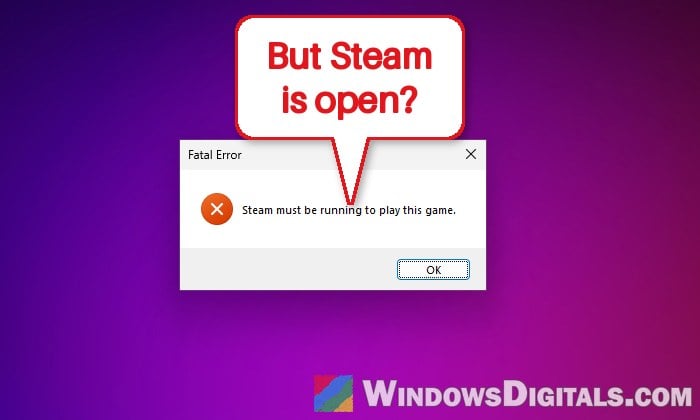
Why does MW4 say Steam isn’t running when it is?
The message doesn’t actually come from Steam. When a Steam game starts, it runs a quick check with the Steam client to make sure the two can talk to each other. If that check fails, the game shows this error and closes. Other Call of Duty games, and other games too, have shown the same message for years, so it’s not something only MW4 does.
According to Valve’s own documentation for game developers, that check fails when:
- Steam isn’t running.
- The game was started outside of Steam, straight from its .exe file, so Steam can’t tell which game is asking.
- The game and Steam run at different permission levels, which usually means one of them is set to “Run as administrator” and the other isn’t.
- The Steam account you’re signed in to doesn’t own the game.
A missing or broken game file after an update can also stop the game this early. Players on Reddit have run into the error with the MW4 open beta, the full game and Warzone alike, and restarting the PC alone doesn’t always clear it, so it’s worth going through the fixes below in order.
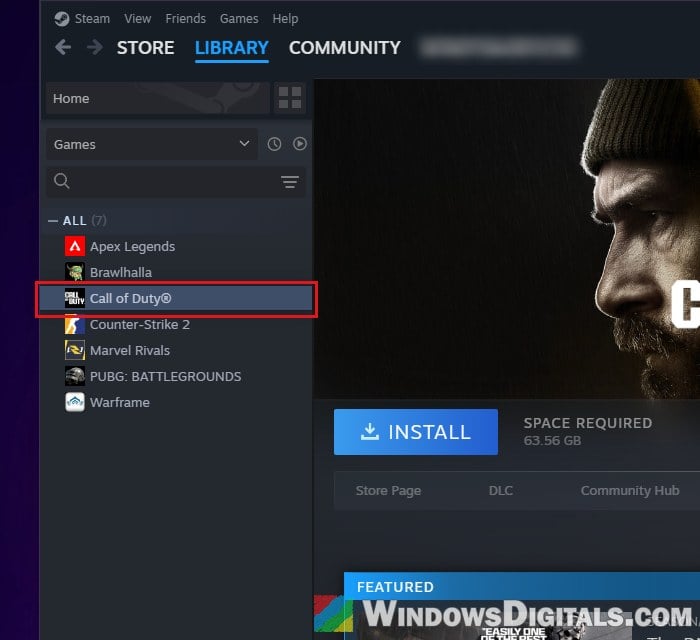
Also note that on Steam, MW4 doesn’t get a Library entry with its own name. It’s installed and started from the “Call of Duty®” entry, so that’s the one to look for in the steps below.
Related problem: Steam Cloud “Unable to Sync” Error When Starting a Game
Fully exit Steam and start the game from your Library
Closing the Steam window doesn’t close Steam. It keeps running in the system tray, and if part of it has hung, the game still can’t reach it even though Steam looks fine. A clean restart only takes a minute. Here’s what to do:
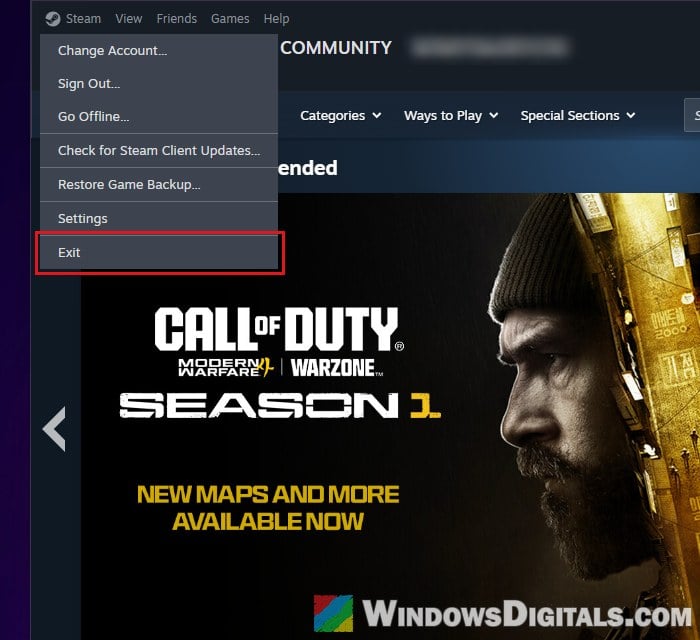
- In Steam, click the Steam menu at the top left and select Exit.
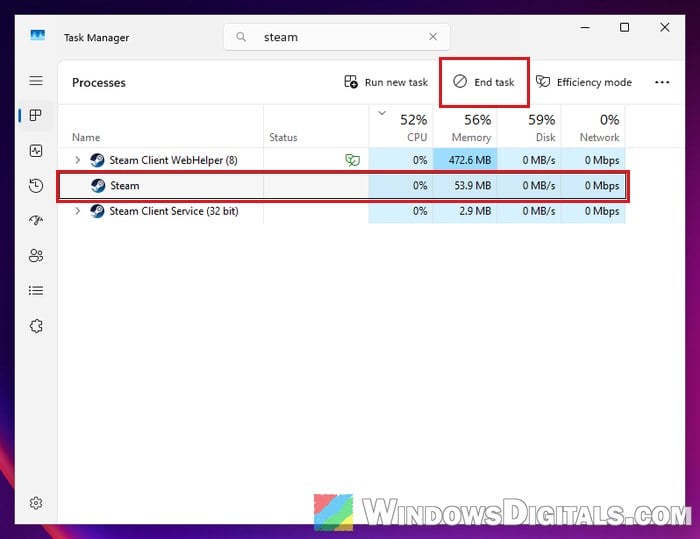
- Press Ctrl + Shift + Esc to open Task Manager and type “steam” in the search box at the top. If anything is still listed under Processes (such as Steam or Steam Client WebHelper), select it and click End task.
- Open Steam again and wait until it has fully loaded and signed you in.
- Go to your Library, select Call of Duty®, and click Play. Don’t start it from a desktop shortcut or from the game’s folder.
If the game gets past the RICOCHET window and loads this time, Steam just needed a fresh start.
Might be useful: Steam Game No Icon and Not Working – “Problem with Shortcut”
Don’t run the game and Steam at different admin levels
Valve’s documentation names this one directly. The game has to run under the same Windows user and at the same permission level as Steam. If you’ve ticked “Run as administrator” on the game (a tip you’ll find for other Call of Duty launch problems) but Steam runs normally, or the other way around, the game can’t talk to Steam. Black Ops Cold War, for example, has shown the same message (with the game’s name in it) when it was run as administrator.
The simplest setup is to have neither of them run as administrator. To check and change it:
- Close Steam completely with Steam > Exit.
- Right-click the Steam shortcut on your desktop and select Properties.
- Go to the Compatibility tab and uncheck “Run this program as an administrator“. Click Apply, then OK.
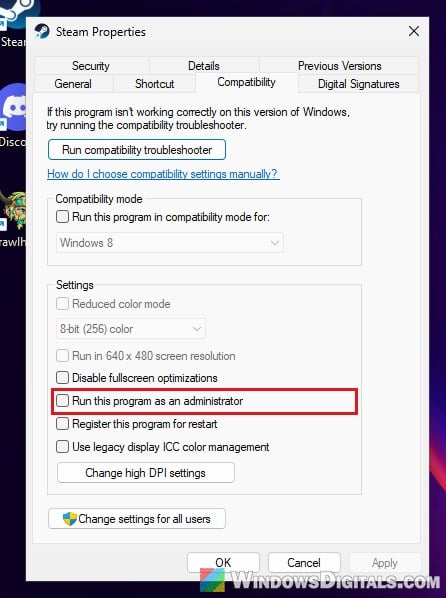 If the box is greyed out, click Change settings for all users and uncheck it there.
- Open Steam, right-click Call of Duty® in your Library and select Manage > Browse local files.
- In the game’s folder, right-click the game’s main .exe file, select Properties, and uncheck the same “Run this program as an administrator” box on its Compatibility tab.
- Start the game from your Library again.
If the RICOCHET window now gives way to the game, the admin mismatch was the problem.
How to see which one runs as administrator
Task Manager can show you whether a program is running with admin rights:
- Open Task Manager and go to the Details tab.
- Right-click any column header and choose Select columns.
- Tick Elevated and click OK. Typing “steam” in the search box makes them easier to find.
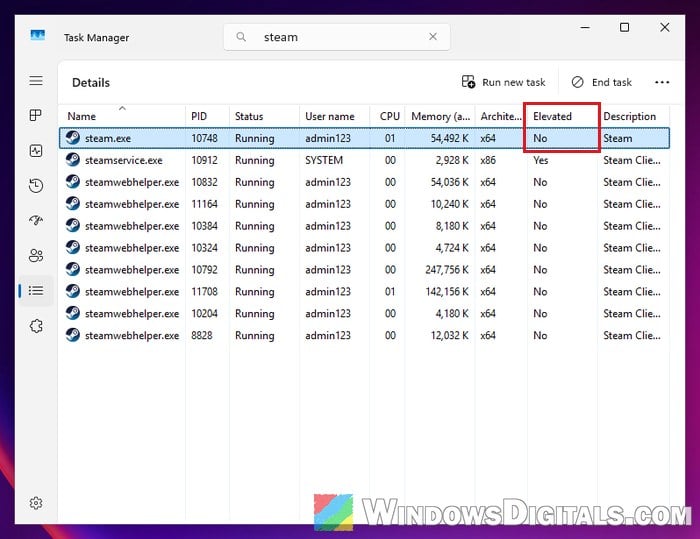
steam.exe and the game’s process (while the game or its error box is still open) should both say the same thing, either No or Yes. Don’t worry about steamservice.exe, Steam’s background service, which shows Yes on a normal setup.
Or run both as administrator
Matching the levels the other way around can work too. Exit Steam, right-click the Steam shortcut and choose Run as administrator, then start the game from your Library, so it starts with the same rights as Steam. This has worked for some players with older Call of Duty games.
Make sure Steam is online and signed in to the right account
The check also needs Steam to be signed in to the account that actually owns the game, and it’s worth making sure Steam isn’t stuck in Offline mode. When it is, the bar at the bottom of the Steam window says OFFLINE MODE. Open the Steam menu, click Go Online… and let Steam reconnect.
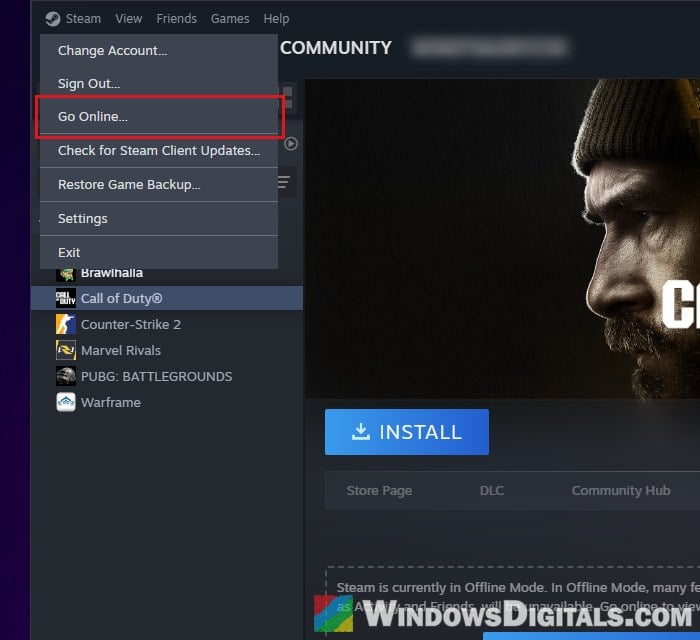
If you have more than one Steam account, make sure the one that’s signed in is the account the game was bought on or gifted to, since the game has to be in that account’s own library. Signing out with Steam > Sign Out… and back in also starts a fresh session, so keep your password handy before you do.
MW4’s own account requirements
Steam’s store page for MW4 says a mobile phone number must be linked to your Steam account to play the game, and you also need an Activision account. There’s no confirmation that a missing phone number causes this exact error, but if your account doesn’t have one yet, it’s worth adding, since the game asks for it either way.
Verify the game’s files
If an update didn’t install cleanly, a missing or broken file can stop the game before it even reaches the menu. Steam checks every file of the game and re-downloads any that are broken or missing. Follow the steps below:
- In your Steam Library, right-click Call of Duty® and select Properties… from the menu.
- Click Installed Files on the left.
- Click “Verify integrity of game files” and wait for it to finish.
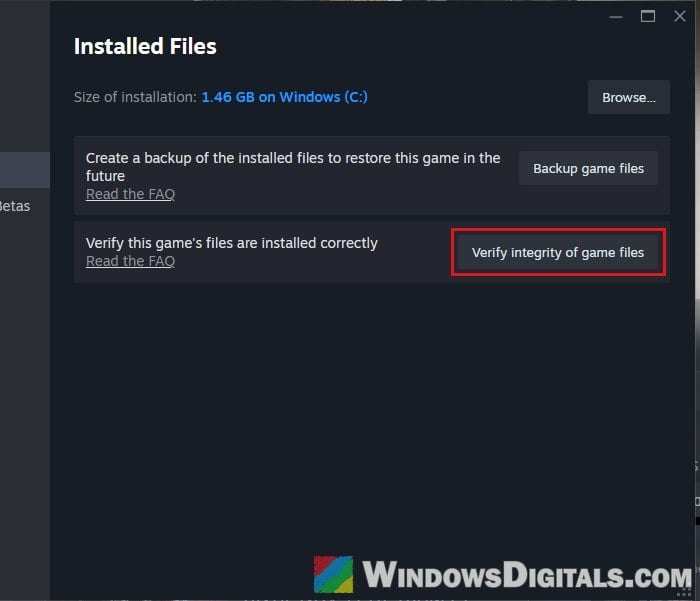
- Start the game from your Library again.
Suggested read: Modern Warfare 4 (MW4) Low FPS on PC, Even on Low Settings
Other things you can try
If the error still shows up, these are worth a try:
- Update Steam: open the Steam menu and select Check for Steam Client Updates… from the list. If you joined the Steam Beta at some point, leave it in Steam’s settings and go back to the normal client.
- Check your antivirus or firewall: security software that blocks Steam or the game can also stop the two from talking. Allow both in it, or pause it briefly to test, and turn it back on afterwards.