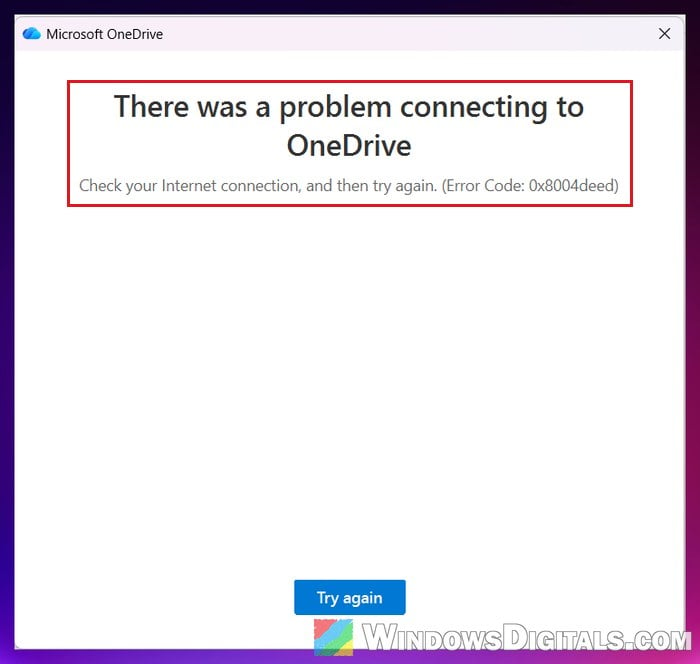
You open OneDrive on your Windows 11 or 10 PC, type in your email to sign in, and instead of your files you get “There was a problem connecting to OneDrive. Check your Internet connection, and then try again. (Error Code: 0x8004deed)”, even though other websites load just fine. This guide will show you what’s actually blocking the sign-in and how to get OneDrive connected again.
Also see: OneDrive Signed In With the Wrong Account on Windows 11
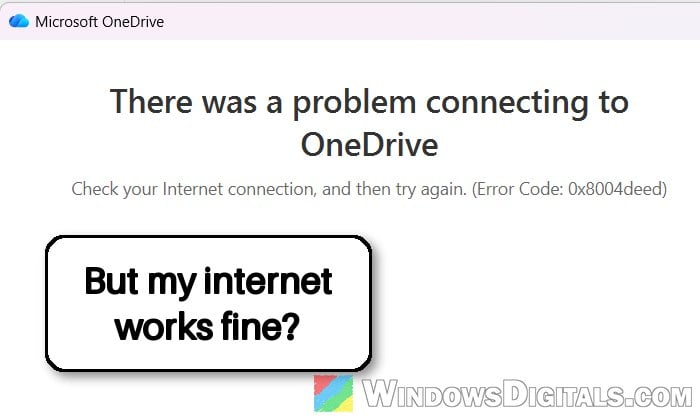
What does error 0x8004DEED mean?
Despite what the message says, 0x8004DEED doesn’t mean your internet is down. It usually means the OneDrive app couldn’t connect to Microsoft’s servers. Microsoft hasn’t published a page for this exact code, but its page for the similar codes 0x8004DE40 and 0x8004DE88 says they mean OneDrive is having trouble connecting to the cloud.
When the rest of the internet works, the possible reasons are:
- The hosts file on your PC points Microsoft’s sign-in addresses to a dead address, for example after a “driver updater” type of tool edited it.
- Broken OneDrive settings or old saved sign-ins on the PC.
- TLS 1.2 is turned off, so secure sign-ins can’t be made.
- A new work or school account whose OneDrive hasn’t been created on Microsoft’s side yet.
Quick checks first
Before changing anything, these checks tell you where to look. If it’s a work or school account that was only just created, skip to the last section instead.
- Open
https://onedrive.live.comin your browser and sign in with the same account.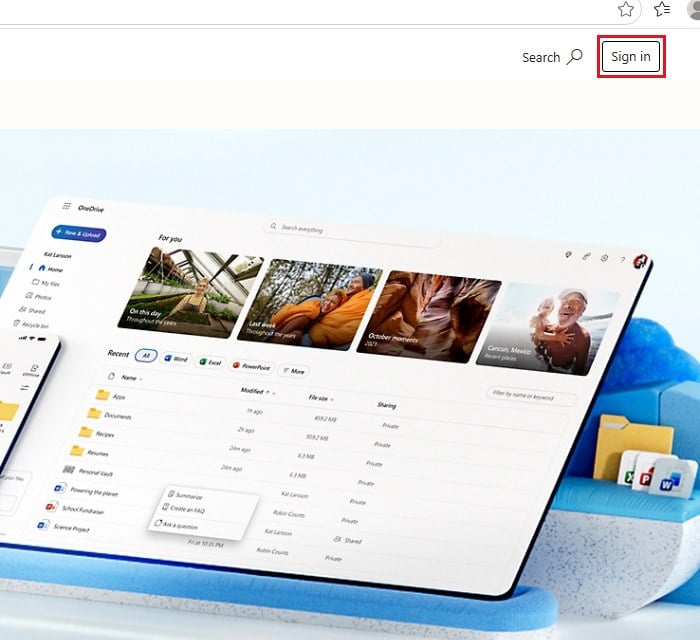
- Turn off any VPN or proxy you use and try signing in to OneDrive again.
- Connect your PC to another network, like your phone’s hotspot, and try once more.
If the website signs you in and shows your files, the problem is in the OneDrive app on your PC, so go to the reset section. If the sign-in page keeps loading or fails as well, something on your PC or network is blocking Microsoft’s sign-in, so reinstalling OneDrive won’t help. Start with the hosts file.
If OneDrive signs in once the VPN or proxy is off, keep it off for OneDrive. If it only signs in on the other network, something on your usual network is blocking it, so ask whoever manages that network, since nothing you change on your PC will fix that.
Check the hosts file for blocked Microsoft addresses
The hosts file is a small text file Windows reads before looking up a website. A line in it can point a website’s name to a dead address, so that website never loads on your PC. Some tools, like “driver updater” programs, can add lines for Microsoft’s sign-in addresses, and from then on every Microsoft sign-in hangs, OneDrive’s included. On Reddit, this turned out to be the cause in a case where the sign-in page in the browser kept loading forever too.
Here’s how to check it:
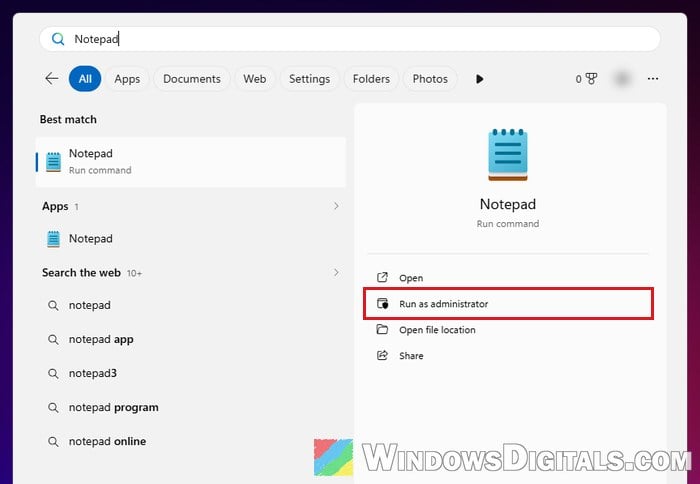
- Click Start, type “Notepad“, then right-click Notepad and select Run as administrator. Click Yes if asked.
- In Notepad, click File > Open, paste the following path into the File name box and click Open:
C:\Windows\System32\drivers\etc\hosts
- Look for lines that don’t start with # and mention a Microsoft address, such as
login.live.com,live.comorlogin.microsoftonline.com. Lines starting with # are only comments; a default hosts file has nothing else.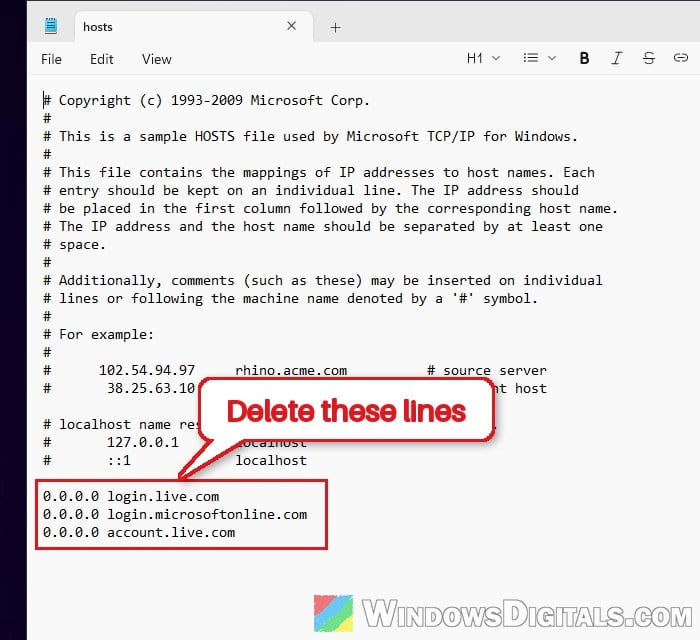
- Delete those lines, then click File > Save.
- Restart your PC and try signing in to OneDrive again.
If you find such lines, whatever added them may have left other junk behind, so it’s worth running a full scan with Windows Security or another antivirus afterward.
Related concern: Access Denied When Editing Hosts File in Windows 11/10
Reset OneDrive
If the OneDrive website signs you in fine but the app won’t, the app’s own settings are the likely problem. Resetting OneDrive clears them and its sync connections. According to Microsoft, you won’t lose any files by doing this. OneDrive just syncs everything again afterward, and if you had chosen to sync only certain folders, you’ll need to pick them again.
- Click the OneDrive cloud icon in the notification area of the taskbar, click the Help & Settings icon, and select Quit OneDrive.
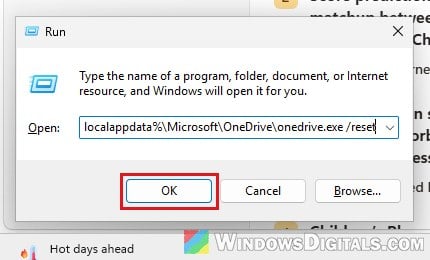
- Press Win + R to open the Run dialog box.
- Paste the following command and click OK:
%localappdata%\Microsoft\OneDrive\onedrive.exe /reset
- If you get a “Windows cannot find…” message, try these two commands instead, one at a time:
C:\Program Files\Microsoft OneDrive\onedrive.exe /reset
C:\Program Files (x86)\Microsoft OneDrive\onedrive.exe /reset
- Once the reset is done, click Start, type “OneDrive” and open it, then sign in.
If the reset doesn’t help, uninstall OneDrive from Settings > Apps > Installed apps and install it again from Microsoft’s OneDrive download page. Just don’t expect a reinstall to help when the hosts file or the network is the cause.
Pro tip: How to Reset or Reinstall OneDrive in Windows 11
Remove old saved sign-ins from Credential Manager
Windows keeps saved sign-ins for your Microsoft accounts in Credential Manager. An old or broken one can get in the way of a fresh sign-in, so removing it lets Windows ask for a new one.
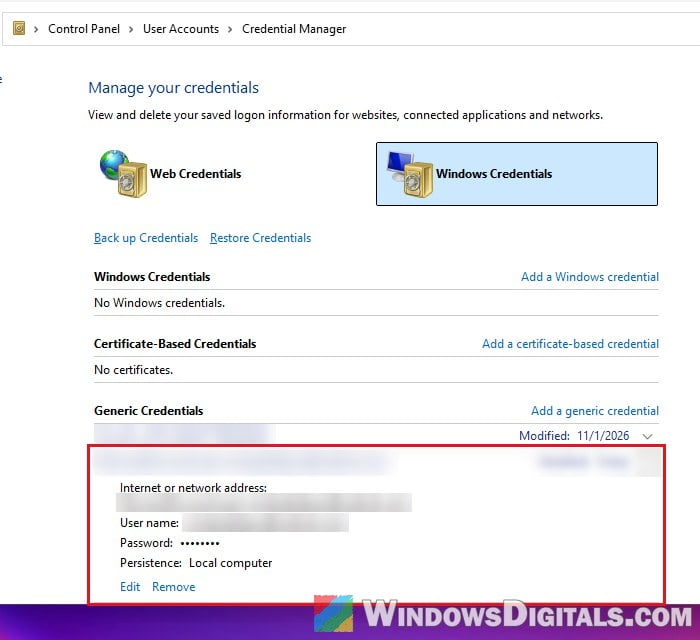
- Click Start, type “Credential Manager” and open it.
- Select Windows Credentials.
- Under Generic Credentials, look for entries with your account’s email address in them.
- Click an entry to expand it, select Remove and click Yes to confirm. Do the same for the other entries for that account.
- Restart your PC and sign in to OneDrive again.
Make sure TLS 1.2 is turned on
Microsoft’s cloud services, OneDrive included, no longer accept the older TLS 1.0 and 1.1 for secure connections, so they need TLS 1.2. If it’s turned off on your PC, sign-ins to Microsoft can fail even though normal websites still open. It takes a few seconds to check:
- Press Win + R, type
inetcpl.cpland press Enter to open Internet Properties. - Go to the Advanced tab.
- Scroll down to the Security section and make sure “Use TLS 1.2” is checked.
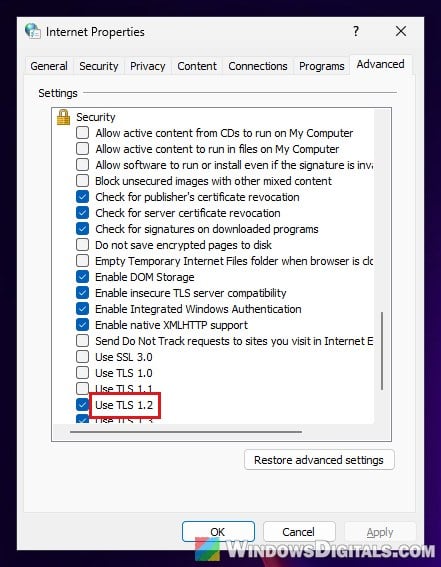
- Click Apply, then OK, and try signing in to OneDrive again.
Might be useful: OneDrive Not Syncing or Uploading Files in Windows 11 (Sync Paused)
Work or school account: OneDrive might not be set up yet
With a work or school account, 0x8004DEED can have nothing to do with your PC. By default, a user’s OneDrive is only created on Microsoft’s side the first time they open it, and assigning a license doesn’t always start that. Until it’s created, the OneDrive app can’t connect, while SharePoint and Office on the web may work normally.
To check, sign in to OneDrive on the web with your work account. If it shows “Give us a moment to set things up“, your OneDrive isn’t ready yet, and waiting a while, even overnight, can be enough. If OneDrive on the web opens your files but the app still won’t sign in, open Settings there and select Sync this OneDrive if you see it. This opens the OneDrive app’s sign-in with your email already filled in.
If you’re the IT admin, you can create the user’s OneDrive right away instead of waiting. As a SharePoint Administrator, run this in the SharePoint Online Management Shell:
Request-SPOPersonalSite -UserEmails [email protected]
It only works for users who are allowed to sign in and have a SharePoint license. If you’re not the admin, there’s not much you can fix on your own here: only your IT admin can see whether your account has a OneDrive license and whether it’s active, so send them the error code.