When you check your PC’s clock in British Columbia after November 1, 2026, you might see that it’s exactly one hour behind. That’s because B.C. no longer turns its clocks back and now stays on UTC-7 all year, while a PC still set to the old “Pacific Time (US & Canada)” zone fell back to UTC-8 with the US. This guide will show you how to move your PC to the new British Columbia time zone and what to do when apps act up after the switch.
Also see: How to Add Multiple Time Zone Clocks in Windows 11
Why is the clock an hour off in British Columbia?
In March 2026, the province announced that it would stay on UTC-7 permanently. So on November 1, 2026, clocks in most of B.C. were not set back at 2:00 a.m. like they used to be. Windows doesn’t know what your province decided until an update tells it. Until then, it just follows the rules of the time zone you’ve picked.
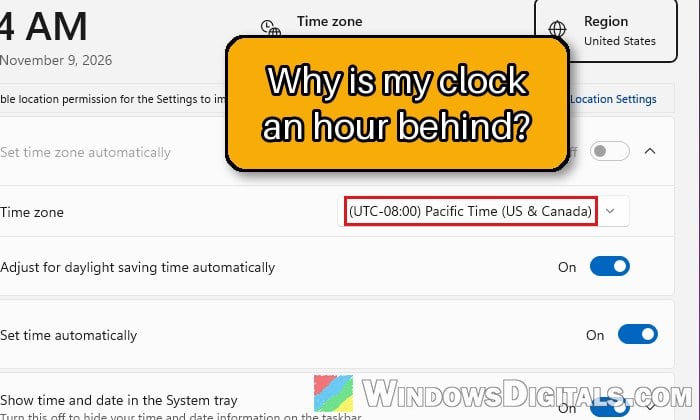
- The old zone, “(UTC-08:00) Pacific Time (US & Canada)“, still follows the US rules. It fell back to UTC-8 on November 1, so a PC in B.C. that’s still on it now shows one hour less than the real time.
- Microsoft added a new time zone for B.C. to Windows, called “(UTC-07:00) Pacific Time (British Columbia)“, through Windows Update (the next section says which update).
- Installing the update adds the new zone to the list, but it doesn’t always switch your PC to it. Microsoft says PCs that set their time zone automatically switch by themselves, while everyone else has to select it manually.
Please note that a few parts of B.C. don’t use Pacific Time. The southeastern areas that follow Alberta’s time use “(UTC-06:00) Mountain Time (Alberta)” instead, and Creston and northeastern B.C. were already on UTC-7 all year before this change.
Install the latest Windows update first
If the new British Columbia zone isn’t in your time zone list at all, your PC simply doesn’t have the update that adds it yet. On Windows 11 24H2, 25H2 and 26H2, any update from the September 22, 2026 preview (KB5124010) onwards includes it, such as the October 13 security update (KB5127648). Windows 11 23H2 got it in KB5126653. Here’s how to get it:
- Press Win + I to open Settings, then select Windows Update.
- Click Check for updates and let Windows download and install what it finds. If an optional update shows a Download & install link, click it as well.
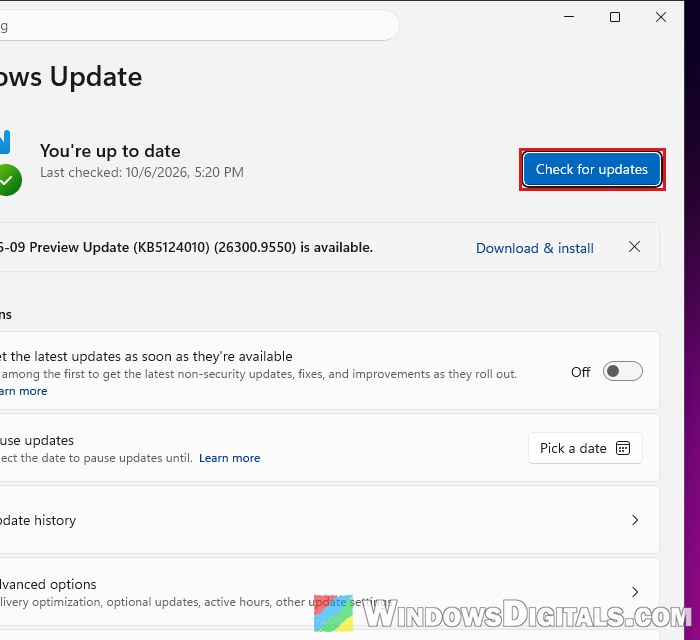
- Restart your PC when Windows asks you to.
Once the PC is back on, the new zone should be in the list, and a PC that sets its time zone automatically may have switched by itself.
Pro tip: Sync Time or Change NTP Server in Windows 11 using CMD
Select “Pacific Time (British Columbia)” as your time zone
This is the actual fix. Don’t just move the clock forward by an hour: Windows would then get the real time wrong, which can break sign-ins and anything that checks the time. Change the time zone instead, and the clock will follow. Here’s what you should do:
- Open Settings and go to Time & language > Date & time.
- If “Set time zone automatically” is on but the time zone still says “(UTC-08:00) Pacific Time (US & Canada)“, turn it off first.
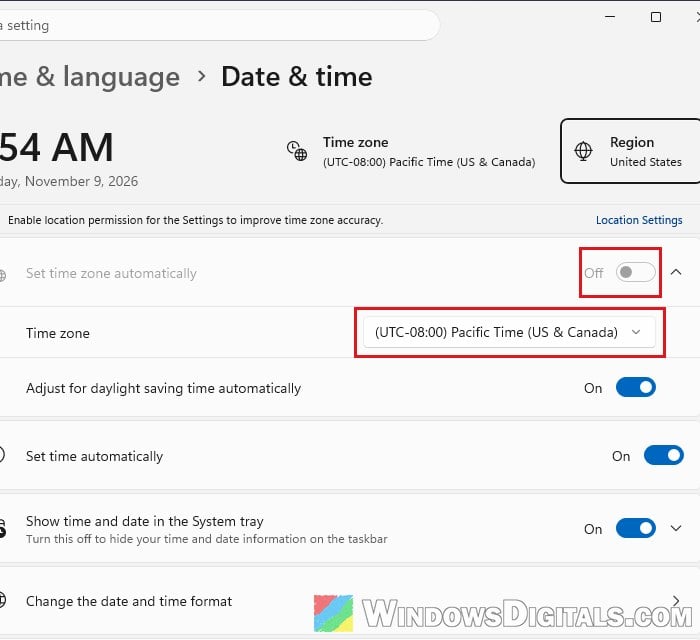
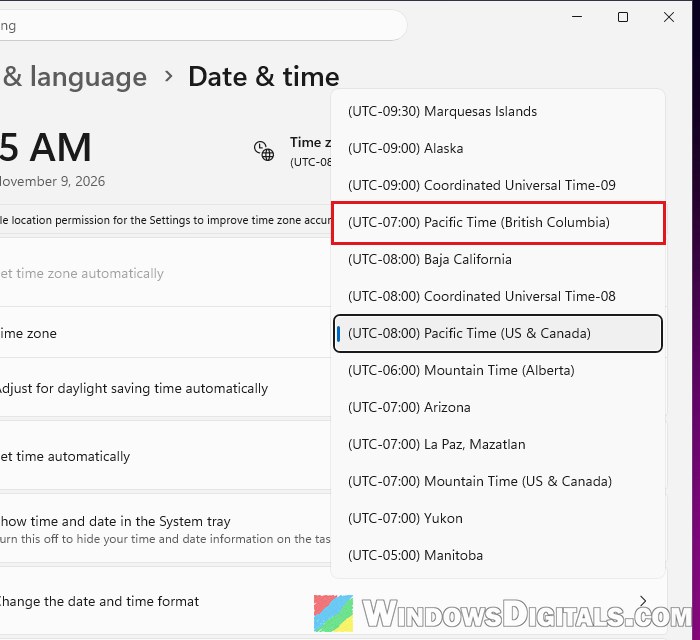
- Click the Time zone drop-down menu and select “(UTC-07:00) Pacific Time (British Columbia)“.
- Check that the time zone now shows the British Columbia entry and that the clock on your taskbar has moved forward by one hour.
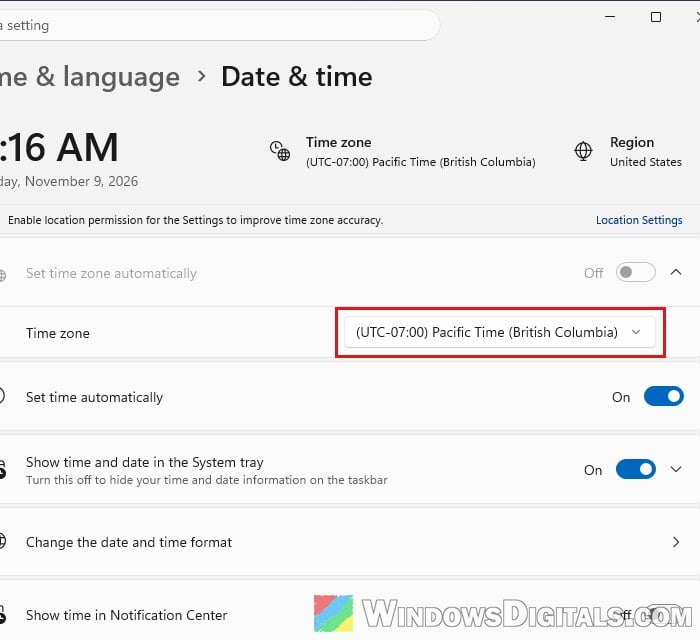
Make sure you pick the entry that says British Columbia in parentheses. The “US & Canada” one is what caused the problem. In the list, the new entry sits just above the UTC-08:00 zones, not with the other UTC-07:00 ones. Once it’s selected, the “Adjust for daylight saving time automatically” switch goes away, since B.C. no longer changes its clocks.
Set the time zone with a command instead
If the Settings page won’t let you change the time zone, you can set it with a command:
- Search for “cmd” in the Start menu and select Run as administrator.
- Type the following command and press Enter:
tzutil /s "British Columbia Standard Time"
- Run
tzutil /gto check. It should reply with British Columbia Standard Time.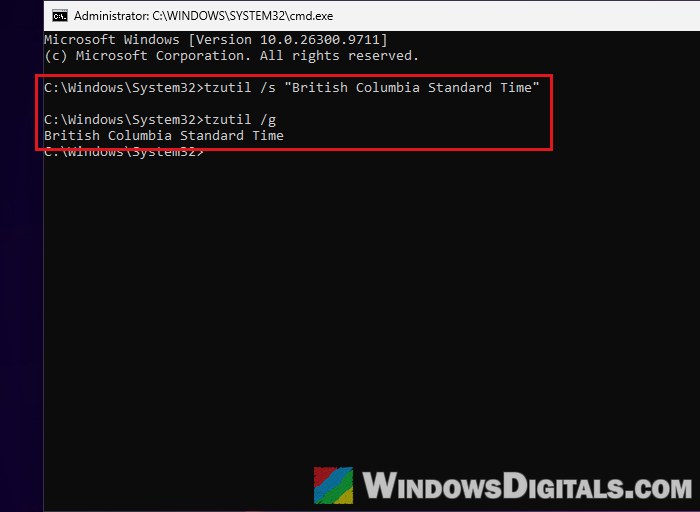
Linked issue: Date and Time is Always Wrong on Windows 10
Use “(UTC-07:00) Yukon” if you can’t get the update
Not every PC gets the new zone. Microsoft only adds it to supported versions of Windows, which means Windows 11 23H2 and newer and, for Windows 10, only Enterprise LTSC 2021. On Windows 10 Home or Pro, for example, the British Columbia entry may never show up.
For PCs like these, Microsoft’s own temporary advice is to switch from “(UTC-08:00) Pacific Time (US & Canada)” to “(UTC-07:00) Yukon“. Yukon also stays on UTC-7 all year, so the clock shows the same time as B.C. To do so, follow the same steps as above, but select “(UTC-07:00) Yukon” from the Time zone drop-down menu.
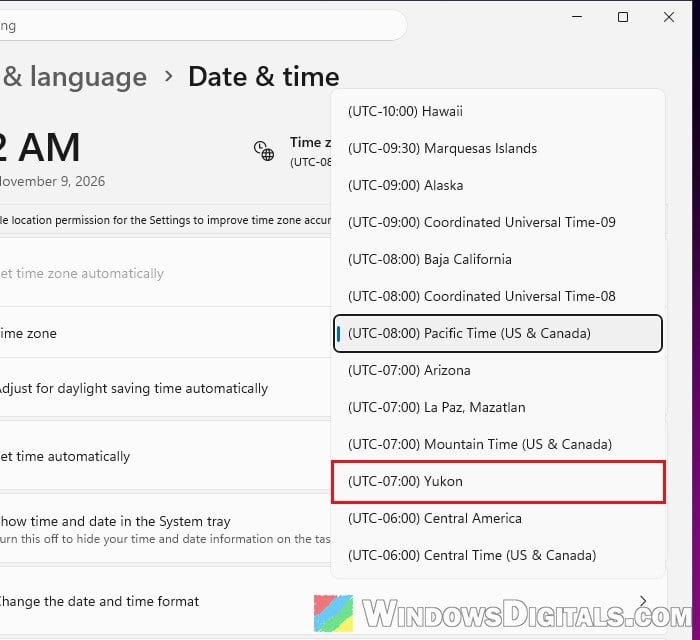
Note: Microsoft says this is only a stopgap. Yukon has a different name and its own past rules, so old dates (from before the change) can show differently in some apps. Once your PC can get the update with the British Columbia zone, switch to it.
Microsoft 365 apps won’t sign in after switching to the new zone
Right after switching to one of the new Canadian zones, Outlook, Teams, Word, OneDrive and other Microsoft 365 apps can keep asking you to sign in, then fail with “Something went wrong, please try again” every time. IT admins have reported it for the new Alberta, British Columbia and Manitoba zones, and Microsoft’s guidance for the Canadian zone changes (last updated November 2) doesn’t mention it yet.
The workaround is to move to an older zone with the same time for a moment. Here’s what to do:
- Switch the time zone to “(UTC-07:00) Yukon” (steps above).
- Restart the PC.
- Open the Microsoft 365 app and sign in again.
Once you’re signed in, you can try switching back to the British Columbia zone. If the loop comes back, stay on Yukon until Microsoft fixes it, since the clock shows the right time either way.
Apps and websites still show the wrong time
Apps and browsers that carry their own list of time zones don’t always know the new B.C. zone yet. Steam, for example, showed “invalid time zone specified: undefined” for some PCs on the new zones, and Valve has been adding them in its beta updates. If one app or site is still an hour off while the Windows clock is right, update that app or browser first. If there’s no update yet, switching Windows to Yukon and restarting the app (or the PC) worked for Steam users.
Outlook keeps its own time zone setting for your calendar, separate from Windows. Microsoft recommends selecting the new zone there too:
- Classic Outlook: go to File > Options > Calendar, scroll down to Time zones, pick the new zone from the Time zone drop-down, and click OK.
- New Outlook and Outlook on the web: open Settings > Calendar > View, scroll down to Time zones, pick the new zone under “Display my calendar in time zone“, and click Save.
Meetings already in your calendar for November 1 or later don’t move by themselves, though. Only a meeting’s organizer can change its time zone, so if a meeting looks an hour off, check with whoever sent it.