When you start your PC or open OneDrive, you might see a window that says “We can’t sync your “OneDrive” folder” and “Sorry, we can’t add your “OneDrive” folder right now”, and clicking Close only brings up another one saying OneDrive couldn’t find your “OneDrive on SPO” folder, so the window never really goes away. This guide will show you what it’s tied to and how to get OneDrive working again without losing your files.
Also see: OneDrive Not Syncing or Uploading Files in Windows 11 (Sync Paused)
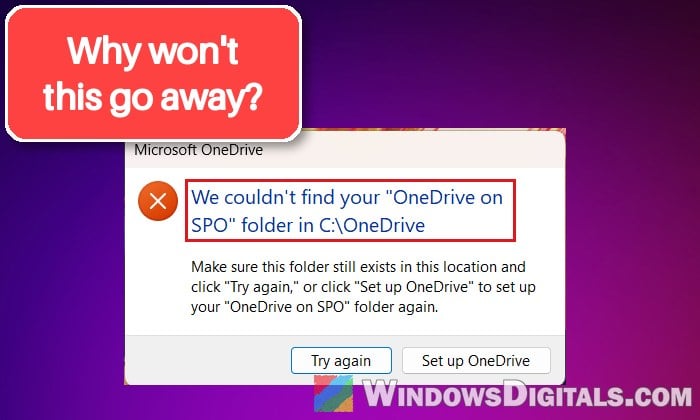
The second window usually names your OneDrive folder’s path (often C:\OneDrive) and asks you to click “Try again” or “Set up OneDrive“. “Try again” just takes you back to the first message.
Why does this keep popping up?
The message makes it sound like your OneDrive folder is gone, but your files are usually still there. In the reports, the files were still fine on OneDrive on the web, and the OneDrive phone app kept working too.
It started around the end of October 2026 on lots of PCs at once, on personal Microsoft 365 accounts as well as work or school ones, on Windows 11 and 10. It isn’t your network either, since it happens on a mobile hotspot too. Along with the pop-up, you might notice:
- Files marked “Upload Blocked“.
- The OneDrive sign-in window showing nothing but a spinning circle, sometimes for hours.
- OneDrive working fine for a while after a reinstall, then failing again, or the error coming back after a restart.
Microsoft hasn’t said what went wrong, and its release notes only mention “product issues” being resolved. But users who had it on several PCs found one thing in common: OneDrive version 26.195.1006.0007, with the errors starting within a day of it installing. Getting the newer build is what fixed it in most reports.
Should you click “Set up OneDrive”?
It only reconnects OneDrive to your existing folder. If you go through it, pick that same folder when it asks where your OneDrive folder is, and don’t move, rename or delete anything in it while it reconnects. That can take a few minutes or much longer, depending on how many files you have and how fast your connection is. On version 26.195, though, the error tends to come back, so fix the version first.
Important: Before changing anything, sign in at onedrive.com to make sure your files are there, and copy any “Upload Blocked” files somewhere outside your OneDrive folder.
Might be useful: OneDrive Signed In With the Wrong Account on Windows 11
Check which OneDrive version you have
Since the problem is tied to one OneDrive build, the first thing to check is which version your PC is on. Here’s how:
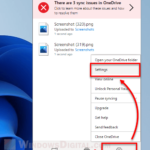
- Click the OneDrive cloud icon in the notification area (the bottom-right corner of the taskbar).
- Click the gear icon (Help & Settings), then select Settings.
- Go to About and look at the version number.
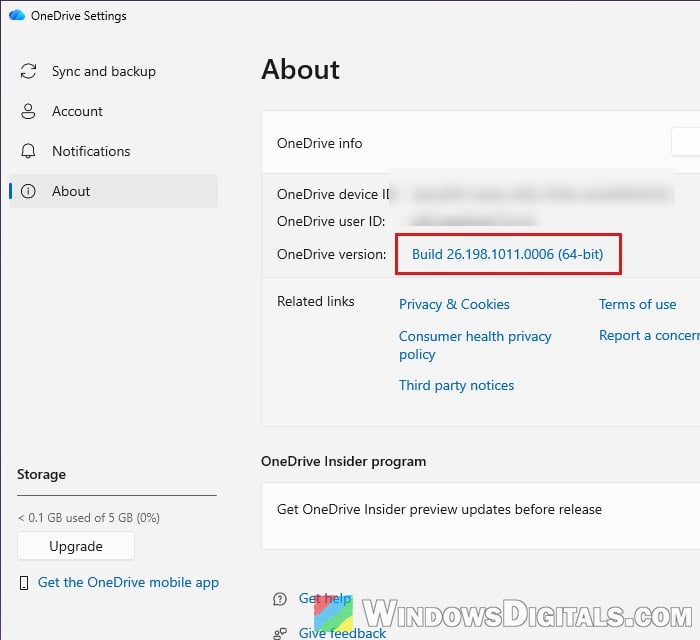
If it says 26.195.1006.0007, you’re on the build linked to this problem, and the next section is the fix.
Install the newer OneDrive build (26.198.1011.0006)
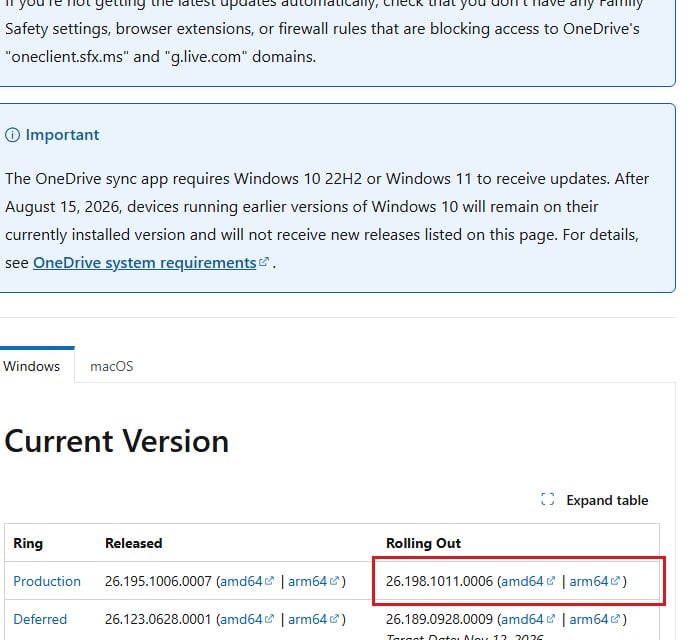
Microsoft lists OneDrive 26.198.1011.0006 as a regular release rolling out since October 30, 2026. It just hasn’t reached every PC yet, so download it from Microsoft’s own release notes page instead of waiting. Don’t grab OneDrive installers from third-party download sites, as they can come with unwanted programs.
Here’s what you should do:
- Go to
https://learn.microsoft.com/sharepoint/sync-release-notes. - In the table at the top of the Windows section, find the Production row. The Rolling Out column shows 26.198.1011.0006.
- Click amd64 next to it (or arm64 if your PC has an ARM processor).
- Run the file you downloaded and let it finish.
- Restart your PC, then check the version again in Settings > About in OneDrive.
Once you’re on 26.198.1011.0006, the pop-up should stop coming back after a restart. The newer build doesn’t fix it on every PC, though. If it still comes back, try the steps below, then the next section.
If the pop-up still comes back, reinstall OneDrive first
Remove OneDrive completely, then install 26.198 again. Uninstalling OneDrive doesn’t delete the files in your OneDrive folder.
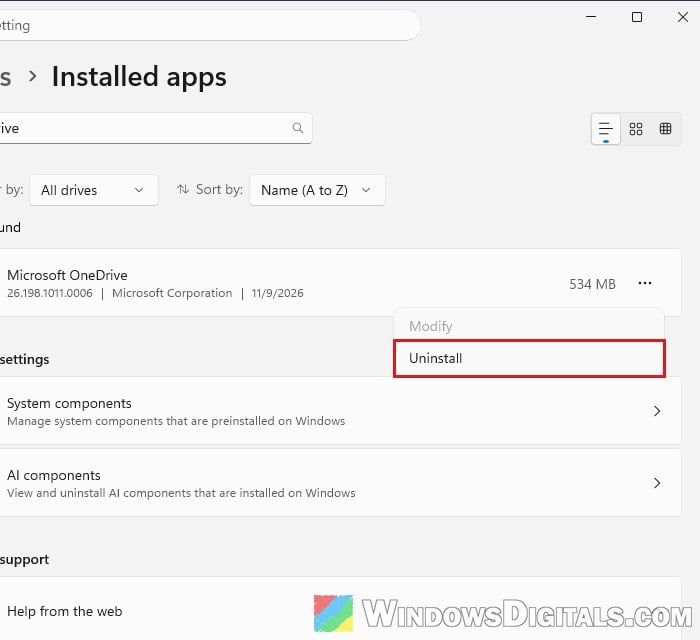
- Open Settings > Apps > Installed apps and search for “OneDrive“.
- Click the three dots next to Microsoft OneDrive and select Uninstall.
- Restart your PC, then run the 26.198.1011.0006 setup from the steps above.
- Sign in to OneDrive. When it asks where your OneDrive folder should be, point it to your existing folder, and if it tells you the folder already has files in it, choose Use this location.
Or let OneDrive update itself through the Insider option
Before 26.198 showed up on the release notes page, this is how most users got it, and it still works as a way to update without the download. In OneDrive’s Settings > About, under OneDrive Insider program, turn on the toggle for Get OneDrive Insider preview updates before release, wait for OneDrive to update itself, then restart your PC.
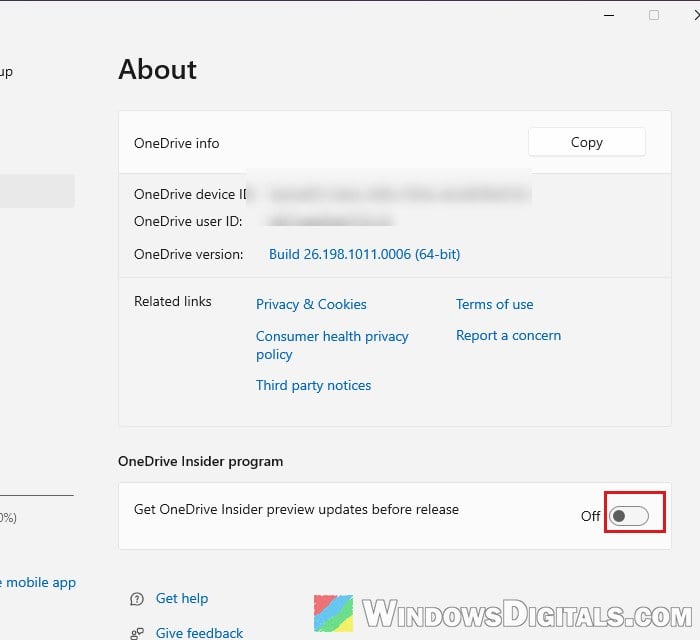
You can turn it off again later, once the fixed build reaches everyone.
Related guide: How to Reset or Reinstall OneDrive in Windows 11
Move the OneDrive folder out of the root of C:
If the error message points to a folder sitting straight on the C: drive, like C:\OneDrive, the location itself might be part of the problem. Moving the folder into the user folder (C:\Users\<your name>) is what got rid of the error for a few users. Microsoft hasn’t said this is required, and at least one person kept C:\OneDrive, so only try this if your folder is there and the newer build didn’t help.
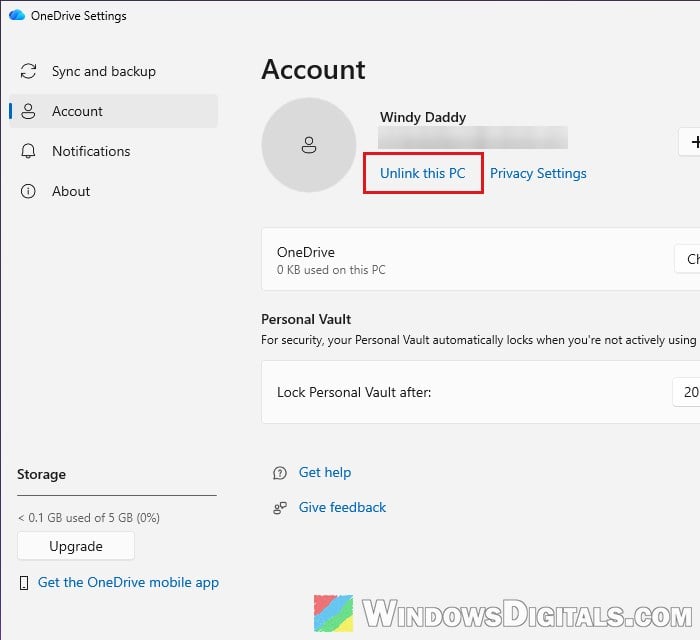
- Click the OneDrive cloud icon, then Help & Settings > Settings > Account.
- Click Unlink this PC, then confirm with Unlink account.
- In File Explorer, move your OneDrive folder from
C:\intoC:\Users\<your name>. - On the OneDrive setup screen, click Get started and sign in, then go through the prompts until you reach the folder location screen.
- Click Change Location, select the folder you just moved, and click OK.
- When OneDrive says the folder already contains files, click Use this location and finish the setup.
Once it has finished setting up, restart your PC and see if the pop-up comes back.
Reset OneDrive or clear its saved sign-in settings
These usual OneDrive repairs often didn’t fix this particular bug, but they’re safe and worth a try if nothing above helped. The first one, suggested by Microsoft, removes a small settings file OneDrive uses before you sign in:
- Quit OneDrive (cloud icon > Help & Settings > Pause syncing > Quit OneDrive) and close any Microsoft 365 apps like Word or Excel.
- Press Win + R, paste the following path and press Enter:
%localappdata%\Microsoft\OneDrive\settings
- Delete only the file called PreSignInSettingsConfig.json.
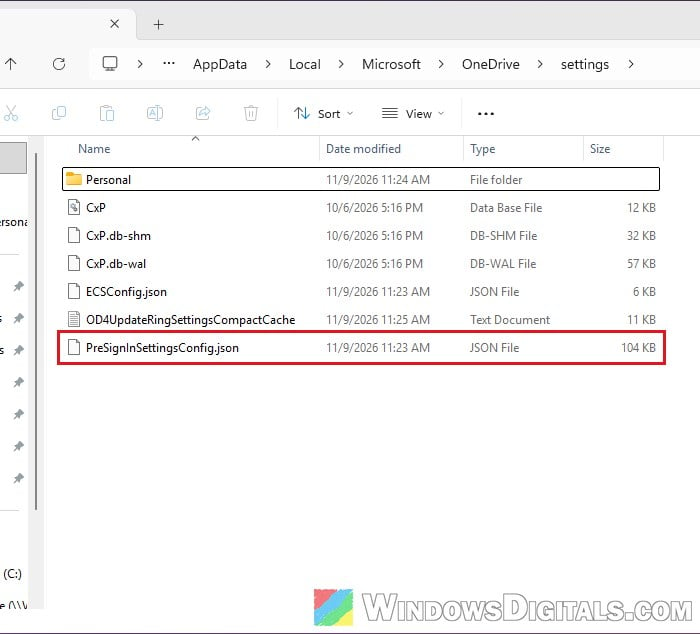
- Restart your PC, open OneDrive and sign in again.
If that doesn’t do it, reset OneDrive. According to Microsoft, you won’t lose any files by resetting it. It disconnects OneDrive’s sync connections, and they’re set up again when it restarts.
- Press Win + R, type the following and click OK:
%localappdata%\Microsoft\OneDrive\onedrive.exe /reset
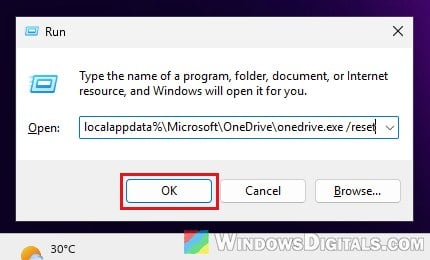
- If you get a “Windows cannot find…” message, run this one instead:
C:\Program Files\Microsoft OneDrive\onedrive.exe /reset
And if that fails too, try
C:\Program Files (x86)\Microsoft OneDrive\onedrive.exe /reset. - Open the Start menu, type “OneDrive” and open the OneDrive app to start it again.
OneDrive then runs a full sync. If you had picked only some folders to sync, pick them again once it’s done.