When you click a pinned Edge profile icon on the taskbar, like your work or school one, you might see it open a different profile instead, or just a blank window that gets grouped under the Edge icon that’s already open. The shortcuts still point to the right profile, but which one opens seems to depend on which Edge window you opened or closed last. This guide will explain what seems to cause it and how to get each icon to open its own profile again.
Also see: Edge Profile Stuck on “Setting up sync…”, What to do?
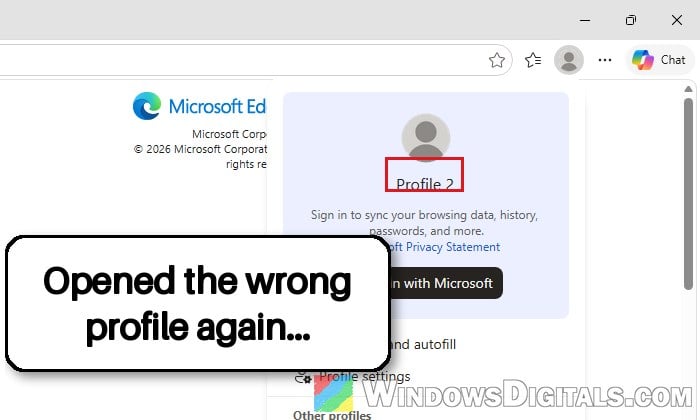
Why do pinned Edge profile icons open the wrong profile?
Every Edge profile keeps its data in its own folder, named “Default” for the first profile and “Profile 1“, “Profile 2” and so on for the ones you added later. When you pin a profile to the taskbar, the icon is a shortcut to Edge with a --profile-directory switch that names that folder, so clicking it should always open that profile.
Since early October 2026, though, a lot of people on Reddit and Microsoft’s forums have found these icons opening the wrong profile, on both Windows 11 25H2 and 26H2 with Edge 156. A few things people noticed:
- Order matters: The profile that opens depends on which Edge window is already open, or which one you closed last. Starting with no Edge window open and opening the profiles in a different order can work fine.
- Sometimes only the “Default” profile: For some people, only the profile in the “Default” folder goes wrong, while the ones in “Profile 1” or “Profile 2” folders open correctly.
- The shortcuts look fine: Their targets still name the right folder, so the problem seems to be in how Edge handles them.
Microsoft hasn’t confirmed a cause or a fix yet, and it looks like a bug that came with an Edge update (one later update seemed to fix it for a while, then it came back). Until Microsoft fixes it, try the methods below in order.
Related guide: How to Change Microsoft Edge Icon on Taskbar or Desktop
Close Edge completely and pin each profile again
Pinning each profile again from its own window gives you fresh shortcuts. Close every Edge process first, since Edge can keep running in the background, and the last window you closed can decide which profile opens next. This doesn’t work for everyone, but it’s the quickest thing to try. Here’s what you should do:
- Close all of your Edge windows.
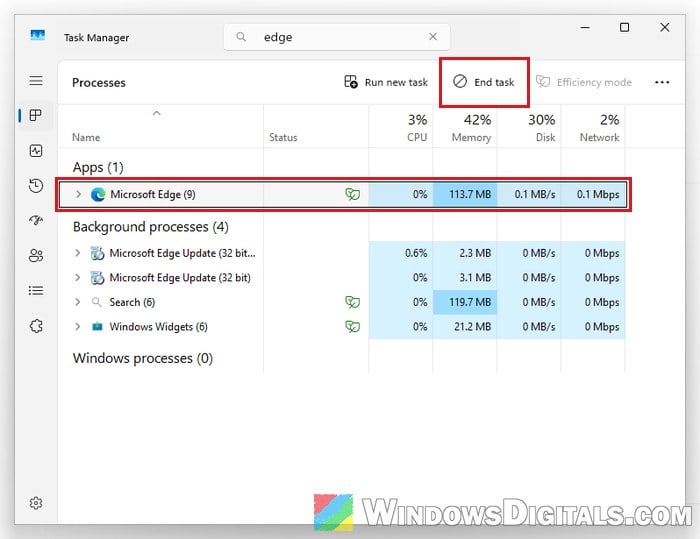
- Press Ctrl + Shift + Esc to open Task Manager and type “edge” in its search box. If “Microsoft Edge” is still listed under “Processes“, select it and click “End task“.
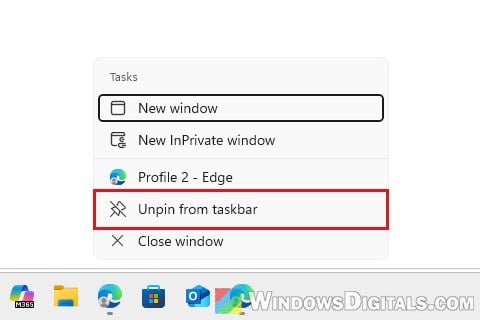
- Right-click each Edge profile icon on the taskbar and select “Unpin from taskbar“.
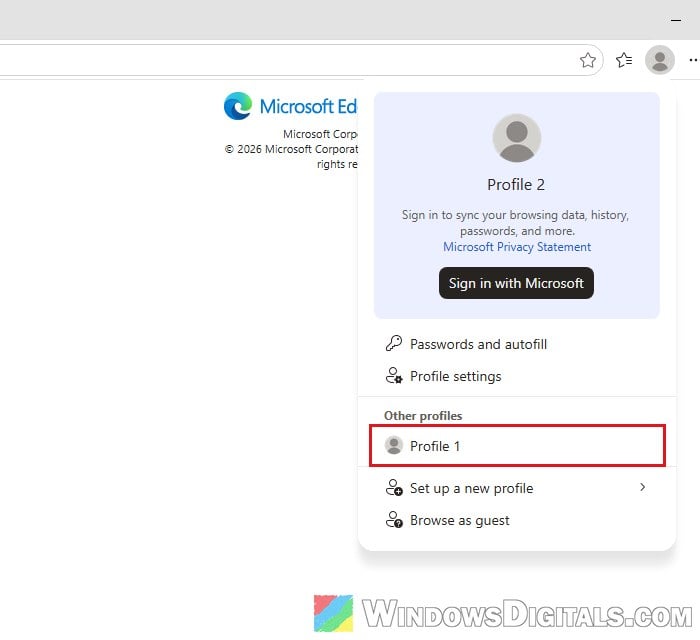
- Open Edge. For the profile it opens with, go straight to step 5. For any other profile, click your profile picture at the top-right (next to the three dots), select it under “Other profiles“, then close the first window so only that profile’s window is open.
- Right-click that window’s icon on the taskbar and select “Pin to taskbar“.
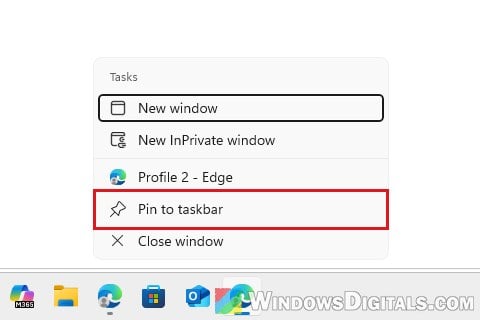
- Close that window, and repeat steps 4 and 5 for each of your other profiles.
Close Edge again, then click each icon and check that the right profile opens, with and without another profile open.
Related concern: Microsoft Edge Keeps Adding Itself to Startup Apps in Task Manager
Make sure each icon points to its own profile folder
If two icons still open the same profile, check which folder each one uses. The targets are usually fine, but one icon can end up pointing at the wrong folder. The folder name doesn’t have to match the profile’s name: a profile called “Profile 2” can live in a folder called “Profile 1”. Here’s how to check:
- Open a window of the profile, paste
edge://versioninto its address bar and press Enter. - Look at the “Profile path” line. Its last part is that profile’s folder name.
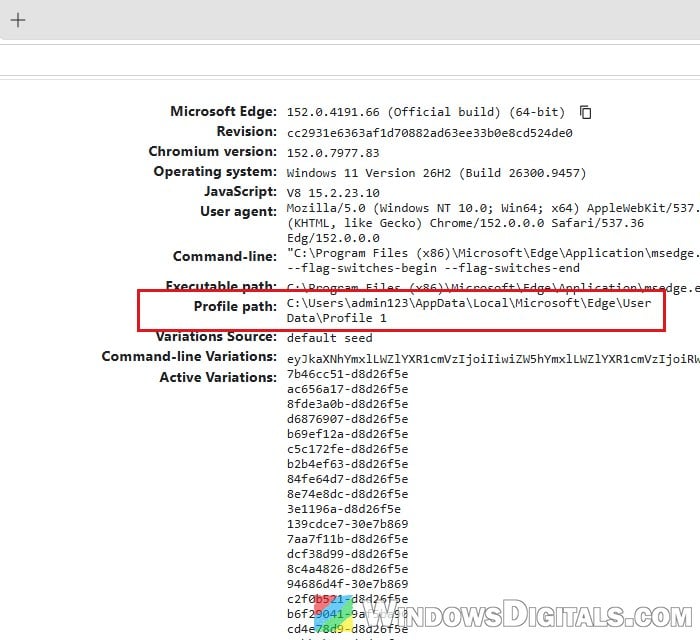
- Right-click the profile’s pinned icon on the taskbar, then right-click the profile’s entry in the menu (it’s named after the profile, like “Profile 2 – Edge“) and select “Properties“.
- Click inside the “Target” box and press End. The text should finish with
--profile-directory=and the same folder name, for example--profile-directory="Profile 1".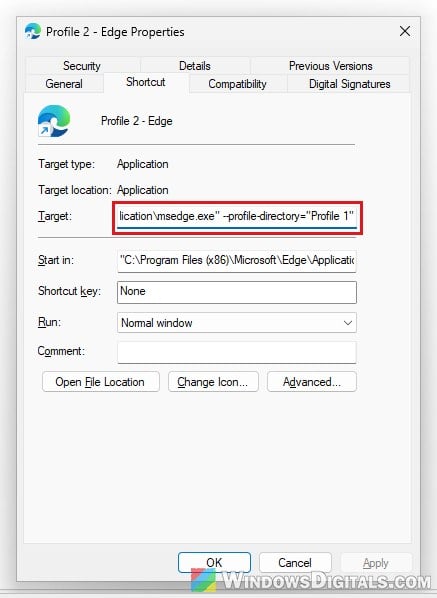
If an icon names the wrong folder, unpin it and pin it again from the right profile’s window as shown above.
Open the profile from the taskbar’s right-click menu instead
If pinning the icons again doesn’t help, there’s a workaround that people with the bug say works every time. Instead of clicking the pinned icon itself, right-click it and click the profile’s entry in the menu (like “Profile 2 – Edge“).
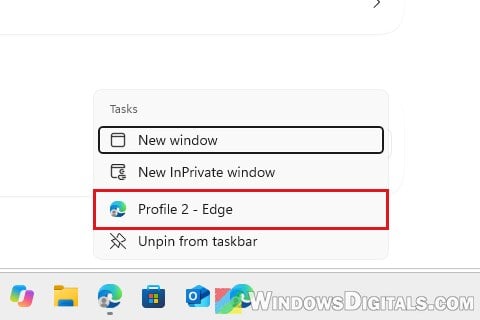
If you’ve already ended up with a blank window in the wrong profile, you can also click the profile picture at the top-right of that window, switch to the profile you wanted, and then close the stray window.
Might be useful: How to Ungroup Taskbar Items in Windows 11
Update Edge and tell Microsoft about it
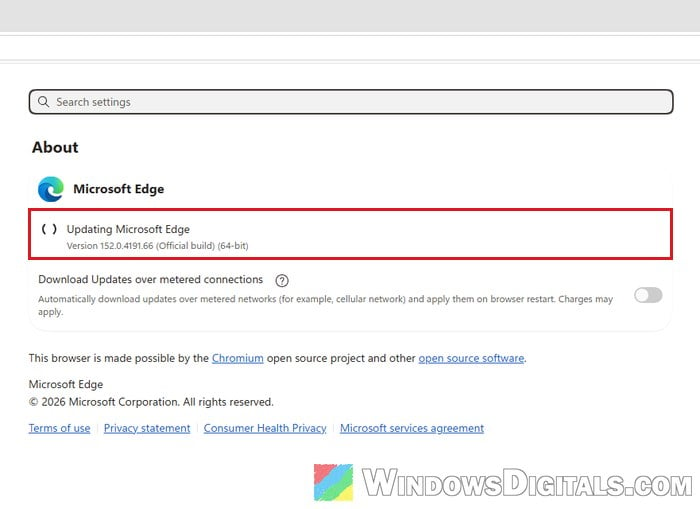
Since this looks like a bug in Edge itself, the real fix will most likely come with an Edge update. To check for one, paste edge://settings/help into the address bar and press Enter. Edge downloads any available update and applies it the next time it restarts.
It’s also worth sending Microsoft a report. In Edge, click the three dots (“Settings and more“) at the top-right, go to “Help and feedback” > “Send feedback“, and describe what happens when you click your pinned profile icons.
Move your main profile out of the “Default” folder
If only your “Default” profile goes wrong, moving its data into a named profile folder and pinning it from there fixed it for some people.
Be warned: This means renaming Edge’s profile folders. If something goes wrong, you can lose that profile’s tabs, history or saved data that isn’t synced. Back up the folders first as shown below, and if you’re not comfortable doing this, stick with the right-click menu workaround instead. You may also need to sign back in to some websites afterward.
Here’s how to do it:
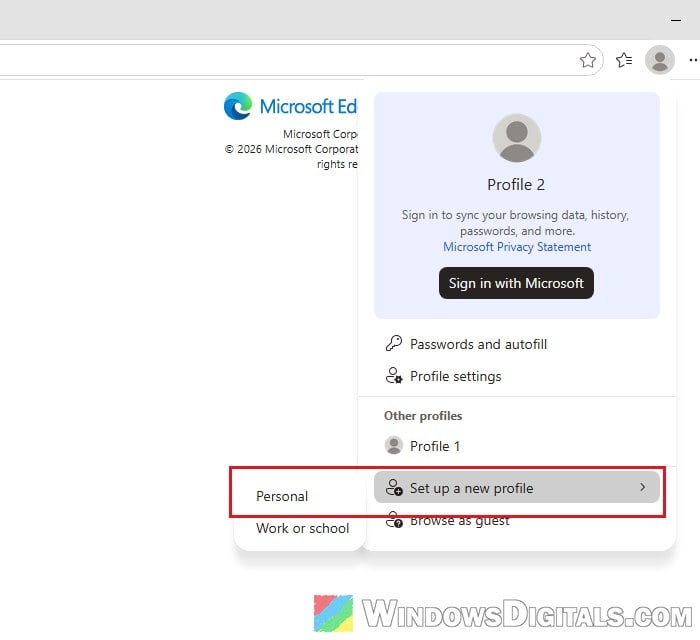
- In Edge, click your profile picture at the top-right and select “Set up a new profile” > “Personal“. In the new window, click “Start without your data“, and don’t sign in to it.
- In the new profile’s window, paste
edge://versioninto the address bar, press Enter and note its folder name at the end of “Profile path“, for example “Profile 2“. - Close all Edge windows, and end any “Microsoft Edge” process left in Task Manager, as in the first method.
- Press Win + R, paste the following path and press Enter:
%LOCALAPPDATA%\Microsoft\Edge\User Data
- Copy the “Default” folder and the new profile’s folder (e.g. “Profile 2“) somewhere else, like your desktop, as a backup.
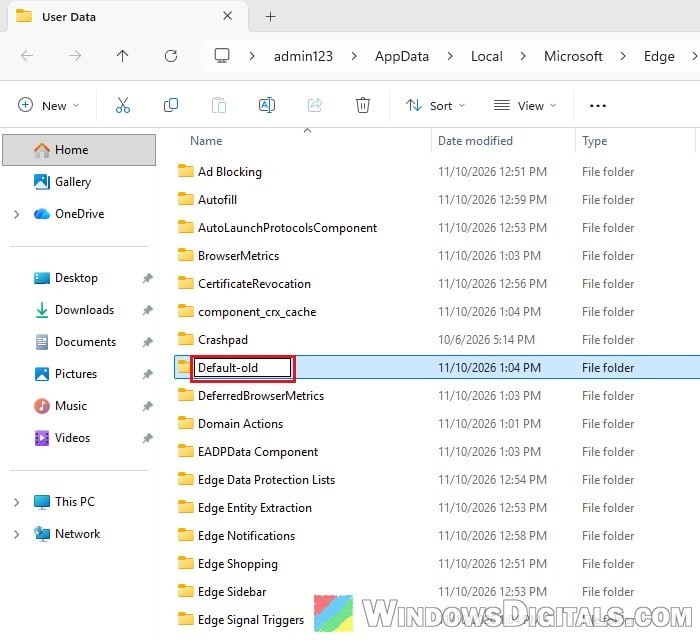
- Swap the names of the two folders: rename “Default” to something temporary like “Default-old“, rename the new profile’s folder to “Default“, then rename “Default-old” to the new profile’s old name (“Profile 2“).
- Open Edge and switch to the profile that has the new profile’s name (profile picture > that name). Your main profile’s tabs are there now.
- Unpin the old icon and pin this window’s icon, as in the first method.
- To get your old name back, go to “Settings” > “Profiles” and click the pencil icon to rename the empty profile (it now has your old name) to something like “Unused”, then give this one your old name.
From now on, your main profile lives in a named folder, and the empty profile in “Default” is one you just don’t use.