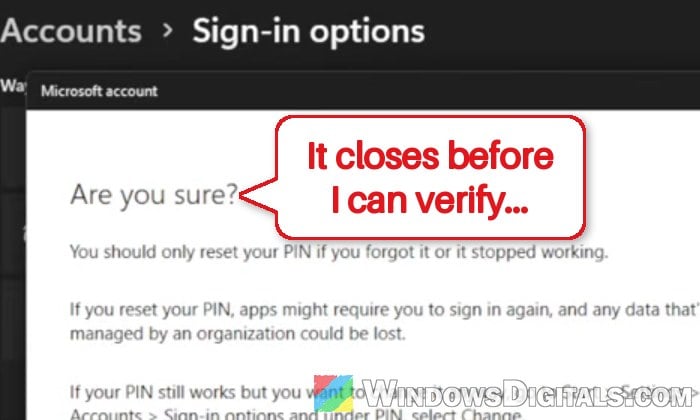
The “I forgot my PIN” option in Windows 11’s Sign-in options is supposed to open a Microsoft account check, where you prove it’s you and then set a new PIN. But sometimes that window closes by itself after about 10 seconds, before you can finish signing in or type the code, and it does it again every time you retry. This guide will show you how to get around it and reset your PIN anyway.
Also see: MSConfig “Something happened and your PIN isn’t available”
Reset your PIN from the sign-in screen instead
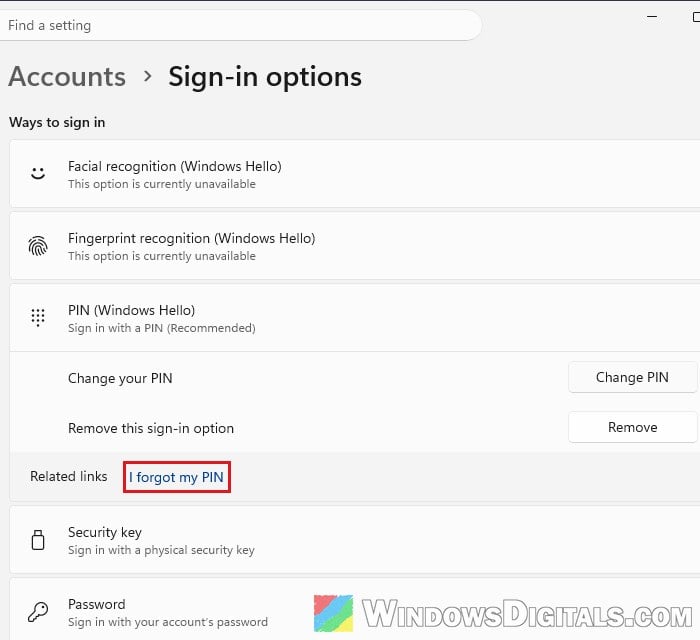
When you click “I forgot my PIN” in Settings > Accounts > Sign-in options > PIN (Windows Hello), the Microsoft account check opens in its own window. Microsoft hasn’t said why it disappears, but it seems the window can lose focus or time out while it’s open, possibly because something else running in the background gets in its way.
The sign-in screen has its own “I forgot my PIN” link, and it seems to use a separate reset process that avoids the problem. This has worked for several people on Microsoft’s forums, since on the sign-in screen the window stays open long enough to get the code and type it in.
Please note that the “I forgot my PIN” link on the sign-in screen is only there for Microsoft accounts. If you sign in to Windows with a local account, you reset the PIN with your account password instead.
Here’s how to reset your PIN from the sign-in screen:
- Save anything you’re working on, then press Win + L to lock your PC (or sign out from the Start menu).
- Click anywhere or press a key to get past the lock screen picture.
- If the PC has more than one account, select yours.
- Resetting the PIN needs an internet connection. If the PC is offline, connect to your Wi-Fi first from the network icon at the bottom right of the sign-in screen.
- If the screen asks for your face or fingerprint, select “Sign-in options” below it and choose the PIN option so the PIN box shows.
- Click “I forgot my PIN” below the PIN box.
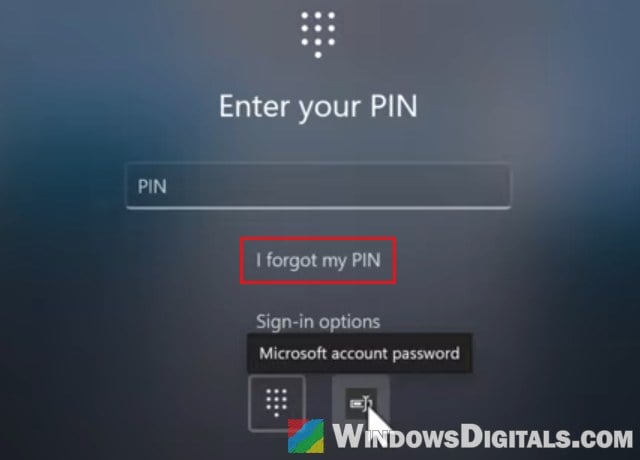
- Follow the prompts to verify your Microsoft account, then set up your new PIN.
Once it’s done, sign in with the new PIN to make sure it works.
If “I forgot my PIN” doesn’t show up on the sign-in screen at all, select “Sign-in options“, choose your password instead and sign in with it, then try the other fixes below from inside Windows.
If you’d rather try it again in Settings
If you’d still like to use Settings, you can give the window a better chance of staying open. Have your password and the phone or email where Microsoft sends your code ready before you click “I forgot my PIN“, so you don’t need to switch away to find them. Then don’t click anywhere outside the window or switch to another app until you’ve finished. It isn’t a guaranteed fix, but losing focus seems to be one of the things that makes the window close.
Linked issue: “The dictionary attack mitigation is triggered” Windows Hello PIN Error
Disconnect a work or school account you don’t use
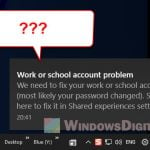
If you’ve ever added a work or school account to Windows (an account from an old job or a university account, for example), it can sometimes leave settings behind that still affect your PIN. Some people who had trouble resetting or changing their PIN could only do it after they removed an old work or school account they no longer used. It’s not certain this is the cause for everyone, but it’s worth checking if you have one connected.
If the PC is still managed by your company or school, don’t remove the account yourself. Ask its IT support instead.
Follow the steps below:
- Open Settings and go to Accounts > Access work or school.
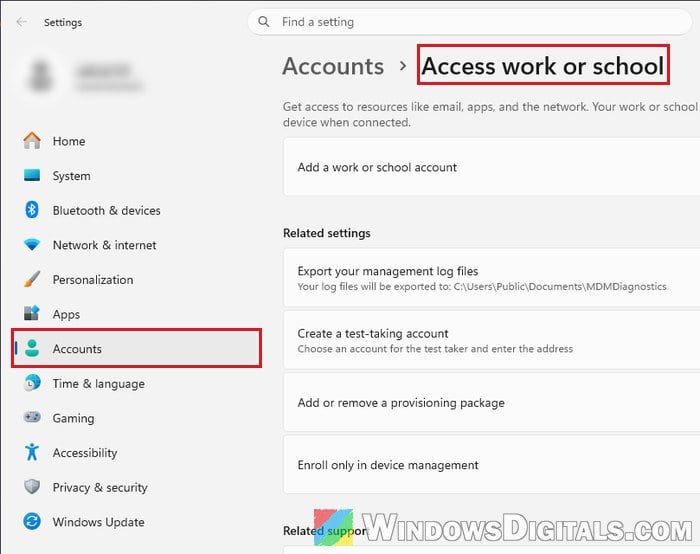
- Click the work or school account listed there to expand it.
- Click “Disconnect” and confirm.
- Try resetting your PIN again, from the sign-in screen first.
If nothing is listed there but Windows still seems to act like a work or school account is attached, the guide below shows how to check for one that Settings doesn’t list.
Related guide: Windows 11 PIN Settings Ask for a Work or School Account on a Personal PC
Try again from a clean boot
If the window still closes in Settings and the sign-in screen route doesn’t work for you, something running in the background might be what keeps pulling focus away from it. A clean boot starts Windows with only Microsoft’s own services and no startup apps, which is a quick way to rule out third-party software. This hasn’t been confirmed to fix this exact problem, so treat it as a last thing to try.
Here’s what you should do:
- Press Win + R, type “msconfig” and press Enter to open System Configuration.
- Go to the “Services” tab and check “Hide all Microsoft services” first, then click “Disable all“.
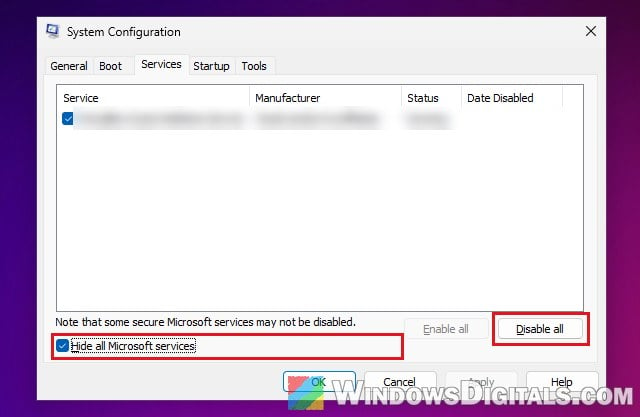 Don’t skip the checkbox. Disabling Microsoft’s own services can cause other problems.
- Go to the “Startup” tab and click “Open Task Manager“.
- In Task Manager, select each startup app one by one and click “Disable“.
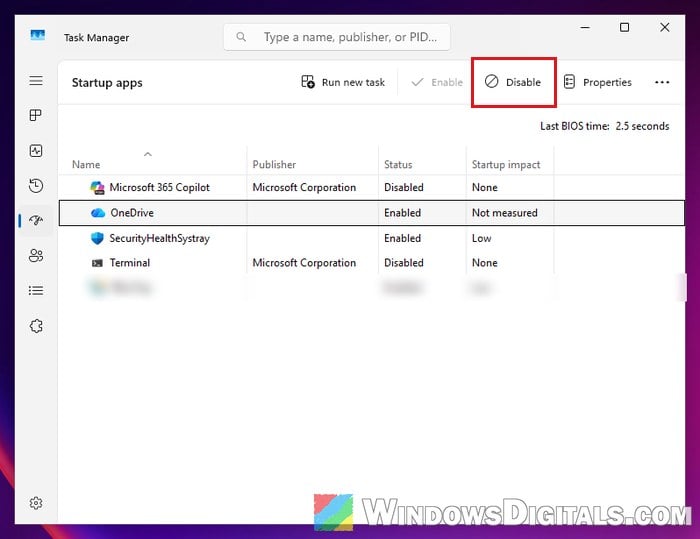
- Close Task Manager, click “OK” in System Configuration and restart your PC.
- Go to Settings > Accounts > Sign-in options > PIN (Windows Hello) and try “I forgot my PIN” again.
When you’re done, open “msconfig” again, select “Normal startup” on the “General” tab and click “OK“, then turn your startup apps back on in Task Manager and restart.