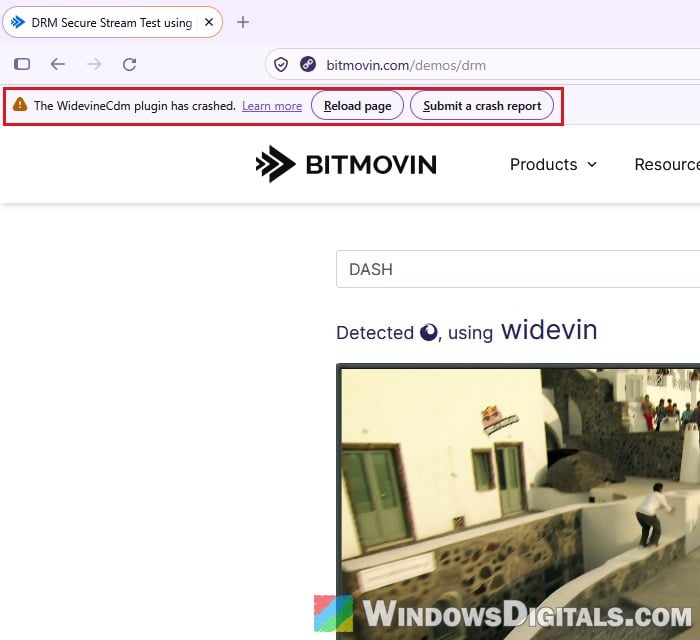
Firefox plays protected video and music on sites like Netflix, Prime Video and Spotify through Widevine, a small Google component it downloads on its own. When that component breaks, a bar shows up at the top of the page saying “The WidevineCdm plugin has crashed.” and the video or song refuses to load, even though the same site often still plays fine in another browser like Chrome. This guide will walk you through the likely causes and the fixes that get streaming working again in Firefox.
Also see: How to Fix Netflix HTTP Error 503, 502 and 403
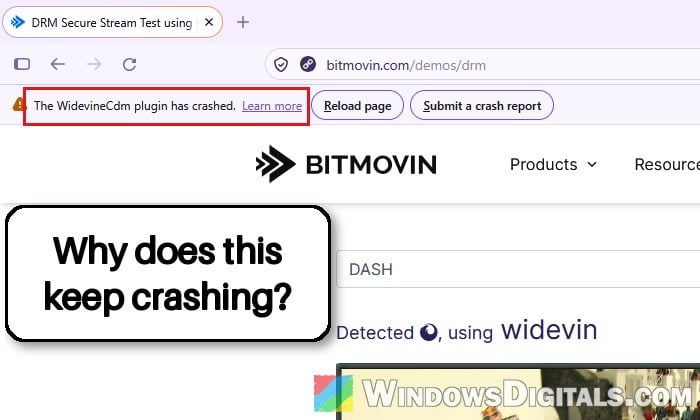
Why does the Widevine plugin keep crashing in Firefox?
Widevine is a Content Decryption Module (CDM). Streaming sites use it to make sure their videos and music are only played in an approved way, and Firefox runs it in its own separate container (a sandbox). When Widevine crashes, every site that depends on it stops working at once, which is why Netflix, Prime Video, Paramount+ and Spotify can all fail on the same day.
Some common reasons for this are:
- An outdated Firefox. A wave of these crashes started around October 31, 2026, mostly on Firefox versions that weren’t the newest, and updating Firefox fixed it for several of the people who reported it.
- The DRM setting or the Widevine plugin itself got turned off or stuck halfway through a download.
- Security software hooking into Firefox and blocking Widevine from loading. That can be an antivirus app, or a security agent a school or employer once had you install.
Since updating fixed it for some of the people hit by the late October crashes, start there.
Update Firefox first
Several users on Reddit had the crash on every streaming site from the end of October 2026, and for a number of them, updating Firefox to the latest version got their videos playing again. It didn’t work for everyone, so if it doesn’t help, keep going with the next fixes. At the time of writing, the newest version is Firefox 160, out on November 10, 2026. Even if you updated a few weeks ago, check again, because the fix may have come in a smaller update after that.
Here’s how to do it:
- Open Firefox and click the menu button (three lines) in the top-right corner.
- Select “Help and Report” and then “About Firefox“.
- Firefox will check for updates and download the newest one by itself. When it says “Firefox is up to date“, you already have the latest version.
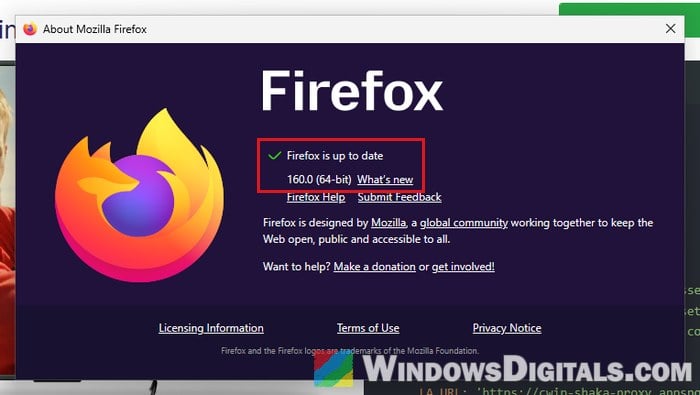
- If an update was downloaded, click the button to restart Firefox and apply it.
Once Firefox restarts, open the streaming site again and see if the video plays.
Pro tip: How to Restart Firefox Browser Without Losing Tabs
Make sure DRM is on and Widevine is set to “Always Activate”
If the update didn’t change anything, check that Firefox is actually allowed to use Widevine. Firefox has a setting that turns off all DRM playback, and the Widevine plugin can also be set to never run. Either one stops protected videos from playing.
First, check the DRM setting:
- Click the menu button and select “Settings“.
- Go to the “Tabs and browsing” page and find the “Media” section.
- Make sure “Play DRM-controlled content” is checked.
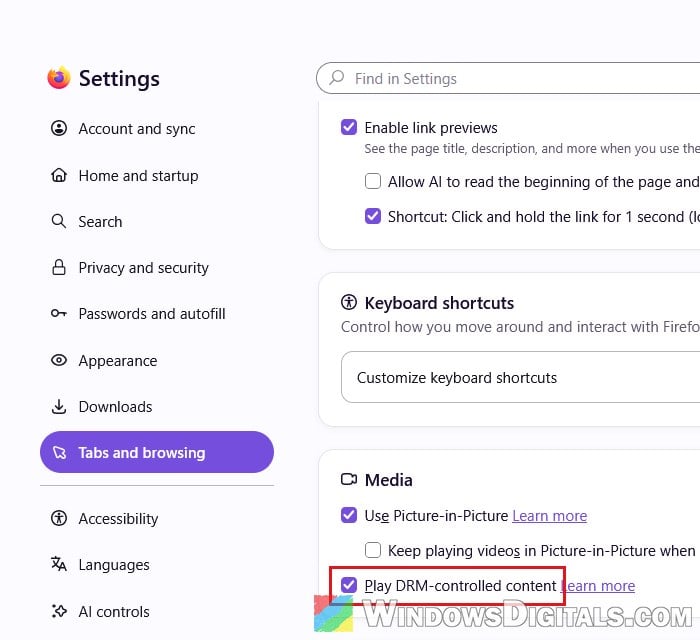
Then check the Widevine plugin:
- Click the menu button and select “Extensions and Themes“.
- Select “Plugins” on the left.
- Click the three-dot icon next to “Widevine Content Decryption Module provided by Google Inc.“.
- Make sure “Always Activate” is selected, not “Never Activate“.
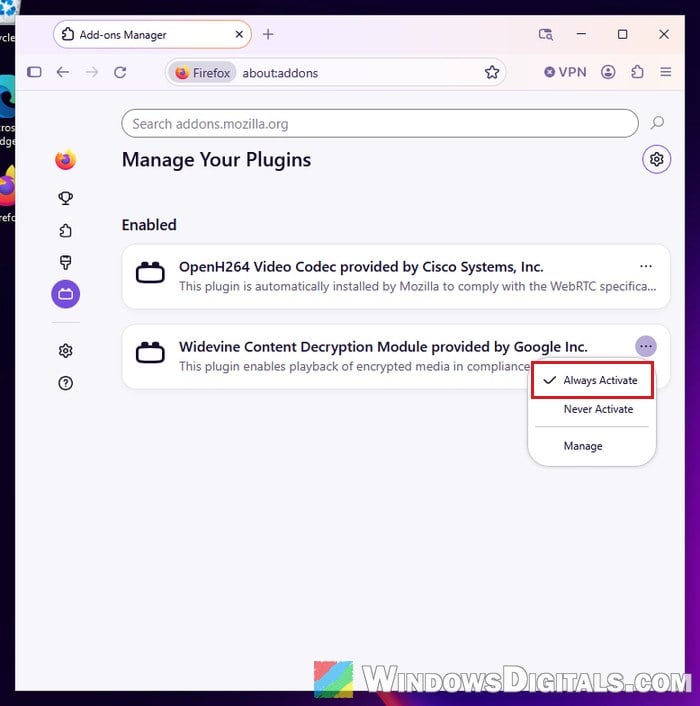
Reload the page with the video and try playing it again.
Turn “Play DRM-controlled content” off and back on
When the Widevine files themselves are broken, you can make Firefox download a fresh copy. According to Mozilla, unchecking “Play DRM-controlled content” deletes the downloaded CDMs from your computer, and checking it again makes Firefox reload its DRM components and download Widevine again automatically.
Follow the steps below:
- Go to “Settings” > “Tabs and browsing” and find the “Media” section again.
- Uncheck “Play DRM-controlled content“.
- Check “Play DRM-controlled content” again.
- Go back to the tab with the video and reload the page. Give Firefox a few seconds to download Widevine, then reload once more if the video still doesn’t start.
This doesn’t work for everyone (it didn’t help some of the people hit by the late October crashes), but it’s quick and does no harm.
Might be useful: Video Stops Playing When Switching Tabs in Chrome
Check your antivirus or security software
Some security software injects its own code into Firefox, and that can stop Widevine from loading. Mozilla says Avast AntiTrack is known to cause problems with DRM content in Firefox, and Bitdefender has blocked Widevine from loading in the past. An old security agent you’ve forgotten about, like Cisco AMP for Endpoints installed years ago to get on a school or company network, can do it too. An agent like that can break Widevine in every browser, and removing it, restarting the PC and then refreshing Firefox (the last fix below) has gotten streaming working again, in Chrome and Edge too.
To see what’s hooking into Firefox, type about:third-party in the address bar and press Enter. The “Third-party Module Information” page lists the modules that other programs have injected into Firefox. If nothing has, it simply says “No third-party modules were detected.”
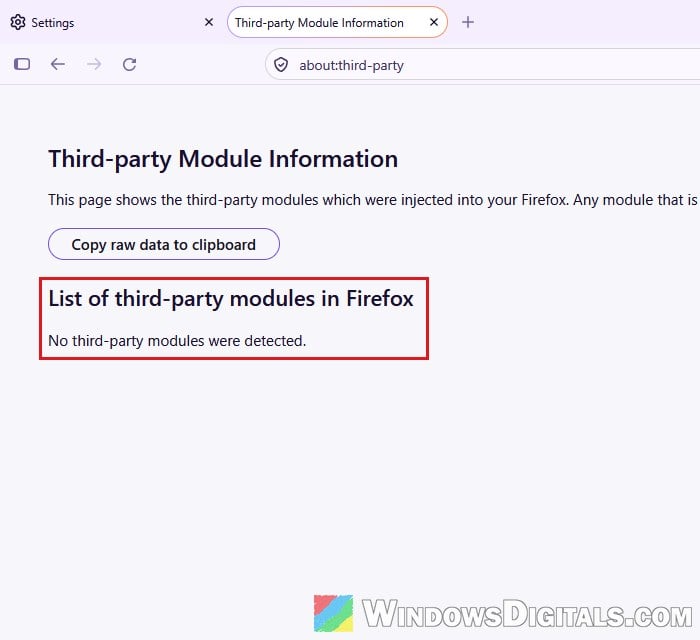
If you use Avast AntiTrack, turn it off and try the video again. If you find a security agent you no longer need, uninstalling it is the cleaner fix. Don’t remove anything your work or school still requires, though; ask their IT department instead.
Refresh Firefox
If none of the above worked, refreshing Firefox can clear out whatever is broken in your profile and make it set up Widevine from scratch. It resets Firefox to its default settings and removes your extensions and customizations, but your bookmarks and passwords stay.
Here’s how to do it:
- Type
about:supportin the address bar and press Enter. - Click “Refresh Firefox…” on the right.
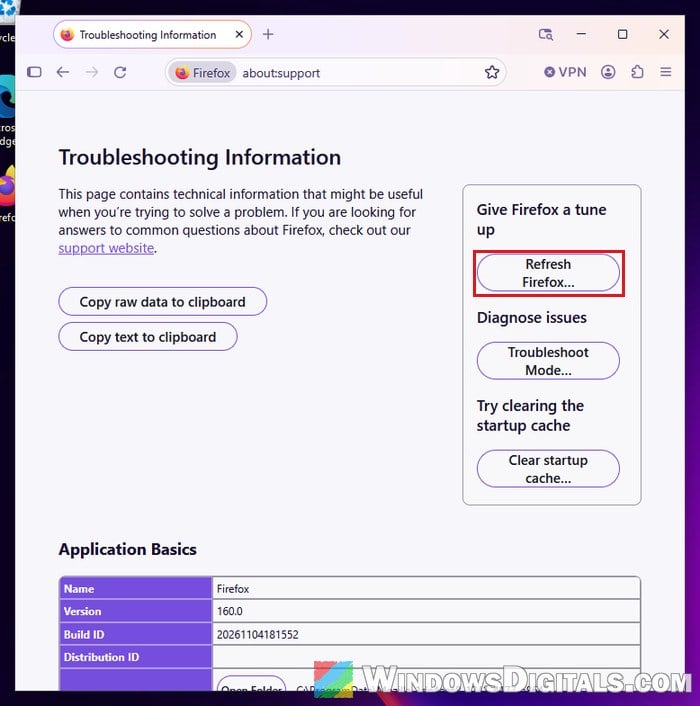
- Click “Refresh Firefox” again in the “Refresh Firefox to its default settings?” window.
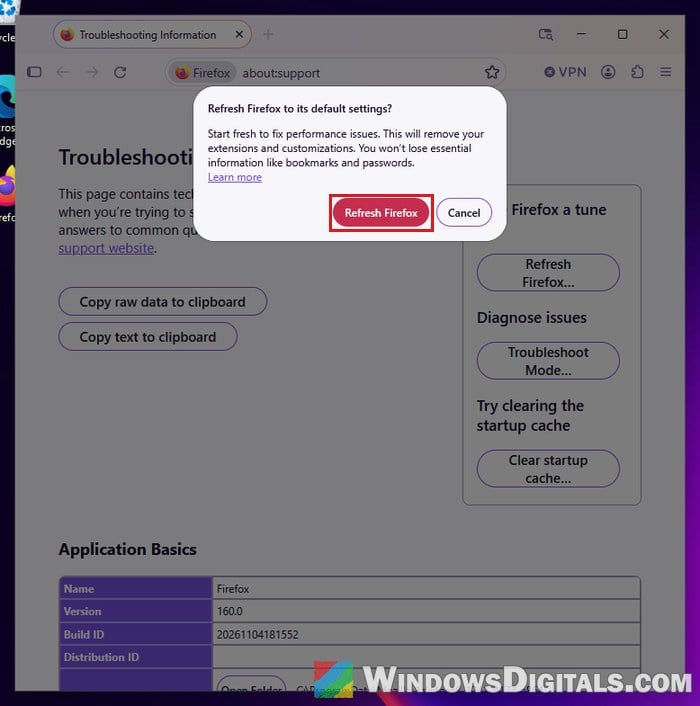
- Wait for Firefox to restart, then try the streaming site again.
You’ll need to reinstall any extensions you use afterward.
Use another browser in the meantime
If Firefox still won’t play anything, the streaming sites may still work in another browser like Chrome while you wait for the next Firefox update. It’s not a fix, but it lets you keep watching or listening until Firefox gets back to normal.