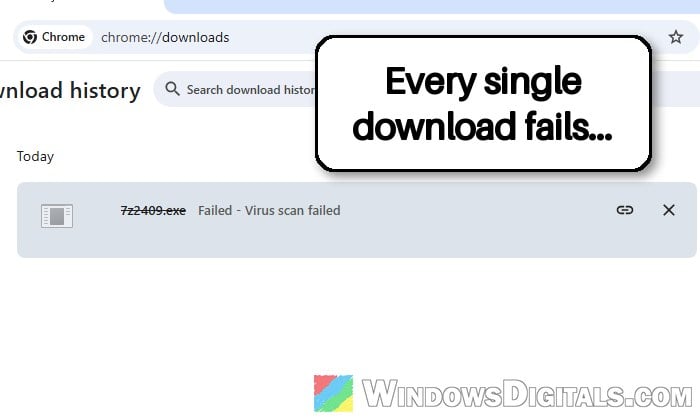
When you try to download a file in Chrome, Edge or Brave on Windows 11 or 10, you might see it fail with “Failed – Virus scan failed” (or “Couldn’t download – Virus scan failed” in Edge), even for a file you know is safe, and switching to another browser gives you the same error. It usually means the security program that’s supposed to check your downloads couldn’t finish the check, which on its own doesn’t mean the file is infected. This guide will show you how to find the program that’s getting in the way and how to get your downloads working again.
Also see: “Download Failed Blocked” on Chrome, Firefox or Edge
Why does every download say “Virus scan failed”?
When a download finishes, Windows hands the file to the antivirus program that’s registered on your PC and asks it to check the file. According to Microsoft, if that antivirus fails to do its job, the file is blocked. Chrome and Edge then show “Virus scan failed”.
Unlike “Virus detected“, which means the antivirus found something, “Virus scan failed” means the check itself didn’t work. That’s why it usually hits every download, in every browser. Some common reasons are:
- Two security programs scanning at the same time, for example a VPN with its own malware protection running next to your antivirus.
- An antivirus that was removed but not completely, leaving parts of it behind that still hook into Windows. McAfee, which comes preinstalled on some laptops, is one that comes up a lot.
- An antivirus that’s broken or misbehaving, including Microsoft Defender itself if some of its parts were turned off.
The fixes below go from the simplest checks to the ones that change how Windows handles downloads.
Check which security program is blocking the download
Google’s own advice for this error is to look at your antivirus first, since that’s where the reason is recorded. If you only use Microsoft Defender, Windows Security keeps a list of everything it blocked. Here’s how to check it:
- Open the Start menu, search for “Windows Security” and open it.
- Click “Virus & threat protection“.
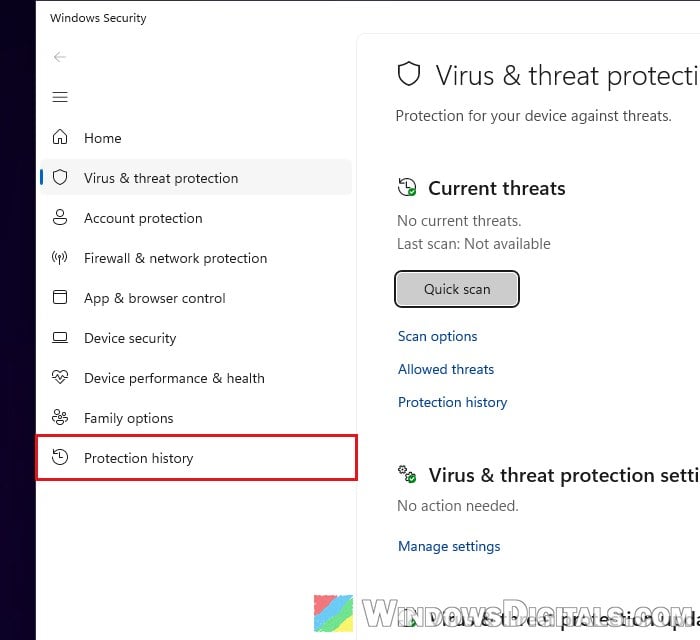
- Click “Protection history” and look for recent blocked items around the time your download failed.
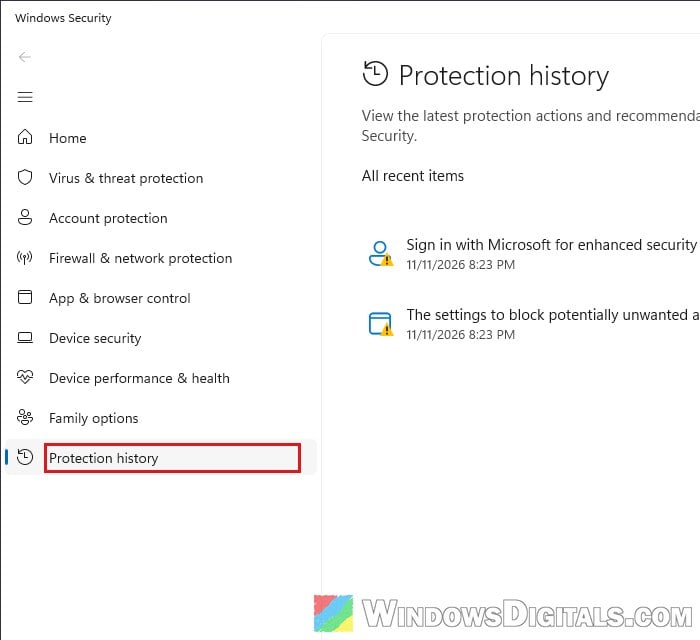
If you use another antivirus, look through its own log or quarantine for the file. If there’s nothing in any log, the antivirus probably isn’t blocking the file on purpose. It’s just failing, so move on to the next fixes.
Related concern: “You’re using other antivirus providers” Windows 11 (Fix)
Test with real-time protection turned off for a moment
To be sure your antivirus is what’s failing the check, Microsoft suggests turning off its real-time protection for a moment and retrying the download. Only do it for a file from a website you trust.
For Microsoft Defender:
- Open “Windows Security” > “Virus & threat protection“.
- Under “Virus & threat protection settings“, click “Manage settings“.
- Turn off “Real-time protection” and try the download again.
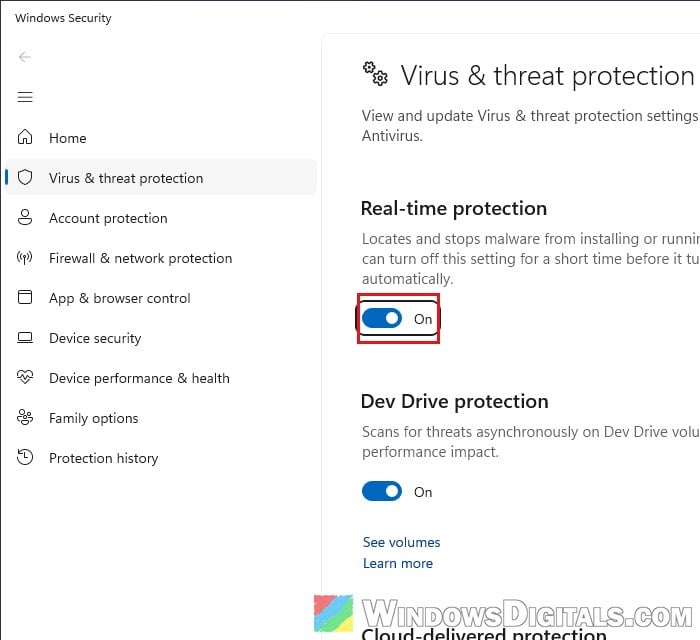
- Turn “Real-time protection” back on once you’re done.
If the download works with protection off, the antivirus is the problem. If nothing changes (and often it doesn’t), a third-party program or its leftovers is probably still hooked in.
Turn off the extra malware scanner in your VPN or second security app
Two security programs that both scan files as they arrive can easily trip each other up. The check fails, and the browser shows “Virus scan failed”. One example people ran into is NordVPN’s Threat Protection Pro running next to ESET, where turning off NordVPN’s malware protection got downloads working again.
So, if you’ve recently installed a VPN or a second antivirus, open that app, turn off its malware or threat protection and try the download again. In NordVPN, this feature is now called “Scam, phishing, and malware protection” and has its own tab on the left side of the app.
If that fixes it, keep only one real-time antivirus on your PC, for example Microsoft Defender.
Completely remove an old or broken antivirus
If you had McAfee, ESET or any other antivirus on your PC at some point, it may still be the culprit, even if you think it’s gone. Uninstalling it the normal way sometimes leaves parts behind that keep getting in the way of Windows’ security checks. In other cases the antivirus is still installed but stopped working properly, and removing it is what clears the error.
Here’s what to do:
- Open “Settings” > “Apps” > “Installed apps“.
- Find your antivirus in the list, click the three-dot button next to it and select “Uninstall“. Follow the uninstaller to the end.
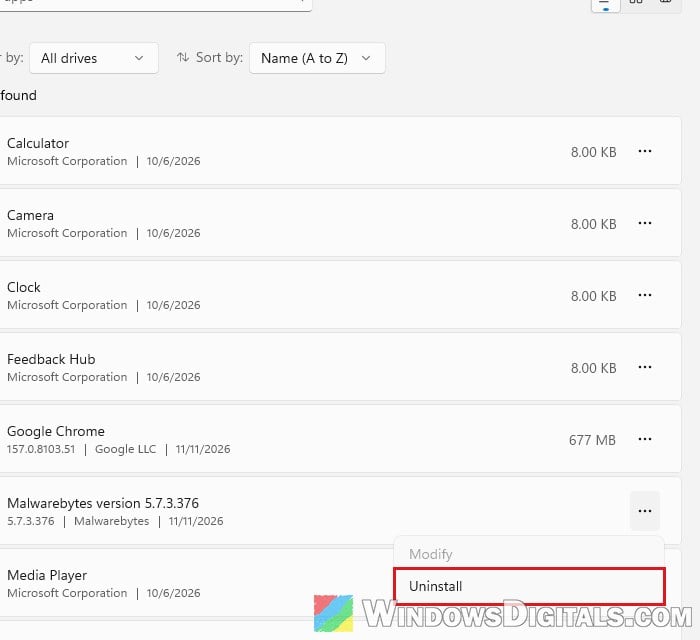
- Restart your PC.
- For McAfee, also run McAfee’s own removal tool, the McAfee Consumer Product Removal tool (MCPR):
- Get the latest copy from McAfee’s support article “How to remove McAfee products” (you can just Google it).
- Right-click “MCPR.exe” and select “Run as administrator“.
- Restart your PC when it’s done.
Then try the download again. If you reinstall that antivirus and the error comes back, it’s better to stay with Microsoft Defender.
Might be useful: McAfee Asks for a Password to Uninstall, Why?
Make sure Microsoft Defender is working
The same error shows up when Microsoft Defender itself can’t run properly, for example after its antivirus service or SmartScreen was stopped from running. Open “Windows Security” > “Virus & threat protection” again and check that it doesn’t show any warning. If Windows Security is missing or won’t start, see: How to Reinstall Windows Defender in Windows 11.
Stop Windows from asking the antivirus to scan downloads (last resort)
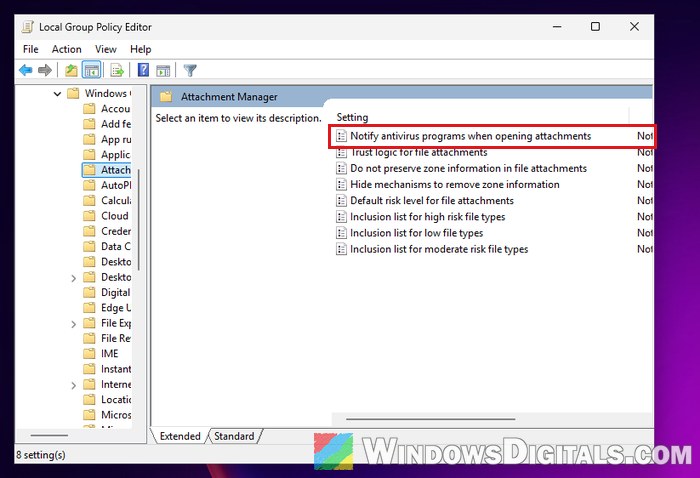
Windows has a setting called “Notify antivirus programs when opening attachments” that decides whether it calls your antivirus for every downloaded file. Turning it off stops that call, so a broken antivirus can no longer fail the download. It doesn’t work for everyone, and it switches off a safety check, so only use it after the fixes above. Your antivirus still scans files on its own if its real-time protection is on.
Editing the registry incorrectly can cause serious problems in Windows, so please at least create a restore point first. If you’re not sure what you’re doing, it’s better to get someone who knows to help you instead.
- Press Win + R, type “regedit” and press Enter. Click “Yes” if asked.
- Copy and paste the following path to the address bar and press Enter:
HKEY_CURRENT_USER\Software\Microsoft\Windows\CurrentVersion\Policies
- If there’s no “Attachments” key under “Policies“, right-click “Policies“, select “New” > “Key” and name it “Attachments“.
- Select “Attachments“, right-click the empty space on the right, select “New” > “DWORD (32-bit) Value” and name it “ScanWithAntiVirus“.
- Double-click “ScanWithAntiVirus“, set its value data to “1” (which means off; 3 means on) and click “OK“.
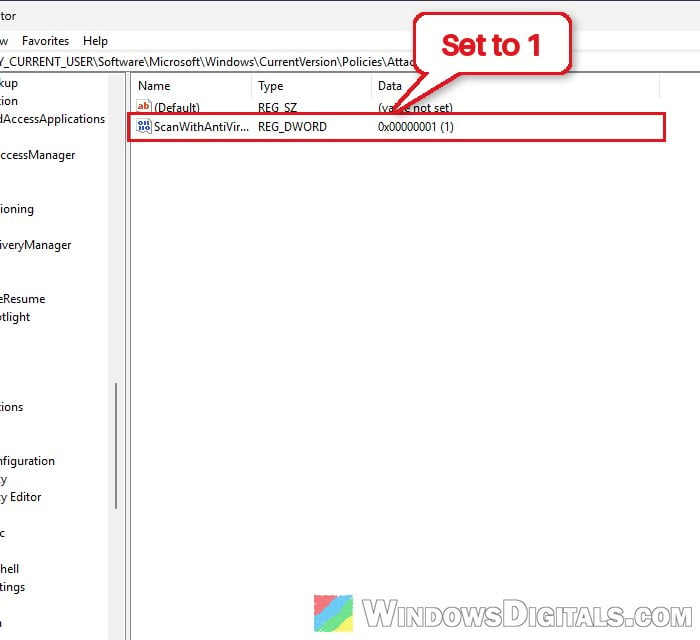
- Restart your PC and try the download again.
On some work computers (managed with Intune), Edge reads the same value from HKEY_LOCAL_MACHINE\SOFTWARE\Microsoft\Windows\CurrentVersion\Policies\Attachments instead. If the step above doesn’t help and a “ScanWithAntiVirus” value already exists there, set that one to “1” too.
If you’re on Windows 11 or 10 Pro, you can do the same with the Group Policy Editor. Open “gpedit.msc“, go to “User Configuration” > “Administrative Templates” > “Windows Components” > “Attachment Manager“, double-click “Notify antivirus programs when opening attachments” and set it to “Disabled“.
If downloads still fail after this, delete the “ScanWithAntiVirus” value you created (or set it to “3“) so Windows calls your antivirus again, and focus on removing the security software you suspect.