If Windows Security suddenly quarantines the Epic Games Launcher installer or “Firefox Installer.exe” as “Trojan:Win32/Yomal!rfn” (Severe), sometimes before the download has even finished, even though it came from the official website, it’s most likely a false alarm, at least for the Epic installer. The same name also catches real malware, though, so it’s worth a quick check. This guide will show you how to tell which one you have, how to get the installer onto your Windows 11 or 10 PC safely, and what to do if it turns out to be real.
Also see: Trojan:Win32/Commando.A!ml in Windows Security, What to do?
What is Trojan:Win32/Yomal!rfn?
It’s a detection name used by Microsoft Defender. “Trojan” is the type of threat Defender thinks it is, and “Win32” means a Windows program. According to Microsoft, the part that starts with ! at the end is only an internal marker. So the name itself doesn’t tell you much about what the file actually does.
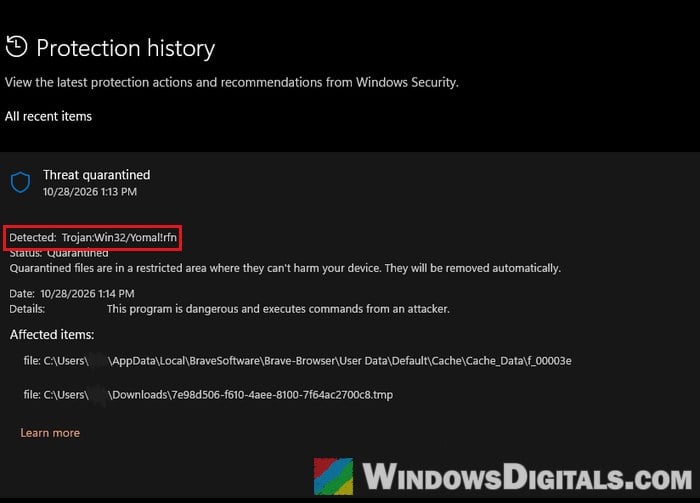
Yomal!rfn has also caught real malware, like a printer driver bundle from an online marketplace seller and a shady software archive. So what you really need to check is where the file came from and which file Defender caught.
Why does it hit the Epic Games and Firefox installers?
Since late October 2026, several people on Reddit have had Defender flag the Epic Games Launcher installer with this name, straight from Epic’s own website, and one had it on Mozilla’s small “Firefox Installer.exe”. Epic’s installer had been getting other names before that, like Leonem!rfn and Pomal!rfn, in the same way.
For the Epic installer, there’s a likely explanation. The file Defender caught in one case was only the first part of the real installer, cut off before the end where Epic’s digital signature sits. A half-downloaded file without its signature looks suspicious to virus scanners, which is why the alert often shows up while the download is still running, on a .tmp file or a file in the browser’s cache folder. Epic also says on its own support page that antivirus software sometimes wrongly flags its launcher. For the Firefox installer, there’s no confirmed explanation yet.
Related concern: Trojan:Win32/Wacatac.H!ml: What You Need to Know
First, check what Defender caught
The details of the detection tell you which file was caught and where it was. Here’s how to see them:
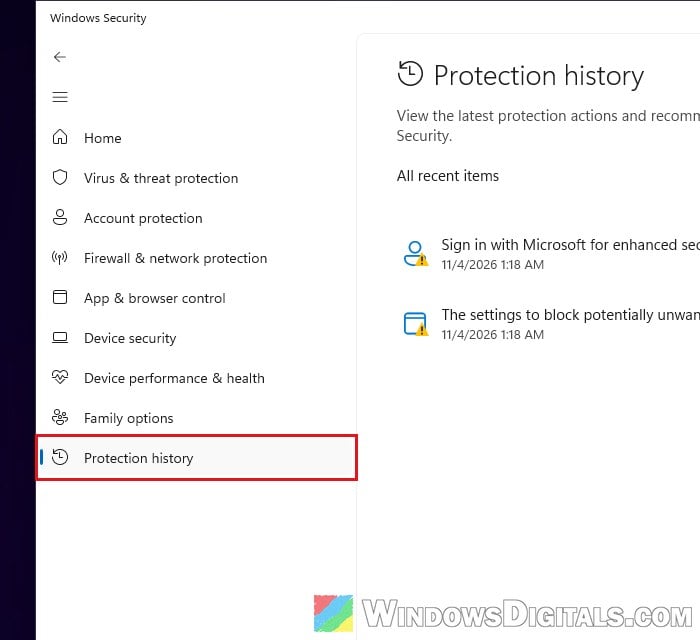
- Open Windows Security from the Start menu and go to Virus & threat protection.
- Click Protection history.
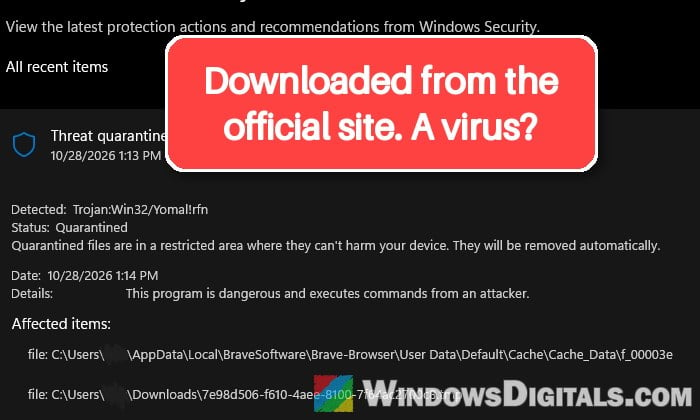
- Click the “Threat quarantined” entry from around the time of your download to expand it, and check that it says Trojan:Win32/Yomal!rfn next to Detected.
- Look at the file under Affected items. A
.tmpfile or a file inside a browser’s Cache folder fits the half-downloaded copy explained above. If it’s the installer in your Downloads folder, check its digital signature (see below). - You can leave the quarantined item there or choose Remove.
Don’t restore the quarantined file. Microsoft notes that a restored file is simply detected again, and if it’s a half-downloaded copy, it wouldn’t install anyway. It’s easier to just download a fresh, complete copy (see the next section). And don’t add an exclusion in Windows Security just to get a download through, since that stops Defender from checking whatever lands there next.
Pro tip: Can’t Clear Protection History in Windows 11/10 Defender
Update Defender and download the installer again
Defender’s virus definitions get updated all the time, but on a freshly installed Windows they may not be current yet. Updating them first and then downloading the installer again can be enough. In one case, the second download simply came through without any warning.
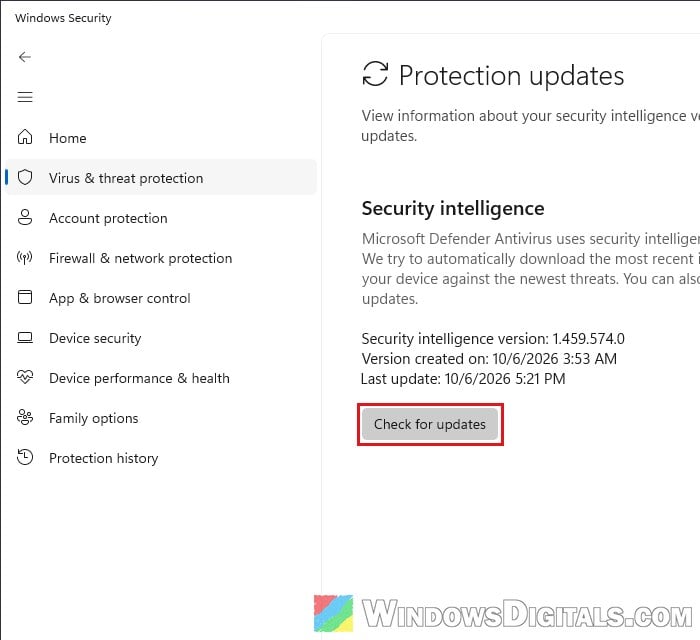
- In Windows Security, go to Virus & threat protection > Protection updates.
- Click Check for updates and wait for it to finish.
- Download the installer again, and only from the maker’s own website:
https://store.epicgames.com/for the Epic Games Launcher, or Mozilla’s own Firefox site,https://www.firefox.com/, for Firefox. Check the address bar before you click download. - Let the download finish completely before you open the file.
Still flagged? Try another browser or turn off your download manager
If it keeps getting caught, download the installer with a different browser, such as Microsoft Edge, since sometimes only one browser triggers the alert. If you use a download manager such as Internet Download Manager (IDM), turn it off for this download, since it saves the file in temporary pieces first. For one person, the alerts stopped as soon as IDM was removed.
Check the installer’s digital signature
A complete, genuine installer is digitally signed by the company that made it. A cut-off copy has no signature, and a fake one won’t be signed by the real maker. To check it:
- Right-click the installer in your Downloads folder and select Properties.
- Open the Digital Signatures tab. For the Epic Games Launcher, the signer should be “Epic Games Inc.“
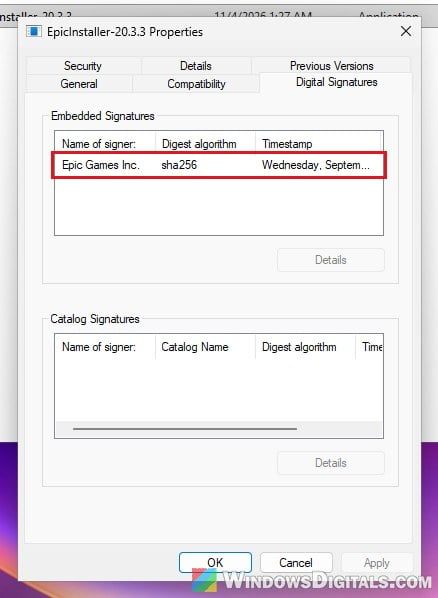
If there’s no Digital Signatures tab, or the name is someone else’s, don’t run the file. Delete it and download it again from the official website.
Install it from the Microsoft Store instead
If the website download keeps getting flagged, the Epic Games Store app is also in the Microsoft Store, and people who got the alert on the website download had no problem installing it this way.
- Open Microsoft Store and search for “Epic Games Store“.
- Open the Epic Games Store app by Epic Games Inc. and click Install.
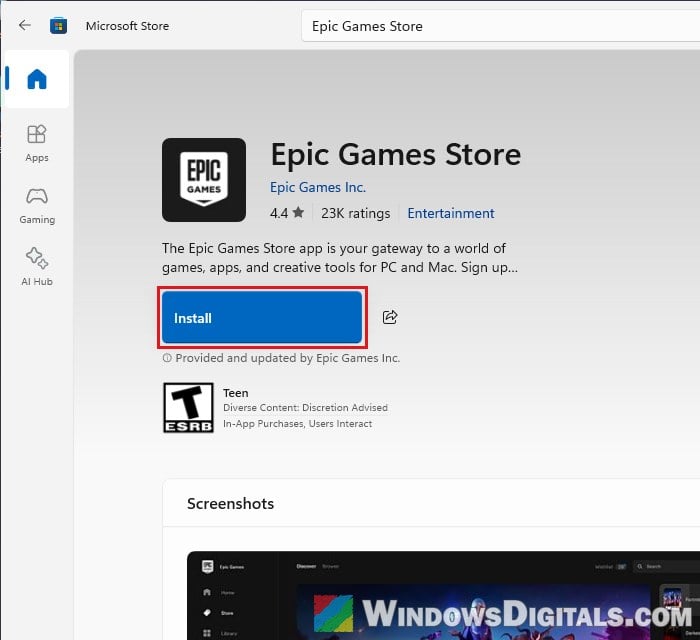
Once it’s installed, open Epic Games Store from the Start menu and sign in as usual.
For Firefox, use the full installer
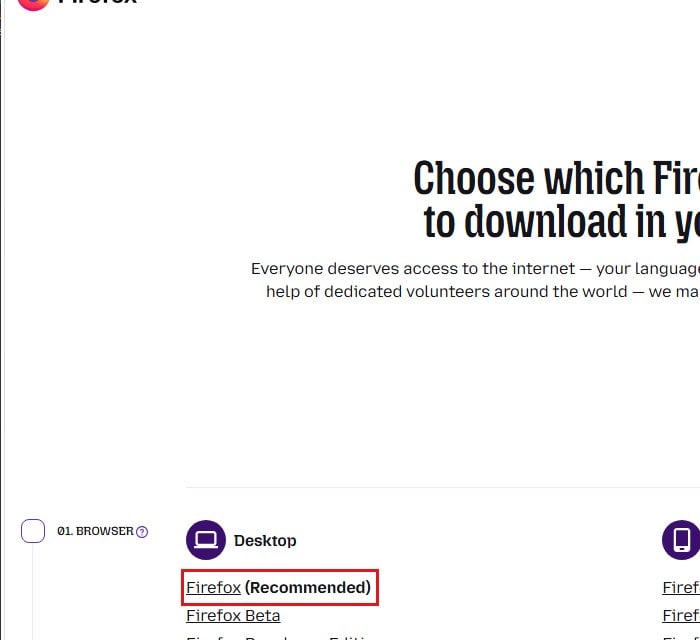
“Firefox Installer.exe” is Mozilla’s small web installer, which downloads the rest of Firefox during setup. Mozilla also offers full installers that don’t need to download anything else. You’ll find them on https://www.firefox.com/en-US/download/all/. Under Desktop, pick “Firefox (Recommended)” and follow the page’s next choices.
Linked issue: What is tcblaunch.exe and Why Did Defender Flag It in Downloads?
Report it to Microsoft as a false positive
If you’re sure the file came from the real website, you can send it to Microsoft so it can analyze the file and correct the detection if it’s wrong.
- Go to
https://www.microsoft.com/en-us/wdsi/filesubmissionand select Home customer. If it asks you to sign in, you can click Skip.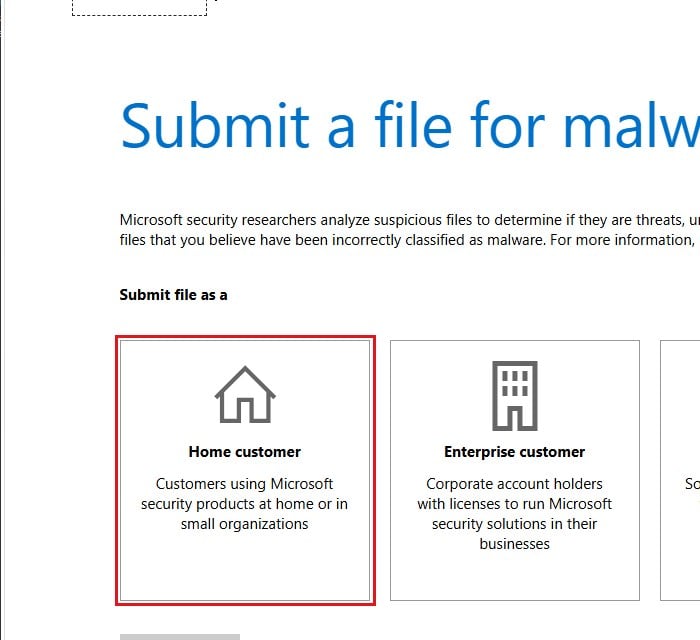
- Upload the file (up to 50 MB), enter Trojan:Win32/Yomal!rfn as the detection name and select “Incorrectly detected as malware/malicious“.
When it’s not a false alarm
Treat it as real if the file didn’t come from Epic’s or Mozilla’s own website (a download site, a driver from a marketplace seller), if Defender flagged other threats at the same time, or if you already ran a file that wasn’t signed. You can also upload the complete file to https://www.virustotal.com/ to see what other antivirus engines say about it. Keep in mind that a half-downloaded copy can get flagged by many engines there too, so check the complete file.
If it does look real, remove it in Protection history and run a Full scan. Then run an offline scan, which checks your PC before Windows starts:
- In Windows Security, go to Virus & threat protection and click Scan options.
- Select “Microsoft Defender Antivirus (offline scan)” and click Scan now.
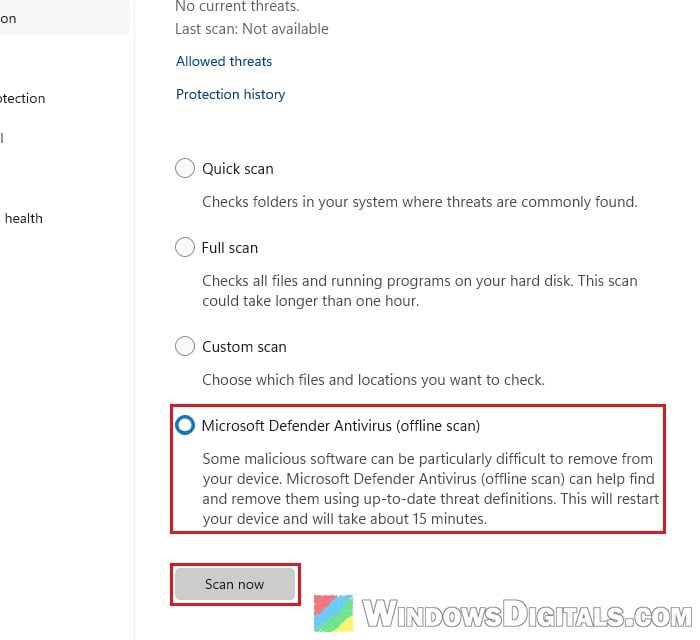
Windows restarts into the scan and boots back to the desktop when it’s done. If you ran the file, also use a phone or another computer to change the passwords for your email, bank and other important accounts.