If you’re playing Phantom Blade Zero on PC and the game keeps stuttering or hitching even though the FPS counter shows 100 or more, it isn’t just your PC. The picture freezes for a split second and jumps ahead, in fights, cutscenes or while you run around, and it’s especially common on AMD RX 9070 XT cards. This guide will show you what’s behind it and the settings that have smoothed the game out for most players so far.
Also see: Phantom Blade Zero Crashing at Startup or Mid-Game on PC
Why does Phantom Blade Zero stutter even at high FPS?
A high FPS number only tells you how many frames you get per second on average. Stutter is when some of those frames arrive late, so the game feels choppy even though the counter looks fine. Since the game came out at the end of October 2026, players’ reports point to a few causes:
- Ray tracing and path tracing: by far the most common cause. With either one on, the game hitches a lot more, even on cards that have the FPS to spare.
- No AMD driver for the game yet: AMD hasn’t released a driver with support for Phantom Blade Zero. Its latest driver (26.10.2) only lists a known issue with the sky and character hair on RX 9000 cards.
- NVIDIA’s 621.01 driver: the studio itself says this driver performs unstably with the game in certain situations.
- Loading new areas: the game is built on Unreal Engine 5 and loads parts of the world as you move, so some hitches happen in the same spots every time. Settings can’t fully fix those.
The fixes below start with the settings that have helped the most players.
Turn off ray tracing and path tracing
This is the fix that has worked for the most players, AMD and NVIDIA alike. Ray tracing is heavy on the graphics card, and in this game it causes uneven frame times on top of the lower FPS. For some, the stutter goes away completely with it off.
Here’s what you should do:
- Open the game’s settings from the main menu and go to the graphics settings.
- Set Ray Tracing Quality to Off. Path tracing is one of this setting’s choices too, so Off turns off both.
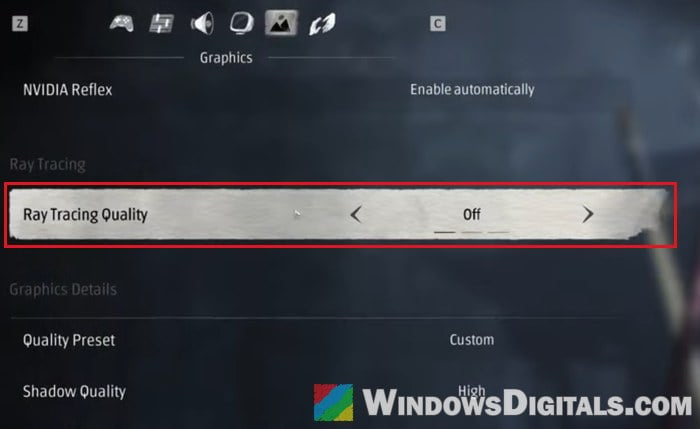
- Apply the change and play through the same area or fight where it stuttered before.
If the game is smoother, leave it off until a patch or a new driver comes out.
AMD RX 9000 cards: turn off the high-quality hair setting
If you have an RX 9000 series card, like the RX 9070 XT, also turn off the game’s High-Quality Hair setting (it may be listed as hair quality). AMD’s own driver notes list hair and sky corruption in Phantom Blade Zero on RX 9000 cards as a known issue, and turning this setting off is AMD’s workaround. On some RX 9070 XT cards, turning off both ray tracing and the hair setting is what finally makes the game run smoothly.
Cap your frame rate
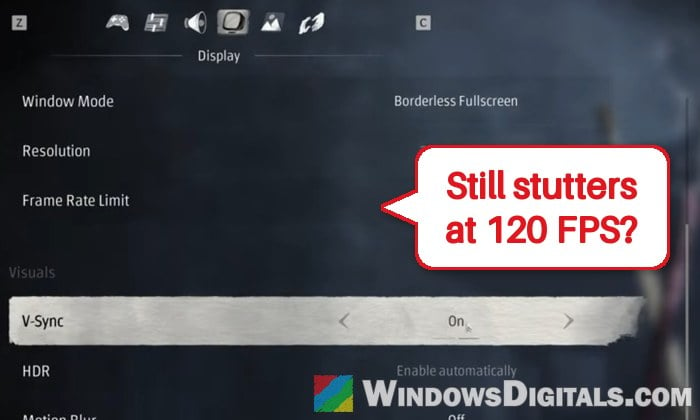
If your FPS jumps around a lot (for example from 120 down to 50 and back), limiting it can make the game feel much smoother, because the frames come at a steady pace. Set the game’s frame rate limit a little below your monitor’s refresh rate and turn on V-Sync. If a higher cap still stutters, try locking it at 60 FPS.
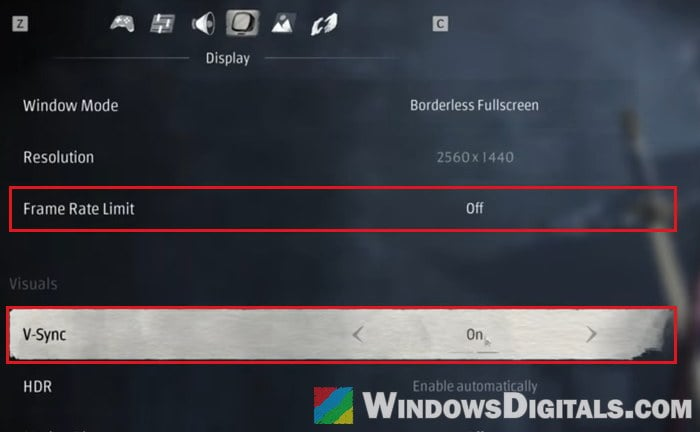
Try frame generation the other way
Frame generation doesn’t behave the same on every PC in this game. For some players the stutter gets worse with it on and better with it off, but at least one RX 9070 XT owner found that turning it on helped. Whichever way yours is set now, try it the other way and compare in the same spot. Change one setting at a time, so you know which one made the difference.
NVIDIA users: stay on driver 617.42
If you have an NVIDIA card and updated to driver 621.01, the studio recommends going back to 617.42 with a clean installation and staying on it for now. NVIDIA’s 621.12 hotfix doesn’t change that, since it fixes a different problem. Rolling back is still worth doing, but it doesn’t seem to fix the hitches that happen in the same places every time.
For detailed instructions on how to do that, read: Phantom Blade Zero Crashing at Startup or Mid-Game on PC.
After a driver change, the game compiles its shaders again on the next launch, which can take a long time. Let it finish before you judge how it runs.
Related problem: nvlddmkm Event ID 153 After NVIDIA Driver 621.01, What to do?
Close overlays and recording while you test
Overlays and background recording can add stutter of their own. If you record with AMD Software (Adrenalin), stop recording while you play, since the recording itself can cause hitches. Also turn off the Discord overlay and any other in-game overlays, and switch off driver-level extras like AMD’s frame generation and Anti-Lag until you find the cause.
Related guide: How to Fix Game Stuttering on Windows 11
Using a controller? Lower its polling rate
If you play with a controller set to a very high polling rate, try setting it down to 1000 Hz (1K) in the controller’s settings. Not every game handles a very high polling rate well. It’s a quick check, not a sure fix.
Stutter in the same spots every time?
If the hitches always happen at the same places, like crossing into a new area or the start of a cutscene, it’s most likely the game loading the next part of the world. This kind of stutter has no real fix from your side right now, and it shows up even on very fast PCs.
Make sure the game is installed on an SSD, since S-GAME lists an SSD as a requirement even for the minimum specs. A game on a hard drive will stutter much more when it loads new areas.
S-GAME is collecting reports from players with stutter through its support page, linked in the game’s Steam discussions, so if it’s bad on your PC, send them your specs. A game update or a game-ready AMD driver is what will most likely fix the rest.