Games on an NVIDIA card normally run without you ever hearing of nvwgf2umx.dll, until one suddenly closes to the desktop and its crash report names nvwgf2umx.dll as the faulting module, usually with the exception code 0xc0000005 (an access violation). It’s easy to blame NVIDIA’s driver for it, but the same crash can come from a driver feature, unstable memory or even the CPU. This guide will look into what the crash really points to and which fixes are worth trying first.
Also see: LiveKernelEvent 141 or VIDEO_TDR_FAILURE Crashes on NVIDIA GPU
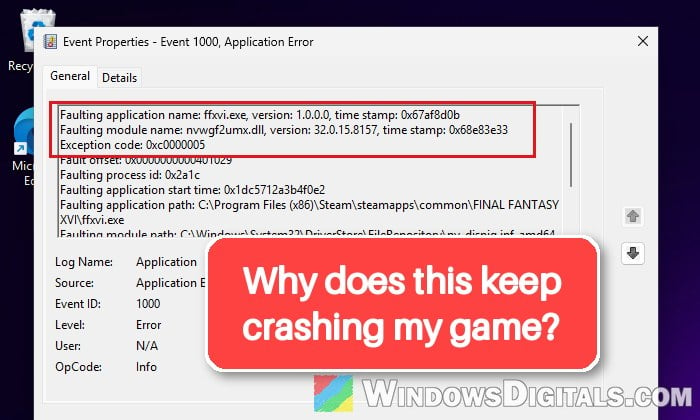
What does nvwgf2umx.dll in a crash report actually mean?
It’s NVIDIA’s 64-bit Direct3D user-mode driver, installed along with the graphics driver. Games that use DirectX 10, 11 or 12 hand their drawing work to it, so it’s running whenever the game is.
You’ll usually find its name in one of these places after a crash:
- The game’s own crash reporter, often an “Unhandled Exception: EXCEPTION_ACCESS_VIOLATION” window in Unreal Engine games, with nvwgf2umx listed in the call stack.
- Event Viewer, under Windows Logs > Application, as an “Application Error” entry with “Faulting module name: nvwgf2umx.dll” and “Exception code: 0xc0000005“.
- A crash dump that Steam saves for the game.
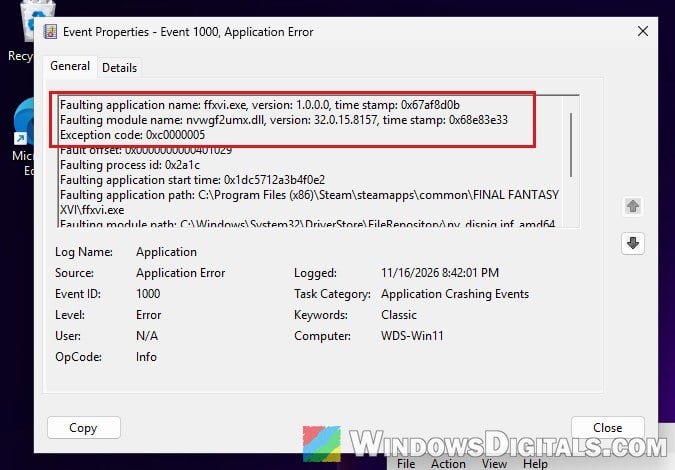
The important part is that the faulting module only tells you where the crash happened, not why. It’s been reported in Fortnite, Half-Life: Alyx, Skyrim, Final Fantasy XVI, Microsoft Flight Simulator and plenty of other games, and the causes behind it vary:
- A driver feature applied to the game, such as Smooth Motion, that the game doesn’t handle well.
- A bad driver build that crashes certain games.
- Unstable RAM or overclocks, since a memory error inside the driver shows up as the driver’s crash.
- An Intel 13th or 14th Gen desktop CPU affected by Intel’s instability problem.
Many people who get this crash have already reinstalled their driver and it didn’t help, so it’s worth going through the fixes below in order instead of reinstalling the driver again and again.
Turn off Smooth Motion for the game
Smooth Motion is a frame generation feature that the NVIDIA app can switch on at the driver level for RTX 40 and 50 Series cards. Some games crash with it on, and turning it off can stop the nvwgf2umx.dll crash.
To check whether it’s on for your game:
- Open the NVIDIA app and go to Graphics.
- Select Program settings and pick the game that keeps crashing.
- Scroll down to Driver Settings and set Smooth Motion to Off.
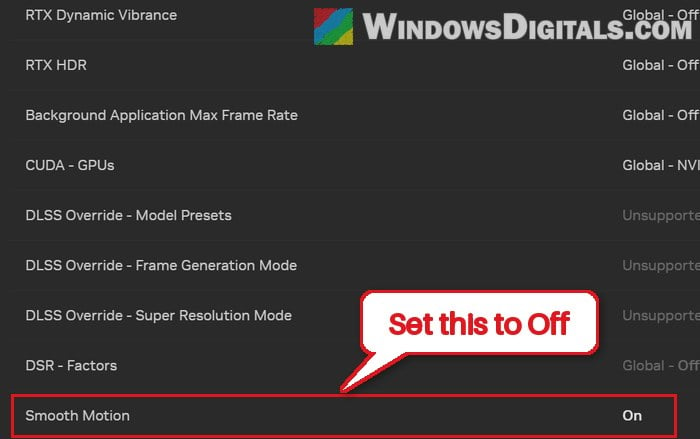
- Also look under Graphics > Global settings, since Smooth Motion can be turned on there for every game at once.
Launch the game again and play for longer than it usually takes to crash.
Reset NVIDIA’s 3D settings to their defaults
Settings you (or a tweak guide) forced in the NVIDIA Control Panel can also clash with how a game expects the driver to behave. Resetting them takes a few seconds and rules out a setting the game doesn’t like.
Here’s how to do it:
- Open the NVIDIA Control Panel.
- Go to Manage 3D settings.
- On the Global Settings tab, click Restore at the bottom.
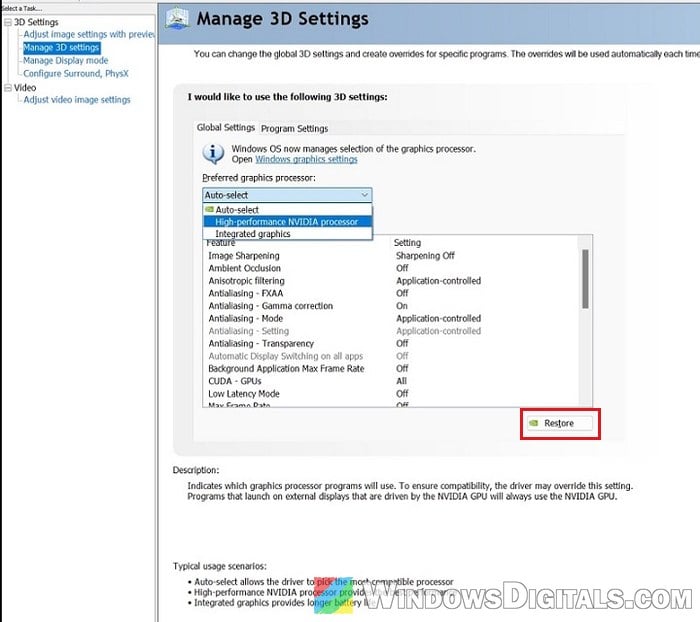
- If you made a profile for the game, open the Program Settings tab, select the game and click Restore next to the list.
Launch the game again and see if it still closes with the same error.
Clean install the NVIDIA driver, or go back to an older one
A clean installation removes the old driver’s settings and profiles before putting the new driver in place. If the crashes only started after a driver update, installing the previous driver instead is often the quicker answer, since some driver releases have crashed specific games until NVIDIA fixed them.
To clean install the driver:
- Download the driver you want from NVIDIA’s website.
- Run the installer and follow it until you reach the installation options.
- Choose Custom (Advanced) and click Next.
- Keep the default components ticked, check “Perform a clean installation“, then click Next.
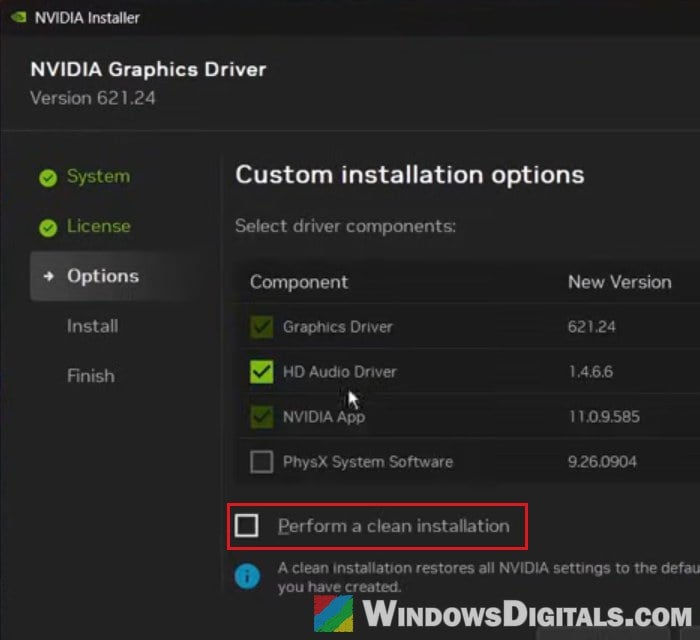
- Restart the PC when the installation finishes.
If the game still crashes on both the newest driver and the one before it, the driver probably isn’t the problem, so move on to the next sections.
Pro tip: How to Update Graphics Driver in Windows 11
Remove overclocks and test your RAM
When memory returns bad data, the crash lands wherever that data was being used, and in a game that’s often the graphics driver. Faulty or unstable RAM can be behind this crash, especially if you also get random blue screens.
Try these one at a time:
- Set your GPU and CPU back to stock speeds if you’ve overclocked them.
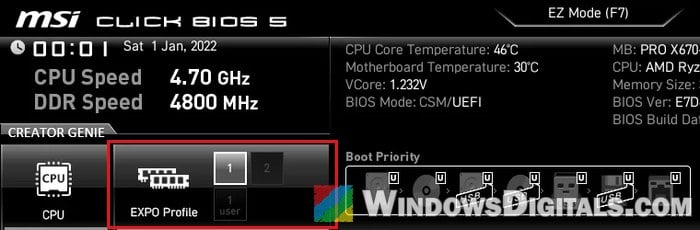
- Turn off XMP or EXPO in the BIOS so the memory runs at its default speed, then play again. If the crashes stop, the memory kit isn’t stable at its rated profile on your system.
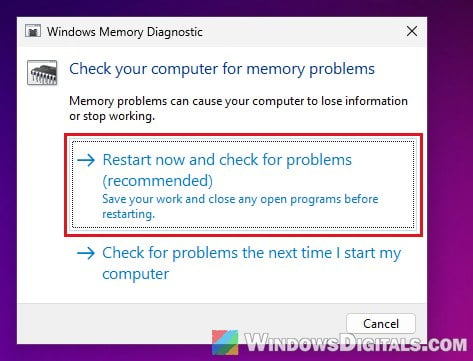
- Test the RAM. Press Win + R, type “mdsched.exe” and press Enter, then choose “Restart now and check for problems (recommended)“. For a more thorough check, run MemTest86 with one stick installed at a time.
Might be useful: How to See Windows Memory Diagnostic Results in Windows 11
Try the game in DirectX 11 and repair its files
Some of these crashes only happen in DirectX 12, with the same game completely stable in DirectX 11. If your game lets you pick the renderer in its graphics settings or launcher, switch to DirectX 11 for a while. Treat it as a test rather than a fix, since it quickly tells you whether DirectX 12 is the trigger.
While you’re at it, use your launcher’s verify or repair option on the game, so a damaged game file is ruled out too.
Update the BIOS on an Intel 13th or 14th Gen desktop CPU
If your PC has an Intel 13th or 14th Gen desktop processor, crashes to desktop while a game compiles shaders can come from the CPU itself. NVIDIA told owners with these crashes to check Intel’s guidance, and Intel traced the problem to a voltage issue in the CPU. Intel’s fix is microcode 0x12B or newer, which comes in a BIOS update from your motherboard maker.
Linked issue: Apps and Games Keep Crashing (0xc0000005) on Intel 13th or 14th Gen CPU
Be warned: A BIOS update that gets interrupted can brick your motherboard, so do it with stable power and follow the maker’s instructions exactly. If you’re not sure what you’re doing, it’s better to get someone to help you instead.
Check your motherboard’s support page for the newest BIOS and install it if it carries that microcode or later. Also note that the microcode only stops the problem from getting worse; a CPU that’s already degraded will keep crashing, so if the PC is still under warranty, contact the seller or the manufacturer.