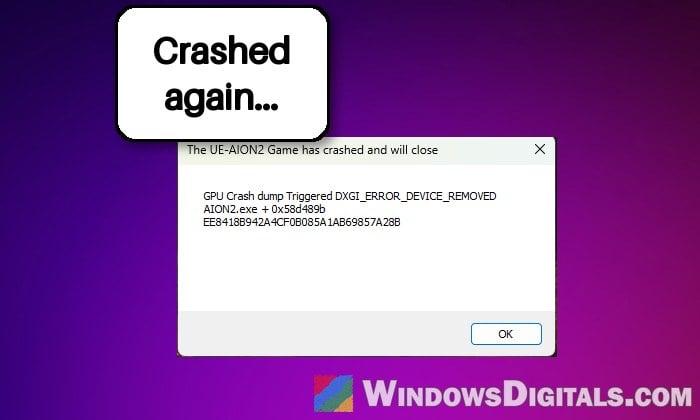
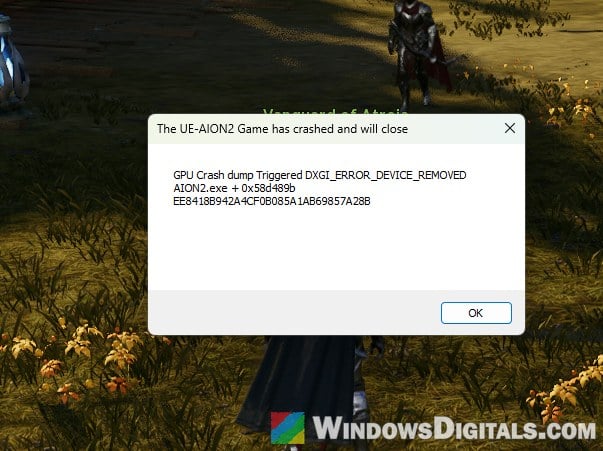
AION 2 can run perfectly fine for days or weeks, then suddenly start crashing to the desktop in dungeons, at world bosses or during loading screens, sometimes with an error like “DXGI_ERROR_DEVICE_REMOVED” or “EXCEPTION_ACCESS_VIOLATION”. For others, the game closes about 20 seconds after launch, right at the NCSOFT logo, with no error or with an NCGuard box such as “AION2.exe – 0xE0000027“. This guide will help you figure out which kind of crash you have and how to fix it.
Also see: Phantom Blade Zero Crashing at Startup or Mid-Game on PC
Why does AION 2 keep crashing?
NC hasn’t said what causes the crashes, and many players say they started right after a weekly maintenance update. They happen on AMD and NVIDIA cards alike, so it isn’t one bad part. The fixes that work point to a few things:
- The graphics driver: DXGI_ERROR_DEVICE_REMOVED means the driver stopped responding and Windows had to reset it. The newest AMD Radeon drivers come up a lot here.
- Damaged game files after a big weekly update.
- Frame generation, FSR or an overlay running on top of the game.
- An overclock, undervolt or memory profile (XMP/EXPO), or Resizable BAR being on.
- NCGuard, the game’s anti-cheat, when the game closes at launch. It shuts the game down when it finds cheat tools or some RGB lighting apps, or when your antivirus blocks it.
The first fixes are for crashes while you play. If the game never gets past the logo, skip to “Uninstall cheat and trainer tools” below.
Verify the game files in Steam
A weekly update can be over 20 GB, and if any part of it is damaged, the game can crash when it loads that part, like when you enter a dungeon. Verifying makes Steam check every file and download the broken ones again:
- Open “Steam” and go to your “Library“.
- Right-click “AION 2” and select “Properties“.
- Go to “Installed Files” and click “Verify integrity of game files“.
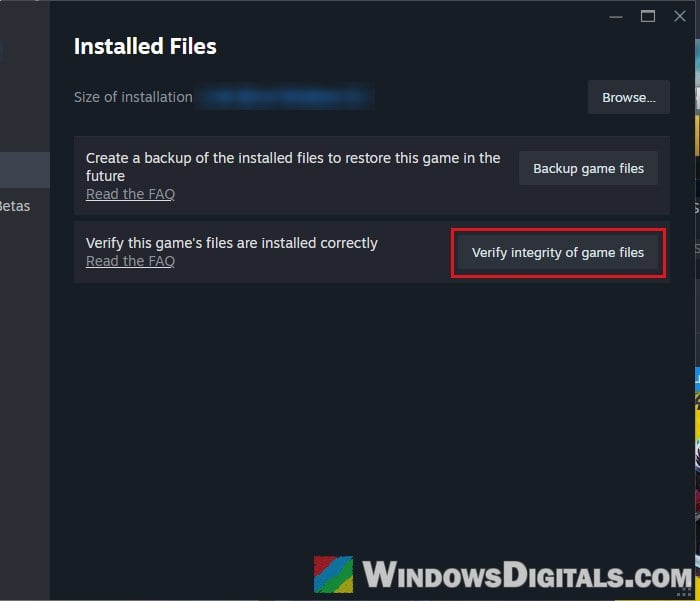
- Wait for it to finish, then launch the game again.
If you play through NC’s PURPLE launcher, use its repair option for the game client instead.
Go back to an older graphics driver
If you have an AMD Radeon card, this is the fix reported to work most often. The newest Adrenalin drivers (the 26.10 releases) have crashed AION 2 or frozen the whole PC for many Radeon owners, and going back to driver 26.9.2 stopped it. On an NVIDIA card it’s worth trying too, going back a few driver versions.
To do it properly, follow these steps:
- Download the older driver from AMD’s or NVIDIA’s website.
- Remove your current driver completely, for example with AMD’s own cleanup utility or with DDU in Safe Mode.
- Install the older driver and restart your PC.
- Turn off automatic driver updates in your graphics software for now, so it doesn’t put the newer driver back.
The crashes can come back days later, though, so if that happens, keep going with the fixes below.
Related guide: How to Update Graphics Driver in Windows 11
Turn off frame generation and switch FSR to TSR
On AMD cards, switching the upscaler from FSR to TSR and turning frame generation off in the game’s graphics settings has stopped the crashes for several players.
Please note that AMD Software can turn frame generation on for one game even when it’s off everywhere else, so check the game’s own profile there too.
Linked issue: Grey Screen with Blue Lines Then a Crash on AMD Radeon
Turn off the Steam overlay and other overlays
The Steam overlay can crash AION 2 on some PCs. With it off, parts of the in-game store may not work, so turn it back on if it doesn’t help. Here’s how to turn it off:
- In Steam, click “Steam” in the top-left corner and select “Settings“.
- Go to “In Game“.
- Turn off “Enable the Steam Overlay while in-game“.
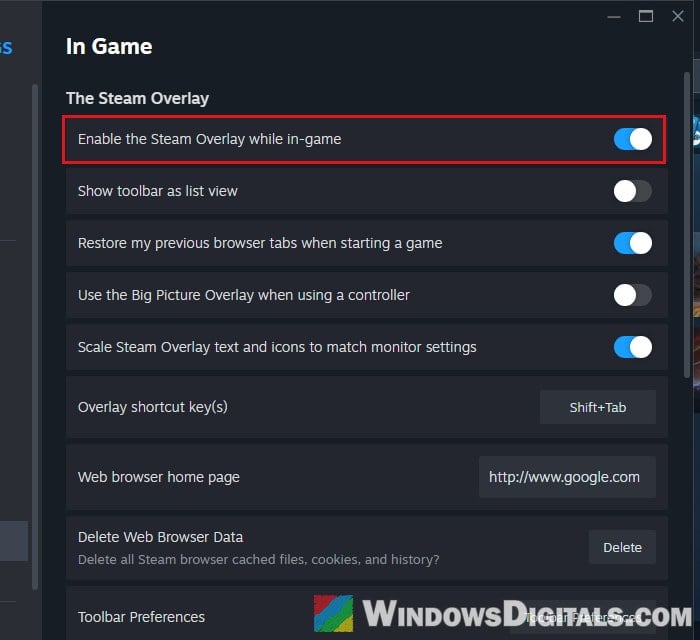
Also close the Discord overlay, the AMD or NVIDIA overlay, and MSI Afterburner or RivaTuner, then see if the game still crashes.
Undo overclocks and test with Resizable BAR off
A GPU overclock or undervolt, or a memory profile (XMP or EXPO), can seem fine in other games and still crash AION 2. Reset your graphics card to its default clocks in MSI Afterburner or whatever tool you used, and try your RAM with XMP or EXPO off or at a lower speed.
The other setting to test is Resizable BAR (AMD calls it Smart Access Memory). Turning it off in the BIOS, along with Above 4G Decoding, has stopped the GPU crashes on both AMD and NVIDIA cards. Where these are depends on your motherboard, so check its manual.
Be warned: Turning off Resizable BAR can lower performance in other games, so turn it back on if it doesn’t help. If you’re not sure what you’re doing, it’s better to get someone who knows to help you.
On an Intel 13th or 14th Gen processor, also update your motherboard’s BIOS, since those CPUs have their own crashing problem. A BIOS update can brick the board if it’s interrupted, so follow your board maker’s steps exactly.
Related problem: Apps and Games Keep Crashing (0xc0000005) on Intel 13th or 14th Gen CPU
Uninstall cheat and trainer tools (crashes at launch)
If AION 2 closes about 20 seconds after you start it and shows the NCGuard “0xE0000027” box, it has probably found something it doesn’t allow. Having Cheat Engine or WeMod installed is enough, even if you never open them, and removing them usually fixes the launch problem.
- Open “Settings” (Win + I) and go to Apps > Installed apps.
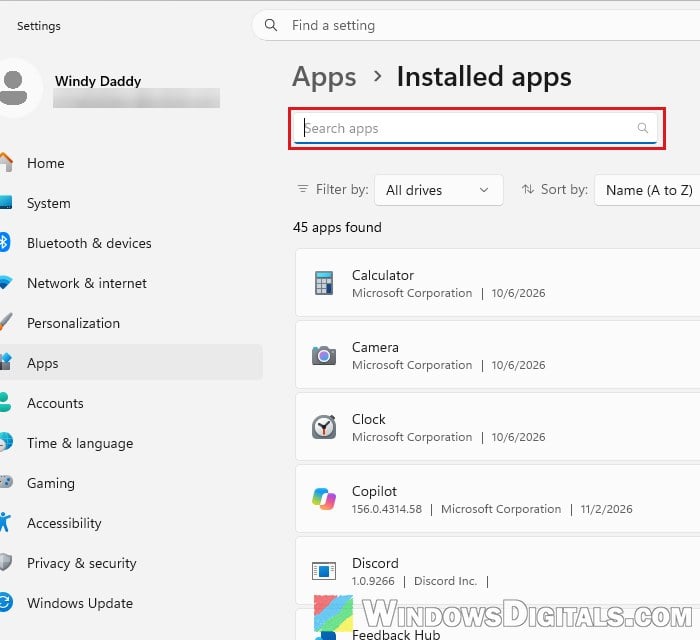
- Find Cheat Engine, WeMod or any other trainer or memory tool.
- Click the three dots next to it and select “Uninstall“.
- Restart your PC and launch the game again.
Stop RGB lighting and peripheral software
Lighting and device apps are the other common reason NCGuard closes the game at launch: the ASUS AURA SYNC lighting service most of all, but also Armoury Crate, iCUE and Razer services. You don’t need to uninstall them, just stop their services from starting with Windows:
- Press Win + R, type “msconfig” and press Enter.
- Go to the “Services” tab.
- Tick “Hide all Microsoft services” at the bottom.
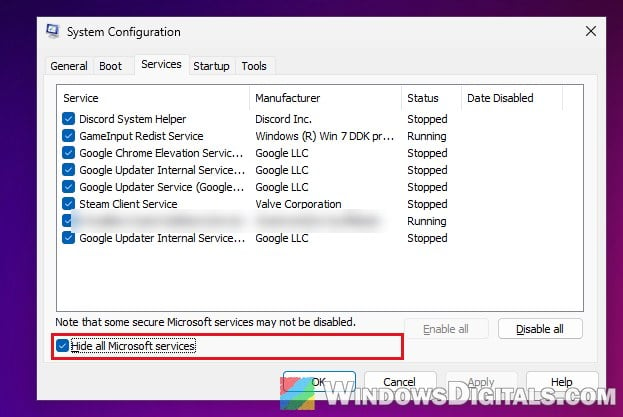
- Untick the lighting or device service, for example “ASUS AURA SYNC lighting service“.
- Click “Apply“, then “OK“, and restart your PC.
If you’re not sure which one it is, untick all of them, then turn them back on a few at a time until the game stops launching again.
Pro tip: How to Disable Startup Services on Windows 11 or 10
Add AION 2 to your antivirus exceptions
Third-party antivirus can block NCGuard, and Bitdefender is behind most of these cases. Add the AION 2 folder (and the PURPLE folder, if you use it) and AION2.exe to its exceptions, including any advanced threat protection that has its own list. Don’t just turn your antivirus off to play.
Delete the NCGuard folder as a last try
If NCGuard says “ncg was unable to start“, deleting its folder and letting the game get a fresh copy can fix it:
- Close AION 2 completely.
- Go to the game’s folder, usually the following under your Steam library:
steamapps\common\AION2\Aion2\Binaries\Win64
- Delete the “NCGuard” folder.
- Run “Verify integrity of game files” in Steam again (see the first fix), then launch the game.
If AION 2 still crashes after all of this, contact NC’s AION 2 support with your graphics card, driver version, Windows version and the exact error text.