Say you’ve just bought Office or set up a new PC, you run the Office installer, and setup gives up with “Couldn’t install” and error code 0-2015 (2250). Most of the time, it isn’t your PC’s fault at all: setup just couldn’t get the Office files from Microsoft’s servers. This guide will walk you through how to tell whether that’s the case, and what else to try when it isn’t.
Also see: How to Activate Microsoft Office 2021 or 2019 by Phone
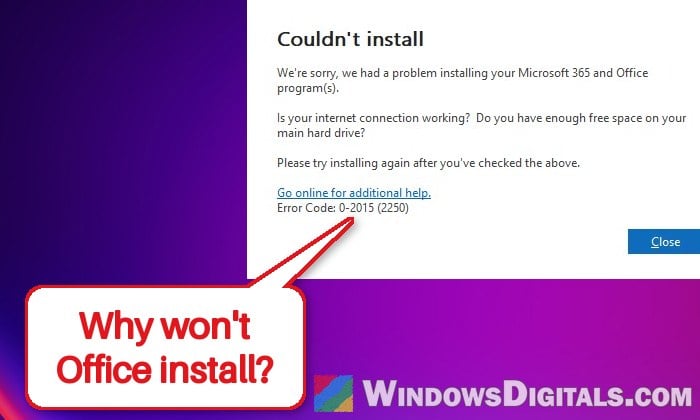
Why does Office setup fail with error 0-2015 (2250)?
Once you run the normal Office installer, it asks Microsoft’s service which version of Office to get, then downloads the rest while it installs. Error 2250 shows up when that first step fails and setup gets no usable answer back. Office’s own setup log for this error even says the network connection “does not exist”, on PCs whose internet works perfectly fine.
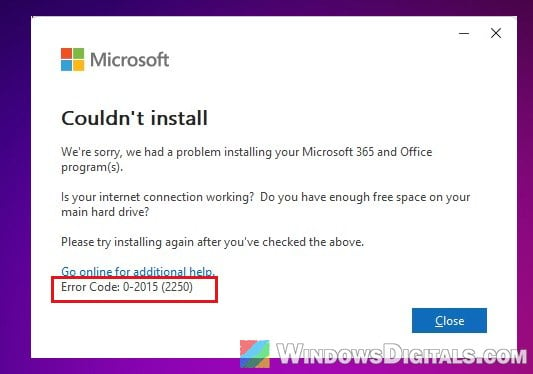
That’s also why this error tends to come in waves. On April 10, 2026, IT admins at many different companies saw every Office install fail with 0-2015 (2250) at the same time, on home and work networks alike, and it went away by itself a few hours later. Another wave of reports came on November 12, 2026, the same day as a large Microsoft 365 outage.
Here’s what can cause it:
- A problem on Microsoft’s side, where setup can’t reach the service that hands out Office. This is by far the most common one.
- Leftover Office pieces on the PC, such as an old Microsoft Access Database Engine, Visio, Project or an earlier Office.
- The wrong setup file, if you downloaded the setup.exe meant for IT admins instead of the normal installer.
- Antivirus software getting in the way of the installer, though this is less likely.
So check Microsoft’s side first, before you change anything on your PC.
Check if Microsoft’s servers are having problems, then try again later
If the problem is on Microsoft’s end, nothing you uninstall, repair or reset on your PC will fix it, and you could end up removing things for no reason. It’s a pretty common issue discussed on Reddit and Microsoft’s forums, and during the April wave, Office simply started installing again a few hours later without anyone changing anything.
Here’s what you should do:
- Go to
https://status.cloud.microsoft, Microsoft’s Service Health Status page. - Look for a warning at the top, then check the Microsoft 365 (Business or Enterprise) section and, near the bottom, Microsoft consumer products (for home users). A status like “Service degradation” means something is wrong on Microsoft’s end.
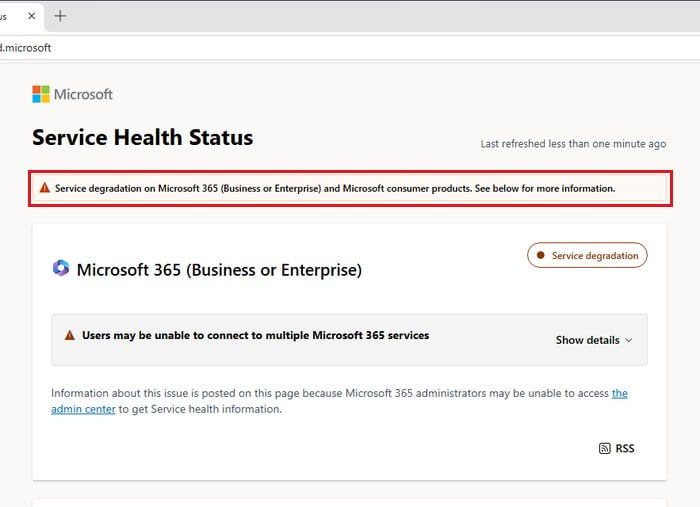
- If there’s an ongoing problem, or you see lots of people reporting the same error right now, wait a few hours.
- Restart your PC.
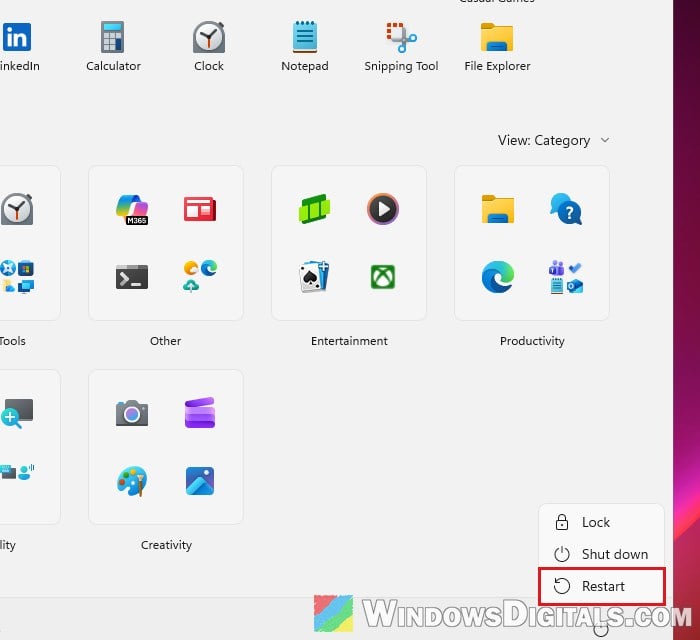
- Run the Office installer again.
Even when the status page shows nothing, try again a little later before moving on. These failures can be short and patchy, so the same installer can fail one minute and work the next.
Use the offline installer instead
The offline installer downloads the whole of Office as one file first, and then installs it from that file, so setup doesn’t have to download anything while it installs. If only setup’s own download step is failing, this can get you around the error. It’s available for Microsoft 365 for home and for Office 2021 or 2024 bought for one PC. Here’s how to do it:
- Go to
https://account.microsoft.com/servicesand sign in with the Microsoft account your Office is tied to, then select Install next to your Office product. - In the install window, choose Offline installer from the Choose a version list, pick your language, and select Install.
- It downloads an image file (for Microsoft 365, it’s called O365HomePremRetail.img). Double-click it, and Windows opens it as a new drive in File Explorer.
- Open the Office folder on that drive and run Setup64.exe (or Setup32.exe for the 32-bit version).
- When setup finishes, open Word or Excel while connected to the internet to activate Office.
Note: The offline installer still has to download Office first, so during a full outage it can fail just like the normal one. If it does, go back to waiting and trying again later.
Did you download setup.exe from Microsoft’s download page?
If the file you ran is called setup.exe and came from the Microsoft Download Center, you probably have the Office Deployment Tool, which is meant for IT admins. It needs a configuration file that tells it what to install, and according to Microsoft, running it without one can cause this error.
For a normal home install, use the installer from your Microsoft account instead, never one from a third-party download site. Go to https://account.microsoft.com/services, select Install next to your Office product, and run the file it downloads. If you do need the Deployment Tool, run it with a configuration file, as in setup.exe /configure configuration.xml.
Related concern: What is OInstall.exe (Virus?) and its ties to Office 2019/2021
Remove leftover Office pieces, then reinstall
If Microsoft’s servers are fine and Office still won’t install, look for bits of Office that are already on the PC. A leftover 32-bit Microsoft Access Database Engine, for example, can be enough to block Office 2024. It’s easy to miss in the app list because its name doesn’t start with “Office”. Since 32-bit and 64-bit Office parts can’t be installed side by side, anything like that can trip up a new install.
Here’s how to check:
- Open Settings > Apps > Installed apps.
- Look through the list for anything Office-related: the Access Database Engine (it shows up as something like “Microsoft Access Database Engine 2016 Redistributable“), Visio, Project, or an older Office or Microsoft 365 entry. Typing “access” or “office” in the search box above the list makes them easier to find.
- Click the three dots (…) next to it and select Uninstall, then follow the prompts.
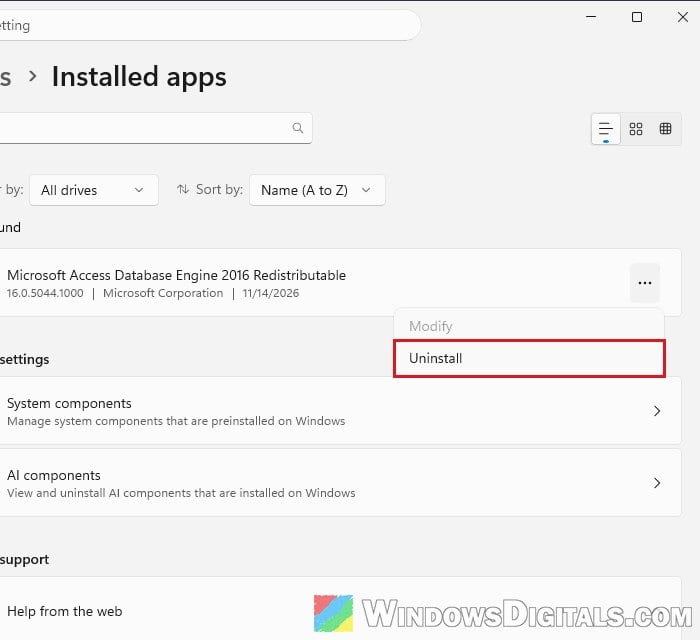
- Restart the PC and run the Office installer again.
Tip: Before you run setup again, temporarily turn off any third-party antivirus you use, and turn it back on once Office is installed.
Might be useful: Will Microsoft Office 2010 Run on Windows 11?
Use Microsoft’s uninstall tool to clear out a broken Office
If an earlier Office install or an online repair broke halfway, Microsoft’s uninstall troubleshooter can clear out what’s left:
- Open your browser and go to
https://aka.ms/SaRA-officeUninstallFromPC. - When the browser asks “This site is trying to open Get Help“, click Open.
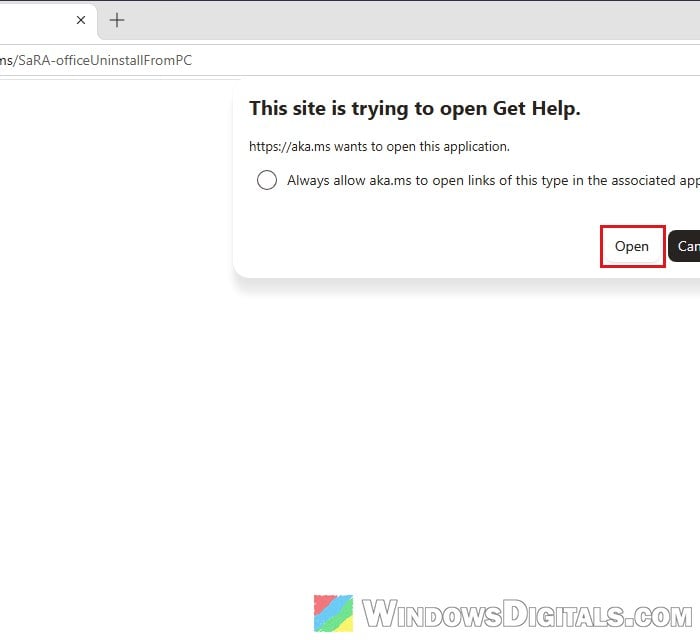
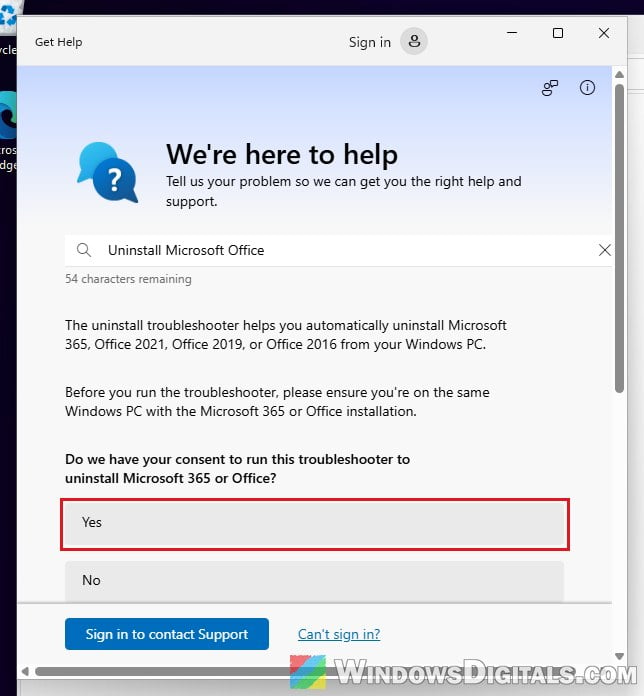
- The Get Help app opens with the Office uninstall troubleshooter. When it asks “Do we have your consent to run this troubleshooter to uninstall Microsoft 365 or Office?“, click Yes and follow the prompts.
- Restart the PC (a restart, not a shutdown) when it’s done, then install Office again from
https://account.microsoft.com/services.
The troubleshooter removes Microsoft 365, Office 2021, Office 2019 and Office 2016, but Microsoft says it can’t uninstall Office 2024. For Office 2024, stick to removing it from Installed apps as above.