A common issue for ASUS owners is knowing what to do with Armoury Crate, since many are told to uninstall it and switch to G-Helper, but removing it from Installed apps can leave pieces behind, and on desktops the BIOS can install it again by itself. This guide will explain what Armoury Crate does, whether you should remove it from your desktop or laptop, and how to uninstall it safely with ASUS’s own tool.
Also see: What is GiMATE on Gigabyte Laptops, and Should You Uninstall It?
What does Armoury Crate actually do?
Armoury Crate is ASUS’s control app for its ROG and TUF hardware. It comes preinstalled on many ROG and TUF Gaming systems, and on desktops with an ASUS motherboard, the BIOS installs it right after Windows is set up (the “install Armoury Crate” pop-up many people see after formatting).
According to ASUS, these are the main things it handles:
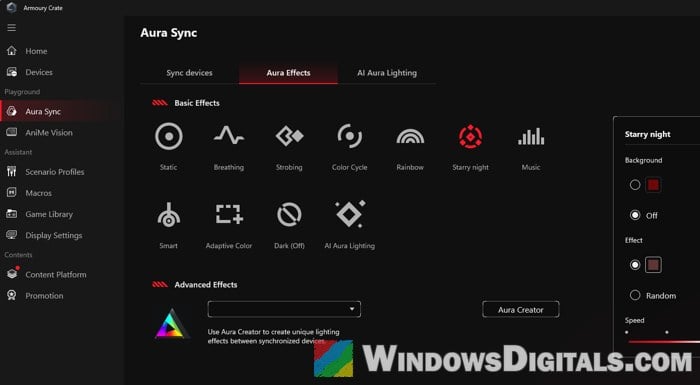
- Aura Sync lighting across more than 180 compatible devices, plus effects made in Aura Creator.
- Device settings such as motherboard fan speeds, mouse DPI, macro keys, AIO cooler and display settings.
- On ROG laptops, the CPU, GPU and fan presets (the performance modes) and features like AI Noise Cancellation.
Linked issue: ASUS Framework (asus_framework.exe) Keeps Opening PowerShell Every 30 Seconds
Why do so many people tell you to uninstall it?
Armoury Crate isn’t malware, but it has a pretty bad reputation. It’s a very common topic on Reddit and other forums, and the complaints usually go like this:
- It’s heavy: many owners call it bloatware that uses more RAM than an app like this should and slows the PC down.
- Updates break things: version 6.5.7.0 broke the advanced Aura lighting effects for a lot of users, and some went back to an older version (6.4.12.0) to get their effects working again.
- It keeps reinstalling itself on desktops, even after it’s removed.
- It often needs a full uninstall and reinstall just to get the lighting working again.
Still, plenty of people run it without any trouble, so it really comes down to whether you use what it does.
Related problem: OMEN Gaming Hub constant high CPU and RAM usage
Should you uninstall Armoury Crate?
It depends on whether it’s a desktop or a laptop.
On a desktop with an ASUS motherboard
You can remove it, and the PC will work just fine without it. Many people with ASUS boards never install it at all. What you lose is the RGB lighting control and the fan control from within Windows. Your motherboard’s BIOS has its own fan settings, so you can still set up fan curves there.
For drivers (chipset, LAN, audio), use your motherboard’s support page on ASUS’s website, and for lighting, apps like OpenRGB or SignalRGB can take over.
On an ROG or TUF laptop
ASUS itself advises against permanently removing Armoury Crate from ROG laptops, because the performance modes, fan presets and other basic controls run through it. Without anything in its place, these go back to the laptop’s firmware defaults.
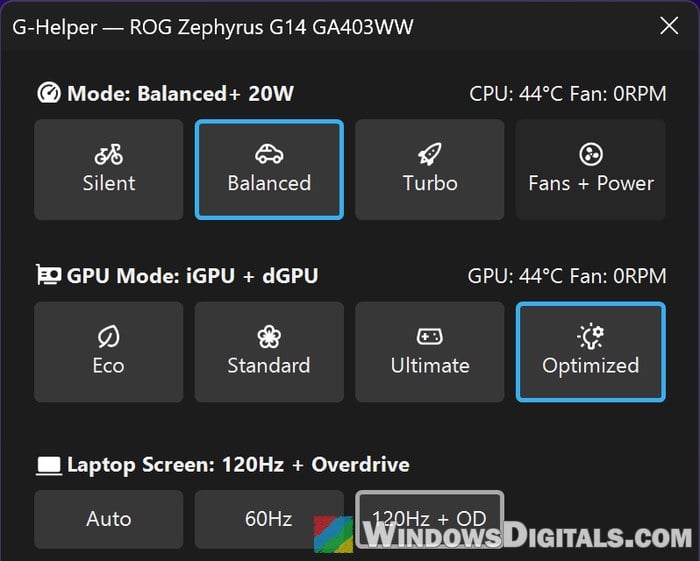
That’s why many people who remove it on a laptop replace it with G-Helper, a free and open-source app for the same settings: the Silent, Balanced and Turbo modes, custom fan curves, the GPU modes (Eco, Standard, Ultimate and Optimized) and the battery charge limit. It’s a single small program that installs nothing and uses the same ASUS System Control Interface driver as Armoury Crate.
Don’t expect better FPS or temperatures, though. Owners who switched mostly report the same numbers, with a smaller app, no ads and slightly less RAM use.
Please note that G-Helper’s own setup guide says not to run it together with Armoury Crate’s services, since both change the same settings, so it’s one or the other. If you don’t use MyASUS either, G-Helper can stop the remaining ASUS services from its Extra menu. If you keep MyASUS, set the same battery charge limit in both apps, since MyASUS can override the one set in G-Helper.
Might be useful: How to Disable Startup Services on Windows 11 or 10
How to uninstall Armoury Crate safely (Armoury Crate Uninstall Tool)
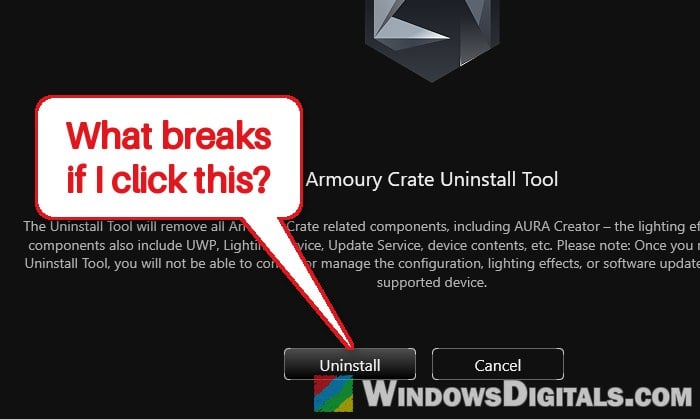
Don’t uninstall Armoury Crate from Installed apps in Settings or with a registry cleaner. ASUS warns this can leave modules behind and break certain features. Use ASUS’s official Armoury Crate Uninstall Tool instead, which removes it along with its services and Aura Creator parts.
Before you start, create a system restore point in case something goes wrong.
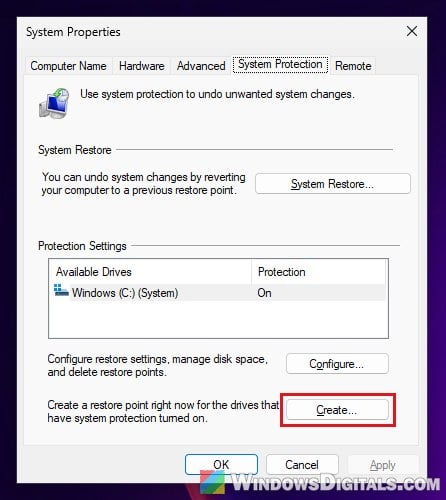
Then follow the steps below:
- Go to ASUS’s Armoury Crate download page at
https://www.asus.com/supportonly/armoury%20crate/helpdesk_download/. - Find Armoury Crate Uninstall Tool in the list and click DOWNLOAD next to it. If it isn’t listed, click Show all below the list first.
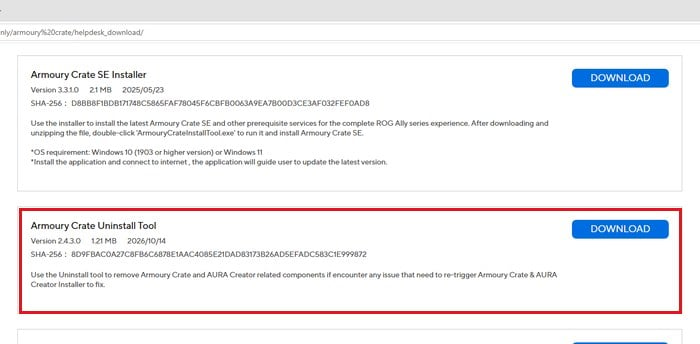
- Unzip “Armoury_Crate_Uninstall_Tool.zip” and double-click “Armoury Crate Uninstall Tool.exe” inside it. Allow it to run as administrator when Windows asks.
- Click Uninstall and let it finish. Usually this takes a few minutes, but it can sit on “uninstalling” for much longer, so give it time before you close it.
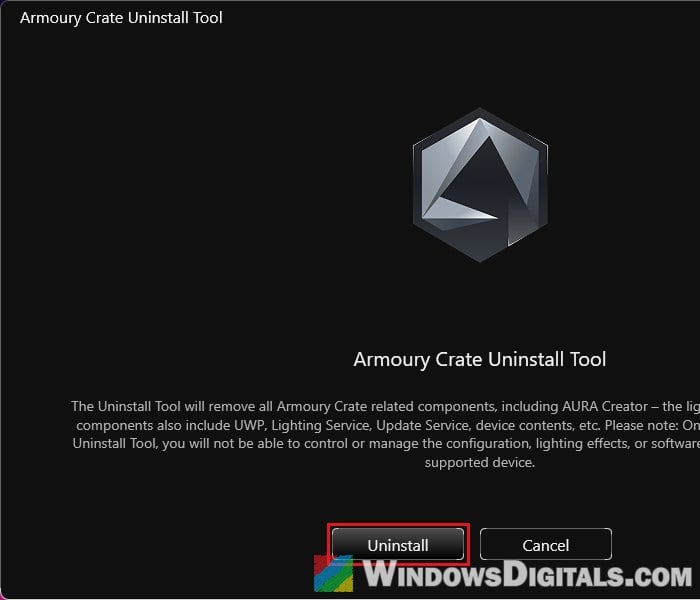
- Restart your PC to complete the uninstallation. On an ASUS motherboard, first turn off the BIOS option in “Stop Armoury Crate from installing itself again” below, or the installer comes back after this restart.
What if the uninstall tool fails?
ASUS says to restart the computer and run the tool again, as the second run should go through. If it still fails, send ASUS support the ACUTLog_ log file from the tool’s folder.
Stop Armoury Crate from installing itself again (desktops)
On an ASUS motherboard, Armoury Crate usually comes back after a restart or a fresh Windows install, however cleanly you removed it, because the BIOS is set to download and install it. To turn that off:
- Restart your PC and enter the BIOS (usually by pressing Del or F2 while it starts).
- If it opens in EZ Mode, press F7 to switch to Advanced Mode. ROG boards open in Advanced Mode already.
- Go to the Tool menu and select ASUS Armoury Crate.
- Set “Download & Install ARMOURY CRATE app” to Disabled.
- Save the changes and exit the BIOS.
Don’t change anything else in the BIOS while you’re there, and if you’re not sure, skip it and just close the pop-up when it appears.
Things that can happen after uninstalling
Here are a few things you might notice afterward:
- Settings go back to defaults: on laptops, the performance mode, fan curves and battery charge limit return to the firmware’s defaults until you set them in G-Helper (or reinstall Armoury Crate). Aura Sync lighting and Scenario Profiles are gone too.
- Mixed-up M keys on Strix laptops: recent versions of the uninstall tool can scramble what the macro keys do. An EC reset fixes it: shut the laptop down, hold the power button for 30 to 40 seconds, then turn it on again. Your files aren’t affected.
- Lower GPU performance: if games run slower after the switch, check that NVIDIA’s Whisper Mode is turned off.
- An “Aac_NBDT HAL” setup window after the restart: this can mean the uninstall didn’t fully finish, so running the uninstall tool once more is the first thing to try.
If you ever want Armoury Crate back, get the “Armoury Crate & Aura Creator Installer” from the same ASUS page. Run the uninstall tool and restart once first, so it installs clean.