If you’ve noticed a PowerShell window flashing on your screen every 15 to 30 seconds, or a powershell.exe process that pops up in Task Manager for a second and disappears, with CPU spikes and short stutters in games, and your PC has ASUS’s Armoury Crate installed, it’s most likely caused by ASUS Framework (asus_framework.exe). This guide will show you how to confirm it and how to stop it.
Also see: PowerShell pop up for a second and high CPU usage
Why does ASUS Framework keep opening PowerShell?
ASUS Framework (asus_framework.exe) is a background part of Armoury Crate that comes with ASUS laptops, ROG desktops and ASUS motherboards. On affected PCs, it starts Windows PowerShell about every 30 seconds to run a quick WMI query that looks up running processes. The chain goes back to another Armoury Crate process called ArmourySocketServer.exe, and stopping that one is what makes ASUS Framework stop relaunching.
Each of these PowerShell runs only lasts a second, but starting PowerShell over and over is enough to cause a small CPU spike every time. That’s what shows up as a regular hitch or freeze in games, a flashing window, or even a loading cursor next to your mouse pointer every few seconds.
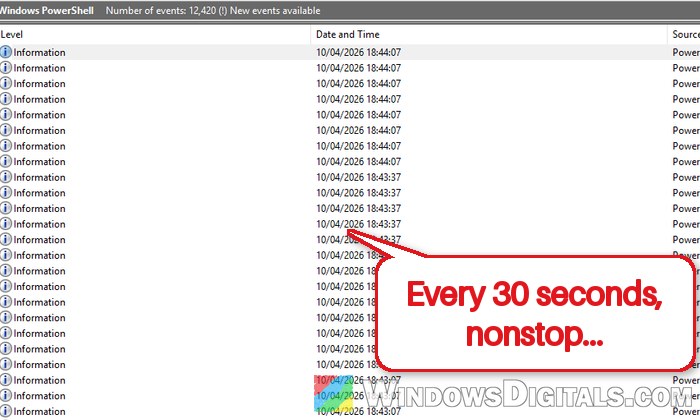
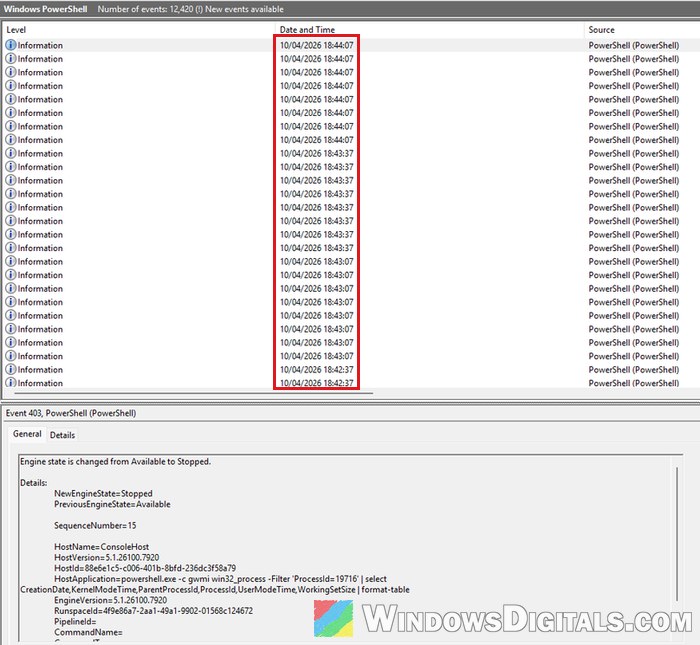
It also leaves a trail in Event Viewer. If you go to Applications and Services Logs > Windows PowerShell there, you may find thousands of events (one PC had over 12,000) arriving in groups exactly 30 seconds apart. Open one of them, and its details show a command starting with powershell.exe -c gwmi win32_process.
Is it a virus?
Probably not. Malware scans on affected PCs come back clean, and the PowerShell commands themselves are harmless process lookups. It looks like a bug in ASUS’s software, not an infection. Still, to be sure it’s ASUS and not something else, open Task Manager (Ctrl + Shift + Esc), go to the Details tab and check that asus_framework.exe and ArmourySocketServer.exe are running. If neither is there, the PowerShell windows are coming from something else, so run a full virus scan and see the guide linked above instead.
Pro tip: How to Fix Game Stuttering on Windows 11
Try ending ArmourySocketServer.exe first
Before changing anything for good, you can check whether ArmourySocketServer is really behind it on your PC. Ending the process usually stops the PowerShell windows right away.
- Press Ctrl + Shift + Esc to open Task Manager.
- Go to the Details tab.
- Right-click ArmourySocketServer.exe and select End task. Do the same for asus_framework.exe if it’s still listed.
- Watch for a minute or two and see if the PowerShell windows, the CPU spikes or the stutters stop.
This only lasts until your next restart or sign-in, because a scheduled task starts ArmourySocketServer again. If the test worked, the next section makes it stick.
Disable the ArmourySocketServer task in Task Scheduler
This is the fix that lasts. ArmourySocketServer is started by a scheduled task, so turning that task off stops the whole chain from coming back. With the task off, ASUS Framework stops relaunching and the PowerShell windows go away, and ASUS keyboard RGB lighting should still work.
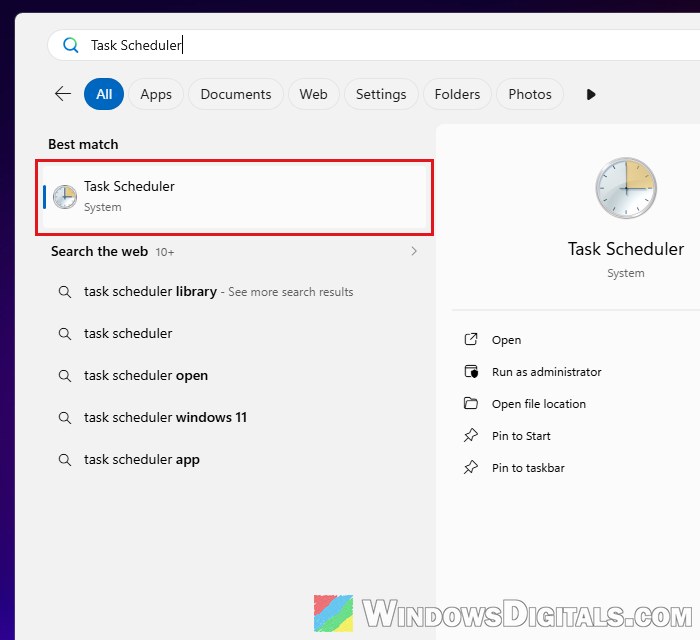
- Open the Start menu, type “Task Scheduler” and open it.
- Click Task Scheduler Library on the left. ASUS keeps some of its tasks in an ASUS folder underneath it, so check there as well.
- Find the task named ArmourySocketServer (or a similar name with “ArmourySocket” in it).
- Right-click it and select Disable.
- Open Task Manager again and end ArmourySocketServer.exe and asus_framework.exe (as in the previous section), or simply restart your PC.
If you can’t find the task, PowerShell can do it for you. Open Windows PowerShell as administrator and run this to see the ASUS Armoury tasks and which folder they’re in:
Get-ScheduledTask -TaskName *Armoury* | Format-Table TaskPath, TaskName, State
Once you’ve confirmed that ArmourySocketServer is in the list, disable it with:
Get-ScheduledTask -TaskName *ArmourySocketServer* | Disable-ScheduledTask
To undo it later, run the same command with Enable-ScheduledTask at the end instead, or right-click the task in Task Scheduler and select Enable, then restart.
Will this break Armoury Crate?
It’s not an official ASUS fix, so other Armoury Crate features might not work while the task is off. If something you rely on stops working, turn the task back on and try the other options below instead.
Check for an Armoury Crate update
There’s no confirmed fix from ASUS yet, but Armoury Crate can update itself and its core services from its Update Center, and a newer version may already fix this. It’s worth checking, especially if you’d rather not turn off parts of the app.
- Open Armoury Crate.
- Click Settings (the gear icon at the bottom left).
- Select the Update Center tab.
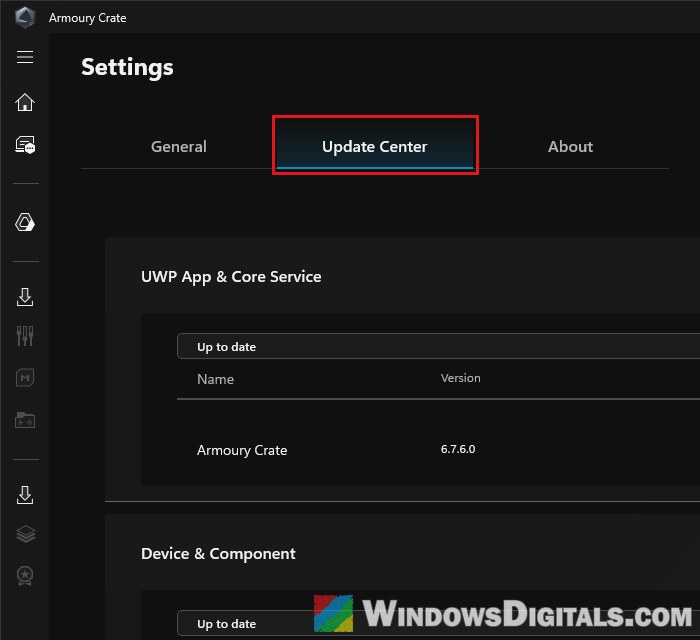
- Click Check for Updates at the top right, then install what it finds under UWP App & Core Service and Device & Component.
Restart your PC after the updates install, then keep an eye on Event Viewer’s Windows PowerShell log to see if the 30-second pattern is gone.
Disable the Armoury Crate Service
If the PowerShell windows still come back, you can also stop Armoury Crate’s background service (Armoury Crate Service) from starting. This goes further than the task above, so parts of Armoury Crate may not work until you turn the service back on.
- Press Win + R, type
services.mscand press Enter. - Double-click Armoury Crate Service.
- Set Startup type to Disabled.
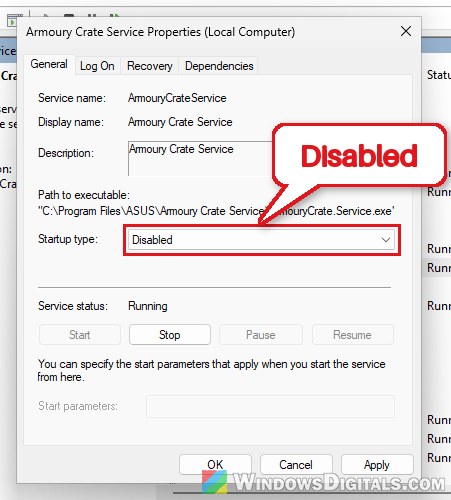
- Click Stop, then Apply and OK.
To undo it, set the startup type back to Automatic and click Start.
Uninstall Armoury Crate completely
If you don’t really use Armoury Crate (or you only installed it because it popped up after a fresh Windows install), removing it is the cleanest fix. For a complete removal, ASUS provides its own Armoury Crate Uninstall Tool.
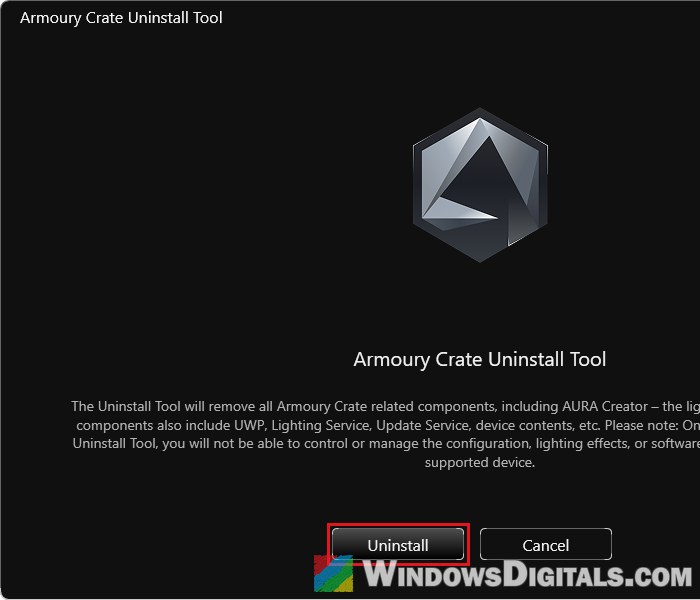
Please note that this removes everything Armoury Crate installed, including AURA Creator, its lighting and update services, and device components. Afterwards, you won’t be able to change the settings, lighting effects or software updates of your ASUS devices through Armoury Crate.
- Go to ASUS’s Armoury Crate support page, open the Driver & Utility tab, choose Windows 10 64-bit as the OS (as ASUS instructs) and download Armoury Crate Uninstall Tool.
- Unzip Armoury_Crate_Uninstall_Tool.zip.
- Double-click Armoury Crate Uninstall Tool.exe and click Yes when Windows asks for permission.
- Click Uninstall and wait for it to finish.
- Restart your PC.
If the uninstall fails, restart and run the tool again. According to ASUS, the second run should go through.
Similar issue: How to Uninstall & Disable Gigabyte App Center from BIOS
Stop Armoury Crate from coming back (ASUS motherboards)
On desktops with an ASUS motherboard, the BIOS can download and install Armoury Crate again by itself after Windows starts. To turn that off, change only this one option in the BIOS. If you’re not sure what you’re doing, it’s better to get someone to help you instead. Here’s how to do it:
- Restart your PC and press Del or F2 repeatedly to enter the BIOS.
- If you see EZ Mode, press F7 to switch to Advanced Mode (according to ASUS, ROG boards start in Advanced Mode already).
- Go to the Tool tab and open ASUS Armoury Crate.
- Set Download & Install ARMOURY CRATE app to Disabled, then save and exit.