You press the power button, the fans spin and the RGB lights come on, but the monitor says “No signal” and the VGA light on the motherboard stays on. Sometimes the graphics card’s own fans don’t even spin. This guide will look into why the VGA light won’t go off and what you can do to get a picture again.
Also see: EZ Debug LED DRAM Light Stays On and PC Won’t POST

What does the VGA light on the motherboard mean?
Many desktop motherboards have four debug lights: CPU, DRAM, VGA and BOOT (EZ Debug LED on MSI, Q-LED on ASUS, status LEDs on Gigabyte). They light up in turn while the board checks each part, then go off. A light that stays on shows where the start-up stopped.
According to MSI and ASUS, the VGA light means the graphics card wasn’t detected or has failed. On some newer MSI boards, it also covers other PCIe and M.2 devices. Common reasons are:
- No monitor detected on the card, or a bad cable.
- A missing or loose power cable on the card.
- A card that isn’t fully seated, or dirty contacts.
- Another PCIe or M.2 device the board can’t start.
- A BIOS that’s too old for a new card.
- A faulty card, slot, CPU or motherboard.
So it doesn’t always mean the card is dead. Start with the easy checks below.
Check the monitor cable and input first
Some boards won’t finish starting if they can’t see a monitor connected to the graphics card, and the VGA light is where they stop. It’s the quickest thing to rule out:
- Plug the monitor into the graphics card’s ports. MSI says the monitor must go into the card’s outputs; the motherboard’s own ports only work with a CPU that has integrated graphics.
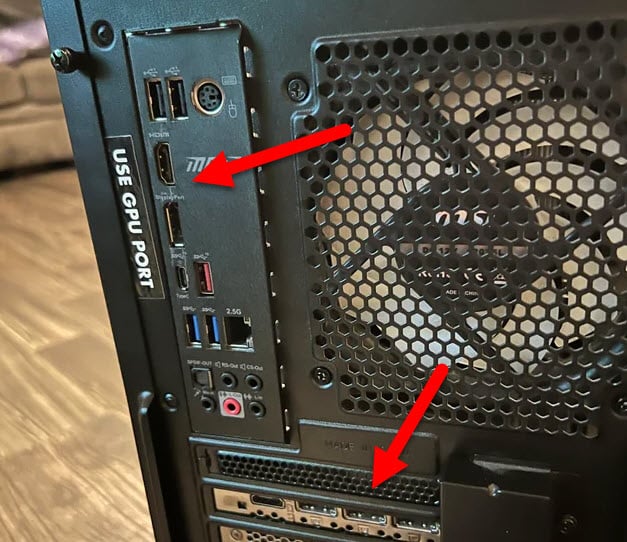
- Turn the monitor on before the PC, and set it to the right input.
- Try another cable and another port, for example DisplayPort instead of HDMI.
Then restart and watch the light.
What if the VGA light is on but everything works?
It most likely means the board didn’t find a monitor on the card at start-up (it was off, or plugged into the motherboard). Restart with the monitor on and connected to the card, and the light should stay off.
Linked issue: Monitor Works on Motherboard But Not GPU, Why?
Check the graphics card’s power cables
A graphics card won’t start if any of its power connectors is left empty. Yes, it sounds obvious, but a forgotten or half-plugged power cable is easy to miss after a new build or a case swap. With the PC unplugged, check that:
- Every power connector on the card is plugged in, and a 12VHPWR or 12V-2×6 plug is pushed in all the way.
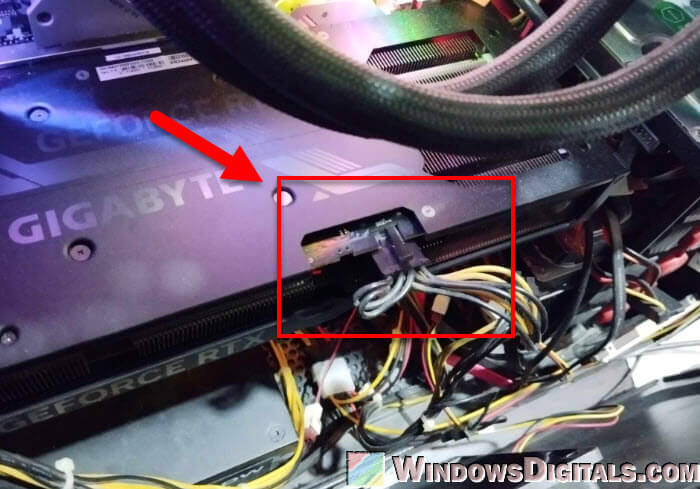
- On a modular power supply, the other end of each cable is also seated.
- On a power-hungry card, each connector has its own cable, not one cable with two plugs.
- You’re using only the cables that came with your power supply, since other modular cables can have a different pin layout. Never use a CPU power cable for the card.
Most cards spin their fans for a moment when the PC turns on. If the fans don’t even twitch, the card is most likely getting no power, or it’s dead.
Reseat the graphics card and clean the slot
A card can look seated without being fully in, especially after the PC was moved. It’s also ASUS’s first step for the VGA light. Here’s what you should do:
- Shut down the PC, switch off the power supply and unplug it.
- Unplug the card’s power cables and remove the bracket screws.
- Press the slot’s release latch and pull the card out.
- Clean any dust or dirt off the gold contacts and out of the slot.
- Push the card straight down until the latch clicks, then screw it in and reconnect the power cables.
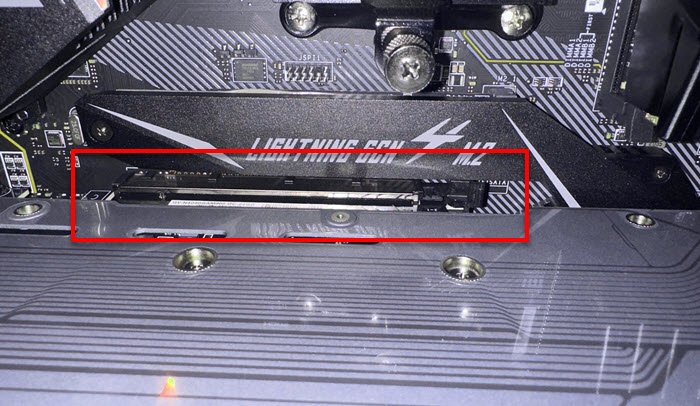
- Support a heavy card with a bracket so it doesn’t sag.
Then start the PC.
Clear CMOS to reset the BIOS settings
If the light appeared after a BIOS change or a parts swap, clearing the CMOS puts every BIOS setting back to default. With the PC unplugged, do one of these:
- Press the board’s Clear CMOS button, if it has one.
- Short the two Clear CMOS pins (JBAT1 on MSI, CLRTC on ASUS) with a screwdriver for a few seconds.
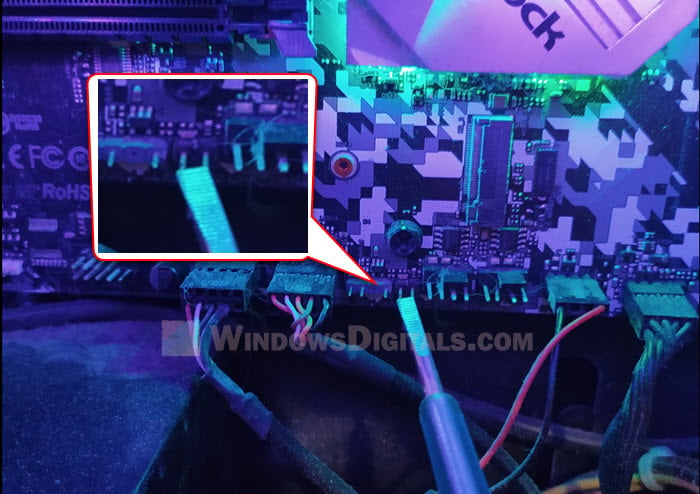
- Take the coin battery out for a few minutes.
Then start the PC and watch the debug lights.
Pro tip: How to Clear CMOS without Removing Battery or Jumper Cap
Take out other PCIe cards and M.2 add-ons
Since the VGA light can cover other PCIe and M.2 devices, an extra card can be what stops the start-up: an old M.2 Wi-Fi card after a CPU upgrade, a capture card, a USB or SATA card, or an M.2 adapter. Test with only the board, CPU, cooler, one RAM stick and the graphics card, with no drives or USB devices plugged in. If the PC then starts, add the rest back one at a time.
If it only happens sometimes, turn off Fast Startup
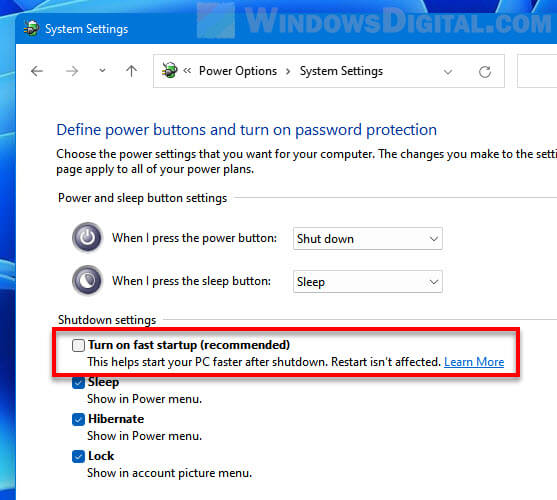
If the light shows up only now and then, usually on a cold start, and the PC works after a restart, try turning off Fast Startup. Fast Startup skips a full shutdown, and turning it off stopped the random VGA light for some users on Reddit.
- Press Win + R, type “powercfg.cpl” and press Enter.
- Click “Choose what the power buttons do” on the left.
- Click “Change settings that are currently unavailable“.
- Uncheck “Turn on fast startup (recommended)” and click “Save changes“.
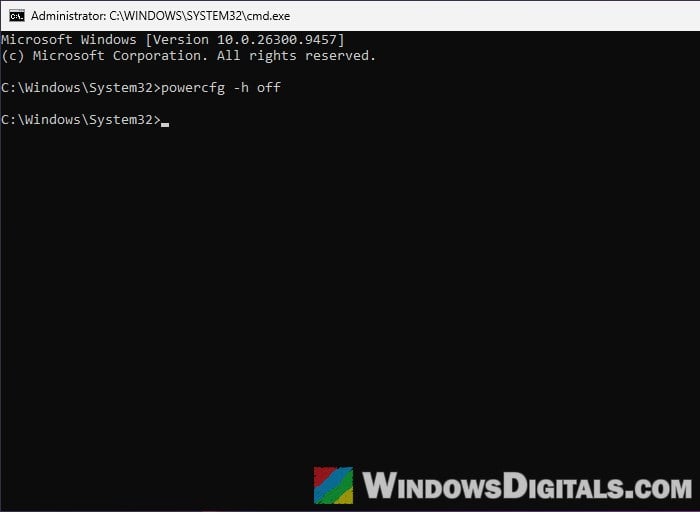
Or turn off hibernation altogether, which removes Fast Startup with it, by running this in Command Prompt as administrator:
powercfg -h off
Try the integrated graphics, then update the BIOS
If your CPU has integrated graphics, take the card out and plug the monitor into the motherboard’s HDMI or DisplayPort, as MSI recommends. If you get a picture, the board and CPU work, and the problem is on the card’s side. From there, you can also get into the BIOS. If the board’s port shows nothing either, ASUS suggests reinstalling the CPU.
A new card on an older motherboard sometimes needs a newer BIOS.
Be warned: An interrupted BIOS update can leave your motherboard unusable. If you’re not sure what you’re doing, get someone to help you.
First check that your CPU is still on the new BIOS’s support list. Then update to the latest stable BIOS from your board’s support page and put the card back. Without any picture, use the board’s BIOS flash button if it has one (Flash BIOS Button on MSI, USB BIOS FlashBack on ASUS), as explained in EZ Debug LED DRAM Light Stays On and PC Won’t POST.
Related guide: MSI M-Flash or Gigabyte Q-Flash Not Detecting the BIOS File on USB
An old card can also show nothing once CSM is off, because it doesn’t support UEFI. See: Black Screen After Enabling Secure Boot (No Display With CSM Off).
Test the card in another PC
Still stuck? Try your card in another PC, or another card in yours.
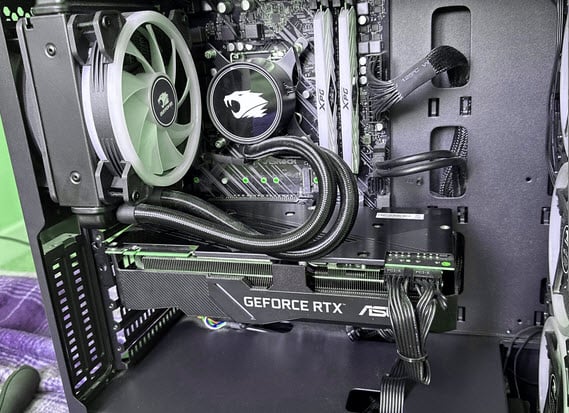
- The card fails in another PC too: the card is faulty.
- The card works elsewhere, but no card works in your PC: it’s the slot, the CPU or the motherboard. A faulty CPU can also stop the board at the VGA light, so reseat it and check the socket for bent pins. A slot damaged by a heavy card or a bumpy move means a new motherboard.
If your parts are under warranty, contact the maker or store before buying anything.