Bluetooth LE Audio lets Windows 11 keep your earbuds or headphones in proper stereo even while their microphone is on, and LE Audio hearing aids need it to stream sound from a PC. On a lot of PCs, though, even brand-new laptops and motherboards with Bluetooth 5.3 or 5.4 and the latest drivers, the “Use LE Audio when available” switch never shows up in Settings, and hearing aids may report that the Windows PC doesn’t support LE Audio. This guide will walk you through why that happens and what you can do to actually get LE Audio working.
Also see: Connect Bluetooth Headphones or Speakers to Windows 11
Why is LE Audio missing or not supported on your PC?
According to Microsoft, LE Audio has to be supported on both ends, and on the PC side it takes a lot more than a Bluetooth chip. Your PC needs all of these:
- Windows 11, version 22H2 or newer. Windows 10 doesn’t have LE Audio at all. For stereo sound while the mic is in use, Microsoft says you need 24H2 with the latest updates.
- A Bluetooth radio and an audio codec that support LE Audio. “Bluetooth 5.3” or “Bluetooth LE” on the spec sheet doesn’t mean LE Audio, since LE Audio is an optional part of the Bluetooth standard.
- LE Audio drivers from the PC maker, for both the Bluetooth radio and the audio side. This is where a lot of PCs fall short: the Bluetooth or audio driver the maker ships may not include the LE Audio part.
- Earbuds, headphones or hearing aids that support LE Audio, with it turned on.
Intel’s Wi-Fi and Bluetooth cards are a common trap. Their LE Audio works through Intel Smart Sound Technology, the audio processor on Intel CPUs, so an Intel AX210 or BE200 card in an AMD desktop won’t give you LE Audio. Even on Intel laptops, plenty of PCs with AX211 and BE200 cards still don’t get the switch, and Intel’s support has pointed those users back to their PC maker.
If the switch is missing, Microsoft says your PC doesn’t currently support LE Audio, but some PCs gain it later through a driver update. Go through the checks below before buying anything.
Linked issue: Bluetooth headphones connect but not in Playback Devices
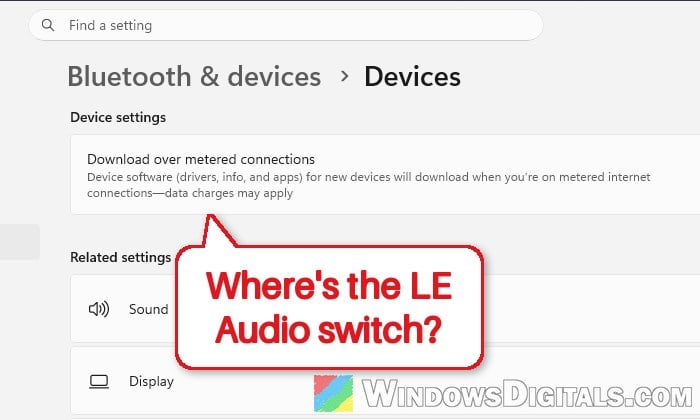
Check for the “Use LE Audio when available” switch
Windows only shows this switch when the PC side (Windows, the Bluetooth hardware and its drivers) supports LE Audio, so it shows where you stand. Here’s how to find it:
- Open “Settings“.
- Select “Bluetooth & devices” on the left pane.
- Click on “Devices“.
- Scroll down to “Device settings” and look for “Use LE Audio when available“.

If the switch is there, make sure it’s on, then set up your earbuds or headphones as in the next section. If it isn’t there at all, move on to the update and driver sections below.
Turn on LE Audio on your earbuds or headphones
Many LE Audio earbuds and headphones don’t use it by default. Sony’s headphones, for example, have an LE Audio priority mode in the Sound Connect app, and Microsoft also says LE Audio must be turned on in the headset’s own app. Check your headset’s specs too: it should list LE Audio or TMAP support. If it doesn’t, the PC side can’t do anything about it.
Once it’s on in the app, pair the headset again so it connects with LE Audio instead of classic Bluetooth:
- Turn on LE Audio (or the LE Audio priority mode) in your headset’s companion app.
- In Settings > Bluetooth & devices > Devices, click the three-dots icon next to your headset and select “Remove device“.
- Put the headset into pairing mode.
- Click “Add device“.
- Choose “Bluetooth“.

- Select your headset from the list.
When it connects over LE Audio, music should no longer drop to “phone call” quality the moment the headset’s mic is used.
Might be useful: How to Test Microphone on Windows 11 to See If It’s Working
Update Windows 11 to the latest version
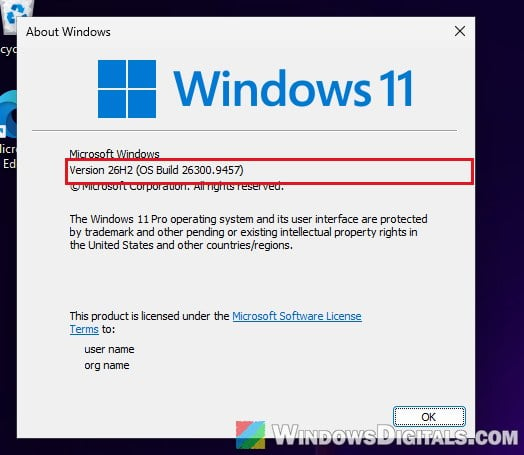
On a Windows 11 version older than 22H2, no driver will bring the switch, and the stereo-with-mic mode needs 24H2 or later with its latest updates. Here’s how to check and update:
- Press Win + R, type “winver” and press Enter to see which version you’re on.
- Open Settings > Windows Update.
- Click “Check for updates” and install everything it finds, then restart your PC.
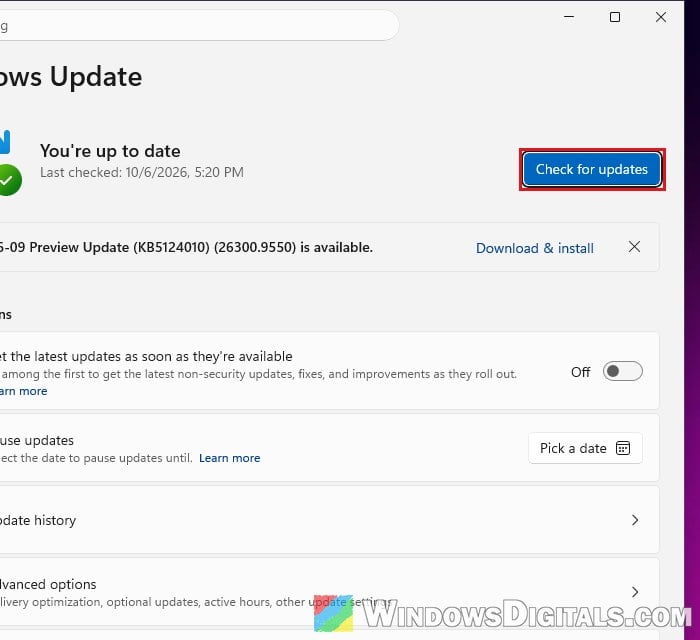
After the restart, go back to Bluetooth & devices > Devices and check the switch again.
Install the latest Bluetooth and audio drivers from your PC maker
Windows can only offer LE Audio when the LE Audio driver is actually installed. On most PCs that means two drivers from your PC or motherboard maker: the Bluetooth driver and the audio driver that goes with it.
Here’s what you should do:
- Go to your PC maker’s support page for your exact model (for a desktop, your motherboard’s support page) and download the newest Bluetooth and audio drivers. On some PCs the LE Audio part comes as its own audio driver.
- Install both and restart your PC.
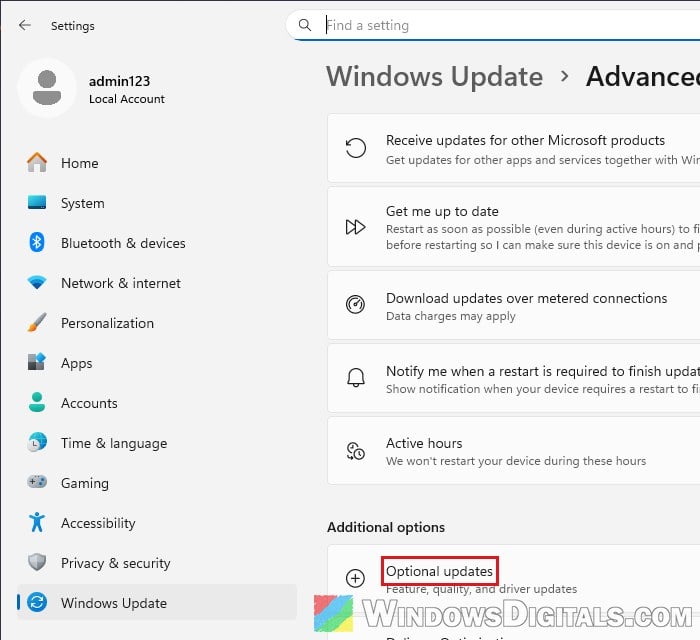
- Also check Windows Update for driver updates: Settings > Windows Update > Advanced options > Optional updates.
- Right-click the Start button and select “Device Manager“.
- Expand “Sound, video and game controllers“.
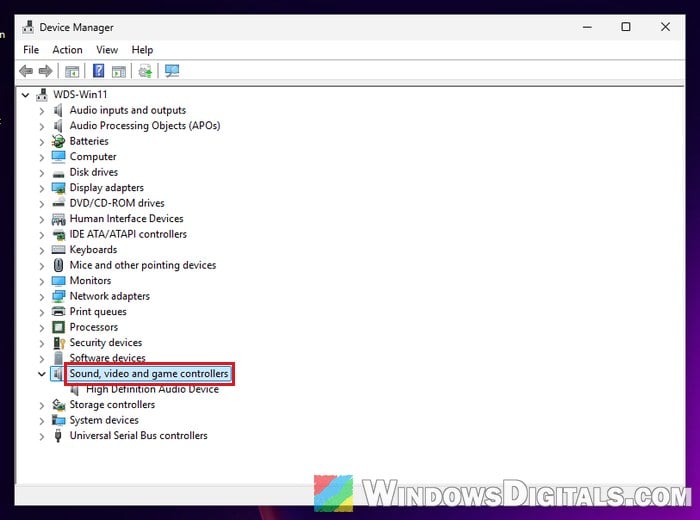
- Look for the LE Audio device:
- MediaTek: “MediaTek Bluetooth Audio Device“, in this category.
- Intel: “Intel Smart Sound Technology for Bluetooth LE Audio“, which may sit elsewhere in Device Manager.
If there’s no such device, the driver you have probably doesn’t include LE Audio. If it’s there but shows an error, reinstall the driver.
Please note that some guides add Intel’s LE Audio driver by hand on PCs that don’t come with it. The switch appears, but no sound plays and hearing aids still won’t stream, so it isn’t worth trying.
If nothing changes, ask your PC or motherboard maker whether your exact model supports LE Audio on Windows. Microsoft points people to the manufacturer for this, and at least one motherboard maker has said its Bluetooth driver doesn’t include the LE Audio part.
Pro tip: How to Install or Update Driver in Windows 11
Use a USB LE Audio adapter instead
If your PC doesn’t support LE Audio, the most reliable way around it is a dedicated LE Audio USB adapter (a small Bluetooth transmitter). It does the LE Audio part by itself and shows up in Windows as a normal USB audio device, so your PC’s own support doesn’t matter. This is what has worked for most people on Reddit, especially for hearing aids and Sony’s newer headphones.
FlooGoo’s FMA120 is the best-known one, and Avantree makes one too. Before you buy, check that the adapter lists your headset or hearing aids as supported, since not every adapter works with every headset. Touch controls and in-ear detection on some earbuds may also stop working through an adapter.
Swap the Wi-Fi and Bluetooth card (desktops and some laptops)
On a desktop, or a laptop with a replaceable Wi-Fi card, you can also replace the card itself with one whose LE Audio drivers work on your PC. Cards with the MediaTek MT7925 chip (often sold as the AMD RZ717) or the newer MT7927 have given working LE Audio on an AMD desktop and a laptop where Intel cards didn’t.
Before you swap the card, remove all your Bluetooth devices from Windows. After installing it, install both its Bluetooth driver and its audio driver, then pair your headset again. Many thin laptops have the Wi-Fi card soldered on, and opening one can affect its warranty. If you’re not sure, the USB adapter above is the easier choice.