A number of people who use an LG OLED TV like the C2 as a PC monitor with an NVIDIA RTX graphics card have run into a problem where the picture briefly flashes red or green at random, sometimes along with short signal drops or an “Invalid Format” message on the TV, even after trying other HDMI cables and drivers. This guide will show you how to narrow down the cause and stop the flashes.
Also see: Second Monitor Keeps Flashing or Going Black Randomly
Why does an LG OLED TV flash red or green on an NVIDIA PC?
The flashes usually come from the HDMI connection between the graphics card and the TV, not from the panel itself. Some common reasons are:
- The HDMI 2.1 link running at its limit. 4K 120 Hz with 10-bit color uses most of what the C2’s 48 Gbps HDMI 2.1 ports can carry. If the link isn’t fully stable at top speed, you get color flashes, a burst of “snow” or a dropout.
- A cable that doesn’t meet HDMI specifications, is damaged, or isn’t plugged in all the way, which LG lists as one of the causes.
- A signal the TV doesn’t support. According to LG, if the TV’s own Picture Test looks fine and only the PC’s input does it, the graphics card is most likely sending a resolution or refresh rate the TV doesn’t support.
This isn’t the well-known OLED “VRR flicker” in dark scenes, since the red and green flashes happen with VRR off too. In some reports on Reddit, the same TV works fine with a PS5, or the same PC works fine with a DisplayPort monitor, so the fixes below focus on the HDMI link.
Related problem: Nvidia RTX 4000 Series can’t detect HDMI, But DP OK
Run the TV’s “Picture Test” first
LG TVs have a built-in test pattern that doesn’t involve the PC at all. If it looks normal, the panel is fine and the problem is in the signal from the PC. LG’s own guide puts it under General > System > Additional Settings > Picture Test, though the menu can differ a little by TV model and webOS version.
If the test pattern shows the same flashes too, the PC isn’t what’s causing them, so contact LG support, especially while the TV is still under warranty.
Check the HDMI cable and the port
It sounds basic, but at 4K 120 Hz there’s very little room for a weak cable, so rule it out first.
- Use a certified Ultra High Speed HDMI Cable, rated for 48 Gbps and 4K 120 Hz. Certified ones have a certification label on the package that you can scan to check it’s genuine.
- Push both ends in all the way, since a slightly loose plug can cause flickering.
- Keep the cable short, ideally no longer than 3 meters (about 10 feet).
- Try another HDMI port on the TV.
Several owners swapped cables without any change, so if a good certified cable doesn’t help, move on.
Set “HDMI Deep Color” to 4K on the TV
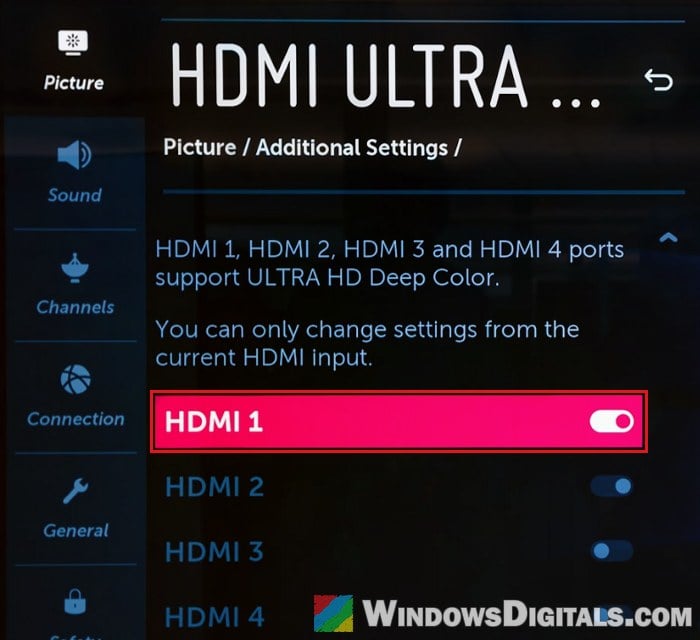
LG’s own help page for red and green flashes tells PC users to check this setting. Each HDMI port has its own. Set to 4K, the port accepts the full 4K 120 Hz signal (4:4:4, 4:2:2 and 4:2:0). Set to Off, it only takes 4K 60 Hz in 4:2:0. Here’s how to check it:
- Press the Settings button on your TV’s remote and open All settings.
- Go to General > Devices > HDMI Settings.
- Select HDMI Deep Color, pick the HDMI port your PC is plugged into, and set it to 4K.
On older LG TVs, the same setting is called HDMI ULTRA HD Deep Color, under Picture > Additional Settings, and should be set to On.
Linked issue: Windows 11 Screen Flickering After Login Following Update
Lower the output color depth to 8 bpc
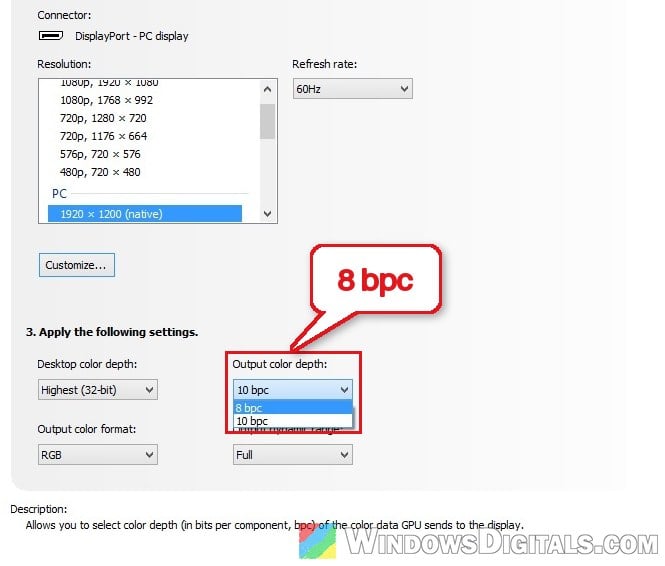
10-bit color at 4K 120 Hz needs more bandwidth than 8-bit. Dropping to 8 bpc gives the link more room, and on at least one C2 it reduced or stopped the flashes while 10 bpc stayed unstable. You lose 10-bit color, but it’s a quick test of whether bandwidth is the problem.
- Open NVIDIA Control Panel (you can search for it in the Start menu).
- Under Display, click Change resolution.
- Select your LG TV, then select “Use NVIDIA color settings“.
- Set Output color depth to 8 bpc and apply the change.
Use the PC normally for a while and see if the flashes still show up.
Test with G-SYNC and HDR turned off
The flashes can come much more often with G-SYNC on, and HDR has been linked to the flicker too. Neither is a sure cause, so turn them off one at a time to see if either makes a difference.
To turn off G-SYNC:
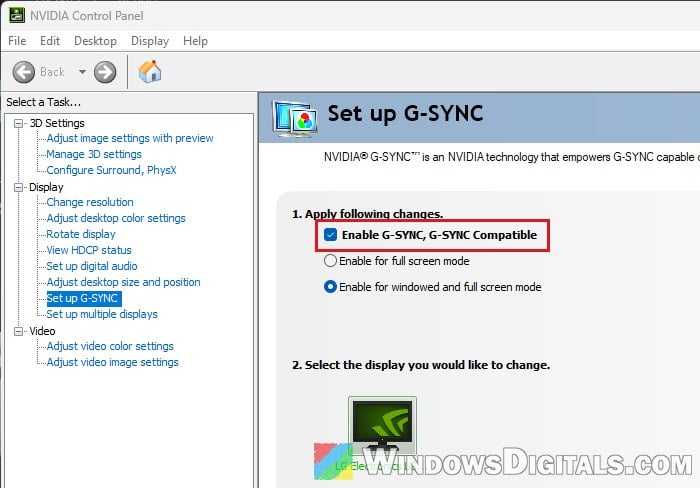
- Open NVIDIA Control Panel.
- Under Display, click Set up G-SYNC.
- Uncheck “Enable G-SYNC, G-SYNC Compatible” and apply the change.
To turn off HDR in Windows 11, go to Settings > System > Display > HDR, select your LG TV under “Select a display to view or change its settings“, and switch HDR off.
If the flashes stop, you know what triggers them, and you can try the CRU fix below with that feature back on.
Update the TV firmware and the NVIDIA driver
Before you change anything with a third-party tool, make sure the TV’s firmware is up to date:
- On the TV, go to Settings > All Settings > Support > Software Update.
- Select Check for Updates, and download the update if there is one.
- Once the download is complete, turn the TV off for 10 seconds, then turn it back on to install it.
On the PC, update your graphics driver, or go back to the previous one if the flashes started right after an NVIDIA driver update. Don’t expect too much from this, though, since the flashes can show up on several driver versions.
Might be useful: How to Change Desktop Screen Refresh Rate in Windows 11
Limit the HDMI link to 40 Gbps with CRU
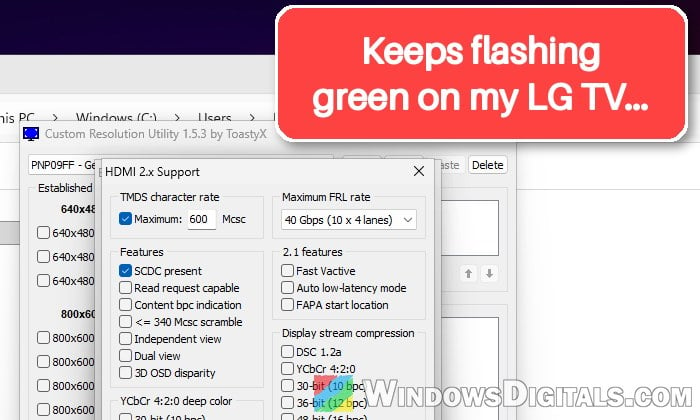
If the flashes are still there, or you’d rather keep 10-bit color, HDR and G-SYNC on, you can make the graphics card run the HDMI 2.1 link at 40 Gbps rather than 48 Gbps, which is still enough for 4K 120 Hz with 10-bit RGB color. On a C2 with an RTX 4090, this stopped the flashes and dropouts for weeks with all of those still on, though so far it’s only been reported on that setup.
This is done with CRU (Custom Resolution Utility). The change can be undone at any time, but a wrong setting can leave the screen blank until you undo it, so follow the steps carefully.
- Download CRU from
https://www.monitortests.com/forum/Thread-Custom-Resolution-Utility-CRUand extract the zip file. - Run CRU (click Yes if Windows asks for permission) and select your LG TV in the list at the top.
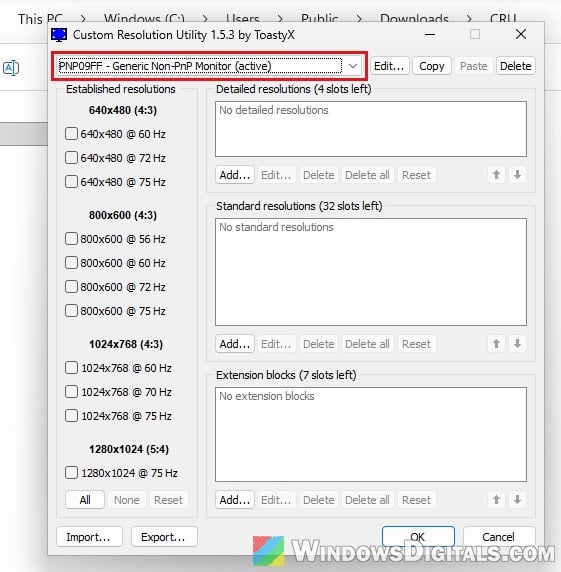
- In the Extension blocks list, select the CTA-861 block and click Edit… to open it.
- In its Data blocks list, select HDMI 2.x support and click Edit… again.
- Under Maximum FRL rate at the top right, change 48 Gbps (12 x 4 lanes) to 40 Gbps (10 x 4 lanes). Leave the other Maximum FRL rate further down (under display stream compression) alone.
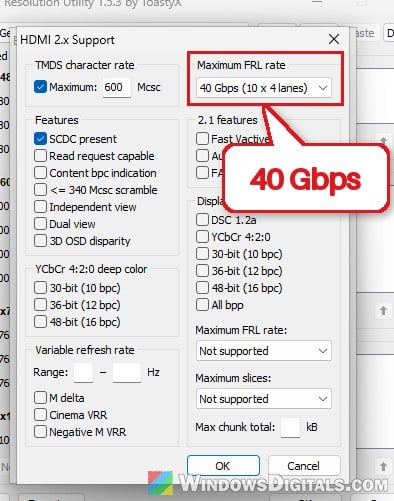
- Click OK on each window to save the change.
- In the folder you extracted CRU to, run restart64.exe (or restart.exe) to restart the graphics driver. If the picture doesn’t come back within 15 seconds, press F8 to go into recovery mode.
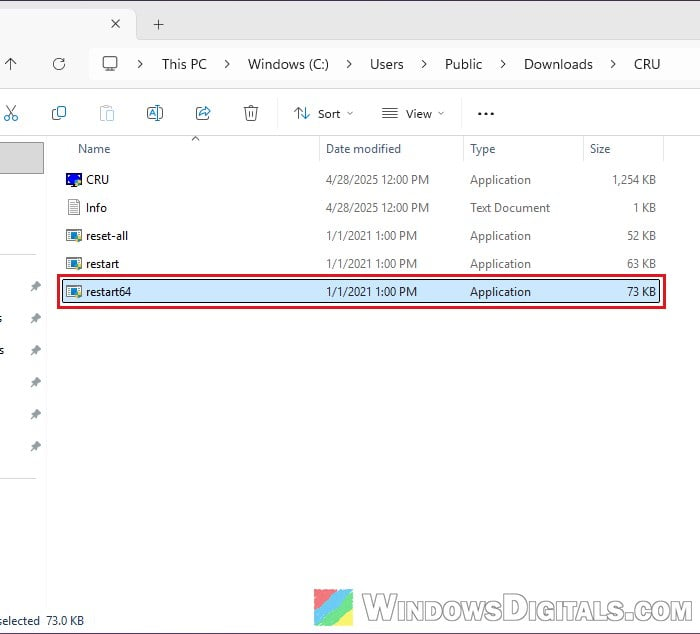
To undo it, open CRU, select the TV and click Delete (or run reset-all.exe from the CRU folder), then restart your PC.
What if the TV shows “Invalid Format” after waking up?
Some LG C2 and C3 owners get “Invalid Format” on the TV when it wakes from sleep. Unplugging the HDMI cable and plugging it back in can bring the picture back. If it started after an NVIDIA driver update, rolling the driver back can stop it. It’s also worth checking the TV’s power saving settings so the TV doesn’t go to sleep.