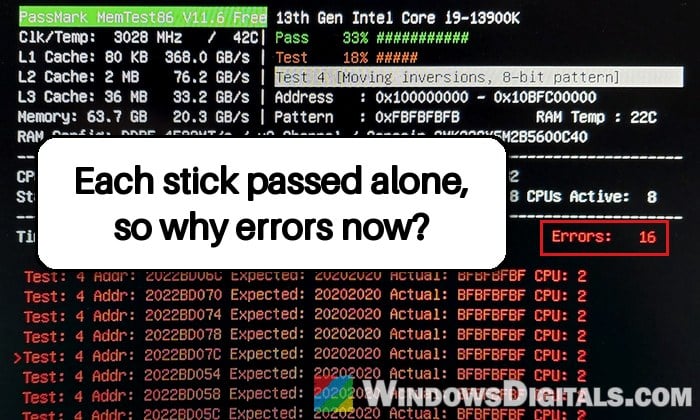
Two RAM sticks that each pass MemTest86 on their own, even in more than one slot, should run just as well side by side, but sometimes they don’t: with both sticks installed, MemTest86 starts reporting errors. This guide will walk you through what’s usually behind it and how to get the pair working together again.
Also see: Does Faulty RAM Cause Freezes or Crashes on PC?
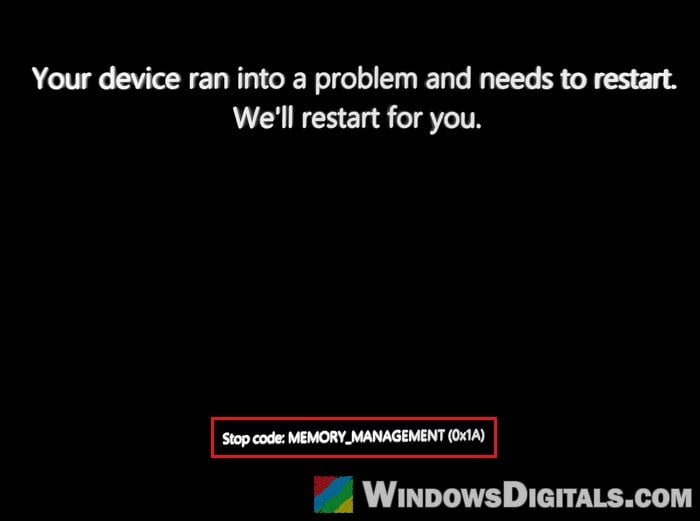
In Windows, it usually shows up as random restarts or crash screens like MEMORY_MANAGEMENT or PAGE_FAULT_IN_NONPAGED_AREA. It can start after years of the PC working fine, or right after you changed the motherboard or the RAM kit.
Linked issue: Memory_Management ntoskrnl.exe BSOD on Windows 11 or 10
Why does RAM fail only when both sticks are in?
With two sticks in the right pair of slots, the PC runs them in dual-channel mode for faster memory transfers. According to MemTest86’s maker, errors that only appear with several modules installed point to that multi-channel setup rather than to one bad stick.
MemTest86 also tests the CPU and the motherboard along the way, and on modern Intel and AMD processors the memory controller is inside the CPU. So the “RAM error” can come from somewhere else. Common reasons are:
- A memory setting the pair can’t hold, usually the speed or voltage of an XMP or EXPO profile.
- The wrong pair of slots, which can make the memory less stable.
- An older BIOS that doesn’t get along with your kit in dual channel.
- A weakening memory controller in the CPU.
- A CPU that isn’t seated evenly, or a bent CPU pin.
- A fault in the motherboard, in a slot or the wiring to it.
- Sticks that don’t work well together anymore.
It can happen even at the default speed with XMP or EXPO off, so turning the profile off may not be enough on its own. Here’s what to try, starting with the easiest.
Put the sticks in the right pair of slots
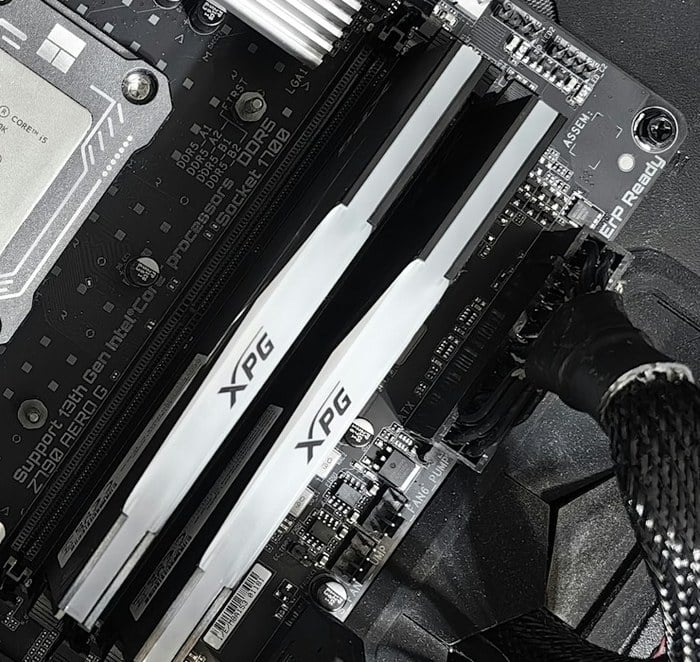
On a board with four slots, two sticks are meant to go in one specific pair, often the second and fourth slots from the CPU (DIMM_A2 and DIMM_B2 in ASUS’s own guide). Here’s what to do:
- Shut down the PC, switch off the power supply and unplug it.
- Open your motherboard’s manual and look for “Recommended memory configuration” (or similar) to see which two slots it names for two modules.
- Take both sticks out and blow the dust out of the slots.
- Push each stick into the recommended slots until the latches click shut.
- Turn on the PC and run MemTest86 again with both sticks in.
If the recommended pair still fails, try the other pair once as a test. On some boards only one pair fails, which points to a faulty slot on the motherboard.
Load BIOS defaults and turn off XMP or EXPO
XMP (Intel) and EXPO (AMD) profiles are memory overclocking: they run your RAM beyond the CPU’s official memory speed and aren’t guaranteed to work on every CPU and motherboard. A profile each stick handles alone may be too much in dual channel. MemTest86’s own advice is to go back to default timings and turn XMP off. Here’s how:
- Restart the PC and press the BIOS key while it starts (often Delete).
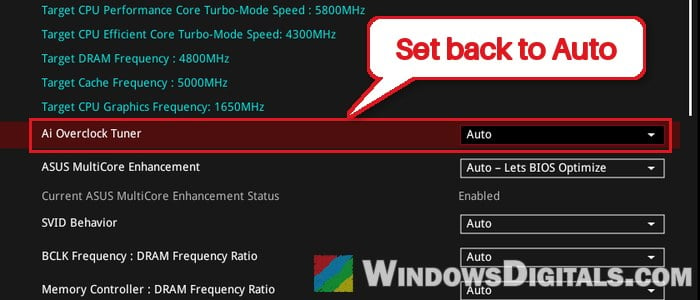
- Load the BIOS defaults, or find the XMP or EXPO setting and turn it off. On ASUS boards, for example, it’s Ai Overclock Tuner on the Ai Tweaker tab (press F7 for Advanced Mode): set it back to Auto. Other brands use similar wording.
- Save and exit, then run MemTest86 again with both sticks.
If the errors are gone, the profile was the problem. Leave it off, or try a slightly lower speed (next fix).
Pro tip: How to Clear CMOS without Removing Battery or Jumper Cap
Lower the memory speed one step
Sometimes the pair fails at the profile’s speed but runs fine at a slightly lower speed. For example, one kit that failed with its XMP profile and at 6000 MT/s ran without errors at 5600 MT/s.
So set the speed one step below the profile’s speed in the BIOS and test again. If it still fails, go down another step. Also make sure the DRAM voltage matches the value on your kit’s label (if you can’t see the label, check your RAM’s brand and model in Windows and look up the kit). Don’t go beyond that unless you know what you’re doing.
Might be useful: Checking Motherboard Max RAM Speed (MHz) & Capacity
Update the BIOS
BIOS updates can fix some RAM incompatibility problems, since newer versions often improve memory support. If your BIOS is old, get the latest stable version from your motherboard’s support page and install it the way the manual says. Afterward, test both sticks at the BIOS defaults before turning XMP or EXPO back on.
Be warned: An interrupted BIOS update can leave your motherboard unusable. Don’t turn the PC off during the update, and if you’re not sure what you’re doing, get someone to help you.
A firmware update can also make Windows ask for the BitLocker recovery key. If your drive uses BitLocker, Microsoft says to suspend BitLocker before the update. If you don’t, at least have the recovery key at hand.
Related concern: BitLocker Keeps Asking for the Recovery Key at Every Startup
Test with another kit to find the faulty part
If nothing above helps, test a known good RAM kit in your PC, or your kit in another PC:
- A known good kit also fails with two sticks in your PC: the problem is the motherboard or the CPU, not your RAM.
- Your kit also fails in another PC: the RAM is the problem. Replace it with a matched kit (two sticks sold as a pair), ideally one on your motherboard’s memory support list (QVL).
Reseat the CPU and check the pins
Since the memory controller is in the CPU, a CPU that doesn’t sit evenly, uneven cooler pressure or a bent pin can break dual channel while one stick still works.
Be warned: CPU pins bend very easily. If you’re not comfortable doing this, take the PC to a shop.
Here’s how to do it:
- Shut down and unplug the PC.
- Remove the cooler and carefully take out the CPU.
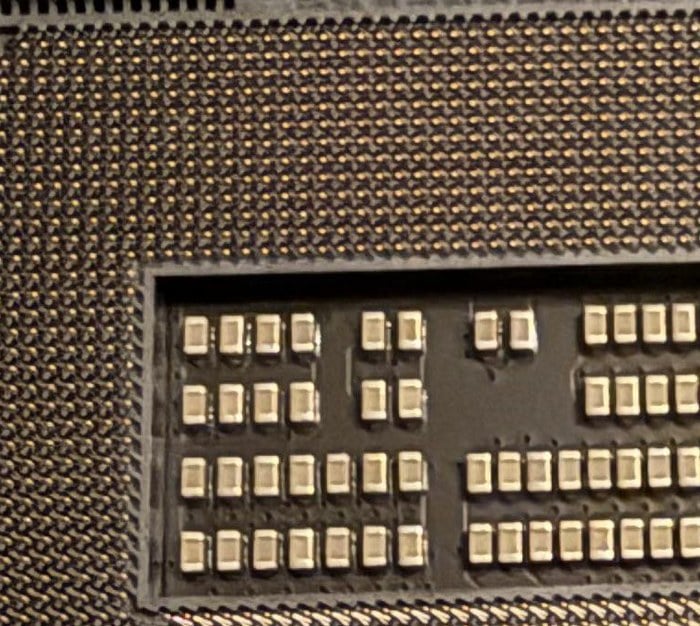
- Look at the pins with a flashlight. They should all line up evenly, with nothing bent. On Intel and AMD AM5 boards the pins are in the socket; on older AMD Ryzen CPUs (AM4) they’re on the CPU itself.
- Clean the old thermal paste off the CPU and the cooler’s base with isopropyl alcohol and a lint-free cloth.
- Put the CPU back in the socket, then apply new paste.
- Refit the cooler and tighten its screws a few turns at a time in a diagonal pattern, so the pressure stays even.
- Turn on the PC and run MemTest86 again with both sticks.
Related problem: EZ Debug LED DRAM Light Stays On and PC Won’t POST
When it’s the CPU or the motherboard
If the RAM checks out, the CPU’s memory controller or the motherboard is most likely the cause. A weakening memory controller in the CPU comes up a lot on Reddit, and replacing the CPU has fixed the errors; in other cases, it was a fault on the board itself.
If your CPU, motherboard or prebuilt PC is still under warranty, contact the maker or the store before buying anything new. While you wait for a replacement, running on one stick usually keeps the PC stable.