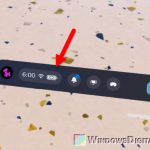
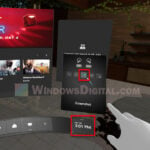
The Touch Plus controllers of the Quest 3 (and 3S) are supposed to doze off when you put them down and come back the moment you press a button, but since a recent Horizon OS update, many of them go to sleep and won’t wake up again, even when the headset tells you to press any button to wake the controller. This guide will explain what’s going on and the quickest ways to get your controllers back until Meta fixes it.
Also see: Meta Quest 3 “General Device Problem” in Link (Cable)
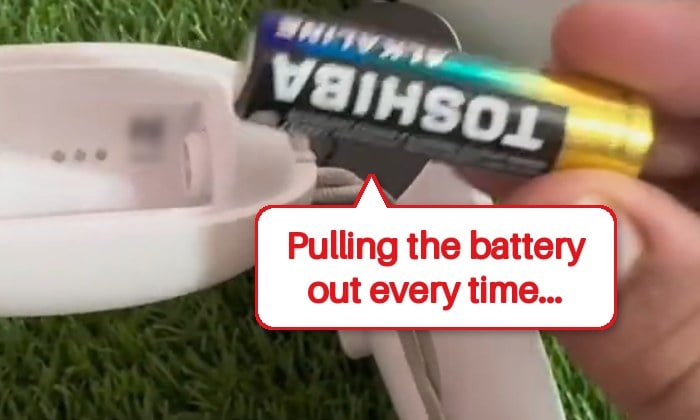
Why do Quest 3 controllers stop waking up?
This is a software bug that started with Horizon OS v2.7, the update Meta rolled out in August 2026. It’s a pretty common issue that you’ll find discussed on Reddit and Meta’s own community forums, and it still shows up for many people on later versions.
It usually goes like this:
- You leave one or both controllers untouched for a while, often somewhere between 5 and 20 minutes, sometimes longer.
- The headset says the left or right controller has disconnected and asks you to press any button to wake it.
- Pressing buttons does nothing. The controller’s light may still be on, but it doesn’t reconnect.
It’s most noticeable when the controllers sit on the desk for a long time, such as PC VR sim racing or flight sims with a wheel or joystick, Virtual Desktop sessions, watching videos, or playing with an Xbox controller. Left and right can drop out separately.
Meta hasn’t named a cause, and the release notes for v2.9 and v2.10 don’t list a fix for it. So for now, the fixes below get your controllers back quickly, and one setting change might make it happen less often.
Might be useful: WiFi 5 vs WiFi 6 vs WiFi 6E for Virtual Desktop (VR)
Take the battery out and put it back in
This is the fix most people use, and it brings a stuck controller back right away in most cases. Taking the battery out fully cuts the controller’s power, so it starts up fresh and connects to the headset again.
- Open the battery cover of the controller that disconnected.
- Take the AA battery out, wait a few seconds, then put it back in.
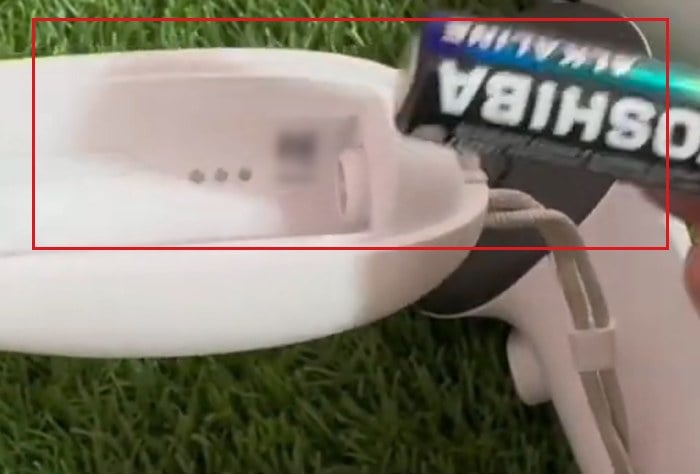
- Close the cover and press any button. The controller should reconnect to the headset.
It’s only a temporary fix, since the controller can drop again after the next long idle period. Meta also suggests leaving the battery out for about 30 seconds and trying a fresh battery, which is worth doing once to rule out a weak one. A new battery alone usually doesn’t stop this bug, though.
Put the headset to sleep or restart it
If reseating the battery doesn’t bring the controller back, which happens for some people, the next thing to try is the headset itself. Meta’s own suggestion is a quick sleep and wake, which is faster than a full restart:
- Press the headset’s power button once to put it to sleep.
- Wait about 30 seconds.
- Press the power button again to wake the headset.
- Pick up the controllers and see if they reconnect.
Restart the headset if that doesn’t work
A full restart is the one thing that brings the controllers back every time, even when pulling the battery doesn’t. Hold the power button on the headset until the power menu appears, choose to restart, and wait for it to boot back up. It’s more annoying in the middle of a session, but it works.
Suggested read: Quest 3 Charging While Playing Link Cable Doesn’t Work
Update the headset and try Troubleshoot controllers
Horizon OS v2.9 added a way to troubleshoot an unresponsive Touch controller from inside the headset. Meta hasn’t said exactly what it does, and it isn’t a confirmed fix for this sleep bug, but it’s built for a controller that stopped responding, so it’s worth a try once you’re on v2.9 or later.
To check for updates and use the troubleshooter:
- Open Quick settings and select Settings.
- Go to General > Software update. This page shows your current version and whether you’re up to date.
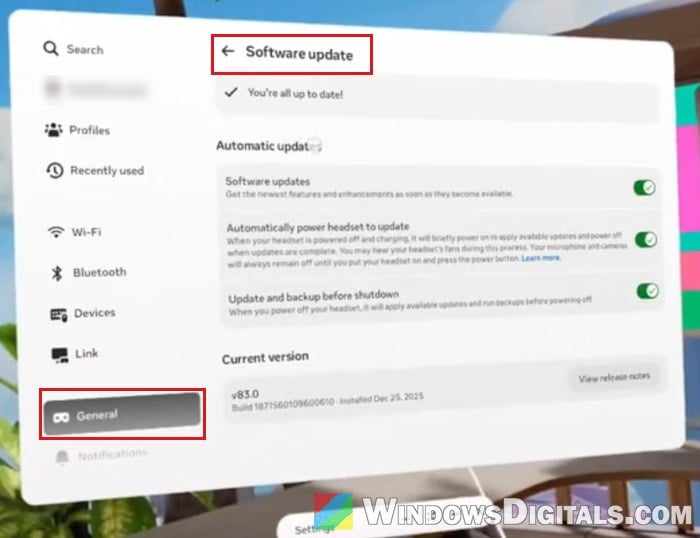
- After updating, go to Settings > Devices > Controllers.
- Select Troubleshoot controllers and follow what it asks for the controller that won’t respond.
Then put the controllers down for a while and see if they still wake up when you press a button.
Unpair and pair the controller again
Removing the controller from the headset and pairing it again can also bring a disconnected controller back, though it can still drop again later. You can do it in the Meta Horizon app on your phone:
- Open the Meta Horizon app and tap Menu > Devices.
- Select your headset, then go to Headset settings > Controllers.
- Select the controller that keeps dropping and tap Unpair controller.
- Pair a new controller from the same page. When asked, put the controller in pairing mode: hold the Menu and Y buttons on the left controller, or the Meta and B buttons on the right one, until its light blinks.
You can also pair it from the headset under Settings > Devices > Controllers, as long as the other controller or hand tracking still works to get there. Once it’s paired, the controller should connect again right away.
Related problem: PC can’t detect Quest 3 (USB device not recognized)
Turn off automatic switching between controllers and hands
When the controllers sit still, the headset can switch over to hand tracking. Turning off the option that switches automatically between controllers and hands can make the controllers last longer before they drop. People with a similar tracking problem after v2.7 fixed it by turning that option off, and setting its sensitivity to low is another thing to try.
Look for it in the headset’s hand tracking settings.
Report the bug and wait for Meta’s fix
Since this is a bug in the software, the real fix has to come from Meta. You can report it from the headset with its Report a problem option, which helps Meta see how many people are affected. A very similar problem back in 2024 went away after a controller update, so keep the headset and controllers updated and check again after each new version.