When you press Win + G to bring up Xbox Game Bar, you might find that nothing happens at all, even though Game Bar still opens from the Start menu. For others, it won’t open at all, not even from Start or Search. This guide will show you what to check first and how to get Game Bar working again on Windows 11.
Also see: “Get an app to open this ‘ms-gamebar’ link” pop-up
First, see if Game Bar opens from the Start menu
Start by finding out which part is broken. If Game Bar opens fine from the Start menu, the app itself works and something is catching Win + G before Game Bar does. If it doesn’t open from anywhere, the app (or the gaming components it needs) is the problem, and you can skip to the update and repair sections further down. Here’s how to check:
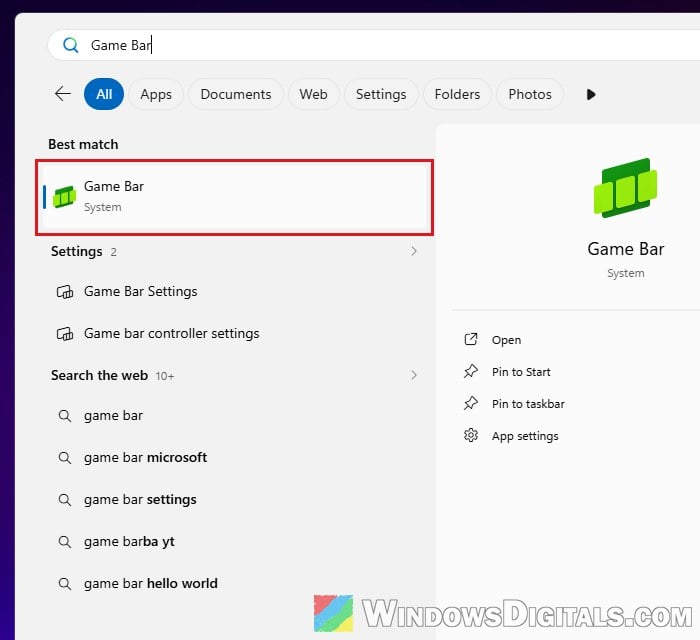
- Click the Start button, type “Game Bar” and click Game Bar in the results (Xbox Game Bar is listed simply as “Game Bar” now).
- See whether the Game Bar overlay shows up on your screen.
Also try a few other shortcuts that use the Windows key, such as Win + E (File Explorer). If none of them work, the Windows key itself isn’t getting through, and Game Bar has nothing to do with it.
Linked issue: Windows Key Button Not Working in Windows 11/10
What if it only fails inside a game?
If Game Bar opens on the desktop but not over one particular game, the game’s display mode might be the reason. According to Microsoft, Game Bar often can’t be shown over a game that uses Vulkan or OpenGL in full-screen mode. Switch the game to a windowed mode (with a normal window border) in its own settings, then press Win + G again.
Check the Game Bar shortcut and controller button
You’ll often read that the Game Bar shortcut might have been turned off or changed. In the current Game Bar, Win + G is listed as its fixed default, and the box under it only adds an extra shortcut, so the setting itself is unlikely to be the cause. You can see it in Game Bar’s own settings:
- Open Game Bar from the Start menu as shown above.
- Click the Settings (gear) icon at the right end of the Game Bar’s top bar.
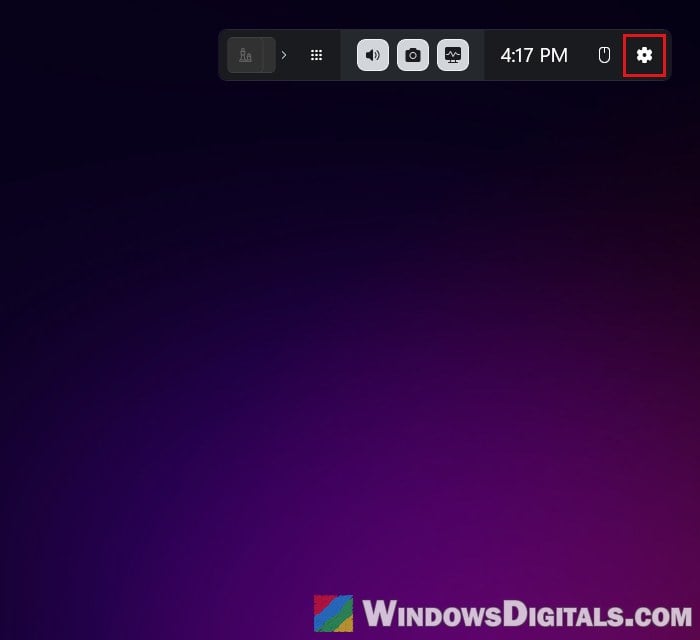
- Click More settings, then Shortcuts.
- Scroll down to the Keyboard section. Win + G is shown next to Game Bar as its default. The box under it is only for adding an extra shortcut of your own.
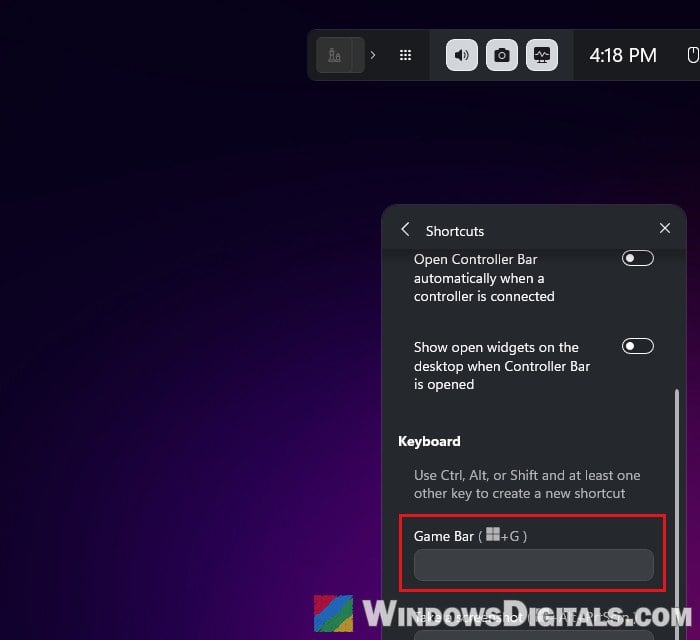
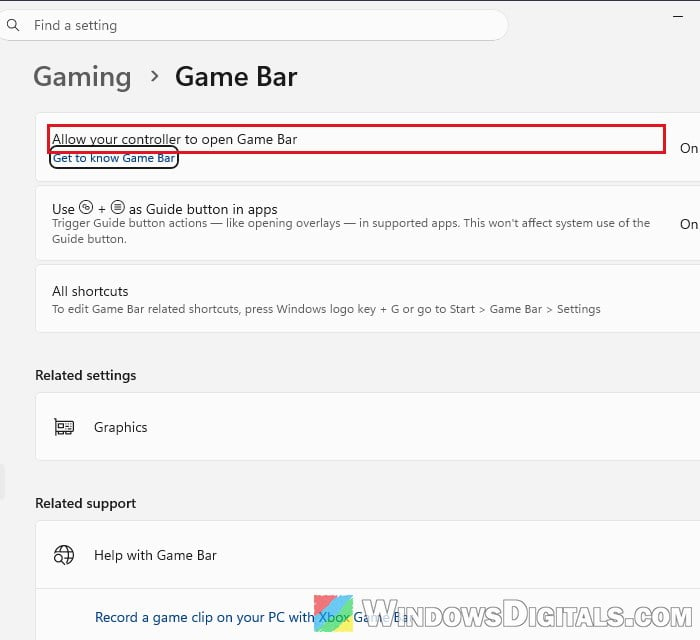
What can be switched off is the controller button. If you open Game Bar with the Xbox button on a controller, go to Settings > Gaming > Game Bar and make sure “Allow your controller to open Game Bar” is turned on.
Close other overlays and recording apps
Discord, NVIDIA’s and AMD’s overlays, MSI Afterburner and RivaTuner all draw on top of your games, and some of them can get in Game Bar’s way or grab the same keys. Close them completely, including from the system tray (the small icons near the clock), then try Win + G again. If Game Bar now opens, start the apps again one at a time to find the one that clashes, and change that app’s hotkey or overlay setting.
And if Game Bar still won’t open and you mostly use it to record clips, your graphics card’s own recording tool can do the job while you work through the fixes below.
Pro tip: How to Record Screen on Windows 11/10 With NVIDIA Share
Restart Gaming Services and the Xbox services
Game Bar needs a few background services to run. If one of them has hung, restarting it can bring Game Bar back without a full reboot. Here’s what to do:
- Press Win + R, type “services.msc” and press Enter.
- Find Gaming Services, right-click it and select Restart.
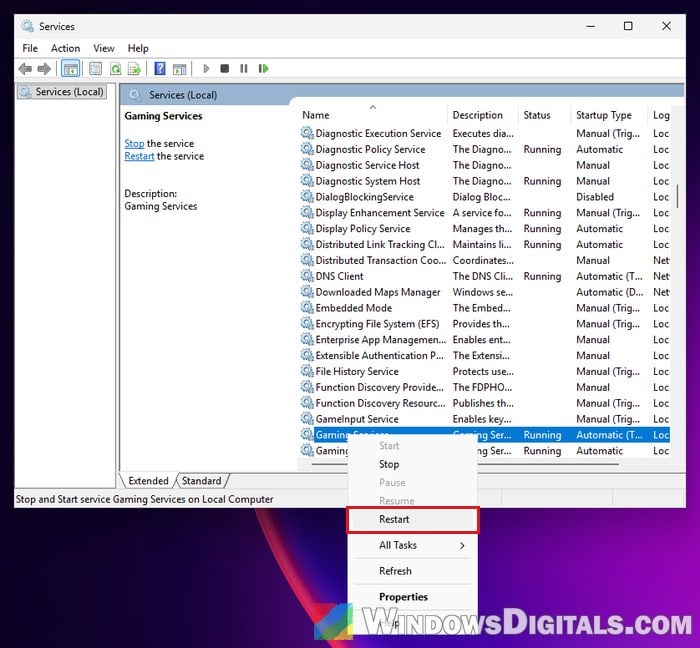
- Do the same for Xbox Live Networking Service and Xbox Live Game Save if they’re running.
- Try Win + G again.
Update Xbox Game Bar and Gaming Services
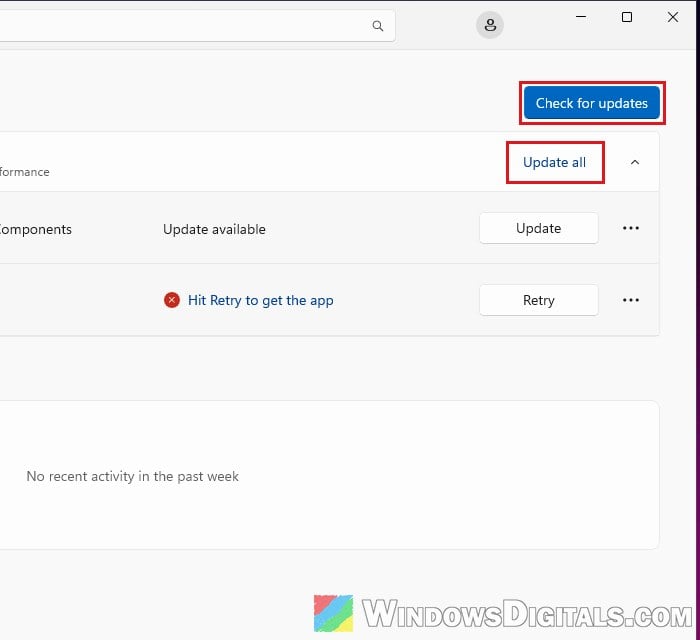
Game Bar is updated through the Microsoft Store, and it relies on another Store app called Gaming Services. When Game Bar suddenly stops opening, an outdated or broken copy of either app can be behind it, and a newer version sometimes fixes it, even when it arrives on its own. To check for updates:
- Open Microsoft Store.
- Click Downloads (the cloud icon) at the bottom left, just above Library.
- Click Check for updates, then Update all. Make sure Game Bar and Gaming Services are updated if they’re listed.
- Restart your PC, then try Win + G again.
Might be useful: Microsoft Store “Error encountered – One of the update services is not running properly”
Terminate, repair or reset Xbox Game Bar
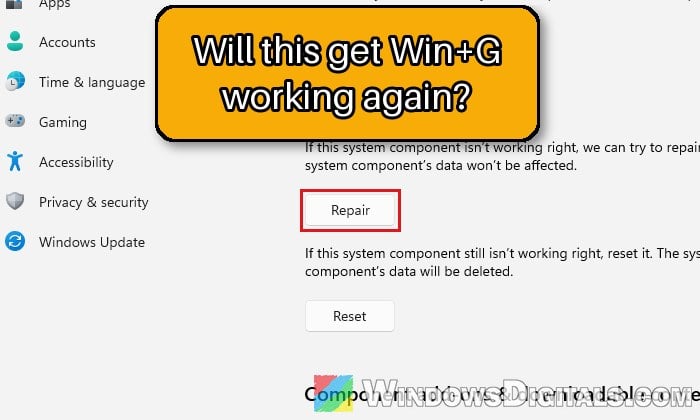
Sometimes Game Bar’s processes are still running in the background but never show the overlay. Terminate ends them so Game Bar can start fresh, and Repair fixes the app’s files without touching your settings. Reset goes further and clears the app’s data and settings, so try them in that order. Follow the steps below:
- Click Start and type “Game Bar“.
- With Game Bar selected, click App settings in the right pane.
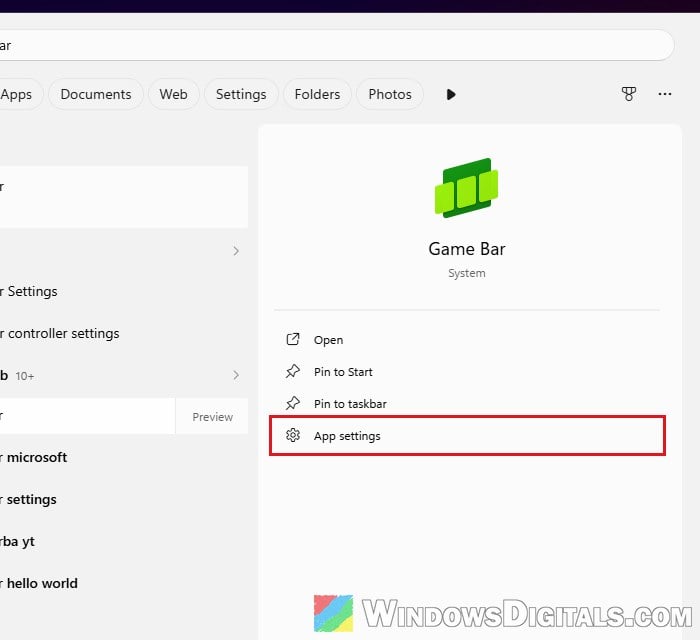
- Game Bar’s page opens in Settings (under System components on recent Windows 11 builds). Scroll down and click Terminate.
- Click Repair, then try Win + G again.
- If it still doesn’t open, come back and click Reset.
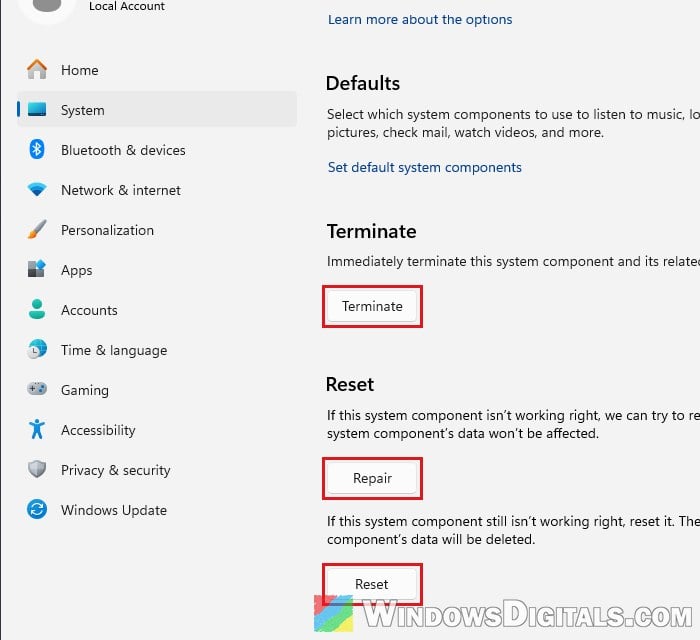
Repair and reset don’t work for everyone, so if Game Bar still won’t open after a reset, move on to the next section.
Re-register or reinstall Xbox Game Bar
When repair and reset don’t help, re-registering the Game Bar app with Windows can fix a broken installation without removing it. You’ll need PowerShell as administrator:
- Right-click the Start button and select Terminal (Admin), then click Yes on the prompt.
- Copy and paste the following command and press Enter:
Get-AppxPackage Microsoft.XboxGamingOverlay | Foreach {Add-AppxPackage -DisableDevelopmentMode -Register (Join-Path $_.InstallLocation 'AppXManifest.xml')}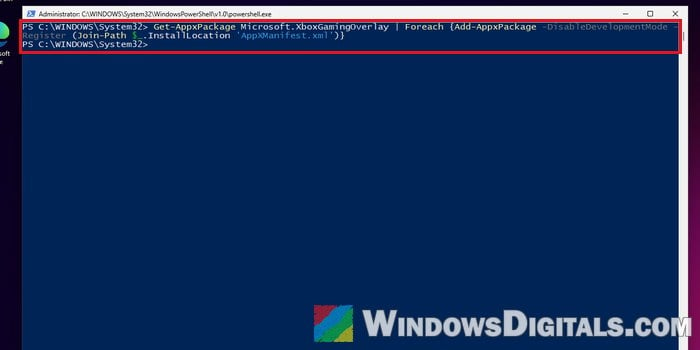 If it finishes without any red error text, Game Bar was registered again.
- Restart your PC and try Win + G.
If that doesn’t help either, you can remove Gaming Services and install it again from the Microsoft Store. In the same admin window, type the following commands one by one, and press Enter after each:
get-appxpackage Microsoft.GamingServices | remove-AppxPackage -allusers
start ms-windows-store://pdp/?productid=9MWPM2CQNLHN
The second line opens Gaming Services in the Microsoft Store, so you can install it from there. Restart your PC once it’s done.
Related guide: How to Remove Xbox Game Bar From Windows 11
What if you used a debloat tool before?
Debloat scripts and “remove Xbox components” tweaks can uninstall Game Bar and the packages it depends on. If that’s how your PC was set up, install the missing apps again from the Microsoft Store. In Terminal (Admin), type the following commands one by one, and press Enter after each:
winget install --source msstore --id 9NZKPSTSNW4P --accept-package-agreements --accept-source-agreements
winget install --source msstore --id 9MWPM2CQNLHN --accept-package-agreements --accept-source-agreements
The first installs Game Bar, the second Gaming Services. Several people who removed these with a debloat tool got Game Bar working again this way. If the Xbox app or Xbox sign-ins are broken too, reinstall the Xbox app and Xbox Identity Provider from the Microsoft Store as well. Restart your PC afterwards and try Win + G on the desktop.