YouTube should open in Firefox just like any other website, but sometimes it suddenly stops loading: you get a blank white or grey page, the red loading bar stops partway across the top, or videos just keep spinning until you reload, while every other site works and YouTube plays fine in Chrome or Edge. This guide will explain what usually breaks YouTube in Firefox and how to get it loading again.
Also see: YouTube or Facebook Video Won’t Play on Windows 11/10
First, check if it’s YouTube itself, not Firefox
Before changing anything in Firefox, open YouTube in Edge or Chrome on the same PC. If it doesn’t load there either, the problem isn’t your browser. YouTube itself sometimes has outages, and an outage checker like Downdetector will show a spike of reports when it does. If that’s the case, there’s nothing to fix on your side, so just wait it out.
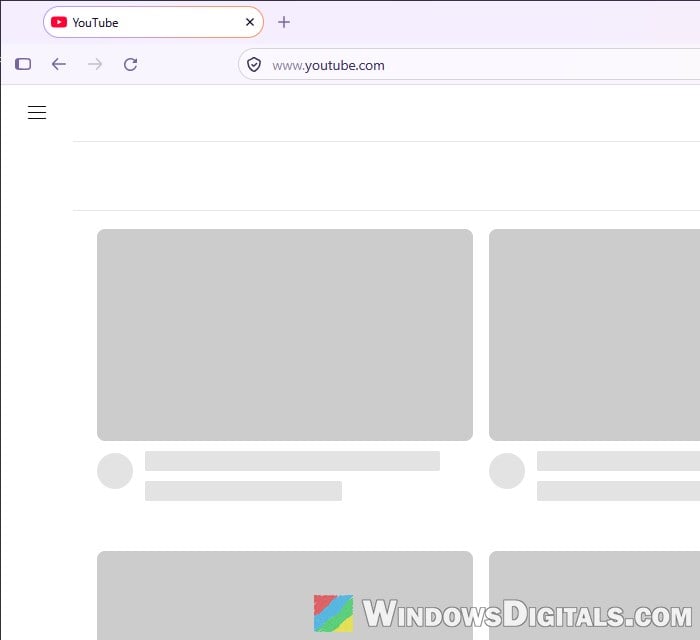
If YouTube works fine in the other browser, it’s something in Firefox. Restarting Firefox often gets YouTube going again for a while, but if the problem keeps coming back, try the fixes below in order.
Pro tip: How to Restart Firefox Browser Without Losing Tabs
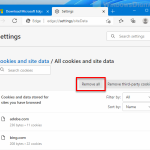
Clear YouTube’s cookies and site data
This is the fix that has worked for most people on Reddit. Firefox keeps cookies and other stored data for every site you visit. When the data YouTube saved gets stale or broken, the page can hang on a blank screen even though nothing else is wrong. Clearing it only for YouTube lets the site start fresh without touching your other logins.
Keep in mind this signs you out of YouTube, so have your Google password at hand. Here’s how to do it:
- Open
youtube.comin Firefox (it’s fine if the page is blank). - Click the shield icon (“View site information“) on the left side of the address bar.
- Click “Clear cookies and site data“.
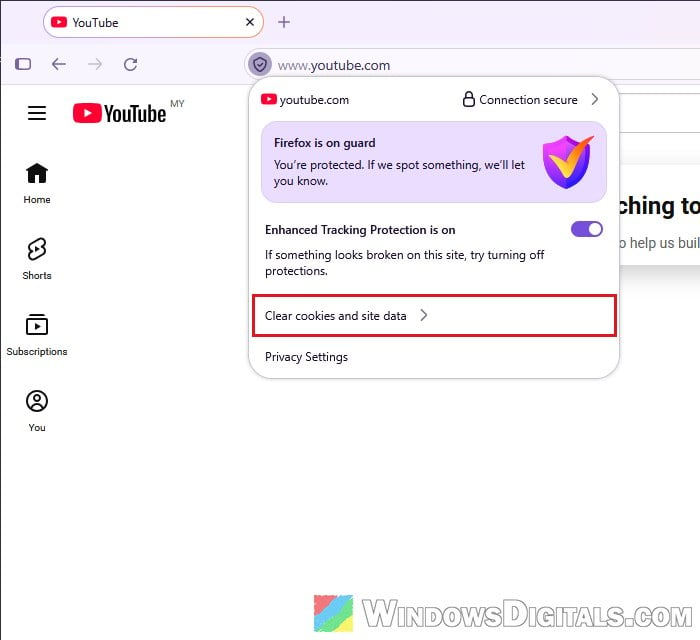
- Click “Clear” to confirm.
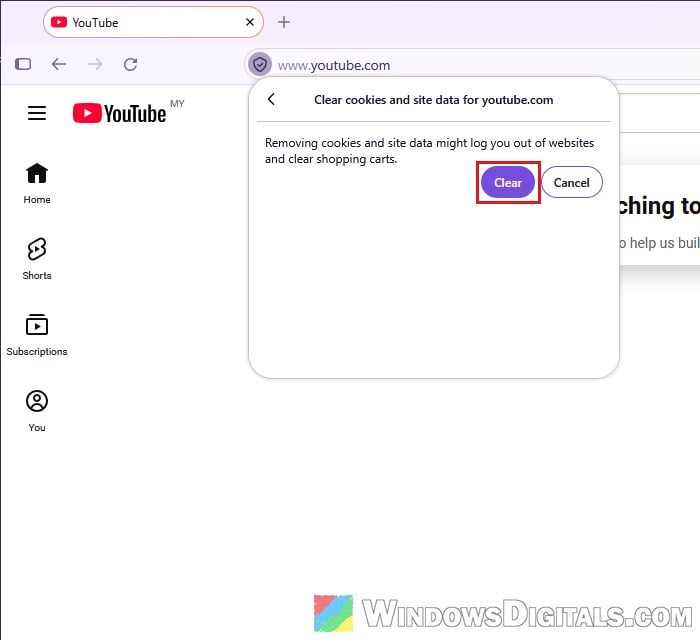
- Reload the page with F5, then sign in to YouTube again if you want.
If you’d rather do it from the settings:
- Click the menu button (three lines) at the top-right and select “Settings“.
- Go to “Privacy and security” and scroll down to “Browsing data“.
- Click “Clear data for specific sites” (a “Manage Cookies and Site Data” window opens).
- Type “youtube” in the “Search websites” box.
- Select “youtube.com” and click “Remove Selected“.
- Click “Save Changes“, then “Remove” to confirm.
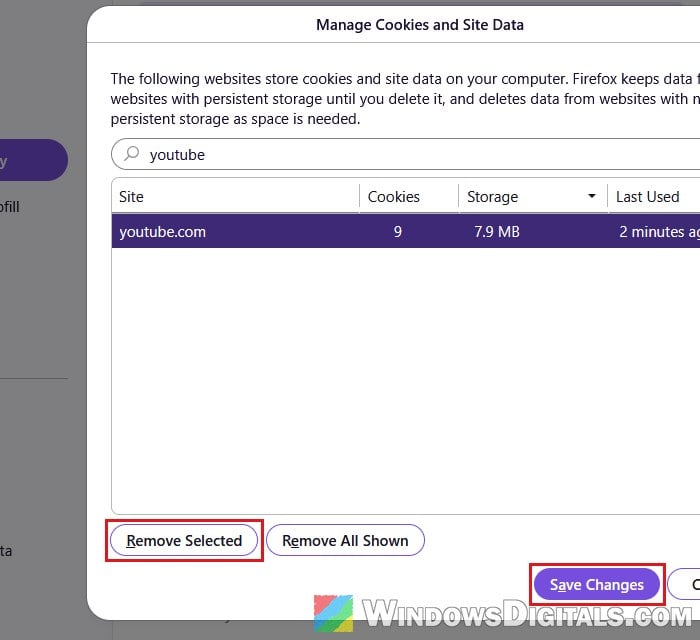
Restart Firefox and open YouTube again. If the blank page is back after a short while, move on to the next fix.
Related guide: How to Clear Cookies in Windows 11
Find the extension that’s breaking YouTube
YouTube is a heavy site that a lot of add-ons like to change: ad blockers, VPN extensions, YouTube “enhancer” add-ons, Shorts converters, and tools that make Firefox pretend to be Chrome. When YouTube changes something on its side, one of these can stop the page from loading at all. A VPN extension or a YouTube add-on that has always worked fine can suddenly be the cause, even if you didn’t change anything.
A quick test is a private window (Ctrl + Shift + P), where extensions usually don’t run unless you’ve allowed them. For a cleaner test, use Firefox’s Troubleshoot Mode, which turns off all extensions and themes for one session:
- Click the menu button (three lines) and go to “Help and Report“.
- Select “Troubleshoot Mode…“.
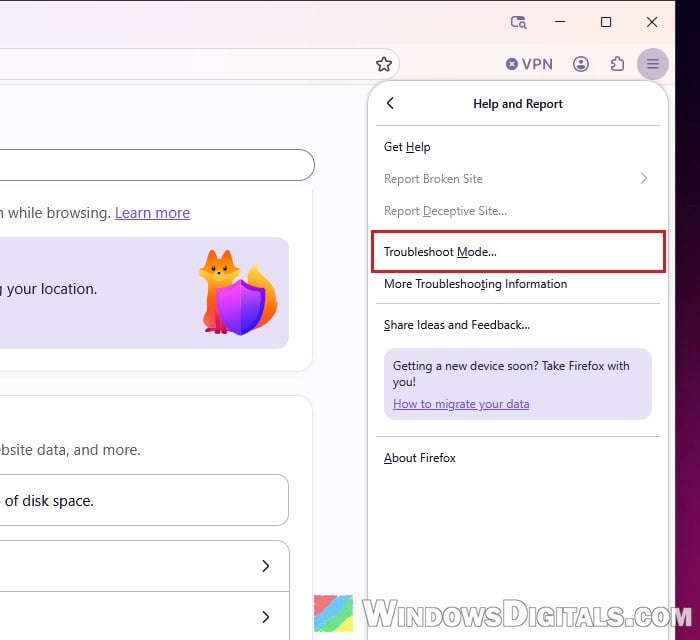
- Click “Restart“, then “Open” when Firefox asks.
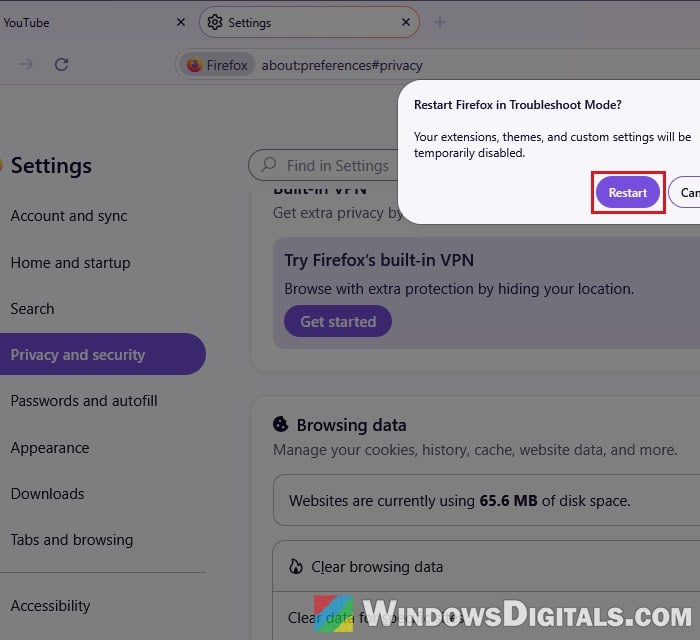
- Open YouTube and see if it loads.
If YouTube works in Troubleshoot Mode, an extension is almost certainly the problem. Close Firefox and open it again normally, then:
- Open the menu (three lines) and select “Extensions and Themes“, or press Ctrl + Shift + F.
- Go to “Extensions“.
- Turn off your extensions one at a time with the toggle next to each, and reload YouTube after each one. Start with the ones that touch YouTube or your connection (ad blockers, VPNs, YouTube tools).
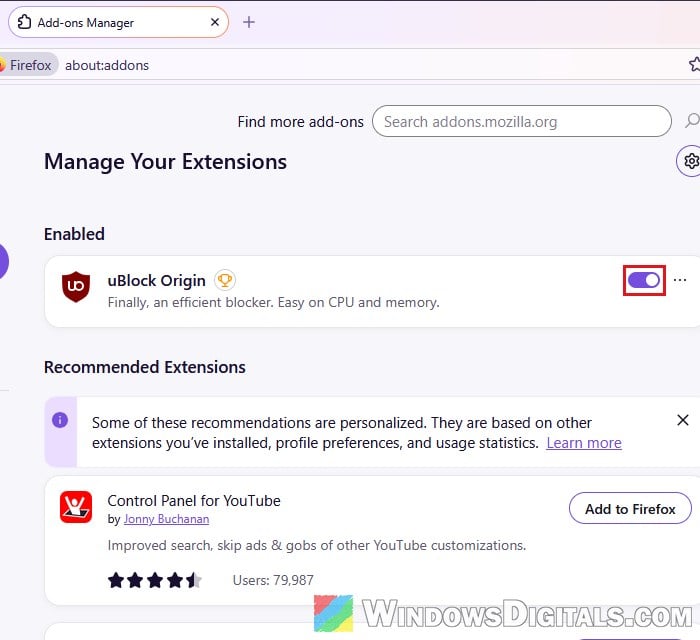
Once you find the one behind it, leave it off or remove it, and check its page for an update later. If the culprit turns out to be your ad blocker, see the next section before giving up on it.
Update uBlock Origin’s filters and turn on its “Annoyances” list
If you use uBlock Origin, you don’t have to give it up. YouTube changes its pages often, and uBlock Origin’s lists get updated to keep up, so an outdated list can leave the page stuck. Updating the lists, turning on the Annoyances filters and then clearing YouTube’s site data again often gets YouTube back.
- Click the uBlock Origin icon in the toolbar, then the gear icon to open its dashboard.
- Go to the “Filter lists” tab.
- Expand “Annoyances” and tick “uBlock filters – Annoyances“.
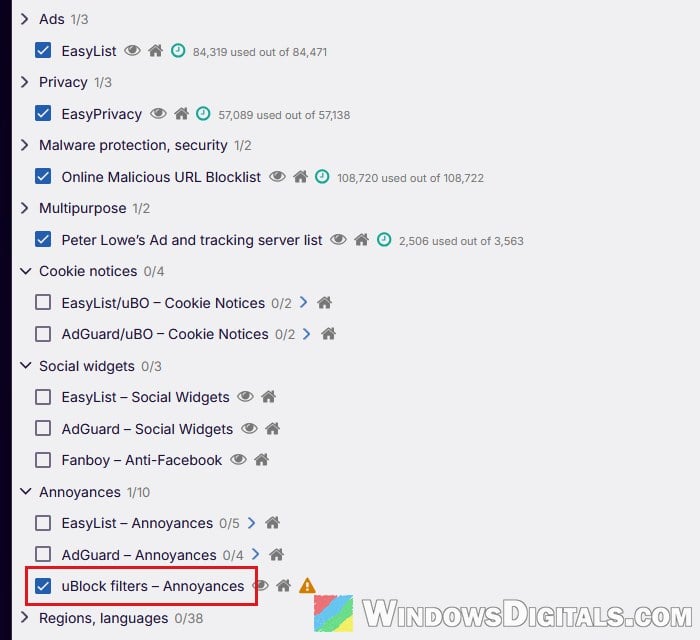
- Click “Apply changes“, then “Update now“.
- Clear YouTube’s cookies and site data again (the first fix above) and reload the page.
YouTube loads, then hangs after a while?
Some people see a slightly different version of this. YouTube works when Firefox starts, but the longer you use it, and the more YouTube tabs you open, the more often a new page stays blank. Restarting Firefox fixes it until it happens again.
It seems YouTube sends lots of background reports back to its own servers, and they use up the few connections Firefox allows to one site at a time, so the actual page has to wait. Blocking those reports in uBlock Origin often clears it up right away. Here’s how to do it:
- Open the uBlock Origin dashboard again and go to the “My filters” tab.
- Add this line on its own:
||www.youtube.com/web-reports$xhr
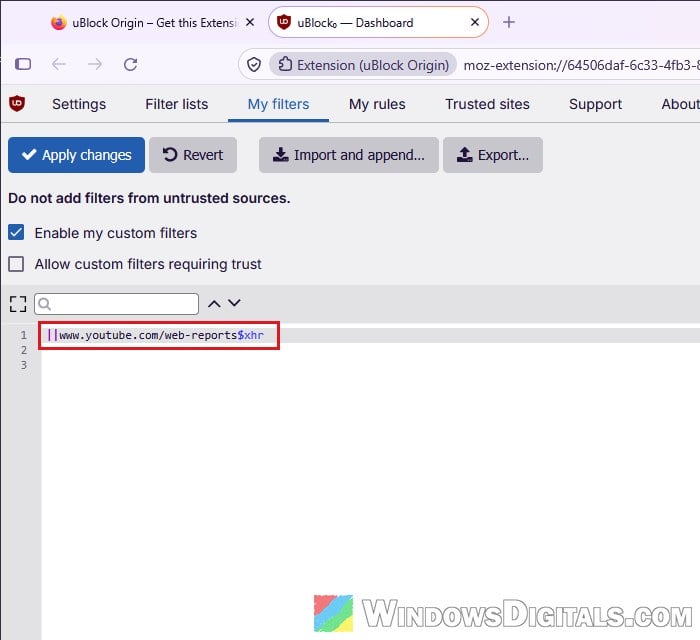
- Click “Apply changes“.
The filter should only block those reports, not anything you see on the page. If it doesn’t help, you can delete the line again the same way.
Turn off Enhanced Tracking Protection for YouTube
Firefox’s Enhanced Tracking Protection blocks trackers and some scripts on the sites you visit. It can sometimes slow YouTube down or keep parts of it from loading, and turning it off for YouTube alone has helped some people.
- Open YouTube in Firefox.
- Click the shield icon (“View site information“) on the left side of the address bar, the same one as in the cookies fix.
- Turn off the switch next to “Enhanced Tracking Protection is on“, then reload the page.
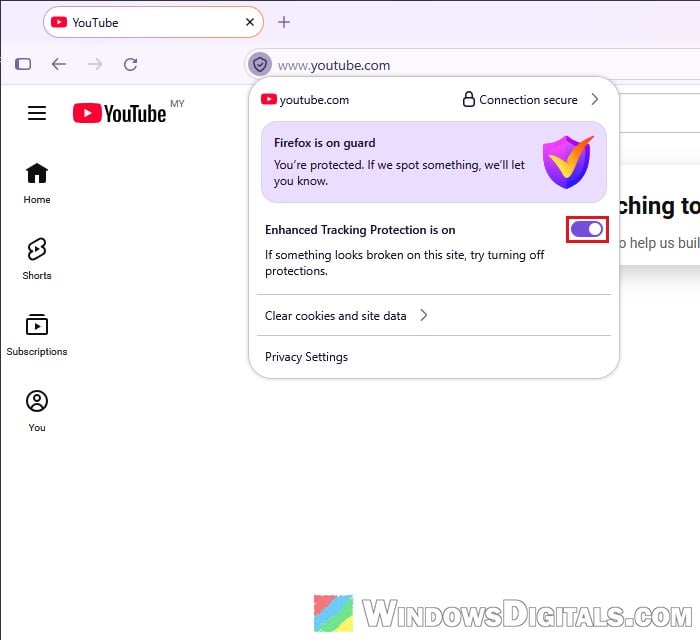
If it makes no difference, turn it back on the same way.
Try a new Firefox profile, or refresh Firefox
If none of the above helped, something in your Firefox profile (the folder where it keeps your settings, extensions and site data) may be damaged. A quick way to check is to make a new, empty profile and open YouTube there. Your current profile isn’t changed or deleted.
- Type “about:profiles” in the address bar and press Enter.
- Click “Create a New Profile“, then “Next“.
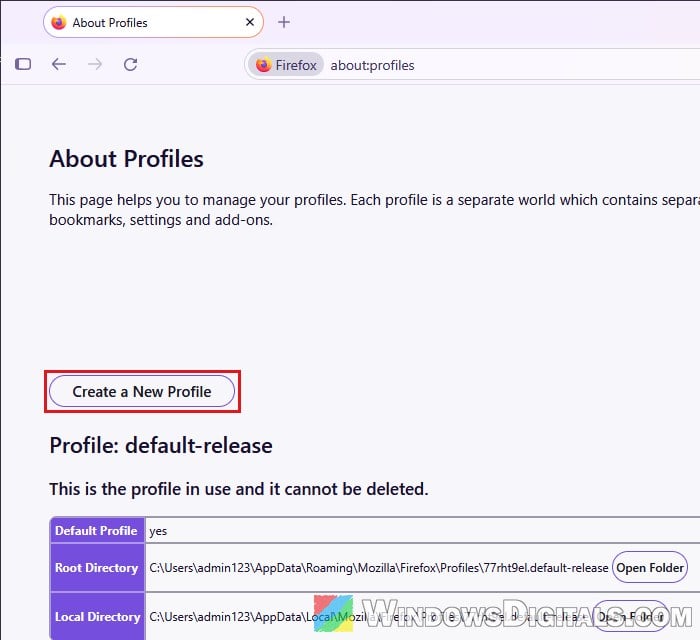
- Give the profile a name and click “Finish“.
- Under the new profile, click “Launch profile in new browser” and open YouTube in that window.
If YouTube works in the new profile, the problem is in your old one, and you can fix it with Refresh Firefox. A refresh removes your extensions and customizations, but your bookmarks and passwords stay:
- Type “about:support” in the address bar and press Enter.
- Click “Refresh Firefox…“, then “Refresh Firefox” again to confirm.
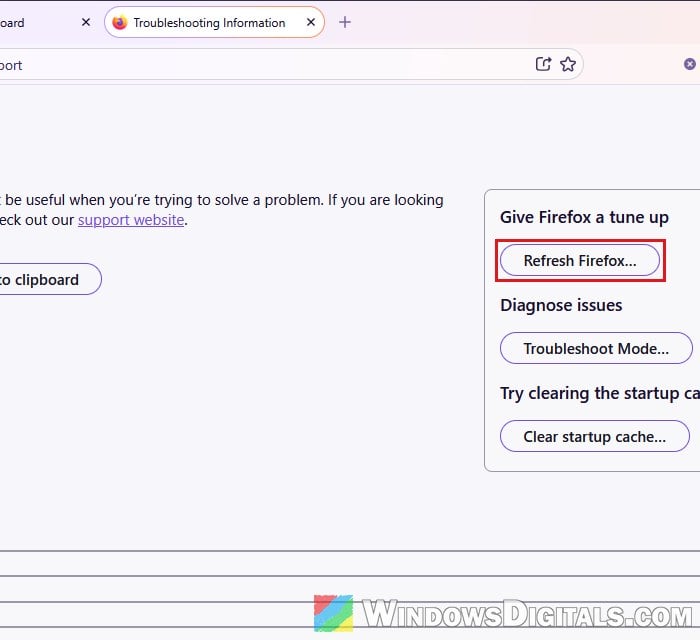
After the refresh, open YouTube first, then add your extensions back one at a time to see if one of them breaks it again.