Firefox keeps your bookmarks, saved passwords, history and extensions in a profile folder on your Windows 11 or 10 PC, and an update isn’t supposed to touch any of it. Sometimes, though, Firefox opens after an update (or after a restart or crash right after one) looking like a brand new install, with all your bookmarks and saved passwords gone. The good news is that in most cases the data is still on your disk, and Firefox is simply using a different, empty profile. This guide will show you how to find your old profile and get your bookmarks and passwords back.
Also see: How to Restart Firefox Browser Without Losing Tabs
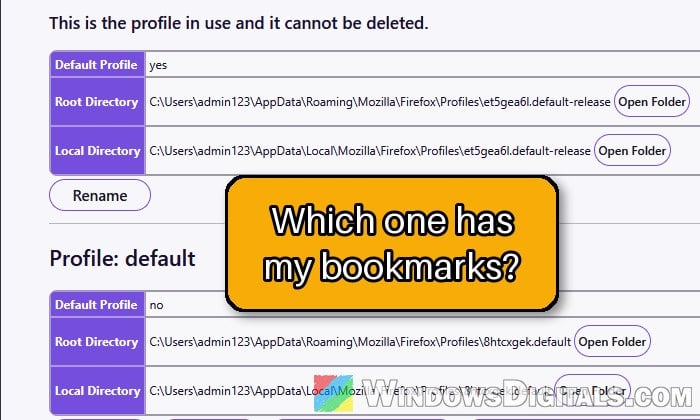
Why did Firefox lose your bookmarks and passwords?
Everything you keep in Firefox lives in a profile, a folder under your Windows user account. When Firefox starts with a different, new profile, there’s nothing in it. Some common reasons for this are:
- A second Firefox installation. Since Firefox 67, each installation of Firefox gets its own profile, and so do Beta, Developer Edition, Nightly and ESR. Firefox tells installations apart by the folder they’re installed in, so if you installed or opened another copy, it starts with a new, empty profile.
- Switching update channels. Moving from Beta to the regular release (or the other way around) also makes Firefox use a separate profile.
- A crash around the time of the update. Some people found their data gone right after Firefox or Windows crashed and restarted.
- A deleted profile. Removing a profile in Firefox’s newer profile menu deletes its data for good, unless you have a copy of the folder (from File History, for example).
In most cases reported by users on Reddit, the old profile folder was still on the disk, so the fixes below start with finding it. Before you copy or change anything, make a copy of your profile folders somewhere safe, just in case.
Check about:profiles for your old profile
If Firefox still lists your old profile, you can open it and make it the default again.
- Type
about:profilesin the address bar and press Enter. - Look through the profiles listed. Each shows its “Root Directory” (where its folder is), and the one in use says “This is the profile in use and it cannot be deleted“.
- On another profile, click “Launch profile in new browser“. A second Firefox window opens with that profile.
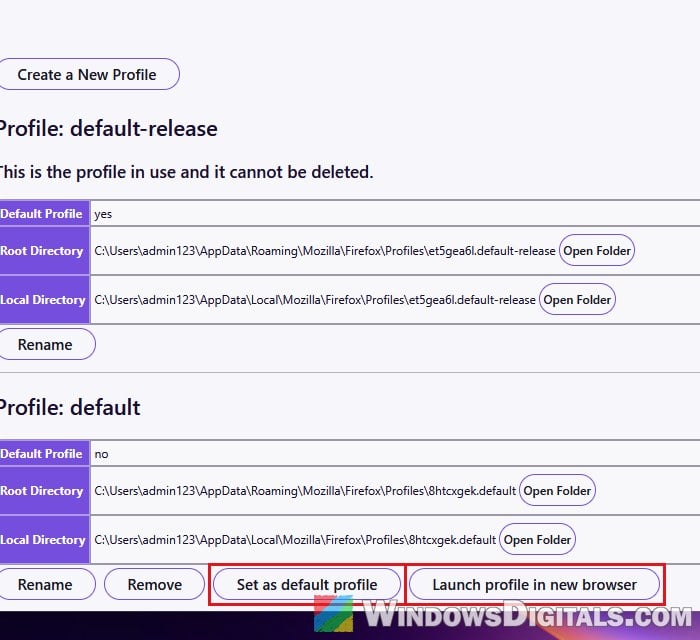
- If your bookmarks and passwords are in that window, go back to
about:profilesand click “Set as default profile” on that profile. If they aren’t, close that window and try the next profile, if there is one. - Close every Firefox window, then open Firefox again.
Firefox should now open with your old profile every time. A new install can add an empty “default” profile, so an empty one is normal. If none of them has your data, the old profile may still be on the disk without being listed here.
Open the Firefox you used before
If you have more than one copy of Firefox installed (the regular Firefox and Beta or Developer Edition, or two copies in different folders), each one opens its own profile. Starting the copy you used before the update opens your old profile with everything still in it.
Check the Start menu and your desktop for another Firefox shortcut and open it. If your bookmarks show up there, keep using that copy, or move the data over as shown below.
Find the old profile folder yourself
When about:profiles doesn’t help, go straight to the folder where Firefox keeps every profile on Windows. Each profile is a folder with a random name followed by something like .default-release (current Firefox) or .default (older versions).
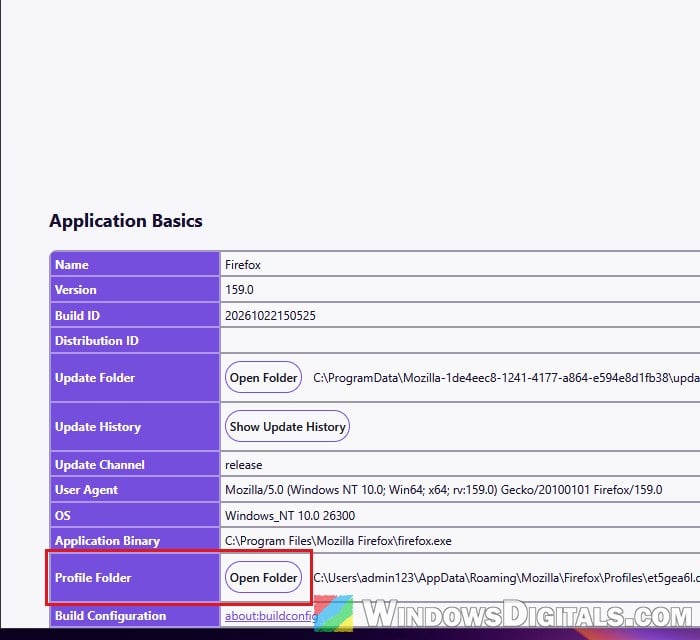
- Type
about:supportin the address bar and press Enter. - Find the “Profile Folder” row and click “Open Folder“. File Explorer opens the profile Firefox is using now. Keep this window open, since that’s where your files will go later.
- Go up one folder, to
Profiles. Every profile folder is in here. You can also paste the following path in File Explorer’s address bar:%APPDATA%\Mozilla\Firefox\Profiles
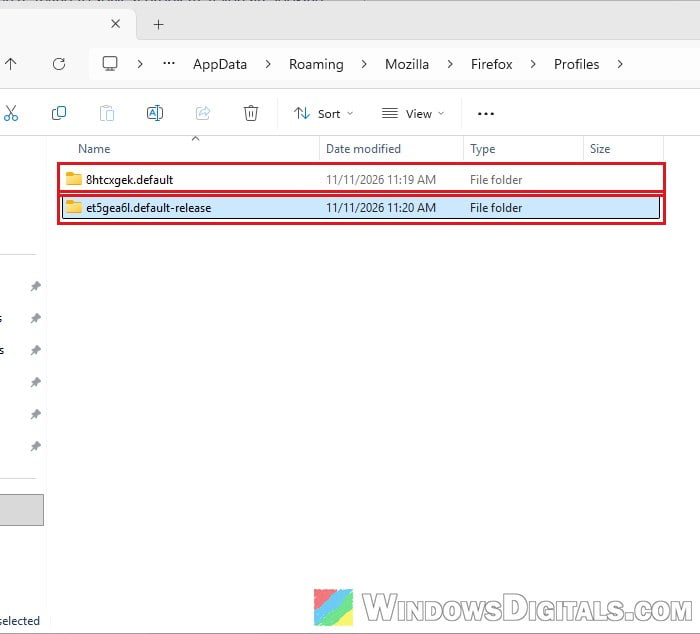
- Open each folder and look at the “Date modified” and size of the files inside, such as
places.sqlite. The folder whose files were last changed before the update is most likely your old profile.
Don’t assume a .default folder is your old profile just because of its name. A new install can create an empty one too.
Copy your bookmarks and passwords into the current profile
Once you’ve found the old profile, you don’t need to copy the whole thing. Mozilla recommends copying only the files you need, a few at a time:
places.sqlite: your bookmarks, downloads and historyfavicons.sqlite: the little site icons for those bookmarkslogins.json: your saved passwordskey4.db: the key Firefox needs to read those passwords
Note: logins.json and key4.db must come from the same profile. If you copy one without the other, Firefox won’t be able to read your saved passwords.
- If you haven’t already, make a copy of the old profile folder somewhere safe.
- Close Firefox completely.
- In the old profile folder, select the files above, then right-click and copy them. File Explorer may hide the extensions, so
key4.dbcan show up as just “key4“, and there may be two files called “logins“. The one you need says “JSON File” under “Type“, not “Data Base File“.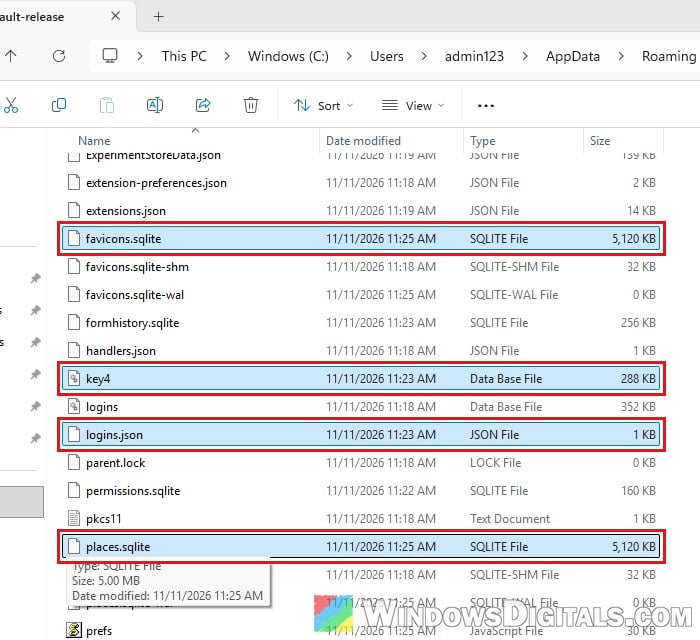
- Open the current profile folder (the one from
about:support), paste the files, and choose to replace the files that are already there. - Open Firefox again.
Your bookmarks, history and saved passwords should now all be back.
Pro tip: How to Show Hidden File Name Extensions in Windows 10 File Explorer
Restore bookmarks from Firefox’s automatic backups
Firefox also saves copies of your bookmarks by itself, in a bookmarkbackups folder inside each profile. If copying places.sqlite didn’t work, or you only care about the bookmarks, you can restore one of those backups instead.
- Press Ctrl + Shift + O to open the bookmarks Library window.
- Click “Import and Backup“, then “Restore“.
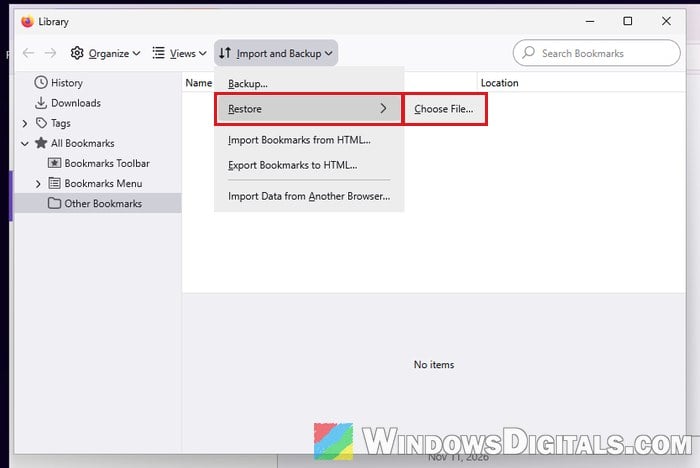
- Pick one of the dated backups from before the update. If the list only has new ones, click “Choose File…” and open the
bookmarkbackupsfolder inside your old profile folder instead. - If Firefox asks you to confirm, go ahead.
Please note that restoring replaces all the bookmarks you have now with the ones in the backup, so anything you bookmarked after the update will be gone.
Might be useful: How to Bookmark All Tabs in Firefox, Chrome or Edge
Look for “Old Firefox Data” on your desktop
If Firefox was refreshed at some point (the “Refresh Firefox…” button on the about:support page), it kept your bookmarks, history, passwords and cookies, and put a copy of the whole old profile in a folder called “Old Firefox Data” on your desktop.
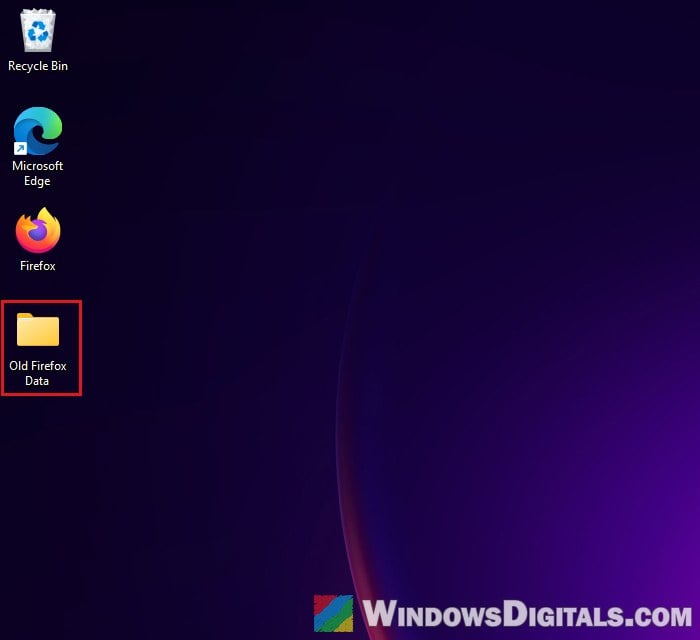
If something didn’t come over after the refresh, open that folder and copy the files you need into the current profile as above, or restore a bookmark backup from its bookmarkbackups folder.
Turn Firefox Sync back on (only if you used it before)
If you used Firefox Sync before the update, your bookmarks and passwords may still be in your Mozilla account. If Sync was never on, there’s nothing to bring back this way.
Be warned: Syncing a new, empty profile can sometimes overwrite what’s stored in your account. If your bookmarks are still in Firefox on another PC or laptop, export them on that PC before you sync this one.
Signing in alone isn’t always enough. After you sign in, check that Sync is on and that bookmarks and passwords are ticked, then sync now.