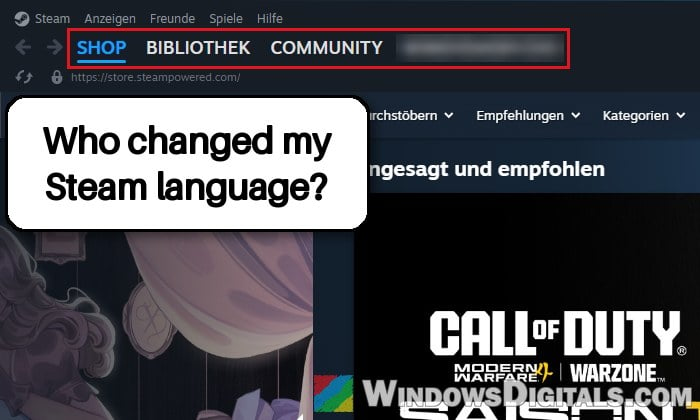
Steam stays in the language you picked and your profile looks the way you left it, so when Steam suddenly shows up in German, Chinese or another language you never chose, your profile name or picture is different, or friends get messages you never wrote, it can mean someone else got into your account, especially when more than one of these happens at once. This guide will show you how to check who’s been in your account and how to lock them out.
Also see: “Windows locked due to unusual activity” Scam
Is your Steam account really hacked?
A language change alone doesn’t always mean a hack. But when it comes with other signs, someone else was very likely using your account. Common signs are:
- The language changed in the Steam app or the Steam Mobile app, to one you can’t read.
- Your profile name or picture changed, or your friends got scam links from you.
- Games were played or achievements earned while you were away, a game ban appeared, or in-game items are gone.
- Friends were removed or blocked, or a friend request went out that you never sent.
- A red Steam alert says your account may have been accessed by someone else, with some features limited. That alert is a real Steam warning, not a scam.
- Emails about a changed password or email address, or you suddenly can’t sign in at all.
To be sure, look at where your account is signed in. In Steam, click your account name at the top right, select Account Details, then open Security & Devices on the left. Scroll down to Authorized Devices: it lists the PCs, phones and browsers your account was recently signed in on, each with a location. Click a device to see when it was authorized.
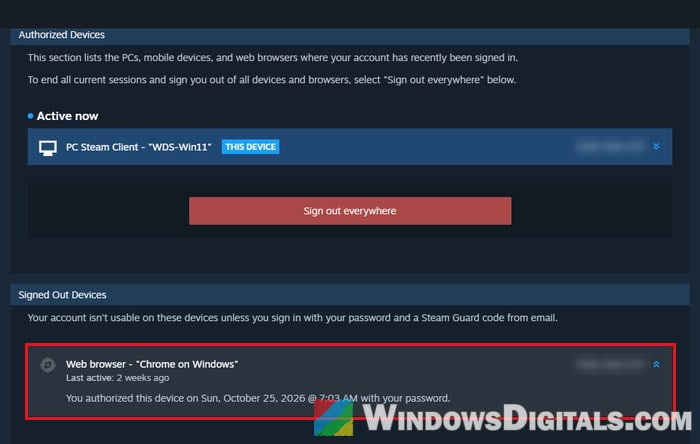
The locations are only approximate, so a device in a nearby city may still be yours. But if you see a browser or PC you don’t own, from a country you’ve never been to, someone else has been in your account.
How did someone get into your Steam account?
A new password won’t last if the way in is still open. The usual ways in are:
- Phishing: a fake Steam sign-in page, reached through a link from a “friend” whose account was already stolen, a fake “Valve employee” in Steam chat or Discord, or a trading or case-opening site. Valve never contacts you through Steam chat.
- Malware that steals your session: fake game cheats, cracked software and “free” emulators or mods often carry an info-stealer. It copies the sign-in data Steam saves on your PC, so the thief gets in without your password and without a Steam Guard code.
- Your email was hacked first: Steam itself says accounts are commonly compromised after the linked email address is.
Scan your PC before changing any password
Steam’s own first step for a stolen account is to scan your computer for viruses and spyware. If a keylogger or info-stealer is still running, it will simply grab your new password too. Here’s how to do it:
- Open Windows Security from the Start menu.
- Go to Virus & threat protection > Scan options.
- Select Full scan and click Scan now.
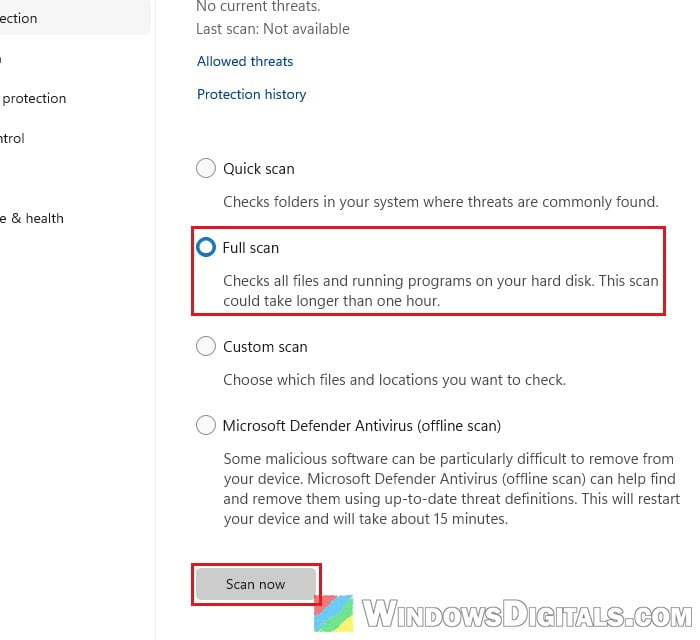
If you (or someone else on your PC) recently ran a game cheat, a crack or any “free” program from a shady site, a scan isn’t really enough. Many people on Reddit say the only safe way to deal with it is a full Windows reinstall from a USB drive made on a clean PC. See: How to Burn Windows 11 ISO to USB. Until the PC is clean, change your passwords from another device you trust, such as your phone.
Pro tip: How to Remove Virus Using CMD in Windows 11 or 10
Secure the email address linked to Steam
Whoever controls your email can reset your Steam password again, so secure it before you touch Steam. Change your email account’s password and turn on two-step verification for it.
Change your Steam password
Once the PC and the email are safe, change your Steam password. If you’re still signed in, go to Account Details > Security & Devices in Steam and click Change password.
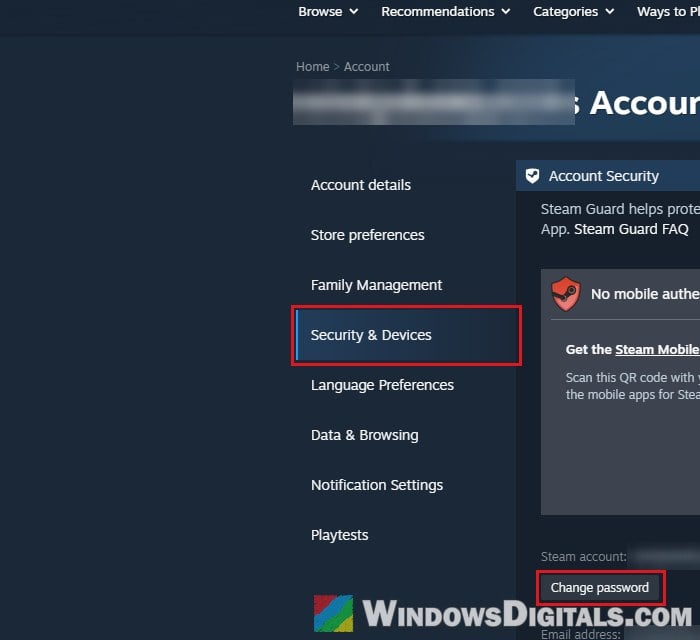
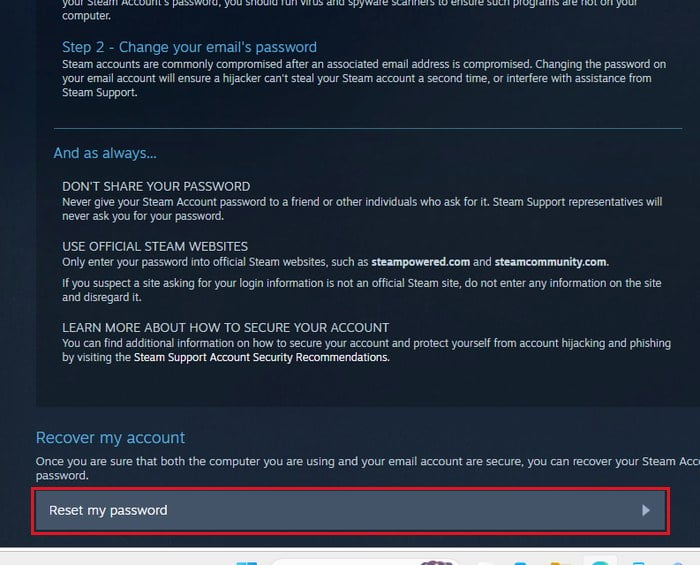
If the thief already changed it, use Steam’s help page for stolen accounts instead: https://help.steampowered.com/en/wizard/HelpWithAccountStolen, with its Reset my password button.
Use “Sign out everywhere” to end every session
Changing the password may not sign out someone who’s already in, especially if they stole your session. Steam’s Sign out everywhere button ends all current sessions and signs your account out of all your devices and browsers. Follow the steps below:
- In Steam, click your account name and select Account Details.
- Go to Security & Devices.
- Scroll down to Authorized Devices and click Sign out everywhere.
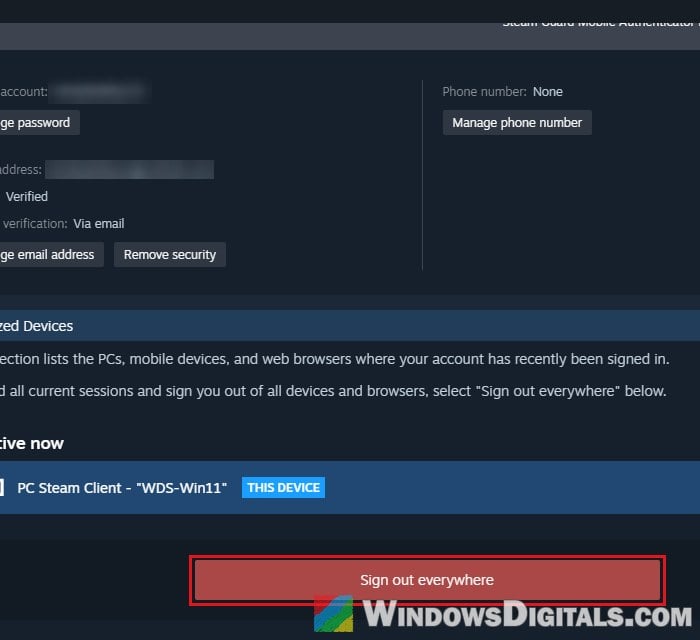
This signs your own PC and phone out too, so sign back in with your new password afterward.
Revoke a Steam Web API key you didn’t create
A thief who got in through a phishing page often registers a Web API key so they can watch and redirect your trades. Go to https://steamcommunity.com/dev/apikey while signed in. If a key with a domain is listed that you didn’t create, click Revoke My Steam Web API Key. If the page says “Access Denied” (Steam shows this on an account with only free games), your account can’t have a key, so there’s nothing to revoke.
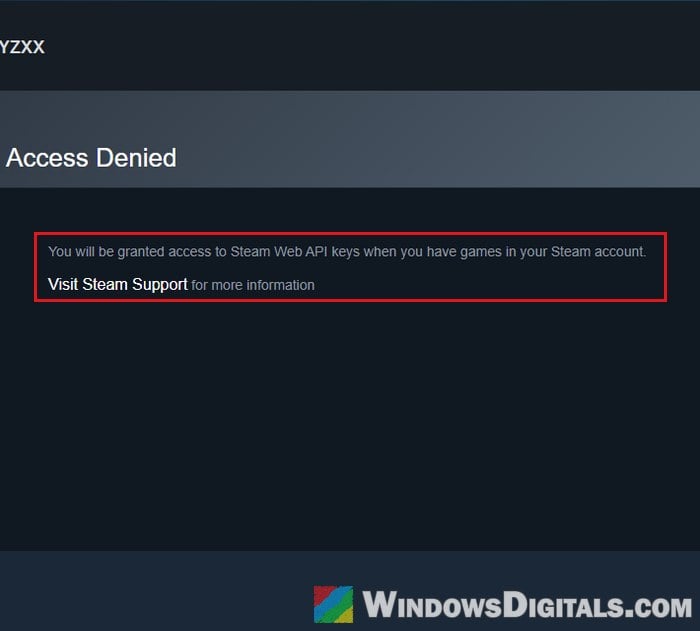
A key that comes back after you revoke it usually means the thief still has access, unless a trading browser extension you installed sets one.
Turn on the Steam Guard Mobile Authenticator
With the Steam Mobile app’s authenticator, the Steam Guard code comes from your phone instead of your email, so a thief who also got into your email still can’t sign in with it. If the Security & Devices page says “No mobile authenticator“, scan the QR code there to get the Steam Mobile app, then set up the authenticator in the app.
Just note that it won’t stop malware that steals your session, since that skips the sign-in entirely. That’s why the scan and Sign out everywhere still matter.
Might be useful: Invalid 2FA Code from Google or Microsoft Authenticator
Change the language and your profile back
Switch the language back in the Steam app’s own settings, since changing it from your profile’s settings may not change the app itself. Here’s what to do:
- Click the Steam menu at the top left.
- Select Settings. If Steam is in another language, it’s the second-to-last item, just above the one that closes Steam.
- Go to Interface.
- Open the Steam Client Language list (the first setting on the page) and pick your language. Each language is listed in its own language, so English is easy to spot.
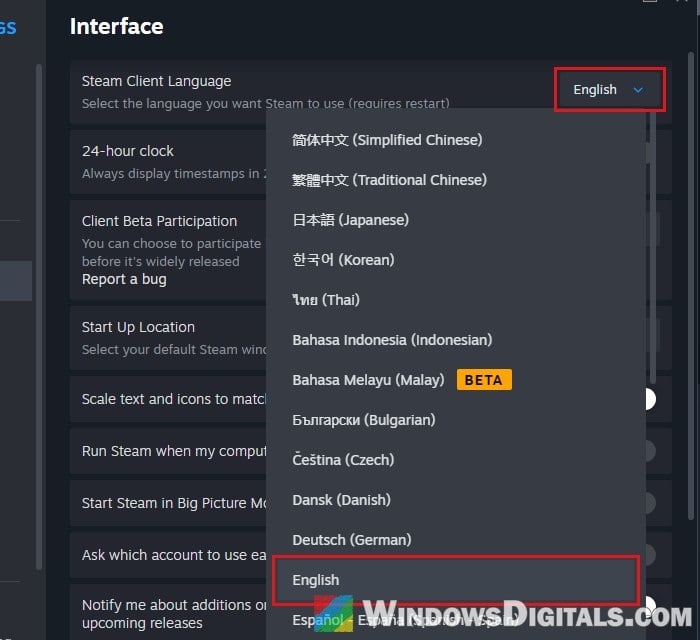
- Click Restart Now.
If your Steam switched to German, go to Einstellungen > Oberfläche, pick English (Englisch) and click Jetzt neu starten.
If the Steam Mobile app changed too, switch it back in the app’s own settings. Then fix your profile name and picture, and tell your friends that any odd messages weren’t from you.
Can’t sign in anymore? Contact Steam Support
Even if the thief changed your password and email, you can still get the account back through Steam Support. Start from Steam’s stolen account help page above, and if self-recovery doesn’t work, open a ticket. Get your proof of ownership ready: the card you paid with, receipts or retail game keys, and any login names and email addresses the account used before.
If the thief got your account banned in a game, mention that in the same ticket. Never pay a “recovery service” that promises to get the account back for you.