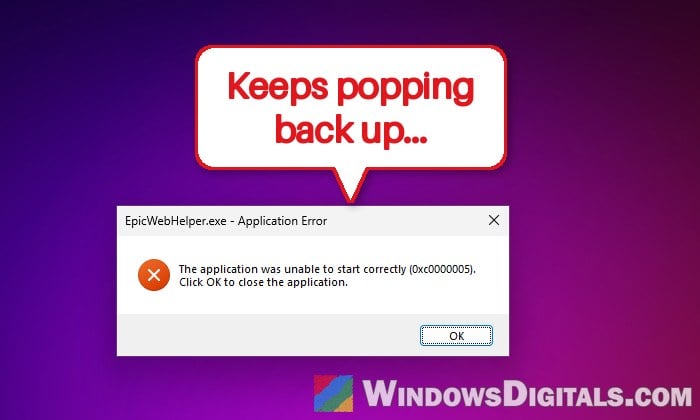
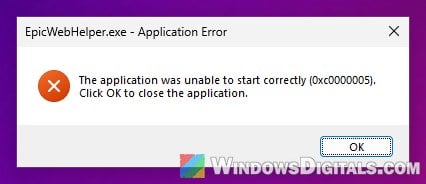
There is a quite common issue with Valorant where, as soon as you launch the game from the Riot Client, a box titled “EpicWebHelper.exe – Application Error” pops up saying “The application was unable to start correctly (0xc0000005). Click OK to close the application.” Clicking OK only brings it right back, over and over, and reinstalling the game, the Riot Client or Vanguard doesn’t make it go away. This guide will help you find what’s blocking the helper and get the game to open again.
Also see: UnrealCEFSubProcess.exe by Valorant High CPU Usage
Why does EpicWebHelper.exe fail when you open Valorant?
EpicWebHelper.exe is a helper program made by Epic Games. Valorant is built on Epic’s Unreal Engine, and the engine uses this helper for its web browser parts, so it gets installed with the game. That’s why you can see it (often several copies of it) in Task Manager while Valorant is running, even if you’ve never installed the Epic Games Launcher. It’s normal, and the real one sits in the Valorant folder (or the Epic Games Launcher’s, if you have it). A copy anywhere else could be malware using the same name.

The error started for a lot of players around mid-November 2026, on PCs where the game worked fine a few days before. The players who got it fixed almost all had a third-party antivirus, mostly Norton 360 and sometimes Avast. Riot itself says that some security programs can wrongly block the Riot Client, Vanguard or game files. Most likely, the antivirus stops EpicWebHelper.exe from starting, Windows shows the 0xc0000005 box, and since the game keeps trying to start the helper, the box keeps coming back.
That’s also why reinstalling doesn’t help, since a fresh copy of the file would get blocked just like the old one. The fix has to happen in the antivirus.
Related problem: VAL 3 Error Code in Valorant: What it Means & How to Fix
Add EpicWebHelper.exe to your antivirus exclusions
This is the fix that has worked for most players on Reddit, and it’s also what Riot recommends when an antivirus gets in the way: add the game’s files to the antivirus’s list of exceptions. You don’t need to turn the antivirus off.
By default, the file should be in this folder:
C:\Riot Games\VALORANT\live\Engine\Binaries\Win64
If you installed Valorant somewhere else, the start of the path will be different. If you can’t find the file there, open your VALORANT folder and search it for “EpicWebHelper.exe“. Only exclude the copy inside the Valorant folder (Riot’s own advice is to never add exceptions for files you don’t recognize).
Norton 360
Here’s how to add an exclusion in Norton, following Norton’s own steps:
- Open your Norton app.
- In the left pane, click Security.
- In the Scans tile, click Open.
- Go to the Exclusions tab and click Add (or Add Exclusion).
- In the Add Exclusion window, click the browse icon, go to the folder above, select EpicWebHelper.exe and click OK.
- Click Add.
Some newer versions of Norton 360 put the same list under Security > Advanced Security > Antivirus > Exclusions instead. The labels can differ slightly between versions, so look for “Exclusions” if yours doesn’t match.
Avast Antivirus
In Avast Antivirus, the same list is called Exceptions (Avast One has its own steps):
- Open Avast and go to Menu (☰) > Settings.
- Select General > Exceptions, then click Add exception.
- If Avast asks a few questions first, read them and click Next, then I understand risks.
- On the File/Folder tab, click the folder icon, go to the folder above, select EpicWebHelper.exe and click OK.
- Click Add.
Other antivirus apps and Windows Security
Any other antivirus has the same kind of list, usually called “Exclusions” or “Exceptions” in its settings. If you only use Windows Security (Microsoft Defender), it’s rarely the cause of this error, but you can add the exclusion there too:
- Open Windows Security and go to Virus & threat protection.
- Under Virus & threat protection settings, click Manage settings.
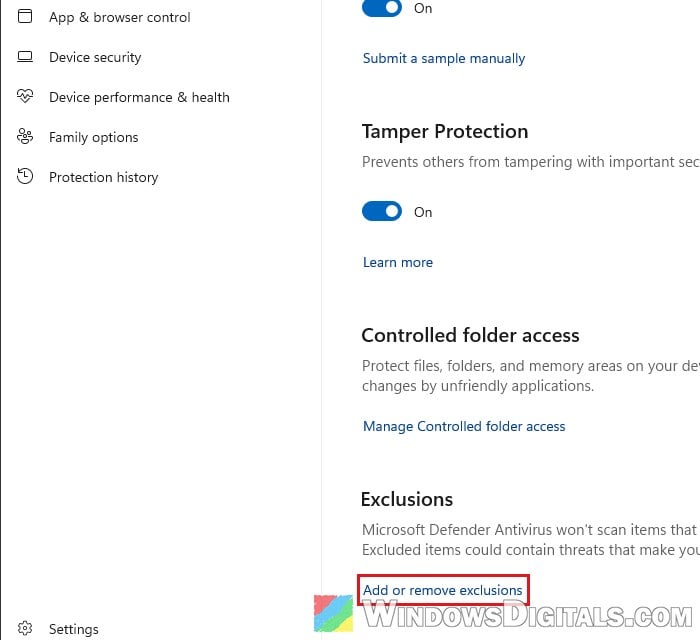
- Scroll down to Exclusions and click Add or remove exclusions (click Yes if Windows asks for permission).
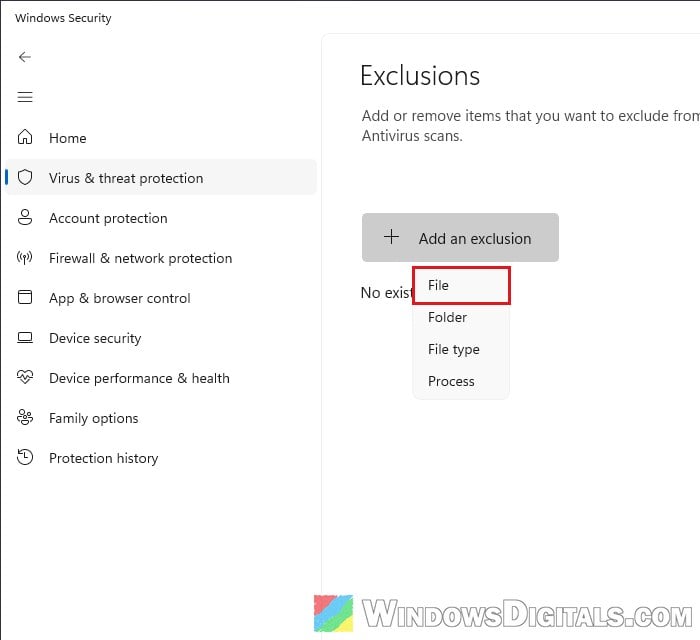
- Click Add an exclusion, choose File, and select EpicWebHelper.exe.
Once you’ve added the exclusion, whichever app it’s in, close the Riot Client completely and open Valorant again. If the box still shows up, restart the PC once and try again.
Might be useful: Explorer.exe Blocked by Windows Defender or Firewall?
Check if the antivirus quarantined a Riot file
If the error is still there, the antivirus might have already moved a Riot or Valorant file into quarantine, so the exclusion alone isn’t enough. Riot suggests checking your antivirus’s quarantine or protection history for a Riot file it flagged by mistake.
In Windows Security, click Protection history in the left pane.
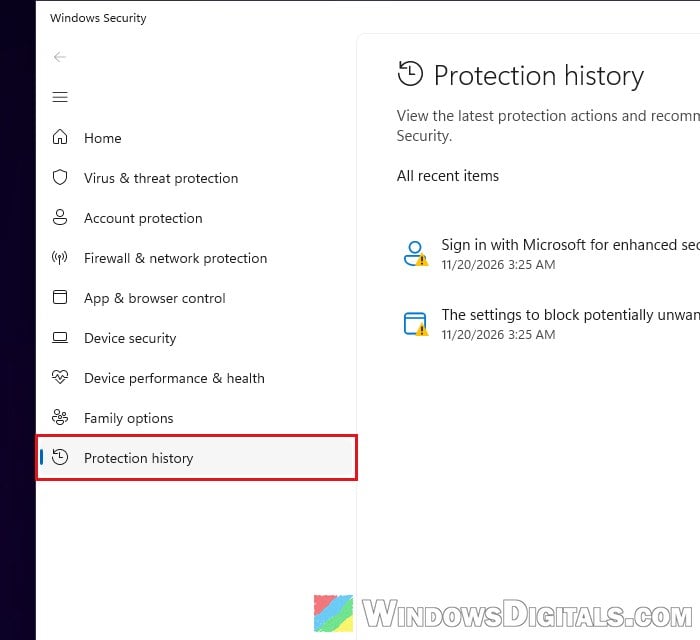
If you see EpicWebHelper.exe or another file from the Riot Games folder there, restore it and add it to the exclusions. Don’t restore a file that the antivirus says is a confirmed threat, and never one that isn’t from the Valorant or Riot folders.
Related concern: Can’t Clear Protection History in Windows 11/10 Defender
Uninstall the third-party antivirus to test
When nothing above helps, the quickest way to be sure the antivirus is the problem is to uninstall it for a while. Turning the antivirus off isn’t always enough, so uninstall it instead of just disabling it.
- Open Settings and go to Apps > Installed apps.
- Find your antivirus, click the three-dot menu next to it, and select Uninstall.
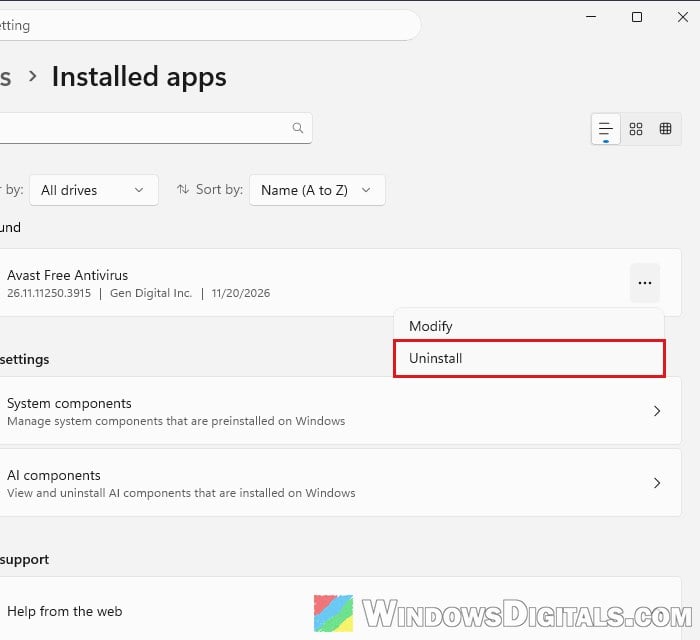
- Follow the uninstaller’s steps, then restart your PC.
- Launch Valorant again.
If the game opens normally now, the antivirus was the cause. You can reinstall it afterward, but ask the antivirus maker’s support how to set it up so it leaves Valorant alone.
Run an SFC scan as a last check
A few players got rid of the error by running the System File Checker, which repairs damaged Windows system files. It’s less likely to help than the antivirus fixes, but it’s harmless and worth a try if you’re still stuck.
- Search for “cmd” in the Start menu, right-click Command Prompt and select Run as administrator.
- Type the following command and press Enter:
sfc /scannow
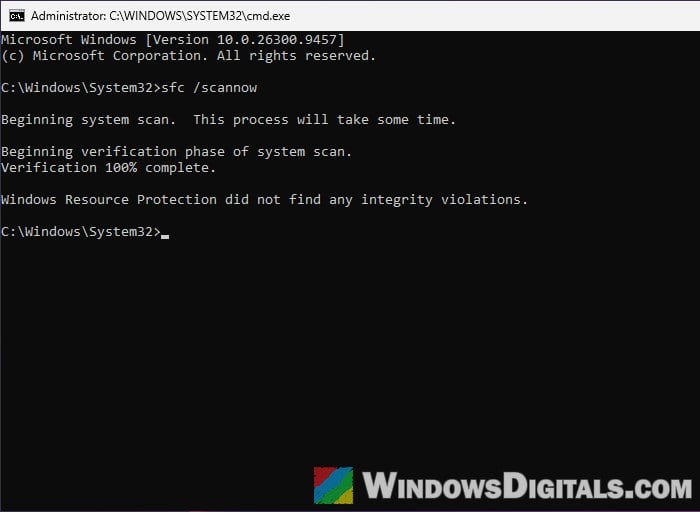
- Wait until the scan finishes, restart your PC, and open Valorant again.
If SFC can’t finish in Windows, you can also run SFC at boot instead.