When you put your PC to sleep and accidentally nudge the desk, you might see the screen come right back on, even though you’ve already unchecked “Allow this device to wake the computer” for the mouse in Device Manager. On some PCs, even a tiny vibration can wake the computer a second after it goes to sleep. This guide will explain why the setting doesn’t seem to work and what you can do to finally stop the mouse from waking your PC.
Also see: Allow Keyboard or Mouse to Wake Computer in Windows 11

Why does the mouse still wake the PC?
There are two main reasons why the wake option doesn’t seem to work:
- The receiver shows up as more than one device. A wireless mouse’s USB receiver usually adds several entries to Device Manager, some of them as a keyboard (Logitech says its receivers present both). If you turned off wake for only one, another can still wake the PC.
- Your PC uses Modern Standby instead of the older sleep mode. Most newer laptops and mini PCs don’t “sleep” the old way (called S3). They use Modern Standby (S0 Low Power Idle), where the PC stays on in a very low-power state, like a phone with its screen off. According to Microsoft, keyboard and mouse input is meant to wake these PCs, and blocking the mouse is left to the PC maker. So on many of them, the Device Manager checkbox simply has no effect.
Less often, the mouse’s software or a USB wake setting in the BIOS is behind it.
Turn off wake for every entry of the mouse and its receiver
Since one receiver can add several devices, you’ll need to uncheck the wake option on each of them, under both the mouse and the keyboard sections. Here’s how to do it:
- Right-click the Start button and select Device Manager.
- Expand Mice and other pointing devices.
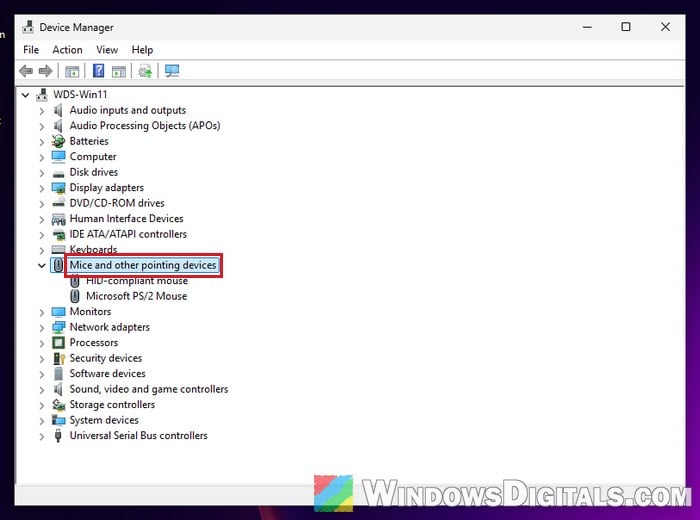
- Right-click the first entry (usually HID-compliant mouse) and select Properties.
- Go to the Power Management tab, uncheck “Allow this device to wake the computer” and click OK.
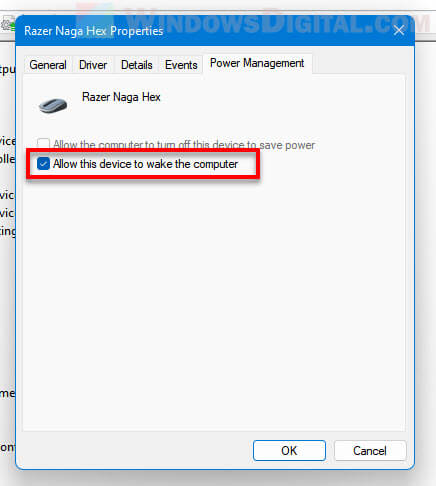
- Repeat this for every other entry under Mice and other pointing devices.
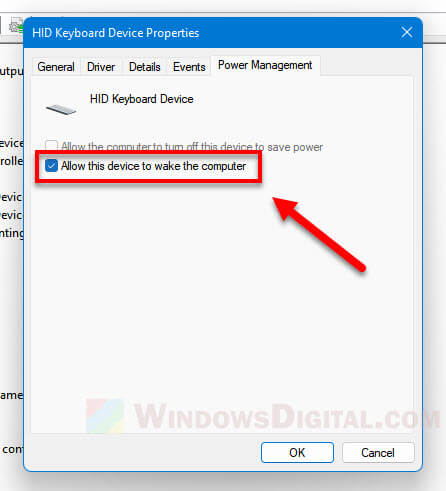
- Expand Keyboards and do the same for every HID Keyboard Device entry that belongs to the receiver. Leave your actual keyboard alone if you still want it to wake the PC.
- To tell which entries belong to the receiver, check Properties > Details > Hardware Ids. For Logitech receivers, the value starts with
HID\VID_046D.
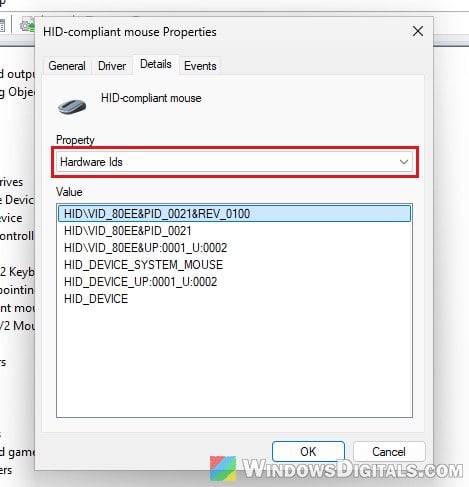
- To tell which entries belong to the receiver, check Properties > Details > Hardware Ids. For Logitech receivers, the value starts with
Then put the PC to sleep, move the mouse and see if it still wakes. Some mice have no Power Management tab at all, or the checkbox is grayed out. If so, use the command in the next section instead.
If it started after an update to the mouse’s software (like Logi Options+), Logitech suggests reinstalling the app, though the problem can return after a restart.
Check which devices can still wake the PC
A built-in command lists every device still allowed to wake the computer, so you can catch an entry you missed:
- Search for “Command Prompt” in the Start menu, then click Run as administrator.
- Type the following command and press Enter:
powercfg /devicequery wake_armed

- For each device you don’t want waking the PC, run this, with its name exactly as listed:
powercfg /devicedisablewake "HID-compliant mouse"
If the list says “NONE” and the mouse still wakes the PC, the device settings aren’t the problem. It usually means your PC uses Modern Standby.
Find out if your PC uses Modern Standby
Newer PCs sleep differently, and that decides which fixes below can work. Here’s how to check:
- Open Command Prompt as administrator again.
- Type the following command and press Enter:
powercfg /a
- Under “The following sleep states are available on this system“, “Standby (S0 Low Power Idle)” means Modern Standby, and “Standby (S3)” means the older sleep mode.
To be sure it’s the mouse, look in Event Viewer > Windows Logs > System for Kernel-Power event 507 from when the PC woke up. It often gives the reason “Input Mouse“.
On an S3 PC, the settings above should normally work. If they don’t, the BIOS setting at the end is worth checking.
Linked issue: Laptop Stuck on Black Screen After Sleep (Windows 11/10)
Use Hibernate instead of Sleep
On a Modern Standby PC, the easiest way around it is to hibernate instead. A hibernated PC saves your work and powers off completely, so in most cases the mouse can’t wake it (unless the BIOS’s USB wake setting covers hibernation too, see the last section). You’ll need the power button to start it, and it resumes a bit slower. Hibernate may be hidden from the power menu, so add it first:
- Open Control Panel and go to Hardware and Sound > Power Options.
- Click “Choose what the power buttons do” on the left.
- Click “Change settings that are currently unavailable“.
- Under Shutdown settings, check Hibernate and click Save changes.
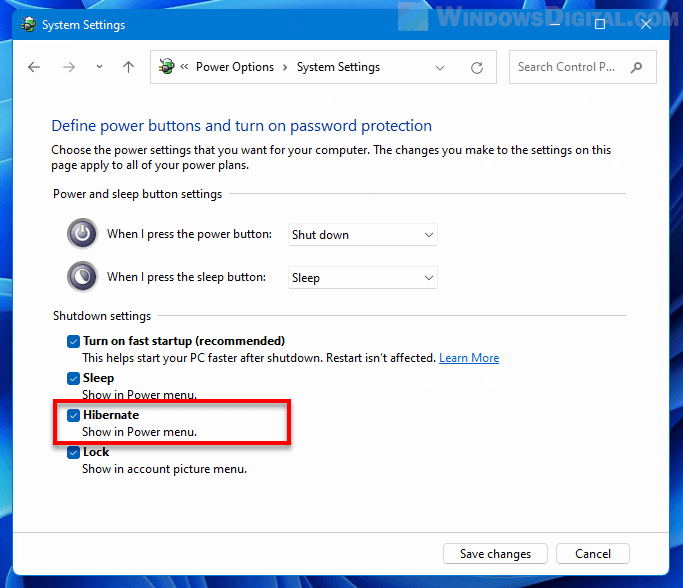
For more detail, see: How to Add Hibernate Option in Windows 11.
Might be useful: How to Change Hibernate Time in Windows 11
Switch the mouse off before you put the PC to sleep
Yes, this might sound a little bit silly, but it’s what a lot of people end up doing, and it works on every PC. Many wireless mice have a power switch. Turn it off, then put the PC to sleep with the keyboard or the power button. If yours has no switch, unplug the receiver instead, or switch a dual-mode mouse to the connection the PC isn’t using.
Pro tip: Sleep vs. Hibernate vs. Hybrid Sleep vs. Shutdown in Windows
Turn off Modern Standby (only if your PC supports S3)
To keep using Sleep, you can turn off Modern Standby so Windows uses the older S3 sleep, where the Device Manager settings should work. For some people, nothing else stopped the mouse from waking the PC.
Be warned: This only works if your PC’s firmware supports S3. If it doesn’t, the PC may crash when it tries to sleep. Then hold the power button to force it off, turn it on and undo the change (command below). Please at least create a system restore point first, and if you’re not sure what you’re doing, it’s better to just get someone to help you instead. Here’s how to do it:
- Open Command Prompt as administrator.
- Type the following command and press Enter:
reg add HKLM\System\CurrentControlSet\Control\Power /v PlatformAoAcOverride /t REG_DWORD /d 0 /f
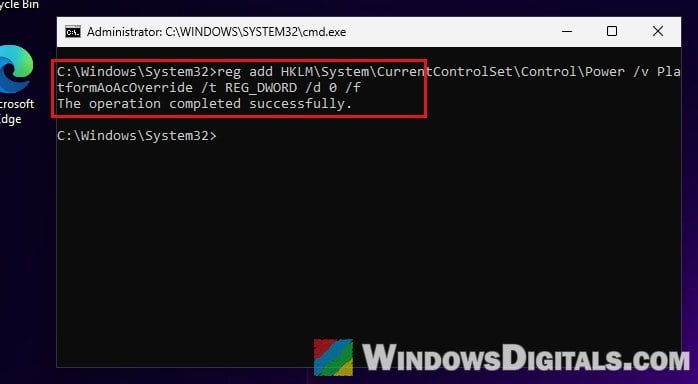
- Restart the computer.
- Run
powercfg /aagain. If “Standby (S3)” is now listed as available, put the PC to sleep and test the mouse.
To turn Modern Standby back on (the default), run this command in an admin Command Prompt and restart:
reg delete "HKLM\System\CurrentControlSet\Control\Power" /v PlatformAoAcOverride /f
Some PCs lose S3 support after a BIOS update (Dell did this on at least one model), so if powercfg /a still doesn’t list S3 after the restart, undo the change and stick with Hibernate.
Check the BIOS for a USB wake setting
Some PCs have a BIOS setting that controls whether USB devices can wake the computer. Dell, for example, says some of its all-in-one PCs turn on when the mouse moves because “USB Wake Support” is on by default. It’s on the BIOS’s Power page (Dell’s steps call it Power Management). Other brands’ BIOS menus differ, so the name and place can vary.
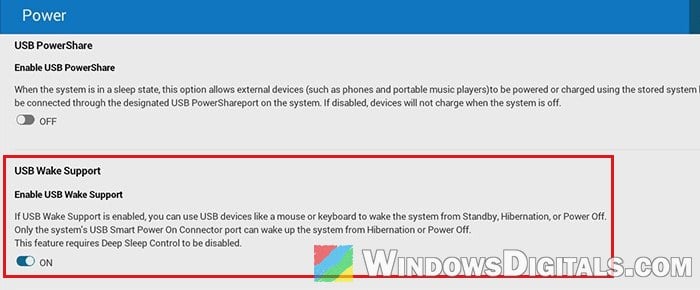
Turning it off can work when Windows can’t, but it may also stop a USB keyboard from waking the PC. Not every PC has this option (some only let you turn whole USB ports on or off), and on some it makes no difference. If yours doesn’t, Hibernate or switching the mouse off are your best options.