SteelSeries GG should open its window the moment you click it, with Sonar and your device settings inside, but sometimes it won’t open at all, or the window (or Sonar) appears for a few seconds and closes. You might also see SteelSeriesGGEZ.exe keep popping up in Task Manager and vanishing again. This guide will help you find what’s stopping GG and get it starting again, from quick fixes to a clean reinstall.
Also see: iCUE Not Detecting RAM, What to Do?
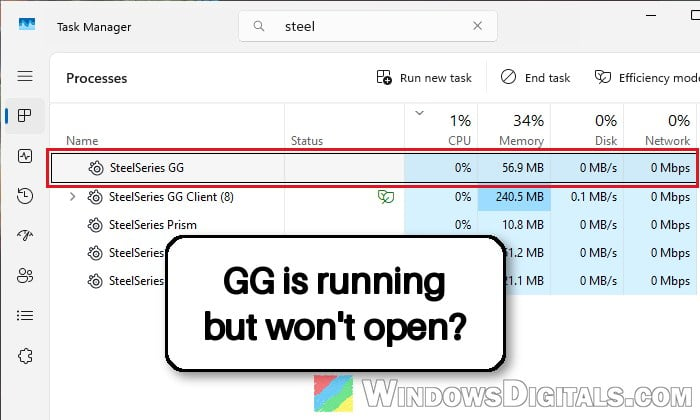
Why won’t SteelSeries GG or Sonar open?
There’s no single cause, but these are the ones SteelSeries names and users keep reporting:
- GG is still running in the background, even with no tray icon.
- SignalRGB closes it. SignalRGB has a setting that closes programs it sees as conflicting, and SteelSeries GG is one of them.
- GG is set to always run as administrator.
- A VPN can keep GG from launching on some PCs.
- A broken install or update. In one case, Event Viewer showed GG crashing at startup because a file it needs for its own database was missing.
Since mid-November 2026, some people have also linked the problem to a SteelSeries driver that came through Windows Update.
Keep in mind that Sonar lives inside GG, so when GG won’t open, Sonar won’t either. The fixes below are the same for both.
Close GG completely and start it again
Even if you can’t see GG’s icon in the system tray, it might still be running. A copy stuck in the background can stop a new one from opening, so the first thing to do is to close every bit of it. If Sonar is the part that won’t load, this also closes Sonar’s background processes, which is what SteelSeries recommends for Sonar too. Here’s how to do it:
- Right-click GG’s icon in the system tray (if you can see it) and close it.
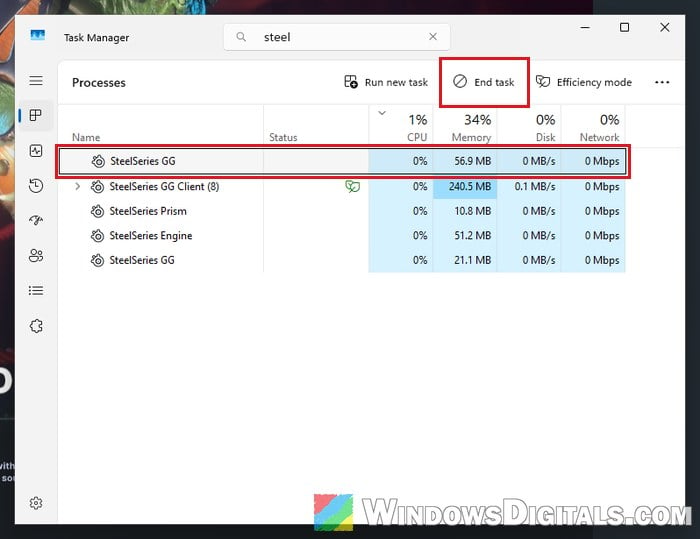
- Press Ctrl + Shift + Esc to open Task Manager.
- On the Processes page, type “steel” in the search box at the top to show only SteelSeries’ processes.
- Select SteelSeries GG and click End task. Do the same for the other SteelSeries processes still listed (SteelSeries GG Client, SteelSeries Engine, SteelSeries Prism, and the second SteelSeries GG entry if there is one).
- Start SteelSeries GG again from the Start menu.
If that doesn’t do it, restart your PC and try again before moving on. It sounds basic, but a restart is part of SteelSeries’ own reset steps for Sonar, and sometimes it’s all GG needs.
Run GG as administrator once
SteelSeries’ own fix when GG won’t open is to run it as administrator one time, then close it and open it normally. Here’s how:
- Close GG fully as in the previous section.
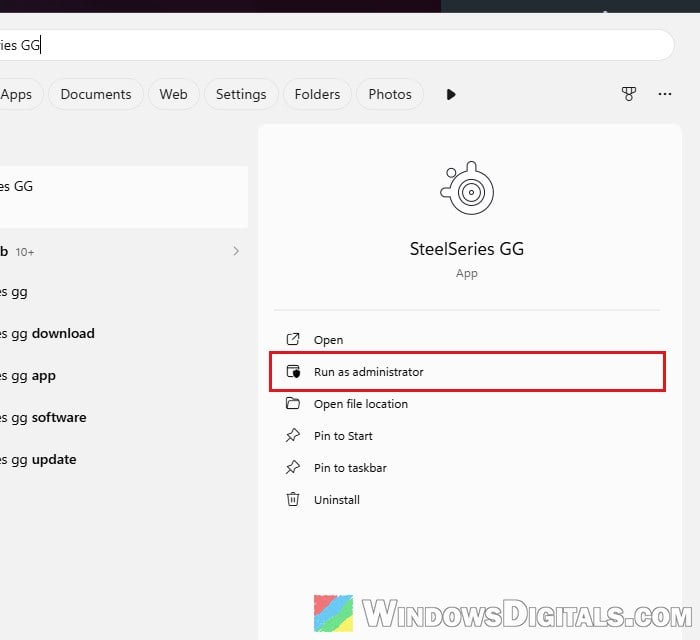
- Press the Win key and type “SteelSeries GG“.
- Click Run as administrator on the right side (or right-click the app), then click Yes.
- Once GG opens, close it fully again with Task Manager.
- Start SteelSeries GG normally and see if its window shows up this time.
Make sure GG isn’t set to always run as administrator
Some guides tell you to tick “Run this program as an administrator” for GG for good. SteelSeries says the opposite: when GG shows up in Task Manager but its window never opens, running it as admin all the time can be the cause. To check:
- Open File Explorer and go to the following path:
C:\Program Files\SteelSeries\GG
- Right-click SteelSeriesGG.exe (with file extensions hidden, it shows as just SteelSeriesGG, type Application) and select Properties.
- Go to the Compatibility tab.
- Make sure “Run this program as an administrator” is unchecked.
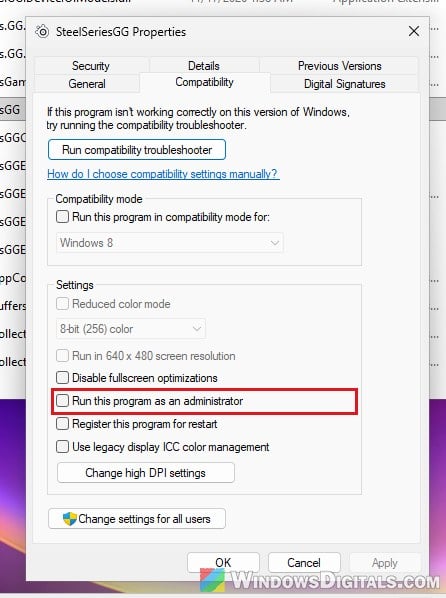
- Click Apply, then OK.
Close GG fully once more and start it again.
Stop SignalRGB from closing GG
If you use SignalRGB to sync your RGB lighting, this is very likely your problem. SignalRGB sees SteelSeries GG as a conflicting application, since both want to control your devices’ lighting, and while SignalRGB is running it closes GG automatically. A SignalRGB update can also switch this back on after you’ve already fixed it.
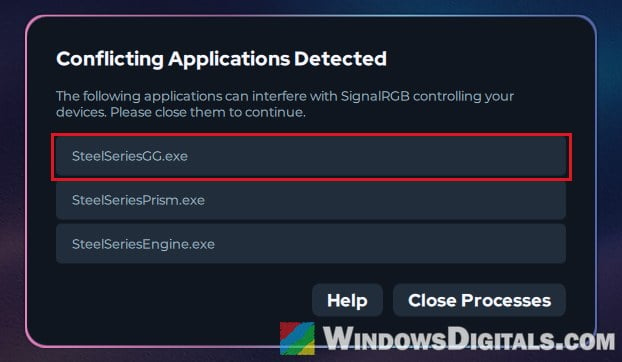
The fix is to tell SignalRGB to leave GG alone:
- Open SignalRGB and click Settings at the bottom left.
- Select Conflicts under Application.
- Scroll down the Conflicting Programs list to the SteelSeries entries.
- Turn on the Prevent Closing toggle for SteelSeriesEngine.exe, SteelSeriesGG.exe, SteelSeriesGGClient.exe and SteelSeriesPrism.exe.
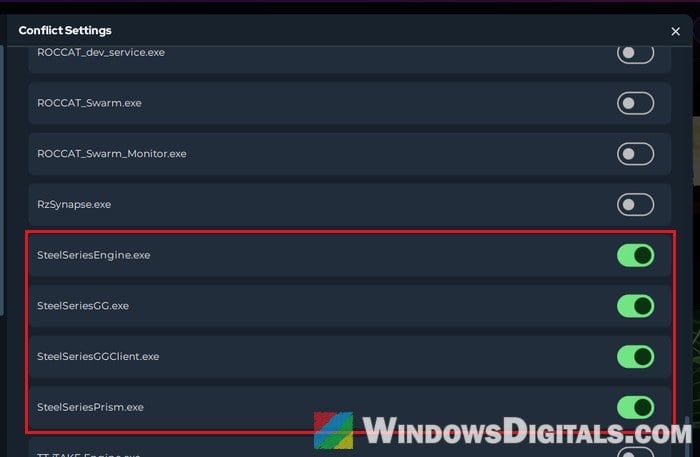
Then start GG again. If you want to rule SignalRGB out quickly instead, just close it completely and open GG.
Related guide: How to Change Color of RGB or ARGB Fans on PC
Add GG to your VPN’s exceptions
SteelSeries also names VPN software as a reason GG won’t launch on some PCs. If you have one, add these files from C:\Program Files\SteelSeries\GG to your VPN’s exception list:
- SteelSeriesGG.exe
- SteelSeriesGGClient.exe
- SteelSeriesGGEZ.exe
If that doesn’t help, uninstall the VPN completely, reinstall GG (next section), and then install the VPN again. Be aware that the VPN may bring the problem back.
Reinstall SteelSeries GG
If GG still won’t open, its install may be broken. Start with the quick way: download the latest GG (from https://steelseries.com/gg, as in step 5 below) and run the installer without uninstalling first. This has fixed it for some, but it doesn’t always last past the next restart.
If it doesn’t stick, do a clean reinstall. Please note that a reinstall can reset your settings, and your saved Sonar presets may be gone afterwards, so take a screenshot of anything you’d want to set up again (EQ, macros, key bindings) if GG opens at all. Here’s how to do it:
- Open Settings > Apps > Installed apps (Apps & features on Windows 10), or search for “Add or Remove Programs” in Start.
- Type “SteelSeries” in the search box, click the three dots (…) next to SteelSeries GG and select Uninstall (on Windows 10, click SteelSeries GG and then Uninstall).
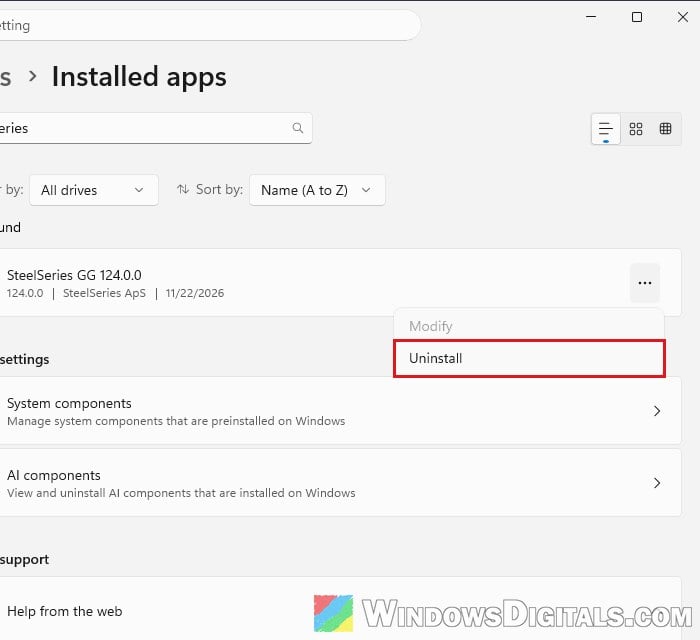
- Restart your PC.
- Delete any old GG installer files you downloaded before.
- Go to
https://steelseries.com/ggand click the Free Download button with the Windows logo to get the latest GG.
- Run the installer, then open GG as administrator once, as described above.
A clean reinstall has gotten GG opening again for many people, though not for everyone. If it still won’t open and the problem started in mid-November, check the next section first. Otherwise, contact SteelSeries support at https://support.steelseries.com.
Linked issue: Windows Cannot Find unins000.exe on Windows 11
Did it start after a SteelSeries driver from Windows Update?
In November 2026, Windows Update offered some PCs a driver called “SteelSeries ApS Extension Driver Update“. Some people found GG stopped opening after it installed, in one case on every PC in the house, and reinstalling GG didn’t bring it back. SteelSeries hasn’t confirmed any link, and the same driver installed with no problems on other PCs.
To check whether it installed on your PC, go to Settings > Windows Update > Update history (on Windows 10, Settings > Update & Security > Windows Update > View update history) and expand Driver Updates. If it installed, it shows up there by that name.
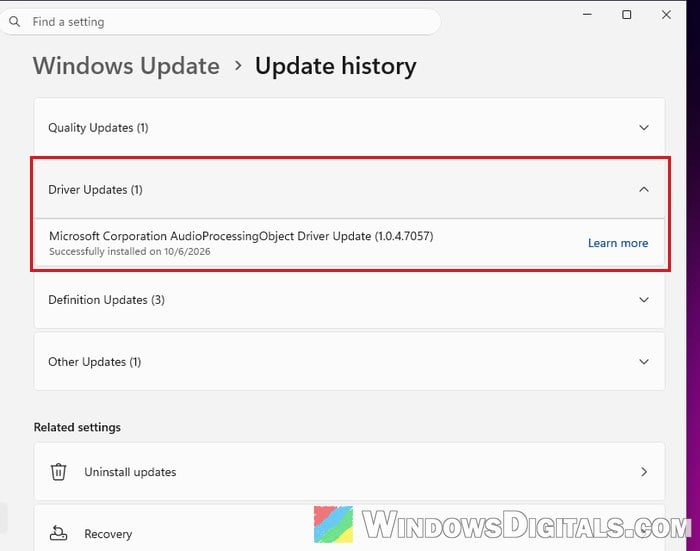
If it’s there and GG broke at the same time, open a ticket with SteelSeries support at https://support.steelseries.com and list your setup when you write to them. If you have other PCs that haven’t installed the driver yet, you can pause Windows Update on them for now.