There is a strange problem in League of Legends where the client opens normally, but the Play button stays greyed out and hovering over it shows “Vanguard session is initializing.” It can sit like that for minutes or even hours, often right after a VAN 185 or VAN 84 error, and you can’t queue for anything until it clears. This guide will look into why it gets stuck and how to get Vanguard loading again.
Also see: Vanguard Error VAN 57 in League of Legends
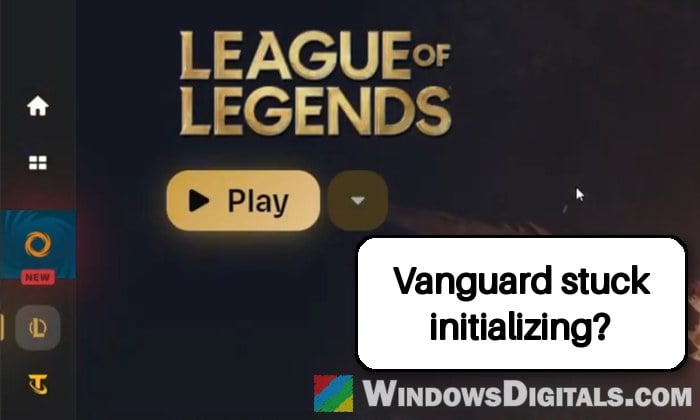
What does “Vanguard session is initializing” mean?
Riot doesn’t have a support page for this exact message, but it most likely means League is still waiting for Riot Vanguard, its anti-cheat, to finish starting and confirm your PC is ready. Vanguard runs as a Windows service called vgc alongside a driver called vgk, which normally loads while Windows boots. If one of them gets stuck, the client can end up waiting indefinitely.
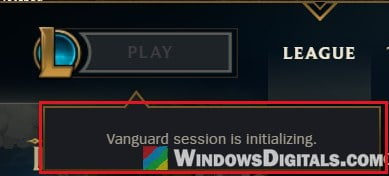
You’ll often see the message right after another Vanguard error:
- VAN 185, at the end of a match or in the middle of one. Riot says it usually points to a session or connection issue between the game, the Riot Client and Vanguard.
- VAN 84, when you restart the client. According to Riot, Vanguard either couldn’t verify that your PC is ready or ran into a problem while initializing.
- VAN 57, which some players get in a loop with this message.
Close everything and do a full restart
Since the vgk driver normally loads when Windows boots, a restart is what clears the message for many players, especially right after VAN 185. Restarting just the vgc service may not be enough.
Make sure you choose “Restart” and not “Shut down“. With Fast Startup, which Windows uses by default, Shut down saves the kernel and drivers to disk and loads them back on the next boot. Restart always does a full boot, so Vanguard’s driver gets a clean start.
- Close League of Legends.
- Right-click the Riot Client icon in the system tray and exit it.
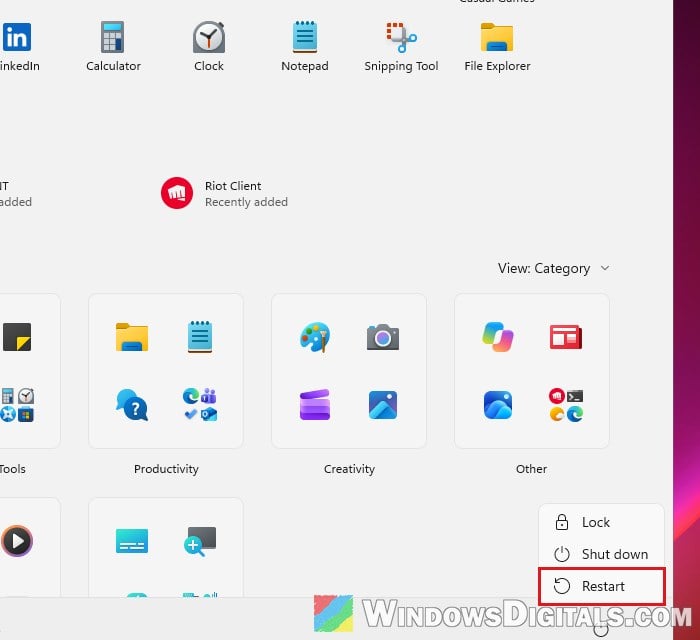
- Open the Start menu, click the power icon and select “Restart“.
- Once Windows is back, open the Riot Client and launch League.
If Play works again but the message returns after every match, it’s probably tied to VAN 185, so keep going with the fixes below.
Log out of the Riot Client on your other PCs
Riot says being signed in on another PC can sometimes cause session conflicts. If you’ve also used your account on a second desktop or a laptop, open the Riot Client there, log out, and then try League again on this one.
Set the vgc service to Automatic
The vgc service should start along with Windows. If it’s on “Manual” or has stopped, League may be waiting for something that isn’t running. The exception is Vanguard Pre-Check, which runs Vanguard on demand, so if you use it, skip this section.
- Press Win + R, type “services.msc” and press Enter.
- Find “vgc” in the list and double-click it.
- Set “Startup type” to “Automatic“.
- If “Service status” says “Stopped“, click “Start“.
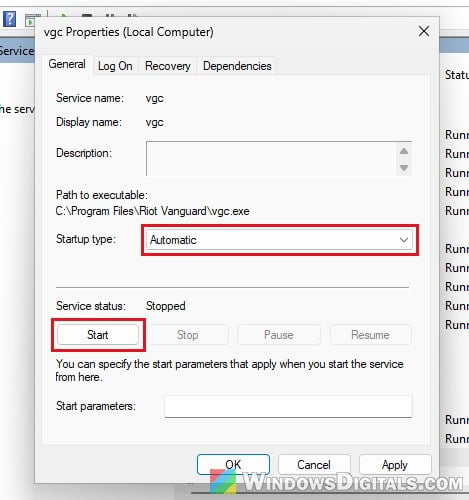
- Click “Apply“, then “OK“.
- Restart your PC.
Then open League and hover over “Play” to see if the message is gone.
Might be useful: Services.msc “Startup Type” Greyed Out in Windows 11 or 10
Delete vgkbootstatus.dat
For a close relative of this problem, the locked Play button that asks for a system restart, Riot’s fix is to delete a small file called vgkbootstatus.dat, which holds Vanguard’s last boot state.
- Open File Explorer and go to
C:\Windows. - Find
vgkbootstatus.datand delete only that file.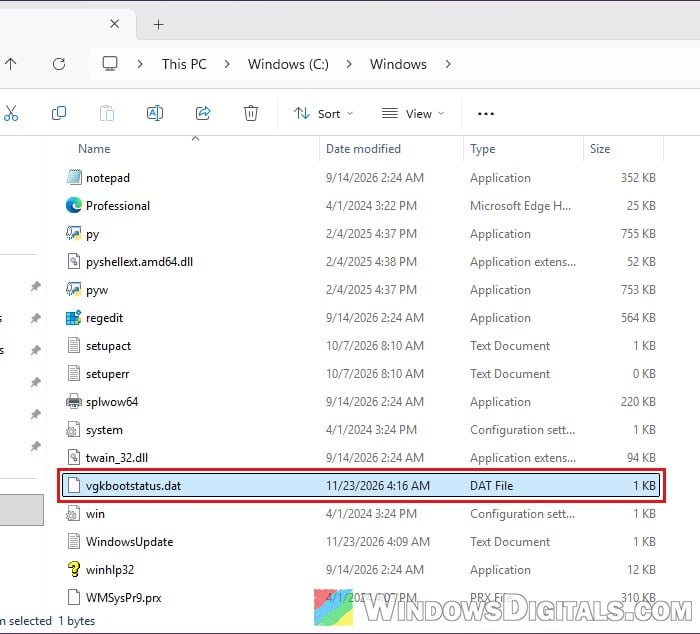
- Restart your PC and open League again.
Remove Vanguard and let the Riot Client reinstall it
If Vanguard itself is in a bad state, removing it and letting the Riot Client install it again can clear the message. It doesn’t work for everyone, but it’s one of Riot’s main steps for both VAN 185 and VAN 84.
- Close League, then exit the Riot Client from the system tray.
- Right-click the red “Riot Vanguard” icon in the system tray, select “Exit Vanguard” and click “Yes“.
- Open Settings > Apps > Installed apps, find “Riot Vanguard“, click the three dots and select “Uninstall“.
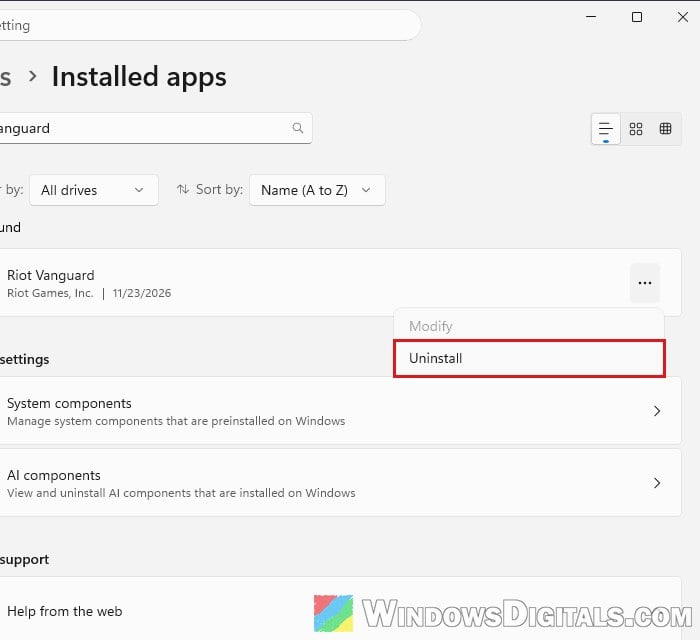
- Restart your PC.
- Open the Riot Client and launch League. Vanguard reinstalls by itself.
- When it’s done, restart your PC again before you press Play, so the driver can load at boot.
Once you’re back in Windows, check whether “Play” is available again. If Vanguard refuses to uninstall, the VAN 57 guide shows how to remove it by hand.
Related problem: vgk.sys Blue Screen (Riot Vanguard) in Windows 11
If it follows VAN 185, turn off Teredo
This one isn’t on Riot’s support pages, but several VALORANT players on Reddit who kept getting VAN 185 with vgc stopping by itself got rid of it by turning off a Windows network interface called Teredo. VALORANT and League use the same Vanguard, so it’s worth a try if VAN 185 keeps coming before this message. It doesn’t work for everyone.
- Open Command Prompt as administrator.
- Type the following command and press Enter:
netsh interface teredo set state disabled
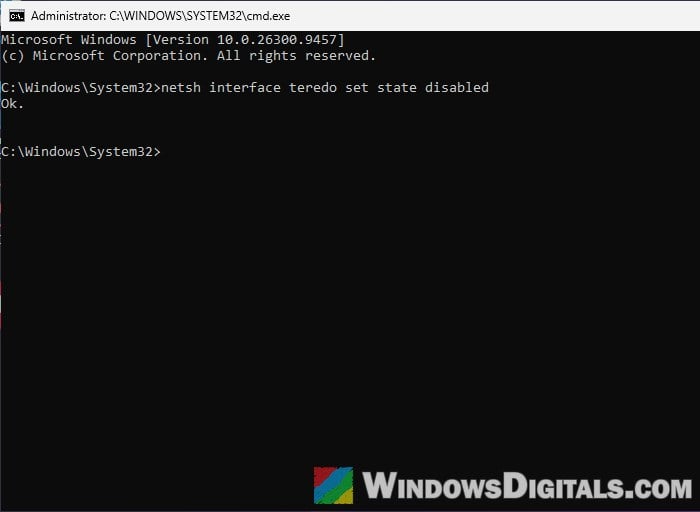
- It should reply with “Ok.” Then try League again.
If it makes no difference, put Teredo back to its default with this command:
netsh interface teredo set state default
Do a clean boot to find what’s getting in the way
If the message keeps coming back, another program may be interfering with Vanguard. Riot names antivirus and other security apps, network tools, overlays and screen recorders. With VAN 185 in VALORANT, HP’s OMEN Gaming Hub and its FPS boost feature were behind it on a couple of Victus laptops, for example.
- Press Win + R, type “msconfig” and press Enter.
- Go to the “Services” tab and check “Hide all Microsoft services” first.
- Click “Disable all“, then find “vgc” and check its box again. Without it, Vanguard can’t start.
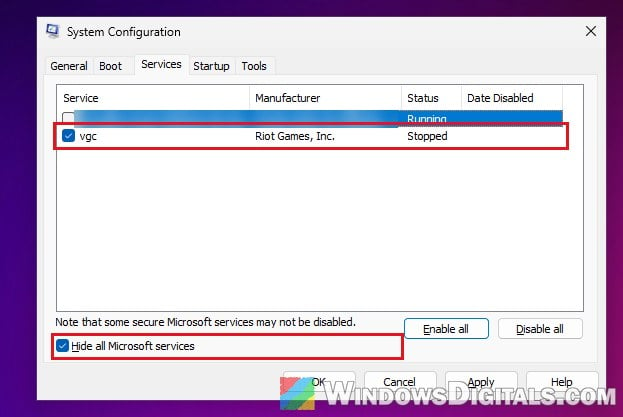
- Click “Apply“.
- Go to the “Startup” tab, click “Open Task Manager” and disable each startup app, noting which ones were enabled.
- Click “OK” in System Configuration and restart your PC.
If Play works now, turn the services and startup apps back on one at a time, restarting after each, until the message returns. The last one you turned on is the culprit. If nothing changed, turn them all back on the same way.
Linked issue: League of Legends Keeps Switching Between Updating and Play
Reinstall League or contact Riot
As a last step, reinstall League of Legends to replace any corrupted or missing game files. With the Riot Client closed, uninstall “League of Legends” from Installed apps, then get it again from https://www.riotgames.com/.
If the Play button is still locked after that, submit a ticket to Riot Player Support and attach your logs. Mention the message, any VAN code you saw before it, and what you’ve already tried, so they don’t send you back through the same steps.