When you try to sign in or launch a game in League of Legends, you might see “Vanguard Error: VAN 57. An unexpected error with Vanguard has occurred and the client will now close.” It usually means Riot Vanguard, the anti-cheat, isn’t running when the game checks for it, and it can keep coming back even after you reinstall everything. This guide will show you how to get Vanguard starting properly again and how to find a program that might be stopping it.
Also see: Valorant VAN -81 Error and Vanguard Won’t Start
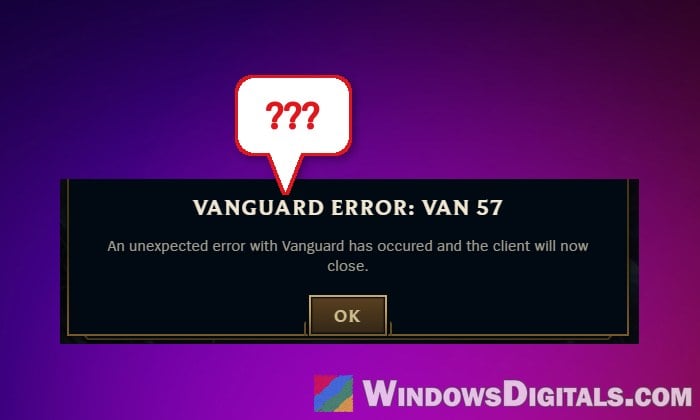
What does VAN 57 mean?
VAN 57 shows up in League of Legends, but VALORANT and other Riot games use the same Vanguard and can show it too. Some players get it right after a patch, sometimes after a different VAN code first.
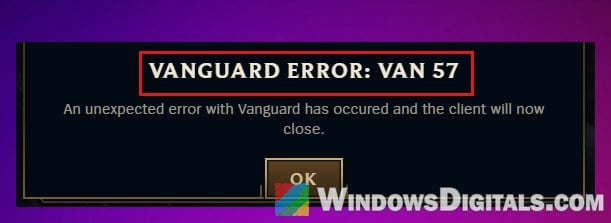
Vanguard has two parts: a driver called vgk that loads while Windows boots, and a Windows service called vgc. According to Riot, VAN 57 means one of them isn’t running or couldn’t start correctly when League checks for it. The usual reasons are:
- The vgc service is set to Manual, so it doesn’t start with Windows.
- Vanguard’s install is in a bad state, often after a patch or a reinstall that wasn’t followed by a real restart.
- Another program stops or blocks Vanguard, such as security software, a VPN or a device app running in the background.
If there’s no vgc service on your PC at all, Vanguard isn’t installed, which is a different problem covered in Valorant VAN -83 Error and Riot Vanguard Won’t Install.
Set the vgc service to Automatic and restart
This is Riot’s first step, and it’s the one that got several players on Reddit past VAN 57. Vanguard is meant to start along with Windows, so if its service sits on “Manual“, it may simply not be running yet when you launch League. The only exception is the optional Vanguard Pre-Check, which starts Vanguard on demand when a game opens. It needs Windows 11 25H2 or newer with Secure Boot, TPM 2.0 and a few other security features turned on, and Vanguard’s tray tool tells you whether your PC can use it. If you use it, vgc doesn’t have to start with Windows, so you can skip to the next section.
- Press Win + R, type “services.msc” and press Enter.
- Find “vgc” in the list and double-click it.
- Set “Startup type” to “Automatic“.
- If “Service status” says “Stopped“, click “Start“.
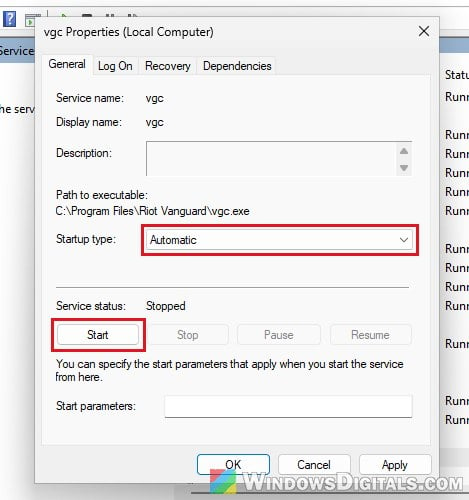
- Click “Apply“, then “OK“.
- Restart your PC.
If vgc was already on “Automatic“, a restart alone is still worth trying, since it gives Vanguard a fresh start. Then open the Riot Client and launch League again. If “Start” fails with “Error 193“, the fix is in the VAN -81 guide.
Might be useful: Services.msc “Startup Type” Greyed Out in Windows 11 or 10
Reinstall Vanguard and restart before you press Play
If the service setting didn’t help, Vanguard itself is probably in a broken state. The fix is to uninstall it, restart, and let the Riot Client install it again. The part people tend to miss is the second restart: when the reinstall finishes, the client may say you’re good to play, but the vgk driver only loads when Windows boots. Pressing “Play” right away can make the client reinstall Vanguard again in a loop.
- Close League, then right-click the Riot Client icon in the system tray and exit it.
- Right-click the red “Riot Vanguard” icon in the system tray, select “Exit Vanguard” and click “Yes“.
- Open Task Manager (Ctrl + Shift + Esc) and click “End task” on any Riot process that’s still running.
- In File Explorer, go to
C:\Windowsand deletevgkbootstatus.datif it’s there. It holds Vanguard’s last boot state, and Vanguard writes a new one at the next boot.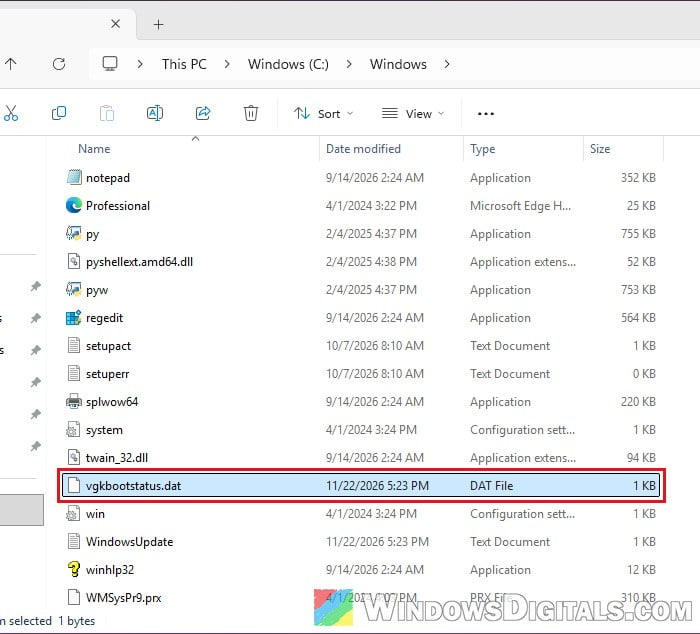
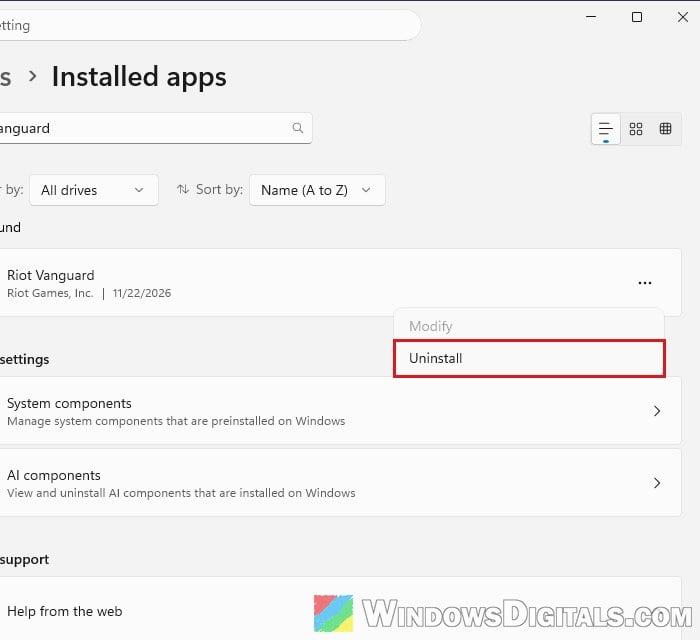
- Open Settings > Apps > Installed apps, find “Riot Vanguard“, click the three dots and select “Uninstall“.
- Restart your PC.
- Open the Riot Client and launch League. Vanguard reinstalls by itself.
- When it’s done, restart your PC again before you press Play, even if the client doesn’t ask you to.
If Vanguard won’t uninstall, you can remove it by hand:
- Open Command Prompt as administrator.
- Type the following commands one by one, and press Enter after each:
sc delete vgc
sc delete vgk
- Restart your PC.
- Delete the leftover
C:\Program Files\Riot Vanguardfolder, then follow steps 7 and 8 above (launch League, then restart again before you press Play).
Related problem: vgk.sys Blue Screen (Riot Vanguard) in Windows 11
Do a clean boot to find what’s stopping Vanguard
When VAN 57 keeps returning no matter how many times you reinstall, something else on your PC could be getting in Vanguard’s way. A clean boot starts Windows with only Microsoft’s services and no startup apps, so you can see whether League works without them. Riot names security software, networking tools, overlays and capture apps as the usual suspects.
- Press Win + R, type “msconfig” and press Enter.
- Go to the “Services” tab and check “Hide all Microsoft services” first.
- Click “Disable all“.
- Scroll down, find “vgc” and check its box again. Without it, Vanguard can’t start at all.
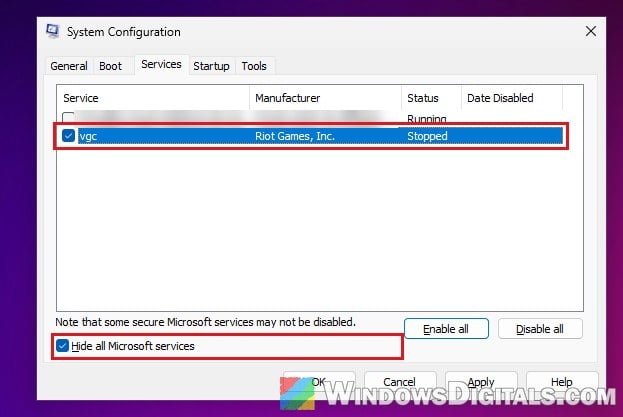
- Click “Apply“.
- Go to the “Startup” tab and click “Open Task Manager“.
- Under “Startup apps“, note which apps show “Enabled“, then disable each of them.
- Close Task Manager, click “OK” in System Configuration and restart your PC.
If League works now, turn the services and startup apps back on one at a time, restarting and testing after each, until VAN 57 comes back. The last one you turned on is the one getting in the way. If nothing changed, turn all the services and startup apps back on the same way. Some security software keeps running even after a clean boot, so then try turning off or uninstalling your third-party antivirus for a test.
If you use Logitech G HUB, test its updater service
One program a clean boot has turned up is Logitech G HUB. On at least one PC, its LGHUB Updater Service stopped vgc at boot, and only turning that service off (not reinstalling G HUB) brought League back. G HUB doesn’t cause this on every PC, so treat this as a quick test, not a sure fix:
- Open services.msc again and double-click “LGHUB Updater Service“.
- Set “Startup type” to “Disabled” and click “Stop“.
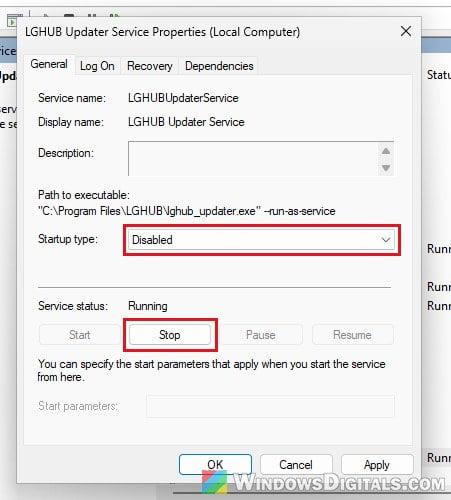
- Click “Apply“, then “OK“, and restart your PC.
Please note that G HUB needs this service to load, so with it off, the G HUB window may not open or update. If VAN 57 is still there, set the service back to “Automatic“, since it wasn’t the cause. If the error is gone, leave the service off while you play League, and set it back to “Automatic” only when you need to open G HUB.
Linked issue: Logitech G HUB Stuck on “Loading Localizations” in Windows 11
Reinstall League of Legends or contact Riot
If nothing else works, reinstall the game, which replaces corrupted or missing game files. Close the Riot Client, open Installed apps, select “Uninstall” on “League of Legends“, and install it again from https://www.riotgames.com/. A reinstall on its own rarely clears VAN 57 when Vanguard is the problem.
If the error still won’t go away, submit a ticket to Riot Player Support and attach your logs (Riot’s support site shows how to collect them with the Riot Repair Tool). Mention what you’ve already tried, including the clean boot.