Microsoft Edge lets you remove any profile you don’t need from its profile settings, and that profile, along with its favorites, history and saved passwords, is supposed to be gone from the PC. For a lot of people, though, the profile comes right back after Edge restarts, its email address keeps showing up in the sign-in list, or the profile is one they never even added themselves. This guide will explain what keeps bringing the profile back and how to stop it.
Also see: How to Remove Microsoft Account From Windows 11/10
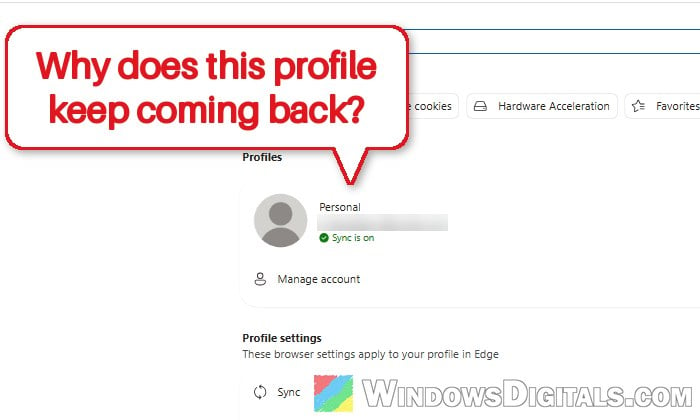
Why does the Edge profile keep coming back?
In most cases, the profile does get removed, but something on the PC hands Edge the same account again right after. Some common reasons are:
- Windows already knows the account. Edge’s implicit sign-in signs you in to Edge based on how you sign in to Windows. If you use that Microsoft account for Windows, or added it for apps like Outlook, Teams or OneDrive, Edge can sign a profile in with it again by itself.
- It was the only profile. Removing the last one gives you a new blank profile (and a new desktop shortcut), which is easy to mistake for the old one coming back.
- Sync. A synced profile keeps its data in the cloud, so signing in with that account again brings everything back.
- A work or school policy can make a profile impossible to sign out of or remove.
Try the fixes below in order.
Remove the profile from Edge’s profile settings
Start with the normal way. Please note that removing a profile permanently deletes its favorites, history and passwords from this PC, and there’s no way to get them back afterward. If you might still need something from it, export it first.
Here’s how to remove it:
- Open Edge, click your profile picture at the top right and select Profile settings (or type
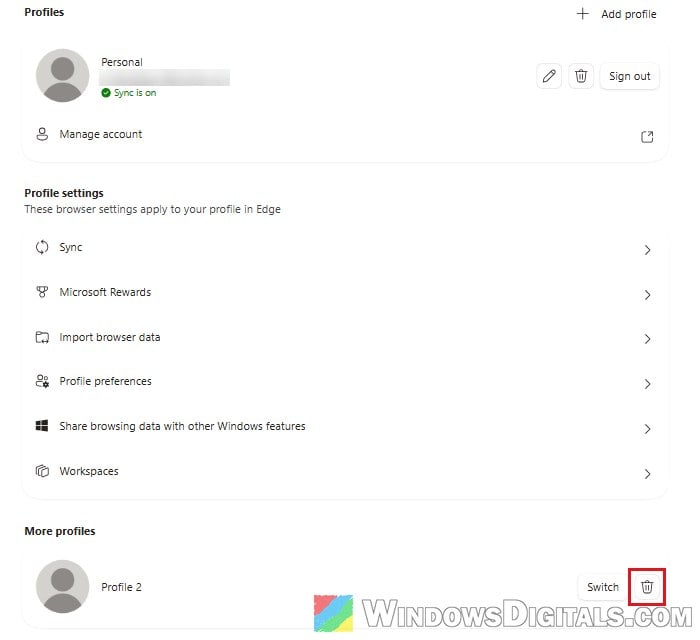
edge://settings/profilesin the address bar). - Click the trash can icon next to the profile under More profiles, or on the current profile’s own card at the top.
- In the “Remove this profile?” dialog, click Remove profile.
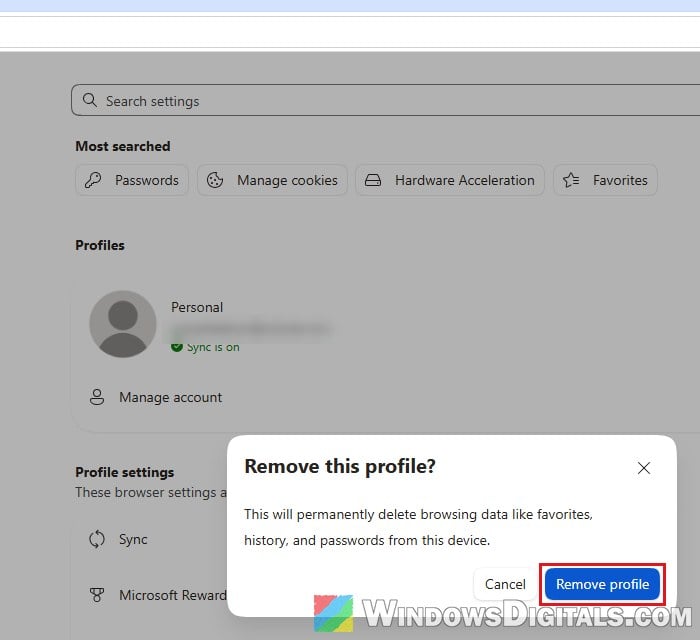
Close Edge completely and open it again to see if the profile stays gone.
If the profile was signed in and syncing
A synced profile can come back from the cloud. Switch to it, turn off sync in its Sync settings, then remove it. If the account shares your Microsoft 365 family plan, stop sharing with it first.
Remove the account from Windows
If Windows itself still has the account, Edge will keep finding it. Removing it from Windows first, then removing the profile in Edge, has worked for some users.
To do so, follow the steps below:
- Press Win + R, type
ms-settings:emailandaccountsand press Enter. This opens Accounts > Your accounts in Settings (called Email & accounts on older versions of Windows 11 and 10). - Under “Add or manage accounts used by apps in Windows“, click the account to expand it, and remove it if a Remove button is there.
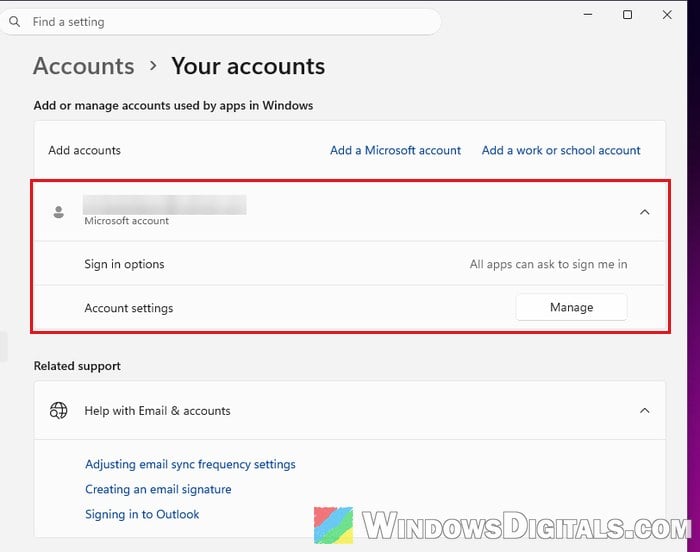
- Remove the profile in Edge again.
On recent builds of Windows 11, the expanded account may only show Sign in options and Manage, with no Remove button. If that’s what you see, move on to the fixes below. If it’s the account you sign in to Windows with, you can also switch Windows to a local account to take it off the PC.
Related problem: Can’t Remove School or Work Email from Windows 11 or 10
Stop Edge from signing you in by itself
If you still need the account in Windows but don’t want Edge to keep signing a profile in with it, there are two switches: Edge’s own automatic sign-in, which uses your sign-ins on other Microsoft sites, and the implicit sign-in policy, which goes by how you sign in to Windows.
Turn off “Automatic sign in on Edge”
With this profile setting on, Edge signs you in by itself using your sign-in info from other Microsoft sites like Outlook. It only takes a few seconds, so try it first. Here’s where to find it:
- Go to
edge://settings/profiles. - Under Profile settings, click Profile preferences.
- Turn off “Automatic sign in on Edge“.
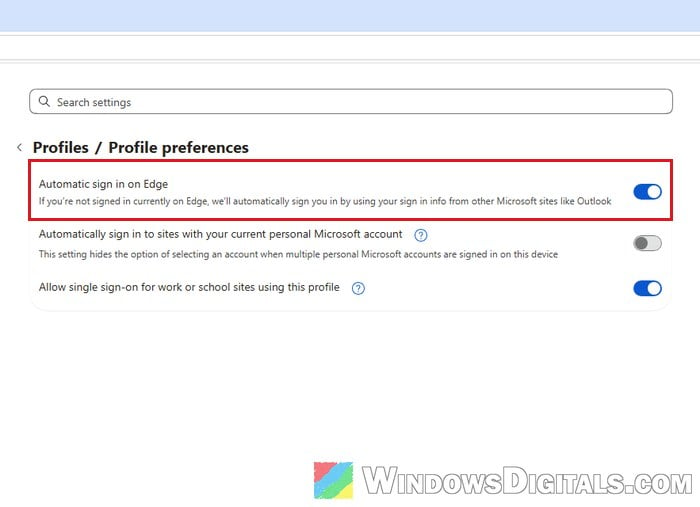
The setting is per profile, so repeat it in each profile you keep, then remove the unwanted profile again.
Turn off implicit sign-in with a policy (registry)
According to Microsoft, with the “ImplicitSignInEnabled” policy disabled, Edge no longer tries to sign you in to a profile based on how you sign in to Windows.
Incorrectly changing the registry can cause serious problems in Windows, so please at least create a system restore point first. If you’re not comfortable with it, skip to the next fix.
Here’s how to set it:
- Press Win + R, type “regedit” and press Enter. Click Yes if asked.
- Copy and paste the following path into the address bar and press Enter:
HKEY_LOCAL_MACHINE\SOFTWARE\Policies\Microsoft\Edge
If the Edge key isn’t there, right-click Microsoft > New > Key and name it “Edge“.
- Right-click an empty space on the right, select New > DWORD (32-bit) Value and name it “ImplicitSignInEnabled“.
- Make sure its value data is 0.
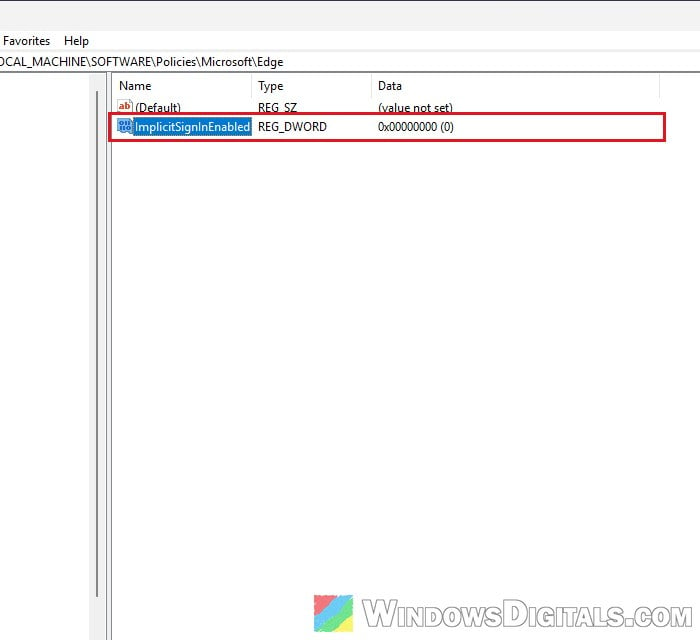
- Close Edge completely and open it again.
To check that it took effect, type edge://policy in the address bar. ImplicitSignInEnabled should be listed with the value false and the status OK.
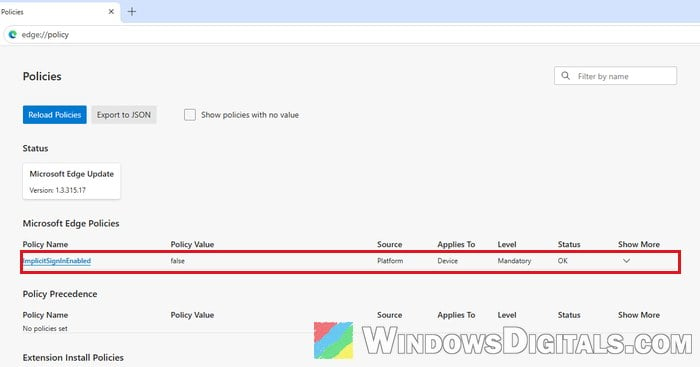
Edge’s menu will now say “Managed by your organization“, which is normal with any policy set. To undo it, delete the ImplicitSignInEnabled value.
Delete the profile’s folder with Edge closed
Each Edge profile lives in its own folder, and removing that folder by hand can get rid of a profile the settings page won’t.
Follow the steps below:
- Switch to the profile you want to delete, type
edge://versionin the address bar and note the Profile path (the first profile is usually Default, others “Profile 1”, “Profile 2” and so on).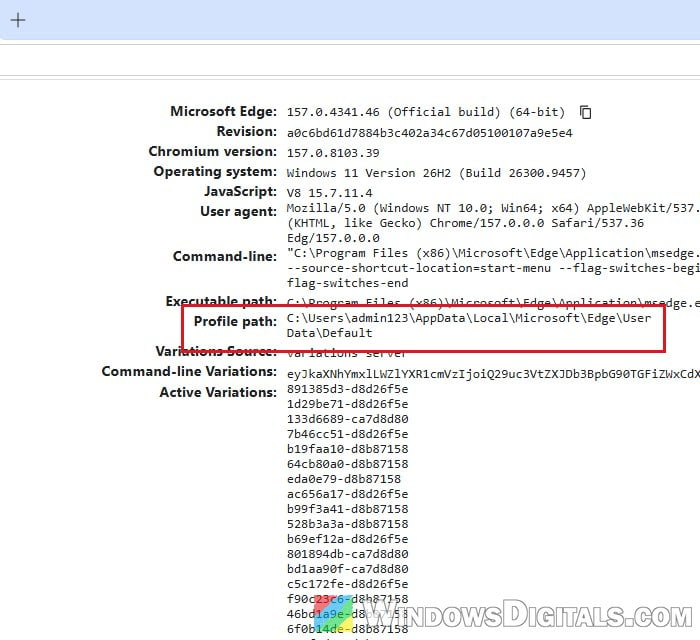
- Close Edge, then open Task Manager (Ctrl + Shift + Esc) and end every Microsoft Edge process that’s still running.
- Press Win + R, type
%LOCALAPPDATA%\Microsoft\Edge\User Dataand press Enter. - Rename that profile’s folder (add “.old” to its name) instead of deleting it, so you can go back if needed.
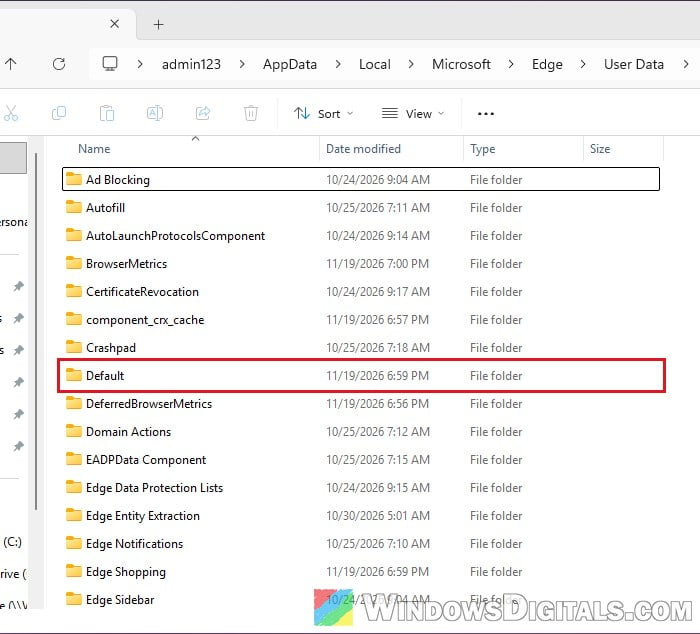
- Open Edge and check the profile list.
Renaming the whole User Data folder resets Edge completely, but if Windows still has the account, the profile can come back even then.
Might be useful: How to Clean Up AppData Folder in Windows 11
Clear the sign-ins Edge remembers
When an email keeps showing up in Edge even though it’s nowhere in Windows Settings, the sign-in may still be cached in a folder that Microsoft apps share for signing in. This has cleared an old account for some people when nothing else did.
Here’s what to do:
- Close Edge and end any Microsoft Edge process in Task Manager.
- Press Win + R, type
%LOCALAPPDATA%\Microsoft\OneAuthand press Enter. - Open the accounts and blobs folders and rename or move out the files with that email in their name or contents.
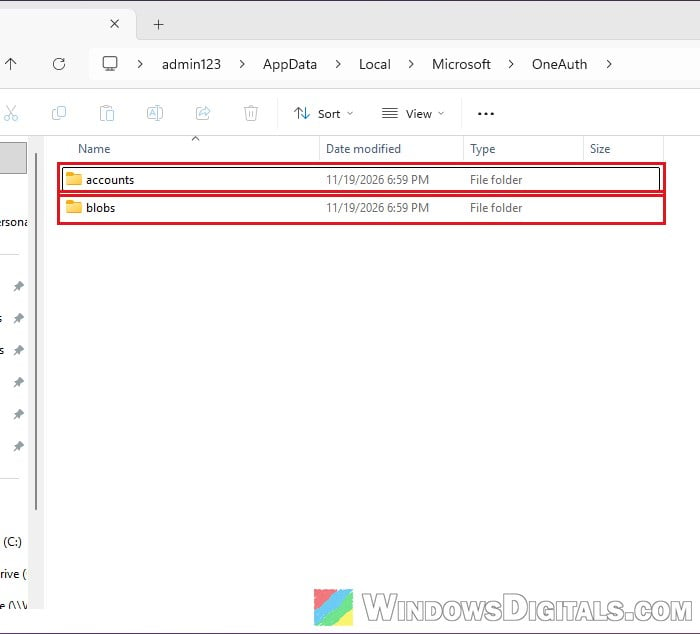
- Open Edge and remove the profile again.
Outlook, Teams or OneDrive may ask you to sign in again after this.
What if it’s a work or school profile with no way to remove it?
If the profile is signed in with a work or school account that matches the one you sign in to Windows with, your organization may have set a policy that makes it impossible to sign out of or remove. This only applies to PCs joined to a company domain or enrolled in device management, and it’s their setting, so ask your IT admin.