Normally, War Thunder holds a steady frame rate in the hangar, but since the mid-November 2026 updates many players load in to find it running at 1 to 10 FPS, with big lag spikes when a match starts, on PCs that ran it smoothly the day before. This guide will walk you through the likely causes and the fixes that have worked for players so far.
Also see: War Thunder BSOD “KERNEL_MODE_HEAP_CORRUPTION”
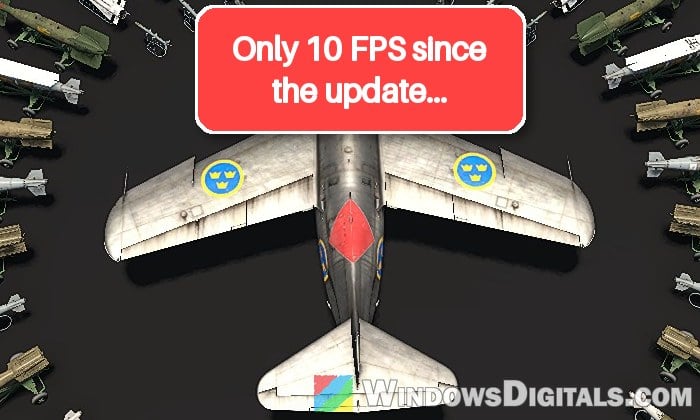
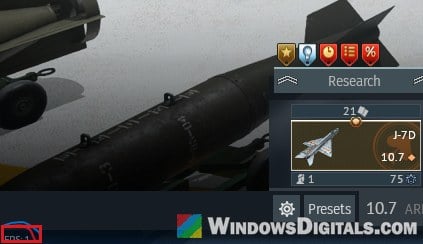
For some players, the game’s own FPS counter (bottom left) reads as low as 1 in the hangar:
Why did War Thunder’s FPS suddenly drop?
The drops started around the Eagle’s Shadow major update on November 11, 2026, and the small patches after it. Gaijin’s update notes don’t mention any FPS problem, but the reports point to a few likely causes:
- The game switched itself to DirectX 12. Many players who checked found the update had moved their renderer from DirectX 11 to DX12, even though they had always played on DX11.
- Shaders are being built again. After an update, the game may need to rebuild its shaders, and until that’s done the hangar and the first match can crawl. Gaijin added a shader compilation progress indicator to the hangar in the November 20 patch, which fits what players see: very low FPS for the first several minutes after launch, then better.
- The new Neural Rendering option. Eagle’s Shadow added DLSS 5 Neural Rendering for RTX 50 series cards, and it’s very heavy on the GPU.
It’s a pretty common problem on Reddit right now, and the fixes below start with the ones that helped most often.
Pro tip: How to Show FPS in Games on Windows 11
Restart the game and let the hangar finish loading
Before changing anything, make sure the game is on the latest patch (the launcher or Steam updates it when you start it), then give it a fair chance to finish building its shaders. Here’s what you should do:
- Launch War Thunder and stay in the hangar for a few minutes without starting a battle. Since the November 20 patch, there’s a progress indicator in the hangar while shaders are being compiled, so wait for it to finish.
- If the frame rate is still bad, close the game completely and start it again.
Restarting doesn’t always do it, so if it’s still stuck after two or three tries, move on to the next fix.
Switch the renderer back to DirectX 11
This is the fix that has worked for the most players. The update put a lot of PCs on the DX12 renderer by itself, and switching back to DirectX 11 took some of them from a handful of frames straight back to where they were before the update. Here’s how to do it:
- Close War Thunder if it’s open.
- Open the War Thunder launcher.
- Click the Render dropdown at the top of the launcher. It’s set to Auto by default, which leaves the choice to the game, and since the update that has often meant DX12.
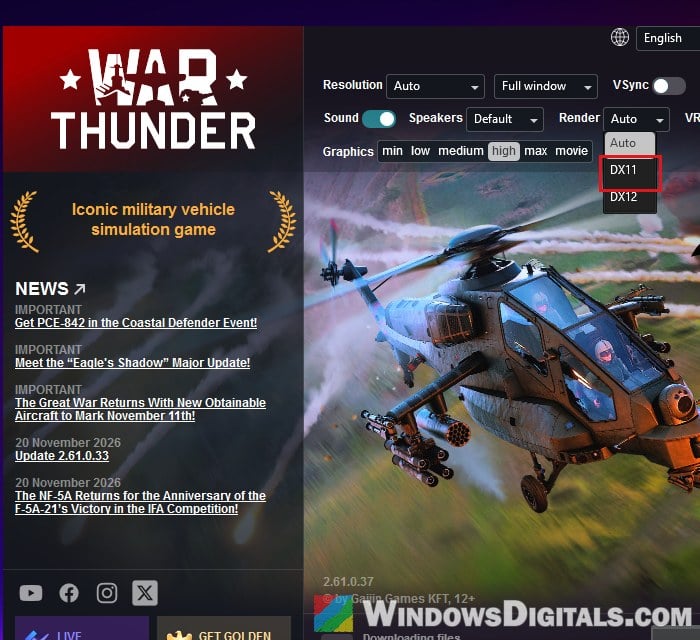
- Select DX11.
- Click PLAY and check the frame rate in the hangar.
Please note that some cards only get DirectX 12 (at least some Intel Arc models). If DX11 doesn’t work for you, skip to the cache fix below.
What if it keeps switching back to DX12?
Some players have had the game put itself back on DX12 after a restart, even with DX11 selected in the launcher. The game keeps this choice in a file called config.blk in the War Thunder game folder (see the next section for where that is). Here’s how to change it there:
- Close War Thunder and its launcher.
- Make a copy of
config.blksomewhere safe. - Open
config.blkwith Notepad and find thevideo{section. - Find the
driver:t=line in it. If it readsdriver:t="dx12", change it todriver:t="dx11". - Save the file and start the game.
It doesn’t stick for everyone, though.
Linked issue: How to Fix Game Stuttering on Windows 11
Clear War Thunder’s cache folder
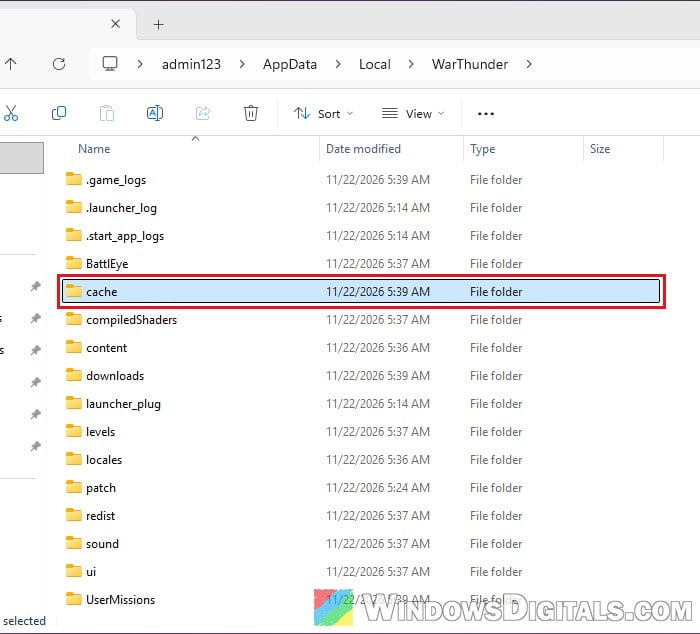
War Thunder keeps the shaders it has built in a cache, and the files saved before the update can get in the way of the new version. Deleting the cache folder makes it build fresh ones. It’s safe, since the game creates the folder again by itself. Here’s how to do it:
- Close War Thunder and its launcher completely.
- Open the War Thunder game folder:
- Standalone launcher installed “for me only”:
C:\Users\<your user name>\AppData\Local\WarThunder - Standalone launcher in another folder: the folder you picked when installing
- Steam: right-click War Thunder in your Library and select Manage > Browse local files
- Standalone launcher installed “for me only”:
- Delete the cache folder. The game creates it the first time it runs, so it’s there on any PC that has played.
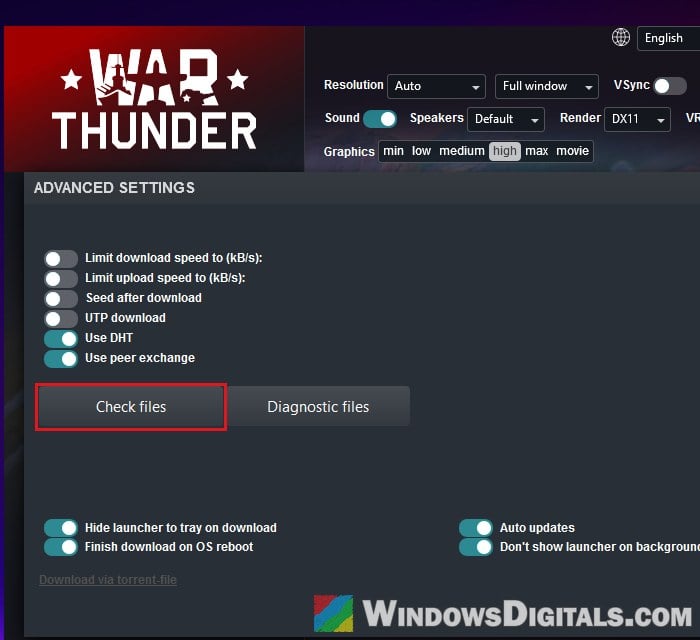
- Open the launcher and click the wrench icon at the top right (Launcher settings).
- Click Check files and wait for it to finish.
- Start the game. The first load takes a little longer while the game rebuilds its shaders.
If you’d rather keep the rest of the cache, deleting only the DirectX 12 shader files inside it (the ones whose names start with dx12, plus nv_dx_cache_tracker.blk) can be enough if you play on DX12. On Steam, you can also right-click War Thunder in your Library and select Properties > Installed Files > Verify integrity of game files instead of the launcher’s file check.
Might be useful: Game Keeps Compiling Shaders Every Time I Open It (Fix)
Turn off Neural Rendering on RTX 50 series cards
If you have an RTX 50 series card and turned on the new Neural Rendering option, that alone can explain the drop. It costs a lot of GPU time, and the cost grows with your resolution. On an RTX 5070 at ultrawide 1440p, for example, it can take the game from 144 FPS down to about 40 to 55 FPS with mini-freezes, and with it off, it’s back at 144 FPS.
According to Gaijin, the option is under Settings > Graphics > Display in the game. Turn Neural Rendering off and see if your frame rate comes back.
While you’re there, if you changed your DLSS or ray tracing settings with the update, try lower ones.
Update or roll back your graphics driver
Drivers have been part of the trouble since Eagle’s Shadow. Gaijin fixed a crash at launch with old NVIDIA drivers on November 16, and on November 20 stopped a wrong “old AMD driver” notice from lowering the graphics settings by itself. If your graphics driver is months old, update it from NVIDIA, AMD or Intel directly.
If the drops started right after you installed a new driver, it can be the other way around. Earlier in 2026, certain NVIDIA and AMD driver versions broke War Thunder’s DX12 renderer, and players rolled back to the previous one or played on DX11 in the meantime.
Related guide: How to Update Graphics Driver in Windows 11
Report it to Gaijin if nothing helps
If none of the above helps, it’s probably something only a patch from Gaijin can fix. Gaijin’s QA team has asked players with FPS drops since Eagle’s Shadow to file a report on its bug reporting site, https://community.gaijin.net/issues/p/warthunder, in its performance section, with the log files it asks for. Include your graphics card, the renderer you use (DX11 or DX12) and when the drops happen, so they can match it with other reports.