If you’re running low on space and found out that a folder called DXCache inside AppData\Local\NVIDIA is taking up 20, 50 or even over 100 GB of your C: drive, it’s NVIDIA’s shader cache, and you can clear it. This guide explains what the NVIDIA DXCache folder actually is, whether it’s safe to delete, and how to stop it from growing that big again.
Also see: What files can I delete from C: drive to free up space?
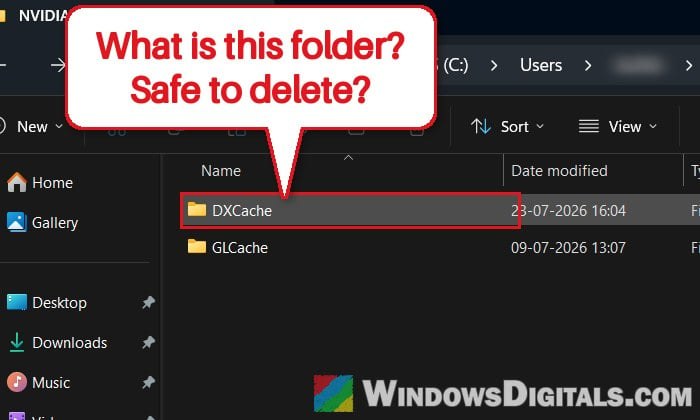
What is the NVIDIA DXCache folder?
DXCache is where your NVIDIA graphics driver saves compiled shaders for DirectX games. Shaders are small programs a game runs on your graphics card to draw things like lighting, shadows and effects. Before they can run, they have to be compiled for your specific card and driver, which takes time and CPU power.
To avoid doing that work again every time you launch a game, the driver keeps the compiled shaders on your drive. The next time you play, the game can just load them from the cache instead, which means shorter loading times and less stutter.
The folder sits at the following location, together with a second folder called GLCache, which does the same job for OpenGL and Vulkan apps:
C:\Users\<your username>\AppData\Local\NVIDIA\DXCache
Pro tip: How to Show Folder Size in Windows 11/10 File Explorer
Why is it so big?
Every game you play adds its own shaders to the folder, so it naturally gets bigger the more different games you play. The driver has a size limit for it, but there are a few reasons why it can still end up far bigger than you’d expect:
- The limit was set to Unlimited at some point. With no cap, the folder just keeps growing.
- Driver updates leave old files behind. After a driver update, the shaders compiled for the old driver are no longer used, but many people find the old files still sitting there.
- A new limit isn’t applied right away. Lowering the size limit doesn’t instantly shrink what’s already there, and files that are in use by a game won’t be cleared.
It’s a pretty common question on Reddit and other forums, with people finding anything from 20 GB to well over 100 GB in that one folder.
Is it safe to delete DXCache?
Yes. Deleting the files inside the DXCache folder is safe. It’s only a cache, and nothing in it is needed by your driver, Windows or your games to work. If it’s gone, the driver simply builds the shaders again the next time each game needs them.
The only downside is that the first launch or first session of each game afterward may load slower or stutter a bit, especially in DirectX 12 games, while the shaders are compiled again. It usually goes back to normal after the first session or so.
A few things to keep in mind:
- Delete the files inside DXCache (and GLCache if it’s big too), not the DXCache folder itself or the whole NVIDIA folder.
- Don’t delete other folders in
AppData\Local\NVIDIAjust because they’re there. - If the folder filled up because of Unlimited or old drivers, it won’t come back to the same size once you set a sensible limit (see how to set one below). Otherwise, it will slowly fill back up as you play.
How to clear the NVIDIA DXCache folder
Make sure all your games are closed first, so the driver isn’t using any of the files. Then follow the steps below:
- Press Win + R to open the Run dialog box.
- Type
%localappdata%\NVIDIAand press Enter.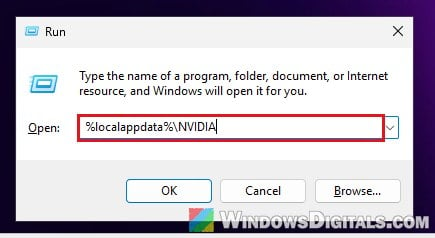
- Open the DXCache folder.
- Press Ctrl + A to select everything inside, then press Shift + Delete to delete the files permanently. A normal delete only moves them to the Recycle Bin, so you won’t get the space back until you empty it.
- If Windows says some files are in use and can’t be deleted, select Skip. Those few files are being used right now and are usually small.
- Go back and do the same for the GLCache folder if it’s also taking up a lot of space.
Check the free space on your C: drive afterward. You should get back about as much space as the DXCache folder was taking up.
Related guide: How to Clean C: Drive in Windows 11
Set a shader cache size limit so it doesn’t fill up again
The better long-term fix is to cap the folder with NVIDIA’s shader cache size setting. According to NVIDIA, it controls the maximum amount of disk space the driver may use for storing compiled shaders, and NVIDIA added it in its Release 495 drivers back in 2021.
From what users have seen, once the cache hits the limit, the driver clears out the oldest shaders to make room for new ones.
In the NVIDIA App:
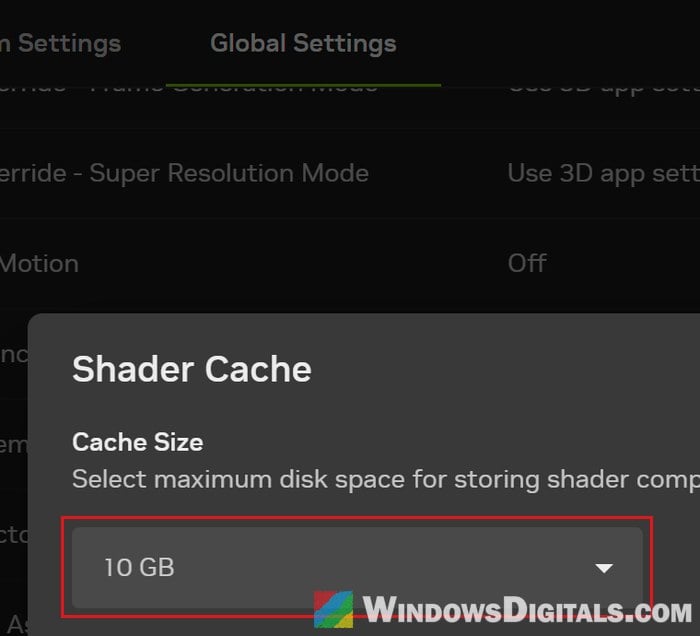
- Open the NVIDIA App and go to Graphics.
- Select the Global Settings tab.
- Scroll down to Shader Cache and click it.
- Pick a size from the list, then click Apply.
In the NVIDIA Control Panel:
- Right-click your desktop and open the NVIDIA Control Panel (on Windows 11, you may need to select Show more options first).
- Go to Manage 3D settings and stay on the Global Settings tab.
- Find Shader Cache Size in the list and choose a size.
- The choices go from Disabled and 128 MB up to 100 GB and Unlimited.
- Click Apply.
As for which size to choose, Driver Default (16 GB on current drivers) is fine for most people. If your C: drive is small, 10 GB is a sensible cap. If you have plenty of free space and play a lot of different games, 100 GB is a common choice. Setting it too small means the driver has to throw away and recompile shaders more often, which can bring back stutter. Avoid Unlimited unless you check the folder every now and then.
Might be useful: How to Fix Game Stuttering on Windows 11
What if the folder won’t shrink or keeps going over the limit?
If the folder stays bigger than the limit you set, or many files refuse to delete, a clean reset of the cache usually sorts it out:
- Set the shader cache size to Disabled and apply it.
- Restart your PC.
- Delete everything inside the DXCache and GLCache folders as shown above (leave the folders themselves).
- Set the shader cache size back to Driver Default or the size you want, and apply it.
- Restart your PC again.
Afterward, keep an eye on the DXCache folder’s size to make sure it stays under the limit you set.
What about “DirectX Shader Cache” in Disk Cleanup?
You might also see an item called DirectX Shader Cache in Disk Cleanup or in Settings > System > Storage > Temporary files. That’s Windows’ own shader cache, and it’s a different folder from NVIDIA’s DXCache. This is why Disk Cleanup might only show a few hundred KB there while your DXCache folder is tens of GB.
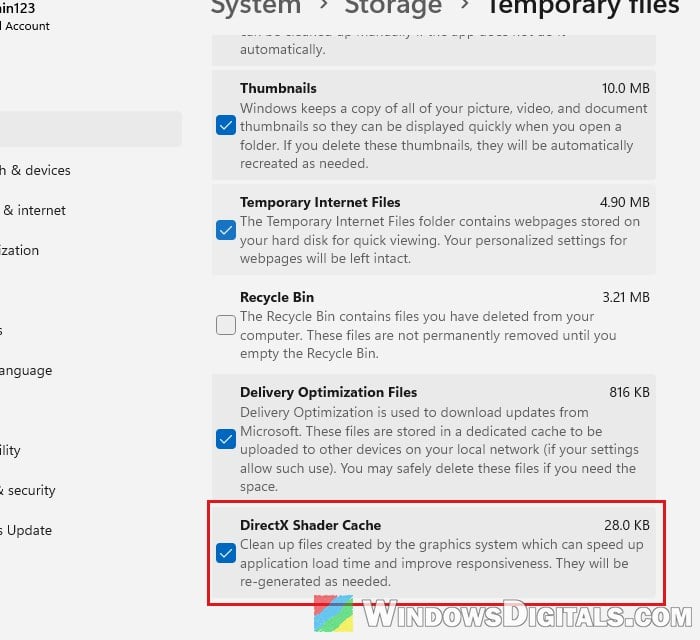
It’s also safe to clear, and it can free up a little more space, but it won’t fix a huge NVIDIA DXCache folder on its own. For the steps, see: How to Clear DirectX Shader Cache (Windows 11).