If you’ve noticed green and purple (magenta) lines or blocks showing over YouTube videos in Chrome, Edge or another Chromium browser like Brave, usually as a strip or a solid green bar along the top edge of the picture, it’s very unlikely that your graphics card is dying. The lines only show on some videos and Shorts, they move around with the video, and the rest of the page looks perfectly normal. This guide will explain why this happens and what you can do about it.
Also see: YouTube Video Lagging on Chrome When Full Screen (Fix)
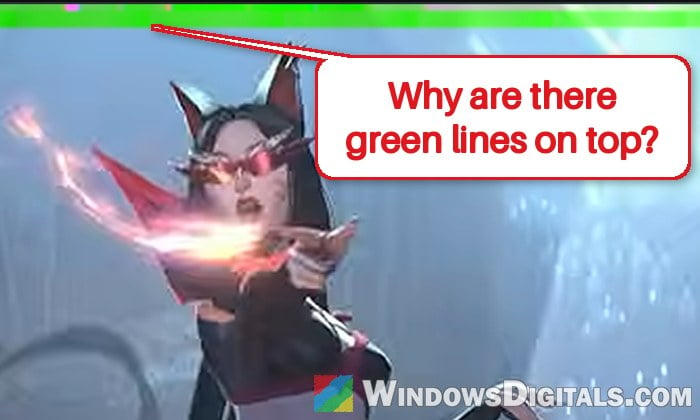
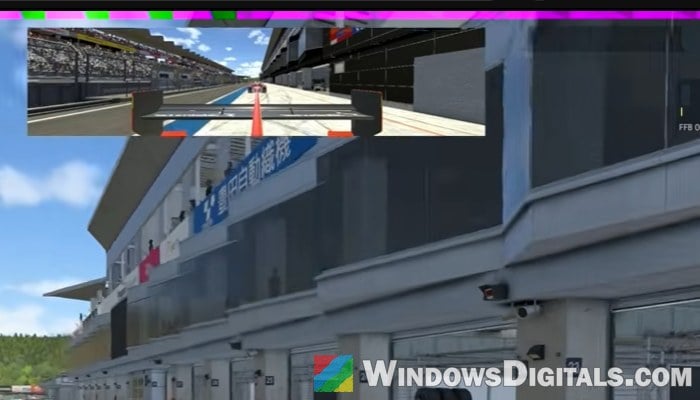
Why do green and purple lines show up on YouTube videos?
The most likely cause is how the browser decodes the video on your graphics card. Chrome, Edge and other Chromium browsers hand YouTube’s video decoding to the GPU (this is called hardware-accelerated video decoding), and with certain videos, something in that path goes wrong and parts of the frame come out as green and purple garbage.
Here’s what points to that and not to a hardware problem:
- It started suddenly around mid-November 2026 for several people, on PCs that played YouTube fine the day before.
- It shows up mostly on AMD Radeon RX 9070 XT and RX 9060 XT cards, with several different Adrenalin driver versions.
- Only some videos have it, and for some people it’s every recent video from one channel. The same lines can also show on people’s camera feeds in Google Meet.
- Firefox plays the same videos without any lines, and so does a phone. Downloading the video and playing it in VLC shows a clean picture too.
- Turning off the browser’s GPU video decoding makes the lines go away completely.
A failing graphics card usually glitches everywhere, in games and on the desktop, not just in certain videos in one kind of browser. So the fixes below go after the browser’s video decoding, not the card or the driver.
First, check if it’s the browser and not your graphics card
Before changing anything, open the same video (the one with the lines) in Firefox or on your phone. Firefox doesn’t seem to be affected, so it only takes a minute to rule out your graphics card.
If the video looks clean in Firefox, your graphics card is fine and the problem is the browser’s video decoding, so carry on with the fixes below. If the lines or other strange colors show up in Firefox, in games and on the desktop too, it’s a different problem and you should look into your graphics driver and the card itself.
Turn off “Hardware-accelerated video decode” in the browser flags
Try this one first. It only moves video decoding from the GPU to the CPU, while the rest of the browser (scrolling, page drawing and so on) keeps using your graphics card, so it stays smooth. It’s also the one that changes the least, so it’s worth trying before anything else.
To turn it off in Chrome, follow the steps below:
- Type “chrome://flags” in the address bar and press Enter.
- In the search box at the top, type “Hardware-accelerated video decode“.
- Click the drop-down menu next to “Hardware-accelerated video decode” and select “Disabled“.
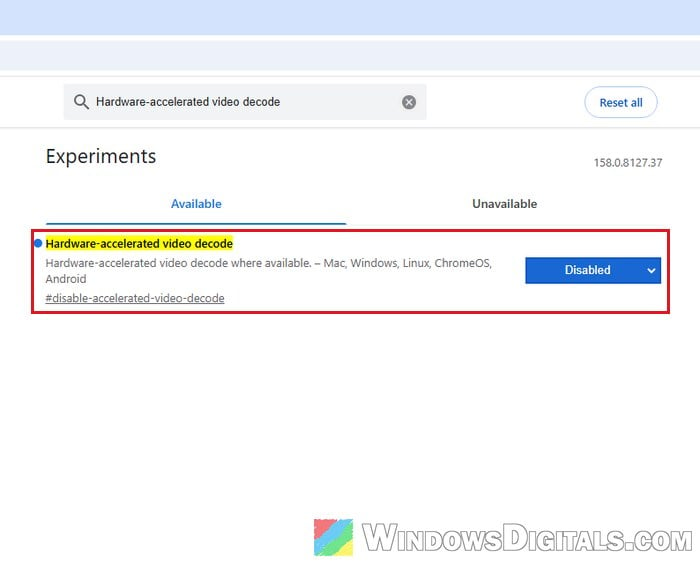
- Click “Relaunch” at the bottom of the window to restart Chrome.
In Microsoft Edge, it works the same way. Type “edge://flags” in the address bar, search for “Hardware-accelerated video decode“, set it to “Disabled” and click “Restart“.
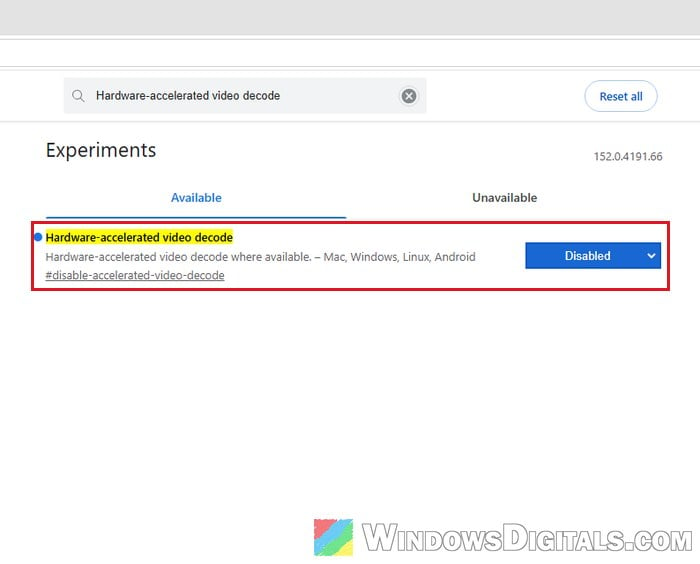
Play the video that had the lines again and see if they’re gone. Since the CPU now decodes the video, CPU usage goes up a bit while you watch, and very high resolution videos may not play as smoothly as before.
Might be useful: High GPU Usage While Watching YouTube Videos
Turn off graphics acceleration in Chrome or Edge
If the flag didn’t help, or you’d rather not touch the flags page, turn off graphics acceleration in the browser’s settings. This stops the browser from using your graphics card for everything, video included. It works in Chrome, Edge and Brave alike.
The catch is that the whole browser now runs on the CPU, so high-resolution or high-frame-rate videos can stutter and scrolling can feel a bit less smooth. Treat it as a workaround until there’s a proper fix. Here’s how to turn it off:
In Google Chrome:
- Click the three-dots menu in the top-right corner and select “Settings“.
- Select “System” on the left pane.
- Turn off “Use graphics acceleration when available“.
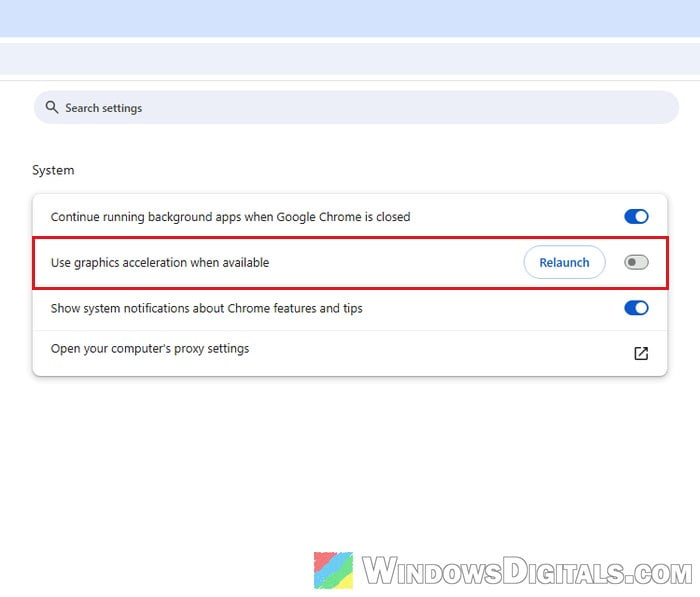
- Click “Relaunch” next to the switch to restart Chrome.
You can also go straight to that page by typing “chrome://settings/system” in the address bar.
In Microsoft Edge:
- Click the three-dots menu in the top-right corner and select “Settings“.
- Select “System and performance” on the left pane, then click “System“.
- Turn off “Use graphics acceleration when available“.
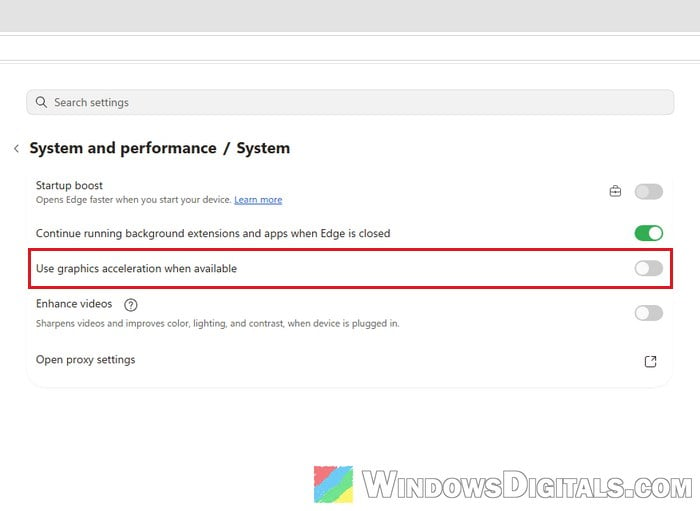
- Close Edge completely and open it again so the change takes effect.
Brave has a similar switch in its own settings. Once the browser restarts, play the same video again and check the top of the picture.
Lower the video quality to 1080p
For some people, the lines only show at 1440p and 2160p (4K) and disappear at 1080p. That’s not true for everyone (some see them at every quality), but it’s a quick thing to try if you don’t want to change any browser settings. Here’s what to do:
- Click the gear icon (Settings) at the bottom of the YouTube player.
- Select “Quality“.
- Choose “1080p” (it shows as “1080p60” on 60fps videos).
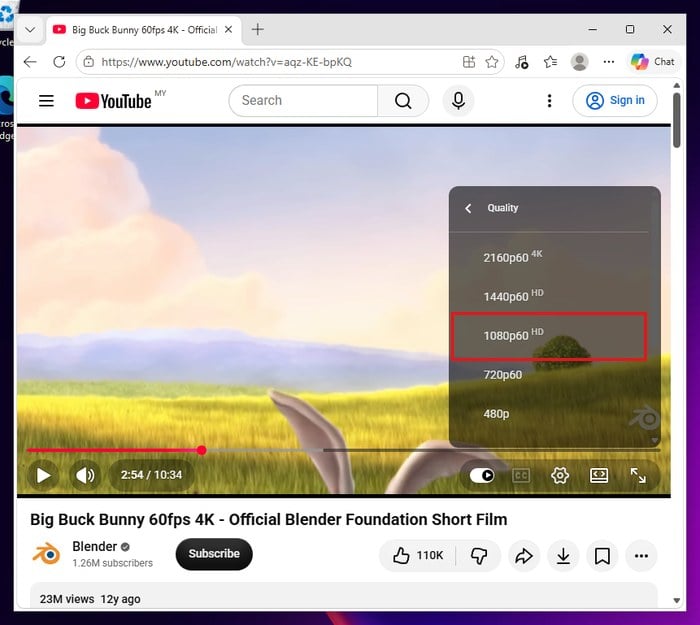
If the lines go away, you can keep watching that way, though you lose the sharper picture on a 1440p or 4K monitor.
Suggested read: Video Stops Playing When Switching Tabs in Chrome
Use Firefox for now and keep the browser and driver updated
If none of the above works well enough for you, the simplest option is to watch YouTube in Firefox for the time being. You don’t have to change any browser settings.
Since there’s no official word from Google or AMD on this yet, the real fix will most likely come in a browser or driver update. Keep Chrome (or Edge) and your AMD Software: Adrenalin Edition driver up to date, and after each update, turn the setting you changed back on to test whether the lines are still there. Rolling back to an older AMD driver, even quite far, or updating Chrome alone doesn’t seem to help, so it isn’t worth the trouble here.